• Home
  • Tools dropdown img
    • Spreadsheet Charts

      • ChartExpo for Google Sheets
      • ChartExpo for Microsoft Excel
    • Power BI Charts

      • Power BI Custom Visuals by ChartExpo
    • Word Cloud

  • Charts dropdown img
    • Chart Category

      • Bar Charts
      • Circle Graphs
      • Column Charts
      • Combo Charts
      • Comparison Charts
      • Line Graphs
      • PPC Charts
      • Sentiment Analysis Charts
      • Survey Charts
    • Chart Type

      • Box and Whisker Plot
      • Clustered Bar Chart
      • Clustered Column Chart
      • Comparison Bar Chart
      • Control Chart
      • CSAT Survey Bar Chart
      • CSAT Survey Chart
      • Dot Plot Chart
      • Double Bar Graph
      • Funnel Chart
      • Gauge Chart
      • Likert Scale Chart
      • Matrix Chart
      • Multi Axis Line Chart
      • Overlapping Bar Chart
      • Pareto Chart
      • Radar Chart
      • Radial Bar Chart
      • Sankey Diagram
      • Scatter Plot Chart
      • Slope Chart
      • Sunburst Chart
      • Tornado Chart
      • Waterfall Chart
      • Word Cloud
    • Google Sheets
      Microsoft Excel
  • Services
  • Pricing
  • Contact us
  • Blog
  • Support dropdown img
      • Gallery
      • Videos
      • Contact us
      • FAQs
      • Resources
    • Please feel free to contact us

      atsupport@chartexpo.com

Categories
All Data Visualizations Data Analytics Surveys
Add-ons/
  • Google Sheets
  • Microsoft Excel
  • Power BI
All Data Visualizations Data Analytics Surveys
Add-ons
  • Google Sheets
  • Microsoft Excel
  • Power BI

We use cookies

This website uses cookies to provide better user experience and user's session management.
By continuing visiting this website you consent the use of these cookies.

Ok

ChartExpo Survey


Home > Blog > Power BI

Top 7 Power BI Reports Examples for Better Insights

Power BI report examples are interactive dashboards that turn raw data into visual insights using charts, KPIs, tables, and filters.

They help businesses analyze performance, track trends, and make faster data-driven decisions.
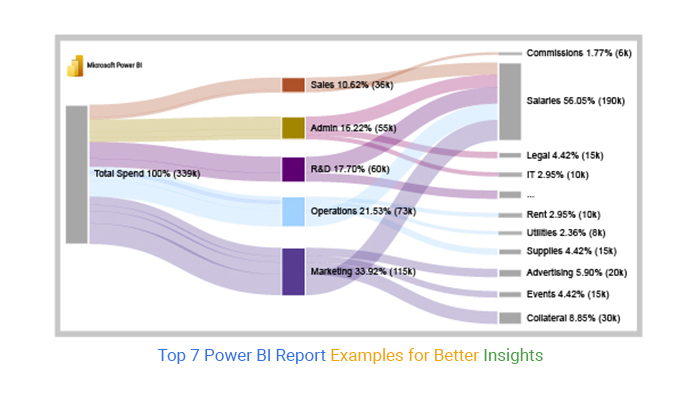
Power BI Report Examples

Instead of working with static spreadsheets, users can explore data dynamically through drill-downs, slicers, and real-time updates.

These reports are widely used across finance, sales, marketing, and operations to improve visibility and simplify reporting.

Understand Power BI Report Examples

Power BI report examples are interactive dashboards that visualize data using charts, tables, KPIs, and filters.

They help users explore data from multiple sources in a structured and interactive way.

These reports are built to support analysis, reporting, and decision-making through features like drill-downs, slicers, and dynamic filtering.

In simple terms: The Power BI report turns raw data into interactive insights that are easy to analyze and act on.

Why Power BI Reporting Matters

Power BI reporting is important because they improve how businesses access, understand, and use data.

Key reasons:

  • Faster analysis: Converts complex data into clear visuals
  • Better visibility: Centralizes data from multiple sources
  • Improved decisions: Enables real-time and interactive insights
  • More efficient reporting: Reduces manual reporting work

Core value: They help teams move from static reporting to interactive, insight-driven decision-making.
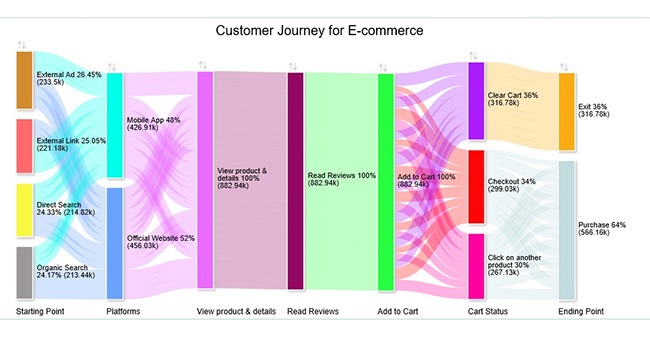
Key Components of a Power BI Report

1. Pages

  • Reports are organized into pages, with each page focusing on a specific area of analysis. This structure helps users present different insights, metrics, or business functions within a single report.

2. Visualizations

  • Visualizations are the core elements of a report and include charts, graphs, tables, maps, and KPI visuals. They help transform raw data into meaningful insights, making trends, comparisons, and patterns easier to understand.

3. Filters

  • Filters allow users to narrow down data and focus on specific information within a report. They can be applied at the visual, page, or report level to improve analysis and customize data views.

4. Slicers

  • Slicers provide interactive filtering directly on the report page. Users can quickly select categories, dates, or other dimensions to explore data dynamically without modifying the entire report structure.

5. Data Fields Pane

  • The Data Fields Pane displays the dataset used in the report, including tables, columns, and calculated measures. It helps users organize data and build visualizations more efficiently.

Top 7 Power BI Report Examples

1. Web Analytics Report

  • A Web Analytics Report helps track how users interact with a website by analyzing traffic sources, page performance, bounce rates, and conversions. It provides clear insights into user behavior and helps improve overall website performance and engagement.
Web Analytics Template

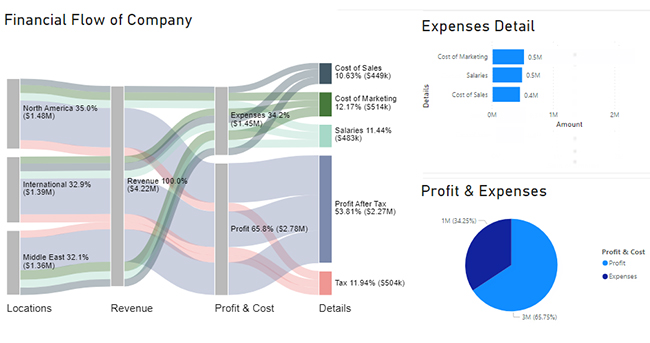
2. Financial Report

  • A Financial Report presents key financial data such as income statements, balance sheets, and cash flow in a visual format. It helps businesses monitor financial health, analyze trends, and support better budgeting and investment decisions.
Financial Template

3. KPI Report

  • A KPI Report focuses on tracking key performance indicators across different areas of a business. It provides a quick snapshot of performance, helping teams monitor goals and measure success more effectively.
KPI Template

4. Sales Report

  • A Sales Report visualizes sales performance across products, regions, and time periods. It helps identify trends, track revenue growth, and understand which factors are driving sales performance.
Sales Template

5. Executive Report

  • An Executive Report provides a high-level overview of business performance. It highlights key metrics and summaries that help leadership make strategic decisions quickly and confidently.
Executive Template

6. Marketing Agency Client Report

  • A marketing agency client report presents campaign performance, conversions, and ROI in a structured format. It helps agencies demonstrate results clearly and optimize marketing strategies.
Marketing Clint Template

7. CRM Report

  • A CRM Report consolidates customer data, sales pipelines, and interaction history. It helps businesses understand customer behavior, improve relationships, and enhance retention strategies.
CRM Template

How to use Power BI Templates?

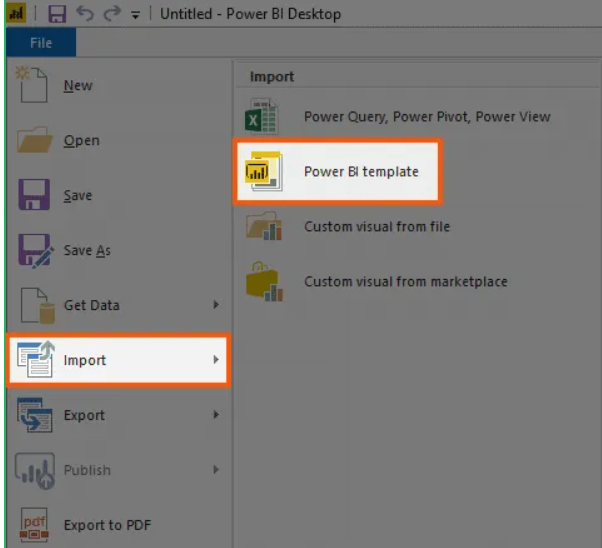
  • Open Power BI Desktop: Launch the Power BI Desktop application.
  • Access Report Themes: Go to the “View” tab.
  • Choose “Report Themes”: Click the “Report Themes” button.
  • Select and import Template: Browse through the available design templates.
Power BI Template 1
  • Apply Template: Click on the desired template to apply it to your report.
  • Customize (Optional): Make any necessary color, font, or layout adjustments.
  • Save Changes: Ensure to save your modified report.
  • Preview: Review your report to ensure the template is applied as desired.
  • Publish (If Needed): Share your report with others, if required.

How to Create Microsoft Power BI Sample Reports?

Creating a Microsoft Power BI sample report becomes easier when you follow a structured workflow. Below are simple, practical steps to build a clean and interactive report.

Step 1: Prepare Your Data

  • Start by organizing your dataset in Excel, CSV, or a database.
  • Make sure your data is clean, structured, and includes clear fields like dates, categories, and numeric values. Remove duplicates and empty rows to avoid errors later.

Step 2: Load Data into Power BI

Open Power BI Desktop and import your dataset.

  • Click Get Data
  • Choose your file source (Excel, CSV, SQL, etc.)
  • Load and confirm data preview

Check the data model view to ensure relationships are correctly formed between tables.

Step 3: Build the Data Model

Set up relationships between tables if you have multiple datasets.

  • Connect keys like Product ID, Region, or Customer ID
  • Define data types correctly (text, number, date)
  • Create calculated columns or measures if needed

A strong data model ensures accurate visuals later.

Step 4: Add Core Visualizations

  • Start building your report using basic visuals such as bar charts, line charts, and tables.
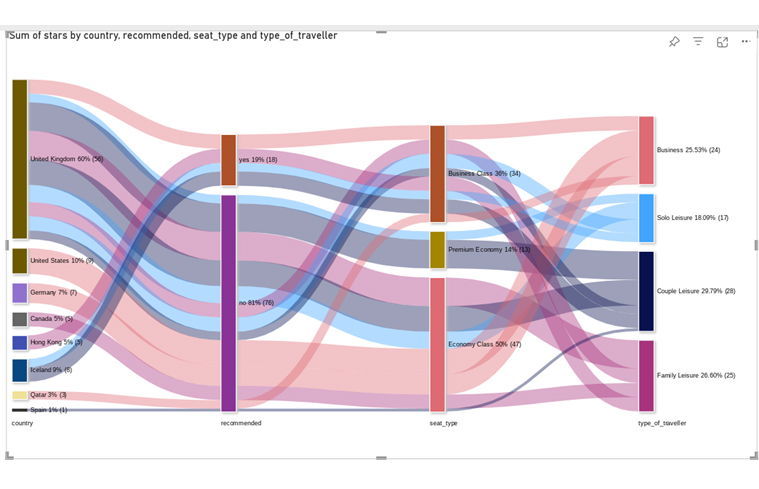
  • To make the report more insightful, you can also include a flow-based visual like a Sankey Chart to understand movement or relationships between categories.

Step 5: Create KPI and Insight Sections

  • Add key performance indicators (KPIs) that summarize important metrics such as sales, revenue, or growth trends.
  • Arrange these KPIs at the top of your report for quick visibility and better decision-making.

Step 6: Enhance Visualization Design

Improve clarity and readability by adjusting layout and formatting.

  • Use consistent colors
  • Align visuals properly
  • Add filters and slicers for interactivity
  • Keep labels clear and readable

For more advanced and polished visuals, you can use ChartExpo to create ready-made, presentation-friendly charts directly inside Power BI.

Power BI Report Examples 3

Step 7: Add Interactive Features

Make your report dynamic by adding:

  • Filters for region, time, or category
  • Drill-through pages for deeper analysis
  • Tooltips for additional context

This helps users explore data more effectively.

Step 8: Final Review and Optimization

Before publishing, carefully review your report.

  • Check data accuracy
  • Test all filters and interactions
  • Ensure visuals are easy to understand
  • Remove unnecessary clutter

Step 9: Publish and Share

Once finalized:

  • Publish the report to the Power BI Service
  • Share with your team or stakeholders
  • Set permissions if required for data security
Final Power BI Report Examples

Power BI Reports: Pros and Cons

Power BI report examples are widely used for data visualization and business intelligence. While they offer strong analytical capabilities, they also come with a few limitations depending on scale, usage, and licensing.

Pros

1. Ease of Use

  • Power BI provides a user-friendly interface with drag-and-drop functionality. Users can build reports and dashboards without deep technical or coding knowledge, making it accessible for both analysts and business users.

2. Real-Time Data Updates

  • Power BI supports real-time or near-real-time data refresh (depending on configuration and data source). This helps teams make decisions based on the most up-to-date information.

3. Customizable Dashboards

  • Users can customize visuals, charts, and layouts to match specific reporting needs. This flexibility allows teams to design dashboards aligned with KPIs and business goals.

4. Accessibility

  • As a cloud-based platform, Power BI report examples can be accessed from anywhere with an internet connection. It also supports web and mobile access, improving flexibility for distributed teams.

5. Integration with Other Tools

  • Power BI integrates seamlessly with Microsoft products like Excel, Azure, and SharePoint. It also connects with third-party platforms such as Salesforce, Google Analytics, and various databases.

Cons

1. Cost Considerations

  • While Power BI offers a free version, advanced features like collaboration, sharing, and enterprise deployment require Power BI Pro or Premium licenses, which may be costly for smaller organizations.

2. Learning Curve for Advanced Use

  • Basic report building is easy, but mastering advanced features like DAX formulas, data modeling, and complex transformations requires time and practice.

3. Limited Deep Customization (Compared to Developer Tools)

  • Power BI offers strong visualization flexibility, but highly specialized or pixel-perfect customization can be limited compared to custom-built BI solutions or coding-based dashboards.

4. Internet Dependency

  • Since Power BI is cloud-based, most features require a stable internet connection. Limited connectivity can affect report access, data refresh, and collaboration workflows.

Best Practices for Creating a Power BI Report

1. Define a Clear Business Objective

Every report should start with a clear purpose. Without it, dashboards become cluttered and less useful.

Focus on identifying:

  • The main business question the report should answer
  • Key KPIs that matter to stakeholders
  • The audience (executives, analysts, or operational teams)

A well-defined objective ensures that every visual serves a purpose rather than adding noise.

2. Keep Visuals Simple and Consistent

Clean design improves understanding and speeds up decision-making.

Follow these principles:

  • Use consistent colors and formatting across all visuals
  • Avoid overcrowding dashboards with too many charts
  • Stick to standard visuals unless advanced ones add real value

Simplicity helps users focus on insights rather than effort.

3. Optimize the Data Model for Performance

A strong data model directly improves report speed and usability.

Best practices include:

  • Remove unused columns and redundant tables
  • Use proper relationships instead of duplicated data
  • Prefer a star schema structure where possible

A well-structured model makes reports faster and easier to maintain.

4. Choose the Right Visual for the Data

Using the wrong chart type can lead to misleading insights.

Use the right mapping:

  • Bar/column charts for comparisons
  • Line charts for trends over time
  • Cards or KPI visuals for performance tracking
  • Tables only when detailed data is required

The right visual makes insights instantly understandable.

5. Design for User Experience (UX)

A good report should guide users naturally through the data.

Focus on:

  • Logical grouping of related visuals
  • Clear navigation using filters and slicers
  • Highlighting key insights instead of raw data overload

Good UX ensures users can interact with data without confusion.

Common Mistakes to Avoid in Power BI Reporting

1. Overloading the Report with Too Much Data

One of the most common mistakes is adding excessive visuals, metrics, and tables in a single report.

What goes wrong:

  • Users struggle to find key insights
  • Dashboards become cluttered and hard to read
  • Decision-making slows down due to confusion

Better approach:

Focus only on KPIs that directly support the report’s objective. Remove anything that does not add decision value.

2. Poor Data Modeling Structure

A weak data model leads to slow performance and inaccurate reporting.

Common issues:

  • Duplicate or redundant tables
  • Improper relationships between datasets
  • Lack of star schema design

Better approach:

Build a clean and structured data model with clear relationships and minimal redundancy to improve speed and accuracy.

3. Using the Wrong Visual for the Data

Incorrect chart selection can distort insights and mislead users.

Examples of mistakes:

  • Using pie charts for complex comparisons
  • Using tables instead of visual trends
  • Overusing advanced visuals without purpose

Better approach:

Match visuals to data type:

  • Bar charts → comparisons
  • Line charts → trends
  • Cards → KPIs

4. Ignoring Report Performance Optimization

Slow reports reduce user engagement and trust in the data.

Common causes:

  • Heavy datasets with unnecessary columns
  • Too many visuals on one page
  • Lack of query optimization

Better approach:

Simplify datasets, reduce visual load, and optimize queries to ensure smooth report performance.

FAQs

What are the five types of Power BI reports?

The five main types are:

  1. Interactive Reports: Standard reports with filters, slicers, and drill-down features for dynamic analysis.
  2. Paginated Reports: Fixed-layout, print-ready reports designed for detailed and structured documents.
  3. Dashboard-Based Reports: High-level visual summaries built from multiple datasets and reports.
  4. Mobile Reports: Optimized reports designed for viewing on mobile devices with simplified layouts.
  5. Real-Time (Streaming) Reports: Reports that update instantly using live data streams for monitoring metrics in real time

Wrap Up

Creating Power BI report examples may seem simple at first, but building effective, insight-driven dashboards requires practice and the right approach.

In this article, we explored what Power BI report is, along with their key advantages and limitations. We also reviewed practical examples, including finance-related reports such as spend analysis and financial performance dashboards.

Next, we walked through a step-by-step process for building charts in Power BI using a cash flow dataset to demonstrate a real-world application.

Finally, we covered common questions to help clarify key concepts and use cases.

Power BI becomes more powerful when you focus on clarity, structure, and real business needs. Exploring different report types and use cases will help you build more impactful dashboards over time.

How much did you enjoy this article?

PBIAd2
Start Free Trial!
126559

Related articles

next previous
Power BI12 min read

CRM Dashboard for Real-Time Sales Insights

A Customer Relationship Management Dashboard centralizes data, tracks key metrics, and drives smarter business decisions. Discover now!
Power BI10 min read

Top 5 Power BI Healthcare Dashboard Examples & Use Cases

Explore Healthcare Dashboard Examples and learn how to turn complex healthcare data into clear, actionable insights for better decision-making.

Power BI10 min read

Power BI Copilot: Best Tips for Faster Insights

Power BI Copilot converts natural language into instant reports, dashboards, and data insights for teams at every level. Read on to learn more!


Power BI10 min read

Recruitment Dashboard: What to Track and Why It Matters

Recruitment dashboards turn hiring data into real-time KPIs. Track metrics, reduce time-to-hire, and remove bottlenecks. Learn more!

Power BI8 min read

What is Power BI Report Builder: Features, Uses, and Benefits

Learn how to use Power BI Report Builder to create paginated, print-ready reports. Discover when to use it, key features, and real reporting use cases.

ChartExpo logo

Turn Data into Visual
Stories

CHARTEXPO

  • Home
  • Gallery
  • Videos
  • Services
  • Pricing
  • Contact us
  • FAQs
  • Privacy policy
  • Terms of Service
  • Sitemap

TOOLS

  • ChartExpo for Google Sheets
  • ChartExpo for Microsoft Excel
  • Power BI Custom Visuals by ChartExpo
  • Word Cloud

CATEGORIES

  • Bar Charts
  • Circle Graphs
  • Column Charts
  • Combo Charts
  • Comparison Charts
  • Line Graphs
  • PPC Charts
  • Sentiment Analysis Charts
  • Survey Charts

TOP CHARTS

  • Sankey Diagram
  • Likert Scale Chart
  • Comparison Bar Chart
  • Pareto Chart
  • Funnel Chart
  • Gauge Chart
  • Radar Chart
  • Radial Bar Chart
  • Sunburst Chart
  • see more
  • Scatter Plot Chart
  • CSAT Survey Bar Chart
  • CSAT Survey Chart
  • Dot Plot Chart
  • Double Bar Graph
  • Matrix Chart
  • Multi Axis Line Chart
  • Overlapping Bar Chart
  • Control Chart
  • Slope Chart
  • Clustered Bar Chart
  • Clustered Column Chart
  • Box and Whisker Plot
  • Tornado Chart
  • Waterfall Chart
  • Word Cloud
  • see less

RESOURCES

  • Blog
  • Resources
  • YouTube
SIGN UP FOR UPDATES

We wouldn't dream of spamming you or selling your info.

© 2026 ChartExpo, all rights reserved.