• Home
  • Tools dropdown img
    • Spreadsheet Charts

      • ChartExpo for Google Sheets
      • ChartExpo for Microsoft Excel
    • Power BI Charts

      • Power BI Custom Visuals by ChartExpo
    • Word Cloud

  • Charts dropdown img
    • Chart Category

      • Bar Charts
      • Circle Graphs
      • Column Charts
      • Combo Charts
      • Comparison Charts
      • Line Graphs
      • PPC Charts
      • Sentiment Analysis Charts
      • Survey Charts
    • Chart Type

      • Box and Whisker Plot
      • Clustered Bar Chart
      • Clustered Column Chart
      • Comparison Bar Chart
      • Control Chart
      • CSAT Survey Bar Chart
      • CSAT Survey Chart
      • Dot Plot Chart
      • Double Bar Graph
      • Funnel Chart
      • Gauge Chart
      • Likert Scale Chart
      • Matrix Chart
      • Multi Axis Line Chart
      • Overlapping Bar Chart
      • Pareto Chart
      • Radar Chart
      • Radial Bar Chart
      • Sankey Diagram
      • Scatter Plot Chart
      • Slope Chart
      • Sunburst Chart
      • Tornado Chart
      • Waterfall Chart
      • Word Cloud
    • Google Sheets
      Microsoft Excel
  • Services
  • Pricing
  • Contact us
  • Blog
  • Support dropdown img
      • Gallery
      • Videos
      • Contact us
      • FAQs
      • Resources
    • Please feel free to contact us

      atsupport@chartexpo.com

Categories
All Data Visualizations Data Analytics Surveys
Add-ons/
  • Google Sheets
  • Microsoft Excel
  • Power BI
All Data Visualizations Data Analytics Surveys
Add-ons
  • Google Sheets
  • Microsoft Excel
  • Power BI

We use cookies

This website uses cookies to provide better user experience and user's session management.
By continuing visiting this website you consent the use of these cookies.

Ok

ChartExpo Survey


Home > Blog > Power BI

Finance Dashboard in Power BI: Examples & Best Practices

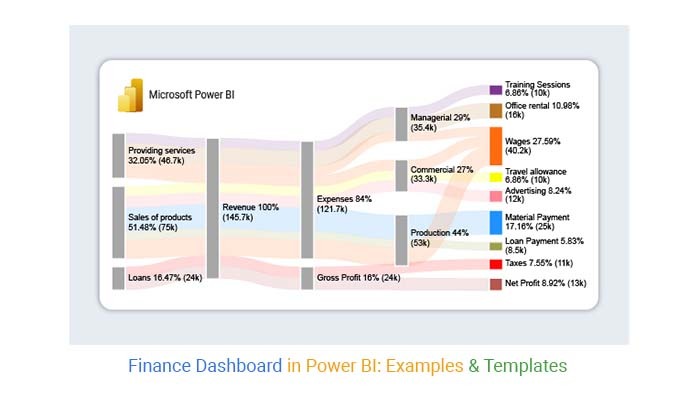
Creating a finance dashboard in Power BI helps you turn raw financial data into clear, actionable insights.

Instead of working through scattered reports, you can track key metrics like revenue, expenses, and profitability in one interactive view.
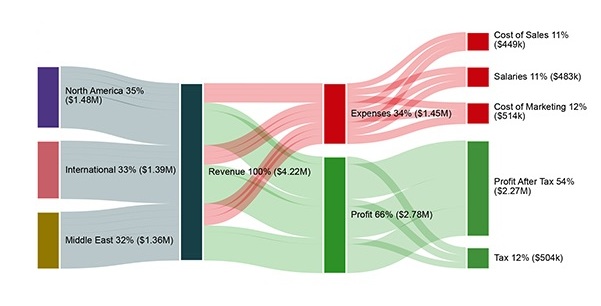
finance dashboard in Power BI

In this guide, you’ll learn how to build a finance dashboard in Power BI, what KPIs to include, and how to structure your visuals for better decision-making.

Whether you’re analyzing performance or planning budgets, a well-designed dashboard makes it easier to spot trends and take action quickly.

What is a Finance Dashboard in Power BI?

Definition: A finance dashboard in Power BI is an interactive report that consolidates key financial data into a single view, allowing you to monitor performance, track KPIs, and analyze trends in real time.

Instead of relying on multiple spreadsheets or static reports, it provides a centralized interface where financial metrics are updated dynamically.

By combining data modeling with visual analytics, Power BI dashboards help identify patterns, highlight variances, and support faster, data-driven financial decisions.

Key Components of a Financial Dashboard in Power BI

Core KPIs

  • Tracks essential financial metrics such as revenue, gross margin, net profit, operating expenses (OPEX), and working capital to provide a quick performance snapshot.

Performance Metrics

  • Compares actual results against budgeted targets, previous year (LY) performance, and overall trends to evaluate financial progress.

Financial Statements

  • Provides interactive views of key reports such as income statements and balance sheets for detailed financial analysis.

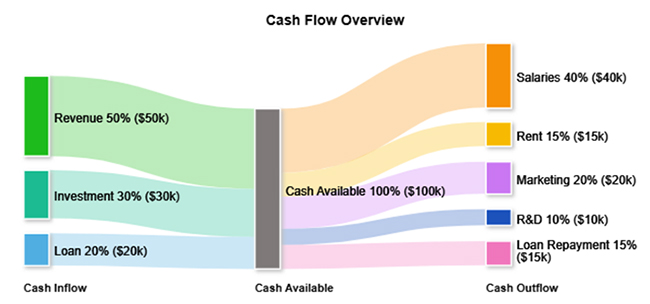
Cash Flow Analysis

  • Monitors inflows and outflows to ensure liquidity, financial stability, and effective working capital management.

Accounts Payable and Receivable (AP/AR) Aging

  • Tracks outstanding payments and receivables to improve cash flow visibility and credit management.

Trend Analysis

  • Highlights financial patterns over time using historical data to support forecasting and strategic decision-making.

Visual Elements and Dashboards

  • Uses charts, graphs, trend indicators, and tables (such as Sankey charts and line charts) to present financial data in a clear and interactive format.

How to Create a Finance Dashboard in Power BI

Step 1: Connect Your Data Sources

  • Open Power BI Desktop and connect to your financial data sources such as Excel files, SQL databases, or cloud services. Ensure your data includes key fields like revenue, expenses, profit, and dates.

Step 2: Clean and Transform Data

  • Use Power Query Editor to clean and prepare your data. Remove duplicates, handle missing values, and format columns correctly to ensure accurate financial reporting.

Step 3: Create Data Model

  • Build relationships between tables such as sales, expenses, and calendar tables. A well-structured data model ensures smooth calculations and accurate dashboard performance.

Step 4: Define Key Measures (KPIs)

  • Create DAX measures for important financial metrics such as total revenue, net profit, gross margin, and operating expenses. These KPIs form the core of your dashboard.

Step 5: Build Visualizations

  • Add visuals such as bar charts, line charts, and cards to represent financial performance. You can also create trend analysis, budget vs actual comparison, and cash flow views. For more advanced visualization clarity, you can enhance dashboard-style reporting using ChartExpo insights when analyzing patterns outside Power BI.

Step 6: Add Filters and Slicers

  • Include slicers for time periods, regions, departments, or products. This allows users to interact with the dashboard and explore financial data dynamically.

Step 7: Optimize and Publish Dashboard

  • Review performance, ensure accuracy of calculations, and refine visuals for clarity. Once ready, publish the dashboard to the Power BI Service for sharing and collaboration across teams.
final finance dashboards in Power BI

Power BI Finance Dashboard Examples

Power BI finance dashboard helps businesses convert raw financial data into interactive visuals that support real-time analysis, tracking, and decision-making.

These dashboards make it easier to monitor performance, identify risks, and understand financial health at a glance.

  • Income Statement

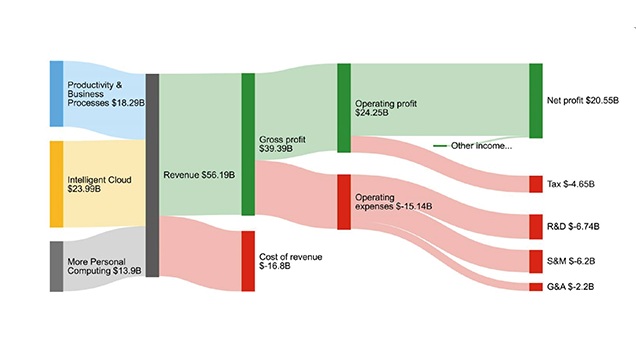
An Income Statement in Power BI provides a clear view of profitability over a specific period.

It displays revenue, cost of goods sold (COGS), gross profit, operating expenses, and net profit using interactive visuals like cards, bar charts, and trend lines.

This dashboard helps businesses understand whether they are operating at a profit or loss and how performance is changing over time.
Income Statment dashboards in Power BI
  • Bank Dashboard

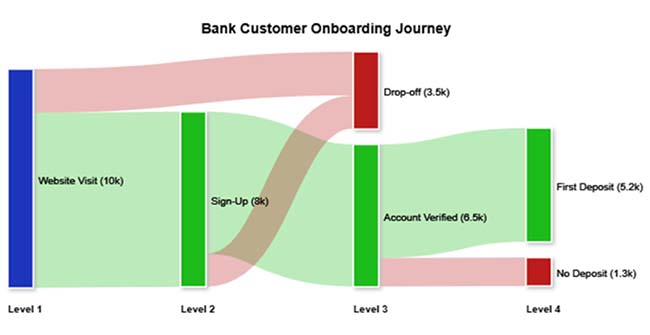
A Bank Dashboard focuses on tracking cash balances and transactions across multiple bank accounts.

It visualizes deposits, withdrawals, account balances, and cash flow trends in real time.

This helps finance teams maintain liquidity, monitor fund movement, and ensure proper cash management across the organization.
Bank dashboards in Power BI
  • Accounts Dashboard

An Accounts Dashboard provides a complete overview of accounts payable (AP) and accounts receivable (AR).

It highlights outstanding invoices, overdue payments, customer balances, and vendor dues.

This helps improve cash flow control, reduce payment delays, and manage credit more effectively.
Account dashboards in Power BI
  • KPI Dashboard

A KPI Dashboard summarizes the most important financial performance indicators in one place.

It includes metrics such as revenue growth, net profit margin, operating expenses, and ROI.

With interactive visuals and drill-down capabilities, it helps decision-makers quickly assess overall business performance and financial stability.

KPI dashboards in Power BI

Benefits of a Power BI Financial Dashboard

A Power BI financial dashboard helps organizations turn complex financial data into clear, interactive visuals that improve understanding, monitoring, and decision-making. It provides real-time insights into business performance and simplifies financial management across teams.

Real-Time Financial Visibility

  • It provides up-to-date insights into key financial metrics such as revenue, expenses, profit, and cash flow. This helps businesses monitor performance instantly and respond quickly to changes.

Better Decision-Making

  • By converting raw financial data into visual insights, it helps decision-makers quickly understand trends, identify risks, and find growth opportunities.

Improved Accuracy and Reduced Errors

  • Automating financial reporting in Power BI reduces manual calculations and minimizes human errors, leading to more reliable financial data.

Faster Financial Reporting

  • It streamlines reporting by combining data from multiple sources into one dashboard, saving time and improving reporting efficiency.

Stronger Cash Flow Management

  • It helps track cash inflows and outflows in real time, ensuring better liquidity management and financial stability.

Enhanced Performance Tracking

  • Businesses can easily compare actual performance against budgets and forecasts, helping them stay aligned with financial goals.

Better Collaboration Across Teams

  • A centralized dashboard ensures everyone works with the same financial data, improving communication and consistency in reporting across departments.

Best Practices and Tips for Financial Dashboard in Power BI

A well-designed Power BI financial dashboard improves clarity, accuracy, and decision-making. Following best practices ensures your dashboard is easy to use, visually effective, and reliable for financial analysis.

Focus on Key Financial KPIs Only

  • Keep your dashboard focused on essential metrics such as revenue, net profit, expenses, cash flow, and ROI. Avoid overcrowding it with unnecessary data that can reduce clarity.

Use Clean and Simple Visuals

  • Choose clear visuals like bar charts, line charts, and KPI cards. Avoid overly complex designs so users can quickly understand financial performance at a glance.

Maintain Data Accuracy and Consistency

  • Ensure all financial data is clean, validated, and consistent across sources. Even small errors can lead to incorrect insights and poor decision-making.

Enable Drill-Down for Deeper Insights

  • Use Power BI’s drill-down feature to allow users to explore detailed data behind summary metrics. This helps identify root causes of financial changes.

Compare Performance Over Time

  • Always include time-based comparisons such as month-over-month, year-over-year, or budget vs actual. This helps track financial trends effectively.

Optimize Dashboard Performance

  • Reduce heavy calculations, unnecessary visuals, and large datasets to improve the loading speed and overall performance of the dashboard.

Ensure Clear Labels and Formatting

  • Use proper titles, axis labels, and currency formatting. Clear labeling improves readability and prevents misinterpretation of financial data.

Keep Design Consistent

  • Use consistent colors, fonts, and layout structure across all pages of the dashboard to maintain a professional and easy-to-follow design.

Secure Sensitive Financial Data

  • Apply proper access control in Power BI to ensure that sensitive financial information is only visible to authorized users.

Review and Update Regularly

  • Regularly update your dashboard to reflect current financial data and business changes, ensuring it always supports accurate decision-making.

Challenges and Limitations in Creating a Finance Dashboard in Power BI

Data Integration Complexity

  • Finance dashboards often pull data from multiple sources like ERP systems, Excel files, and cloud platforms. Combining and cleaning this data can be complex and time-consuming, especially when formats and structures are inconsistent.

Data Quality Issues

  • Inaccurate, incomplete, or outdated financial data can directly impact dashboard reliability. Ensuring clean and validated data is a continuous challenge in financial reporting.

Performance Problems with Large Datasets

  • Financial data can be large and detailed. Poorly optimized dashboards may become slow, affecting performance and user experience, especially when using heavy calculations or multiple visuals.

High Dependency on DAX and Technical Skills

  • Building advanced financial dashboards requires strong knowledge of DAX, data modeling, and Power BI features. This creates a learning curve for non-technical users.

Security and Access Control Challenges

  • Financial data is highly sensitive. Setting up proper access permissions, role-based security, and data protection policies is essential but can be complex to manage correctly.

FAQs

What Makes a Great Power BI Finance Dashboard?

A great Power BI finance dashboard is one that presents accurate, real-time financial data in a clear and easy-to-understand format.

It focuses on key KPIs like revenue, profit, expenses, and cash flow, while using simple visuals, interactive filters, and fast performance.

It should also be well-structured, secure, and designed to help users quickly identify trends and make informed financial decisions.

Can I create a finance dashboard in Power BI without any programming skills?

Yes, you can create a finance dashboard in Power BI without any programming skills. The platform offers features such as Power Query for data shaping and Power Pivot for analytics measures. This allows non-technical users to perform analytics without the need for coding skills.

Wrap Up

A Power BI finance dashboard does more than just display financial data. It provides real-time visibility into business performance, helping organizations make faster and more informed decisions.

It also supports key financial processes such as budgeting, forecasting, expense tracking, and compliance reporting, making financial management more structured and efficient.

However, the accuracy of insights depends heavily on data quality. Clean, complete, and reliable data is essential before building any dashboard, as poor data can lead to incorrect conclusions and impact business decisions.

By following a clear setup process, businesses can build dashboards that simplify financial analysis and improve overall decision-making.

Tools like Power BI, along with advanced visualization solutions such as ChartExpo, can further enhance how financial data is presented and interpreted, helping teams gain clearer and more actionable insights.

How much did you enjoy this article?

PBIAd2
Start Free Trial!
126654

Related articles

next previous
Power BI7 min read

Power BI Data Sources: What You Can Connect & How

Power BI data sources connect reports to files, databases, and cloud services. Learn to configure, analyze, and optimize connections. Read on!

Power BI7 min read

How to Create a Sankey Diagram in Power BI?

Learn how to create Sankey Diagrams in Power BI to visualize data flows, track relationships, and uncover insights with interactive visuals.

Power BI8 min read

Forecasting in Power BI: A Complete Guide

Forecasting in Power BI helps turn historical data into actionable future insights using clean timelines, built-in models, and clear visuals for better planning.

Power BI12 min read

Power BI Embedded: Process Explained

Power BI Embedded lets you embed interactive data visualizations into applications or websites. It provides secure, real-time analytics without user licenses.

Power BI10 min read

Power BI Tooltips: A Step-by-Step Walkthrough

This guide delves into what the Power BI Tooltip is and how it works. You'll also discover why it is useful, and how to create multiple tooltips in Power BI.

ChartExpo logo

Turn Data into Visual
Stories

CHARTEXPO

  • Home
  • Gallery
  • Videos
  • Services
  • Pricing
  • Contact us
  • FAQs
  • Privacy policy
  • Terms of Service
  • Sitemap

TOOLS

  • ChartExpo for Google Sheets
  • ChartExpo for Microsoft Excel
  • Power BI Custom Visuals by ChartExpo
  • Word Cloud

CATEGORIES

  • Bar Charts
  • Circle Graphs
  • Column Charts
  • Combo Charts
  • Comparison Charts
  • Line Graphs
  • PPC Charts
  • Sentiment Analysis Charts
  • Survey Charts

TOP CHARTS

  • Sankey Diagram
  • Likert Scale Chart
  • Comparison Bar Chart
  • Pareto Chart
  • Funnel Chart
  • Gauge Chart
  • Radar Chart
  • Radial Bar Chart
  • Sunburst Chart
  • see more
  • Scatter Plot Chart
  • CSAT Survey Bar Chart
  • CSAT Survey Chart
  • Dot Plot Chart
  • Double Bar Graph
  • Matrix Chart
  • Multi Axis Line Chart
  • Overlapping Bar Chart
  • Control Chart
  • Slope Chart
  • Clustered Bar Chart
  • Clustered Column Chart
  • Box and Whisker Plot
  • Tornado Chart
  • Waterfall Chart
  • Word Cloud
  • see less

RESOURCES

  • Blog
  • Resources
  • YouTube
SIGN UP FOR UPDATES

We wouldn't dream of spamming you or selling your info.

© 2026 ChartExpo, all rights reserved.