• Home
  • Tools dropdown img
    • Spreadsheet Charts

      • ChartExpo for Google Sheets
      • ChartExpo for Microsoft Excel
    • Power BI Charts

      • Power BI Custom Visuals by ChartExpo
    • Word Cloud

  • Charts dropdown img
    • Chart Category

      • Bar Charts
      • Circle Graphs
      • Column Charts
      • Combo Charts
      • Comparison Charts
      • Line Graphs
      • PPC Charts
      • Sentiment Analysis Charts
      • Survey Charts
    • Chart Type

      • Box and Whisker Plot
      • Clustered Bar Chart
      • Clustered Column Chart
      • Comparison Bar Chart
      • Control Chart
      • CSAT Survey Bar Chart
      • CSAT Survey Chart
      • Dot Plot Chart
      • Double Bar Graph
      • Funnel Chart
      • Gauge Chart
      • Likert Scale Chart
      • Matrix Chart
      • Multi Axis Line Chart
      • Overlapping Bar Chart
      • Pareto Chart
      • Radar Chart
      • Radial Bar Chart
      • Sankey Diagram
      • Scatter Plot Chart
      • Slope Chart
      • Sunburst Chart
      • Tornado Chart
      • Waterfall Chart
      • Word Cloud
    • Google Sheets
      Microsoft Excel
  • Services
  • Pricing
  • Contact us
  • Blog
  • Support dropdown img
      • Gallery
      • Videos
      • Contact us
      • FAQs
      • Resources
    • Please feel free to contact us

      atsupport@chartexpo.com

Categories
All Data Visualizations Data Analytics Surveys
Add-ons/
  • Google Sheets
  • Microsoft Excel
  • Power BI
All Data Visualizations Data Analytics Surveys
Add-ons
  • Google Sheets
  • Microsoft Excel
  • Power BI

We use cookies

This website uses cookies to provide better user experience and user's session management.
By continuing visiting this website you consent the use of these cookies.

Ok

ChartExpo Survey


Home > Blog > Microsoft Excel

How to Make a Template in Excel: A Simple Guide

How to make a template in Excel? That’s the question professionals across industries are asking. Whether you’re managing projects, tracking cash flow, or planning employee training, Excel is where it all begins. Over 750 million people use Microsoft Excel, making it one of the most relied-on tools in the workplace.

How to Make a Template in Excel

Let’s face it. Everyone’s drowning in data, and every team is juggling tasks. Deadlines don’t move, while expectations don’t shrink. But your tools can help you breathe. That’s where Excel templates come in. They streamline how you work and give structure to chaos.

How about making a template in Excel that works for your daily grind? One that helps you stop reinventing the wheel every Monday morning? Think about an invoice tracker template in Excel. It’s a simple tool, but a huge stress reliever. It helps you get paid faster without needing to chase numbers in your inbox.

And here’s the catch: You don’t need to be an Excel guru. You need a method, a setup that’s quick to use and easy to share. Once you know how to make a template in Excel, you’ll wonder why you didn’t start sooner. Why? The best systems don’t add noise. They create space for clarity.

Let’s get practical…

Table of Contents:

  1. What is a Template in Excel?
  2. Why Use a Template in Excel?
  3. Excel Templates Examples
  4. How to Create a Template in Excel?
  5. How to Analyze an Excel Template Sample?
  6. Benefits of Using an Excel Template
  7. Use Cases of Templates in Excel
  8. Tips for Designing a Reusable XLS Template
  9. FAQs
  10. Wrap Up

What is a Template in Excel?

Definition: A template in Excel is a pre-built file you can reuse. It’s a starting point that saves time, since you don’t have to build from scratch every time. Whether it’s a training plan template in Excel or a project tracker template in Excel, templates keep you organized.

They come with built-in formatting, formulas, and structure. Simply fill in the blanks. And that’s it. Templates make data analysis in Excel faster and cleaner. They help you focus on the work, not the setup.

Why Use a Template in Excel?

You know that feeling of staring at a blank spreadsheet with zero motivation. We’ve all been there. And that’s where Excel templates come in. You don’t need to start over every time. Whether you’re tracking time, planning resources, or managing finances, a solid template makes the difference.

Here’s why using one matters:

  • Time saver: No need to build from scratch. A time-tracking template for Excel helps you jump right into the task without wasting time on formatting.
  • Standardized formats: Everyone works with the same layout and flow. For instance, a SWOT analysis template in Excel ensures that your team follows a consistent structure, making collaboration smooth.
  • Built-in formulas: Most templates already include formulas for totals, averages, or performance metrics. That means fewer chances of making mistakes in your calculations.
  • Efficiency: Templates help cut down repetitive work and speed up processes. To put this into context, consider a monthly cash flow template in Excel. This also shows your financial snapshot in seconds.
  • Scalability: Start with a simple layout and expand as your needs grow. Templates are flexible, allowing you to add more data without needing to rebuild the entire system.

Excel Templates Examples

Have you ever wished Excel could think ahead for you? Good templates come close. They do the heavy lifting—tracking, calculating, organizing—so you don’t have to. Whether you’re managing a team, running a business, or planning the week, there’s a template that fits.

Here are some real-life examples that save time and sanity:

  • Project Tracker Template in Excel: Stay on top of deadlines, owners, and deliverables. This template provides a clear view of your entire project.
  • Monthly Cash Flow Template in Excel: Understand where your money goes—fast. It tracks income, expenses, and trends without requiring manual review of spreadsheets.
  • Time-Tracking Excel Template: Record hours worked, breaks, and overtime with ease. This template is a game-changer for freelancers, consultants, and remote teams.
  • Training Plan Template in Excel: Map out sessions, topics, and goals. A training plan template helps you track progress, stay consistent, and onboard new hires smoothly.
  • Capacity Planning Template in Excel: Know who’s overbooked and who has room to take on more. This one is a lifesaver for managers juggling multiple teams or projects.
  • SWOT analysis template in Excel: List your strengths, weaknesses, opportunities, and threats in a simple grid. It’s a smart way to start any business plan or strategy session.

How to Create a Template in Excel?

Have you ever spent an hour setting up the same spreadsheet again? You line up the columns, add formulas, and format the colors. Then, you realize you’ve done this exact thing before. Don’t get worked up yet. I will show you how to never go back to the same process over and over again.

Here’s how to make it happen:

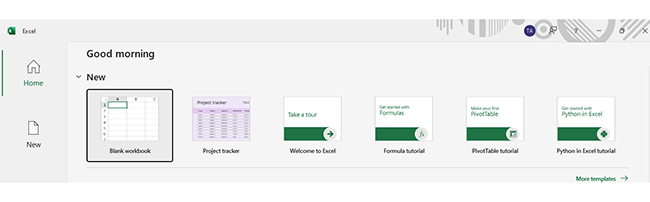
Step 1: Open a new workbook: Launch Excel. Open a blank workbook or choose one you want to reuse as a template. This is your starting point.

How to Make a Template in Excel

Step 2: Customize your Excel template. Add all the necessary elements, including headers, tables, formulas, and formatting. Use conditional formatting to highlight delays, and add formulas to show completion percentages.

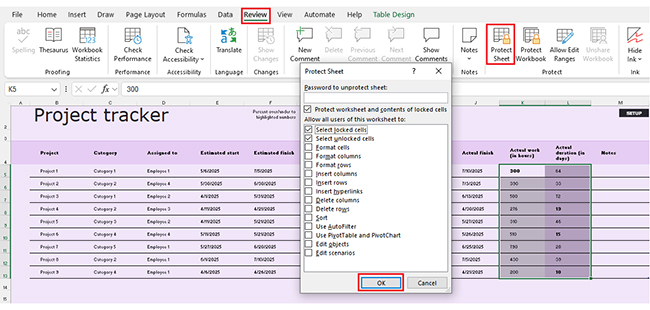
Step 3: Lock and protect your template. Select the essential cells, and lock them to prevent changes. Go to the Review tab and hit “Protect Sheet.” Add a password if needed. Your formulas will stay safe.

How to Make a Template in Excel

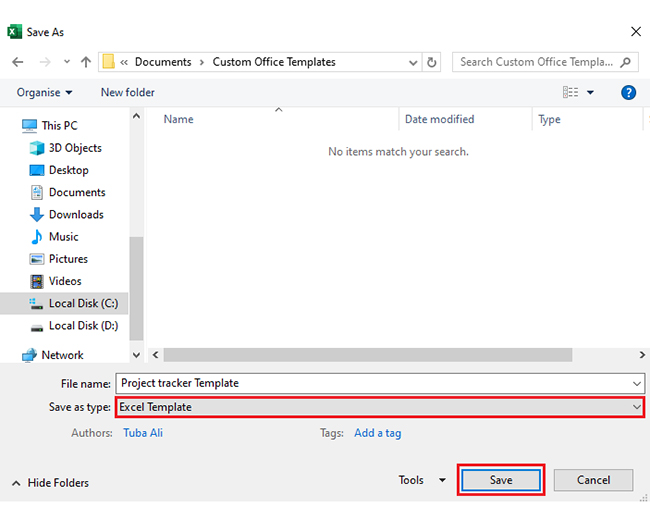
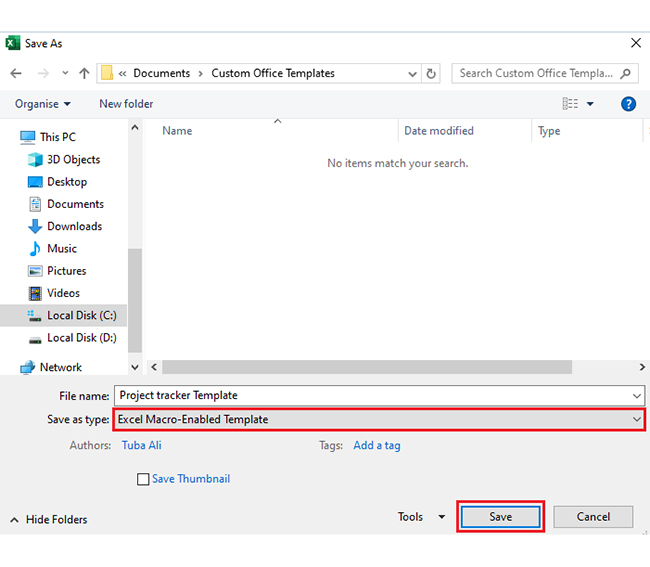
Step 4: Save as a template: Go to File > Save As. Choose “Excel Template (.xltx)” as the file type. That’s it. Now, every time you open it, you get a fresh, untouched copy.

How to Make a Template in Excel

Using macros? Save it as a macro-enabled template (.xltm). That way, your automations come built-in. This is ideal for tasks like capacity planning or routine tracking.

How to Make a Template in Excel

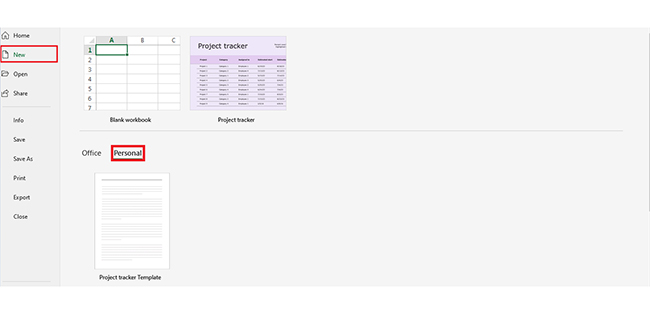
Step 5: Use and view your Excel template: Go to File > New > Personal tab. Your template will be there, ready to use. No clutter. No mess. Just a clean, reusable structure.

How to Make a Template in Excel

Top 10 Visuals Using Template in Excel Using ChartExpo Add-on

Spreadsheets full of numbers can become tedious quickly. That’s why visuals matter, and with ChartExpo in Excel, you can turn raw data into clean, thoughtful insights. Here are 10 charts that make your templates clearer, faster, and easier to use:

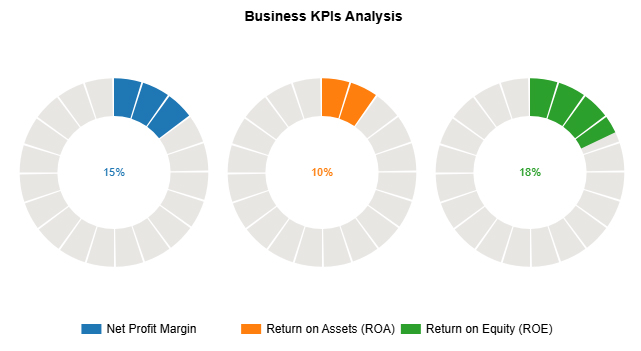
  • Progress Circle Chart: Simple but powerful. This chart shows how close you are to hitting key targets. This can be useful for tracking financial KPIs in a project tracker template in Excel.
How to Make a Template in Excel
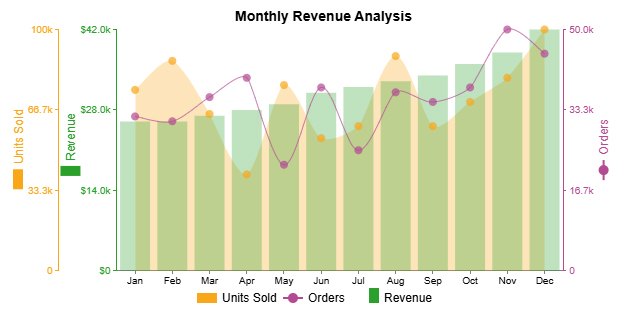
  • Multi-Axis Line Chart: Need to compare trends like revenue, costs, and profit on different scales? This chart is your friend. It is perfect for monthly or quarterly review dashboards.
How to Make a Template in Excel
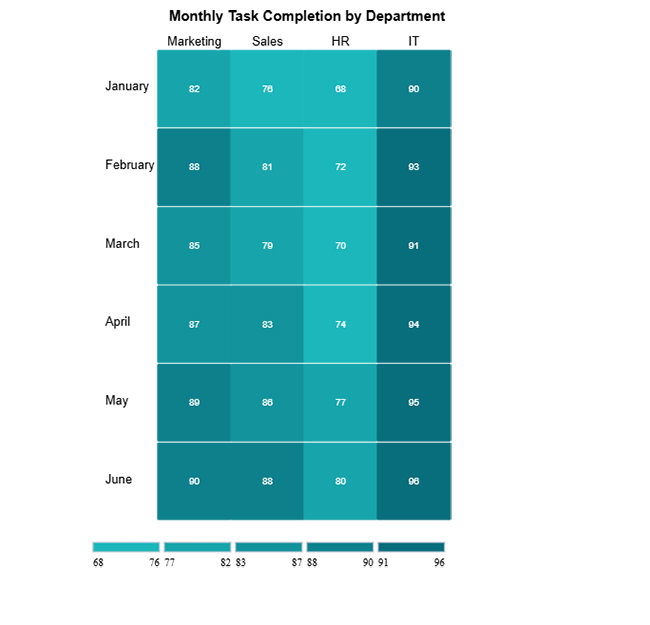
  • Heatmap: Let color do the talking. With a Heatmap, you can spot patterns in performance or engagement instantly. It is excellent for employee tracking or a training plan template in Excel setups.
How to Make a Template in Excel
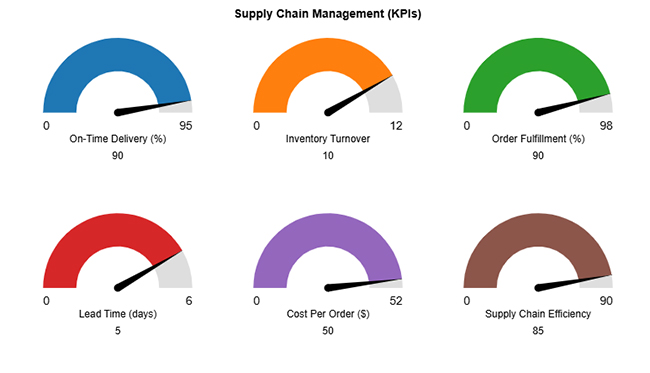
  • Gauge Chart: This is the speedometer for your business goals. With a glance, you get to understand how you’re performing compared to your benchmarks.
How to Make a Template in Excel
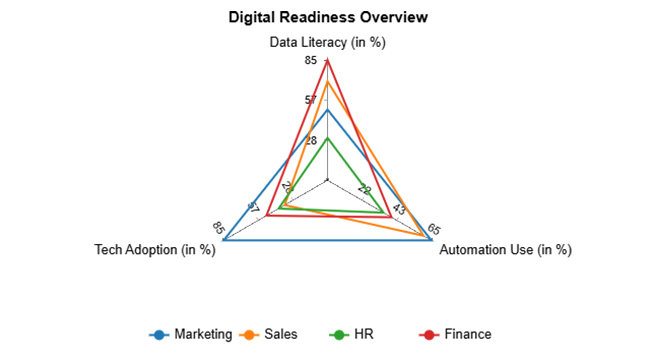
  • Multi-Axis Spider Chart: Compare departments or regions. This chart helps you visualize both strengths and gaps in one visual.
How to Make a Template in Excel
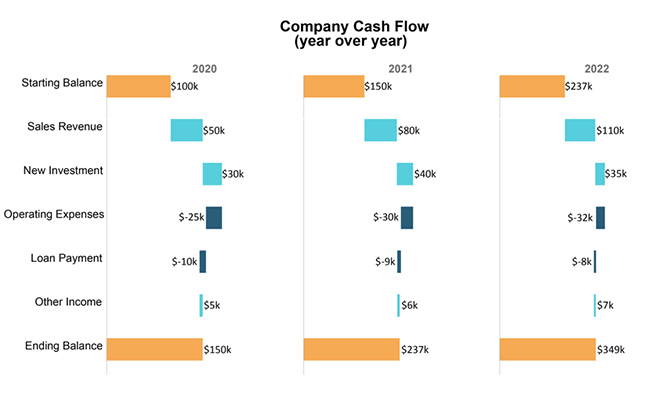
  • Horizontal Waterfall Chart: Track where money goes. A Horizontal Waterfall Chart is ideal for a monthly cash flow template in Excel. Why? It helps to explain every step from income to net profit.
How to Make a Template in Excel
  • Progress Chart: Visually compare target vs. actual performance. A Progress chart is great for project milestones or sales KPIs.
How to Make a Template in Excel
  • Comparison Bar Chart: Who’s performing best? Which product sells more? Compare categories side-by-side with clean visuals.
How to Make a Template in Excel
  • Scatter Plot Chart: See correlations and track trends. This chart is great for spotting outliers during data analysis in Excel.
How to Make a Template in Excel
  • Likert Scale Chart: Got feedback? This is your go-to for summarizing responses from training surveys or employee engagement forms.
How to Make a Template in Excel

How to Analyze an Excel Template Sample?

Picture this: You’ve built the perfect Excel template, added formulas, and tracked every number. But when it time to see the data? Excel stumbles. The charts are clunky, and insights get buried.

Data analysis needs more than rows and columns—it needs visuals that speak. That’s where ChartExpo steps in. It brings life to your numbers, filling the gap Excel leaves behind.

How to Install ChartExpo in Excel?

  1. Open your Excel application.
  2. Open the worksheet and click the “Insert” menu.
  3. You’ll see the “My Apps” option.
  4. In the Office Add-ins window, click “Store” and search for ChartExpo on my Apps Store.
  5. Click the “Add” button to install ChartExpo in your Excel.

ChartExpo charts are available both in Google Sheets and Microsoft Excel. Please use the following CTAs to install the tool of your choice and create beautiful visualizations with a few clicks in your favorite tool.

Example

Let’s analyze this sample data in Excel using ChartExpo.

Department Quarter Training Hours
Marketing Q1 120
Marketing Q2 95
Marketing Q3 110
Marketing Q4 130
Sales Q1 140
Sales Q2 125
IT Q3 150
Sales Q4 135
IT Q1 100
HR Q2 85
HR Q3 90
HR Q4 105
Marketing Q1 160
IT Q2 145
IT Q3 170
IT Q4 155
  • To get started with ChartExpo, install ChartExpo in Excel.
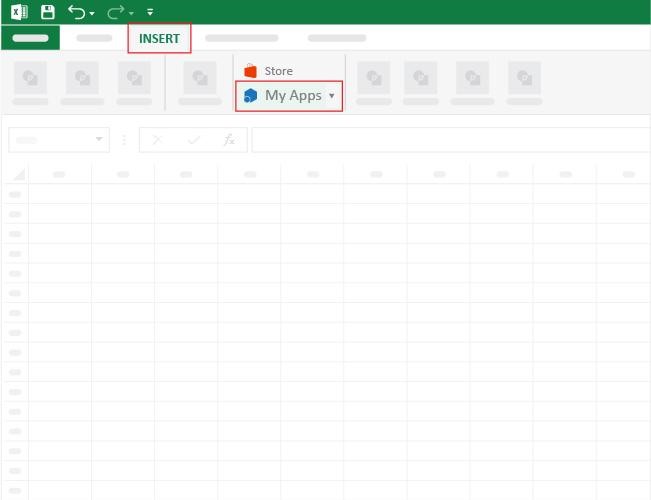
  • Now, click on My Apps from the INSERT menu.
How to Make a Template in Excel
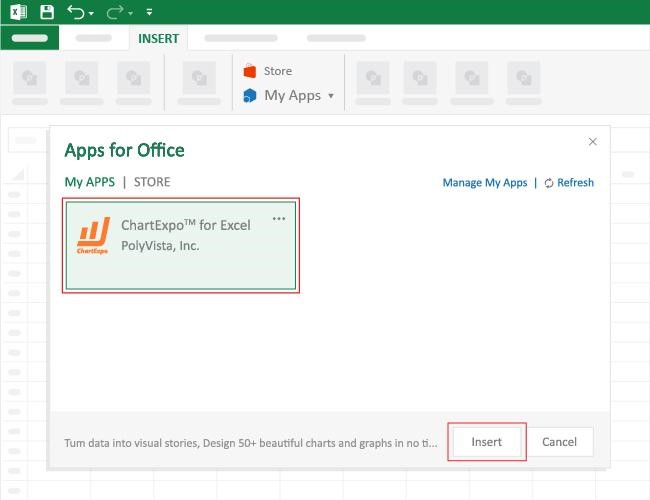
  • Choose ChartExpo from My Apps, then click Insert.
How to Make a Template in Excel
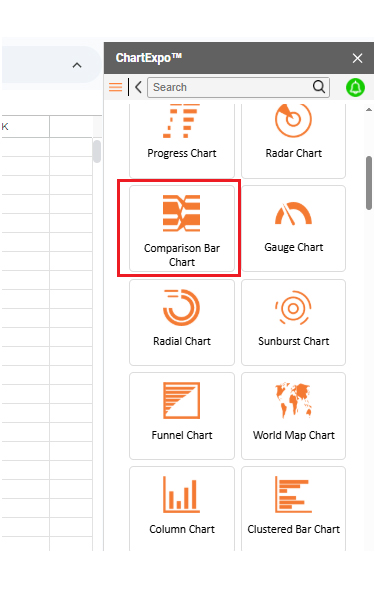
  • Once it loads, scroll through the charts list to locate and choose the “Comparison Bar Chart”.
How to Make a Template in Excel
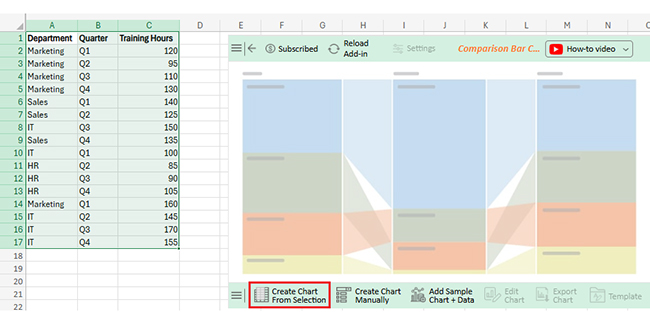
  • Click the “Create Chart From Selection” button after selecting the data from the sheet, as shown.
How to Make a Template in Excel
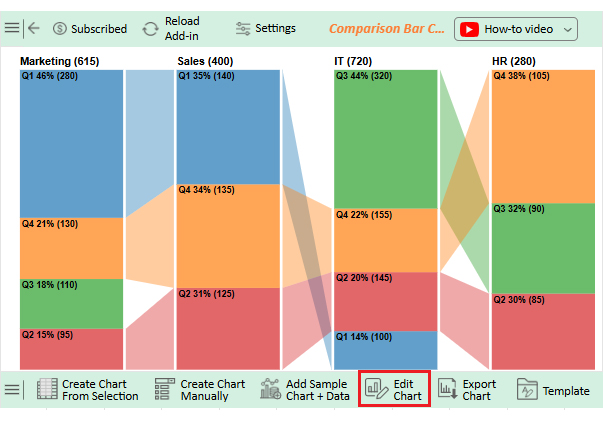
  • ChartExpo will generate the visualization below for you.
  • If you want to add anything to the chart, click the Edit Chart button.
How to Make a Template in Excel
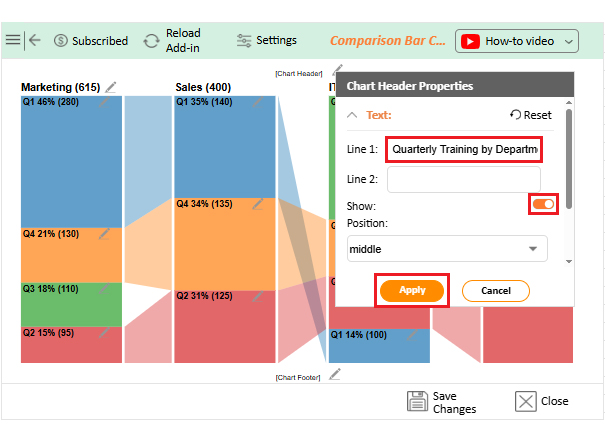
  • Click the pencil icon next to the Chart Header to change the title.
  • It will open the properties dialog. Under the Text section, you can add a heading in Line 1 and enable Show.
  • Give the appropriate title of your chart and click the Apply button.
How to Make a Template in Excel
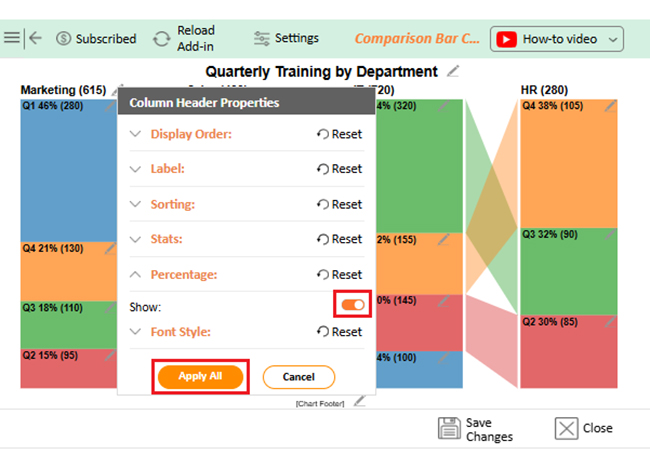
  • You can show a percentage sign from Column Header Properties as follows:
How to Make a Template in Excel
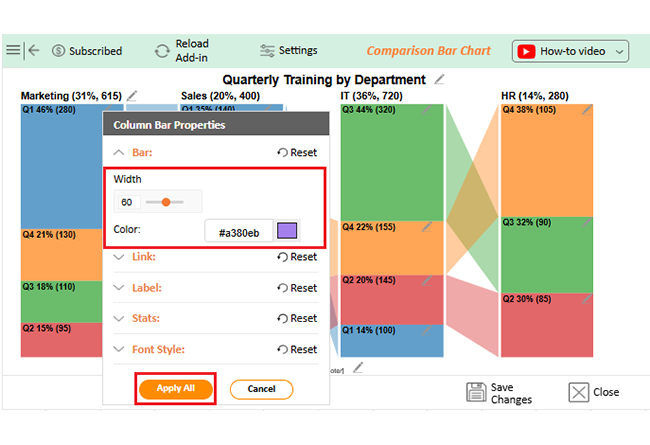
  • Change bar color and width as follows:
How to Make a Template in Excel
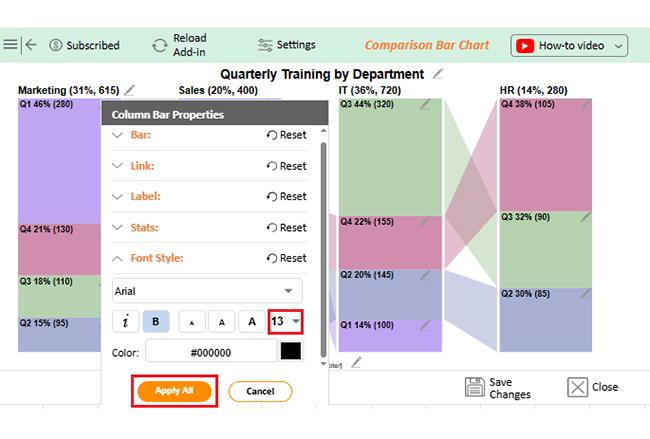
  • You can change the Font size for better readability as follows:
How to Make a Template in Excel
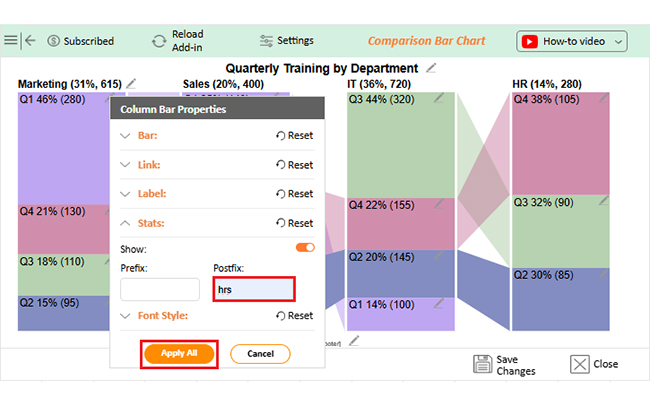
  • You can add “hrs” as a postfix as follows:
How to Make a Template in Excel
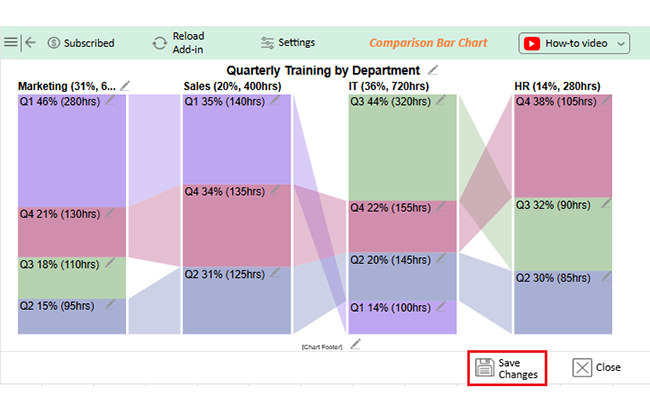
  • After making all changes, click on the “Save Changes” button:
How to Make a Template in Excel
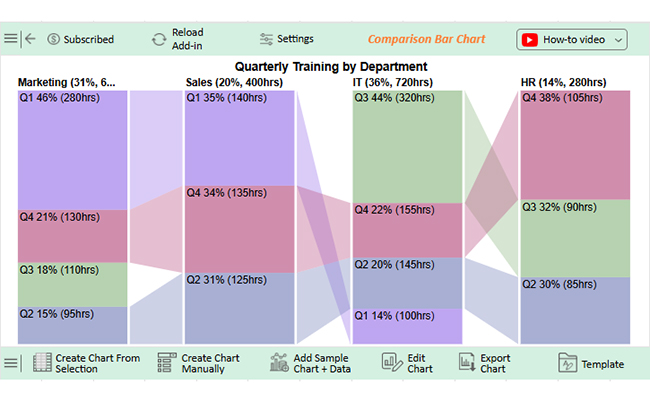
  • Your final chart will look like the one below.
How to Make a Template in Excel

Insights

IT Department:

  • Leads in total training hours (720 hrs, 36%).
  • Peaked in Q3 with 44% of its annual training.

HR Department:

  • Conducted 38% of its training (105 hrs) in Q4.
  • Has the lowest total training volume (280 hrs).

Sales Department:

  • Training is evenly distributed across all quarters (20% per quarter).
  • Total training hours are 400 hrs.

Marketing Department:

  • Heavy focus in Q1 (46% of annual training).
  • Declined steadily from Q2 to Q4.

Quarterly Highlights:

  • Q1: Peak training period for Marketing, Sales, and IT.
  • Q4: Peak for HR training.

Benefits of Using an Excel Template

We all have that one Excel file we reuse way too often. Copy, paste, tweak, save; repeat. It works until it doesn’t. And that’s why templates exist. They simplify your workflow, reduce errors, and conserve mental energy. Whether you’re planning, tracking, or analyzing, an Excel template makes things smoother from the start:

Here’s why using one is a smart move:

  • Saves time: No more rebuilding the same layout over and over. Templates let you jump straight into the real work.
  • Reduces errors: Formulas, formatting, and structure are already in place, ensuring accuracy and consistency. Less manual input means fewer mistakes.
  • Keeps things consistent: Whether it’s a task tracker template in Excel or a financial report, everyone follows the same format. This guarantees consistency.
  • Boosts productivity: You spend less time organizing and more time accomplishing tasks. It clears the space for actual thinking.
  • Improves collaboration: Shared templates create a common language across teams. No more confusion over layout or data flow.

Use Cases of Templates in Excel

Let’s be honest—nobody gets excited about starting from scratch in Excel. It’s slow, repetitive, and drains the energy out of your day. Templates flip that. They give you a head start, so you can focus on what matters. Here’s where Excel templates truly shine:

  • Task and project management: Keep things moving. A task tracker template in Excel helps you stay on top of deadlines, team roles, and progress. All in one place.
  • Financial forecasting: Predict your income and expenses without doing mental gymnastics. Templates let you build models once and reuse them every month.
  • Training of the workforce: With a training plan template in Excel, you can plan, schedule, and track sessions easily. It makes onboarding and skills development smoother and less chaotic.
  • Excel data analysis: Structure your datasets for quick filtering, sorting, and visualizing. Templates streamline data analysis in Excel, especially when reports are due the day before.
  • Budgeting and invoicing: Use a monthly cash flow template in Excel to stay on top of your money. Know what’s coming in, what’s going out, and who still owes you.
  • Strategic planning (SWOT Models): A SWOT analysis template in Excel helps you clearly outline strengths, weaknesses, opportunities, and threats. It’s simple but powerful.

Tips for Designing a Reusable XLS Template

Have you ever opened an Excel file and immediately felt lost? That’s what a bad template does. But a good one? It feels effortless, clear, and easy to use. Here’s how to design a reusable template that people will want to use:

  • Keep it simple: Don’t overcomplicate. Use clear labels, basic formatting, and a clean layout.
  • Use data validation: Drop-downs and lists prevent messy inputs. They keep your data neat and reliable.
  • Highlight input areas: Use color or shading to indicate where users should enter their input. Then, leave the rest locked.
  • Add instructions: A quick note or comment can go a long way. Help users understand what goes where.
  • Protect formulas: Lock essential cells. That way, your carefully built formulas won’t get erased by accident.

FAQs

How do I create my own Excel template?

  • Open a new or existing workbook.
  • Customize layout, formulas, and formatting.
  • Lock important cells if needed.
  • Go to File > Save As.
  • Choose “Excel Template (*.xltx)”.
  • Save it.

What is the difference between a workbook and a template in Excel?

A workbook is a regular Excel file you work in. A template is a preset file used to create new workbooks. Templates save structure, while workbooks save content.

Wrap Up

How to make a template in Excel? It’s easier than you think. And it saves hours every week. No more starting from zero, nor fixing the same layout again and again. Templates bring order to your work: You set the structure once, then reuse it as often as you need. It’s clean, fast, and consistent.

Use a time-tracking template for Excel to log hours. It’s great for freelancers, teams, or even personal productivity. You get clarity without the manual effort.

Need to manage resources? An Excel template for capacity planning helps you balance workloads. It shows who’s overloaded and who’s free. That way, nothing falls through the cracks.

Tracking tasks? Deadlines? A project tracker template in Excel keeps everything aligned. You can see what’s due, what’s done, and what’s delayed—at a glance.

The bottom line? Templates make Excel smarter. You waste less time, make fewer mistakes, and your work finally works for you. Use these templates with ChartExpo, and your data will dance insights.

How much did you enjoy this article?

ExcelAd2
Start Free Trial!
156875

Related articles

next previous
Microsoft Excel9 min read

How to Compare Columns in Excel for Clear Insights

Learn how to compare columns in Excel using simple tools and formulas. This guide helps you spot differences, analyze data, and improve accuracy.

Microsoft Excel10 min read

How to Copy Formatting in Excel for Better Insights

Master how to copy formatting in Excel with quick tools and smart tips. You’ll learn methods that boost speed, improve data analysis, and simplify reporting.

Microsoft Excel9 min read

Group Worksheets in Excel for Quick Insights

Discover how to group worksheets in Excel to update multiple sheets at once. Learn with clear steps, visuals, and tips to save time and reduce errors.

Microsoft Excel11 min read

CSV vs. Excel: A Quick Comparison for Everyday

CSV vs. Excel explains the key differences and when to use each. Discover practical tips, tables, and charts to manage and analyze your data better.

Microsoft Excel12 min read

Financial Graphs and Charts in Excel:Tips and Best Practices

Explore financial charts and graphs to improve data analysis, reveal trends, and make smarter business decisions with clear visual insights.

ChartExpo logo

Turn Data into Visual
Stories

CHARTEXPO

  • Home
  • Gallery
  • Videos
  • Services
  • Pricing
  • Contact us
  • FAQs
  • Privacy policy
  • Terms of Service
  • Sitemap

TOOLS

  • ChartExpo for Google Sheets
  • ChartExpo for Microsoft Excel
  • Power BI Custom Visuals by ChartExpo
  • Word Cloud

CATEGORIES

  • Bar Charts
  • Circle Graphs
  • Column Charts
  • Combo Charts
  • Comparison Charts
  • Line Graphs
  • PPC Charts
  • Sentiment Analysis Charts
  • Survey Charts

TOP CHARTS

  • Sankey Diagram
  • Likert Scale Chart
  • Comparison Bar Chart
  • Pareto Chart
  • Funnel Chart
  • Gauge Chart
  • Radar Chart
  • Radial Bar Chart
  • Sunburst Chart
  • see more
  • Scatter Plot Chart
  • CSAT Survey Bar Chart
  • CSAT Survey Chart
  • Dot Plot Chart
  • Double Bar Graph
  • Matrix Chart
  • Multi Axis Line Chart
  • Overlapping Bar Chart
  • Control Chart
  • Slope Chart
  • Clustered Bar Chart
  • Clustered Column Chart
  • Box and Whisker Plot
  • Tornado Chart
  • Waterfall Chart
  • Word Cloud
  • see less

RESOURCES

  • Blog
  • Resources
  • YouTube
SIGN UP FOR UPDATES

We wouldn't dream of spamming you or selling your info.

© 2025 ChartExpo, all rights reserved.