Categories

Slides packed with raw numbers don’t do anyone any favors. Audiences zone out. Decision-makers miss the point. When you insert a chart in PowerPoint, you’re swapping data overload for clarity.
Charts show patterns at a glance, comparisons without squinting, and insights you can actually act on. They turn presentations from data dumps into real conversations about what matters.
Knowing how to insert a chart in PowerPoint isn’t optional anymore. It’s what separates convincing decks from forgettable ones.
Good charts make retention stick, guide attention where it’s needed, and let presenters spend time on analysis instead of reading off cells. Whether you’re building from scratch or pulling from Excel, getting this right pays off.
Definition: When you insert a chart in PowerPoint, you’re adding a visual that represents data through bars, lines, segments, or other shapes. PowerPoint lets you create these directly inside slides or import them from external sources. It’s how numbers become pictures that audiences can actually understand.
The software usually opens a data grid where values go in. Change the numbers, and the chart updates automatically. Or you can insert a graph in PowerPoint from Excel, bringing in existing work without rebuilding it. Either way, charts beat tables when the goal is understanding, not reference.
Charts change how information lands. People process visuals faster than they parse spreadsheets. Benefits worth caring about:
Visuals cut down on explanations. They let audiences focus on implications rather than doing mental math during a presentation.
PowerPoint isn’t short on options. Different types of charts and graphs exist because data tells different stories. Picking the right format makes or breaks whether your point comes across.
Example # 1:
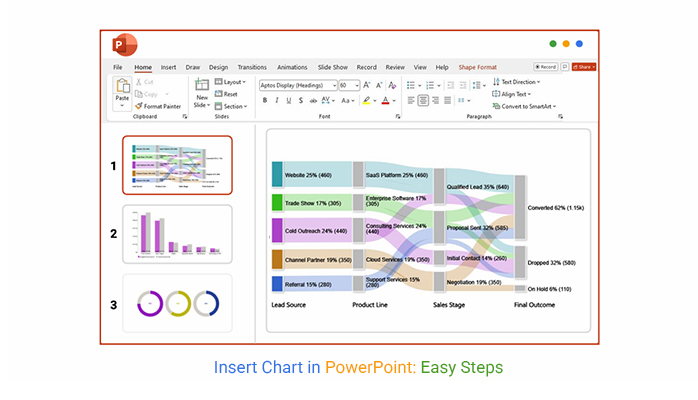
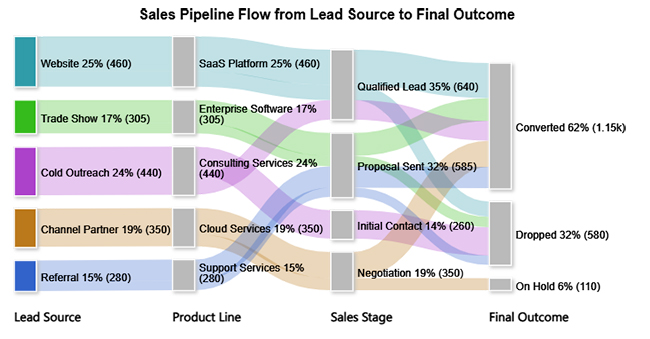
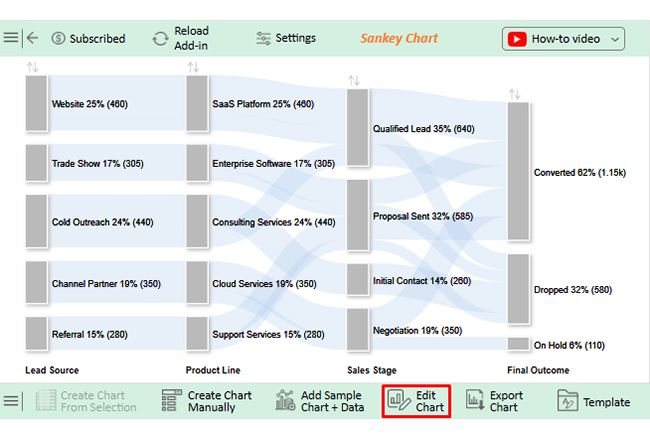
The Sankey chart shows lead flow from source to stage, revealing where conversions strengthen and where they drop off.
Example # 2:
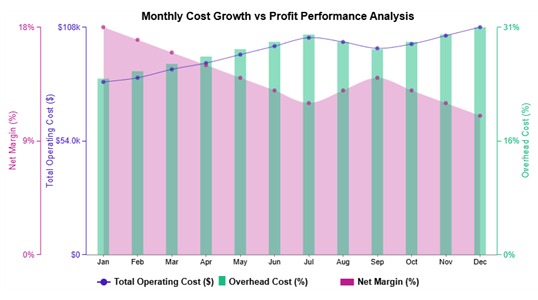
The Multi Axis Line Chart tracks operating costs and overhead against net margin month by month, making profit pressure visible.
Example # 3:
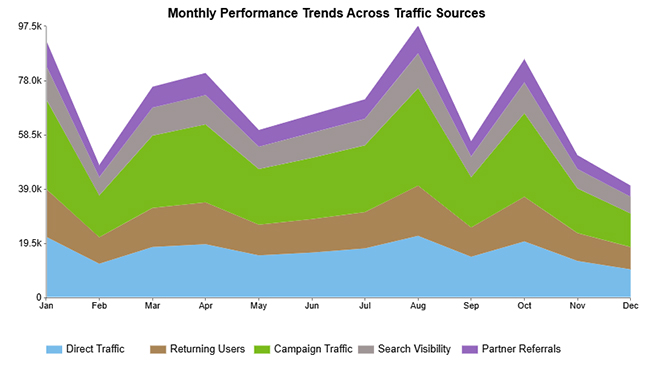
The Stacked Area Chart displays traffic source contributions over time, highlighting seasonal spikes and shifts in channel performance.
Example # 4:
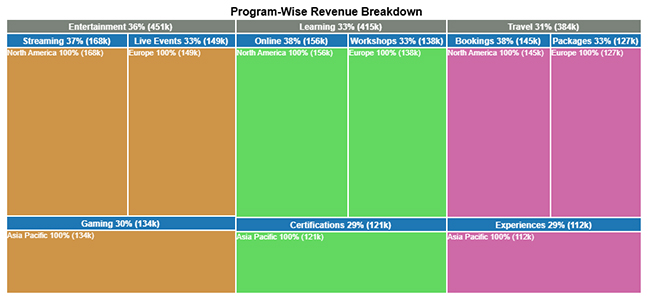
The Treemap breaks down program revenue by category and region, letting you compare size at a glance.
Example # 5:
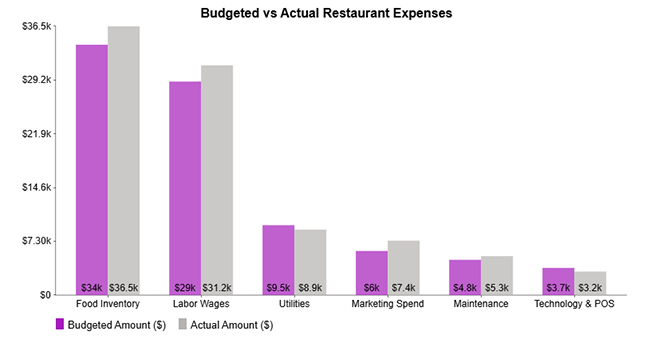
The Clustered Column Chart lines up budgeted and actual restaurant expenses side by side, showing overspend and savings per category.
Example # 6:
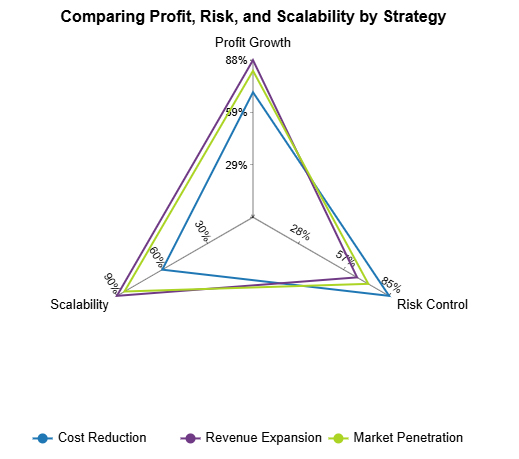
The Multi Axis Spider chart maps business strategies across profit, risk, and scalability, revealing trade-offs in one view.
Example # 7:
The Expansion Funnel Chart traces volume narrowing through each stage, showing how much gets lost along the way.

Example # 8:
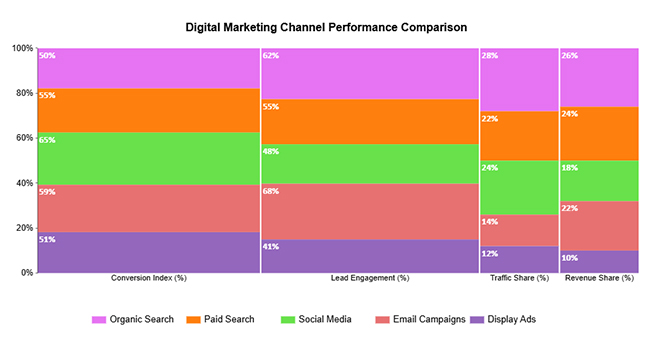
The Mosaic Plot maps digital marketing channels across conversion, engagement, traffic, and revenue, showing where each one contributes most.
Example # 9:
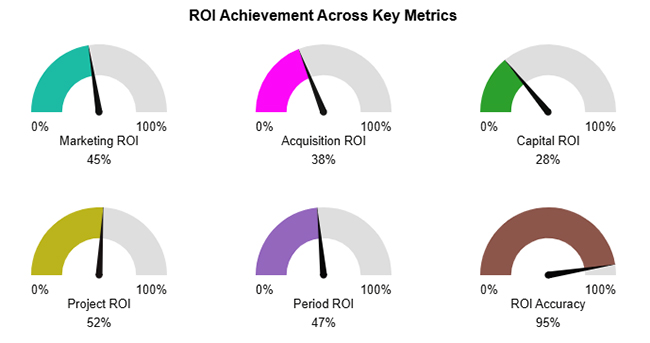
The Gauge Chart plots ROI metrics against a 0-100% scale, making performance status immediately clear.
Example # 10:
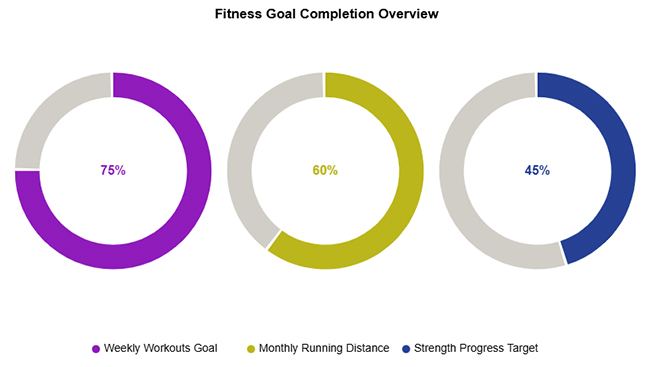
The Progress Circle Chart indicates fitness goal completion across workouts, running, and strength, with visual progress indicators.
Once you know the workflow, adding charts is straightforward. Here’s how to insert a graph in PowerPoint without confusion.
Select the slide where the chart should appear.
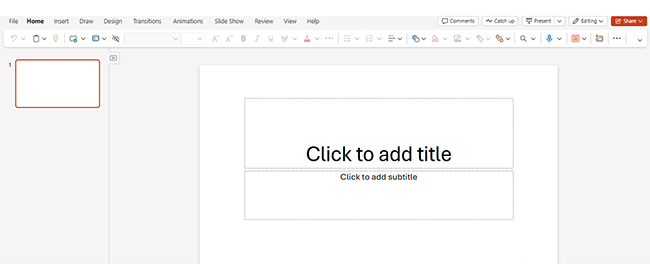
Access the Insert tab from the ribbon menu.

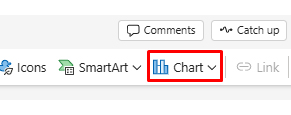
Click the Chart to open the chart selection window.
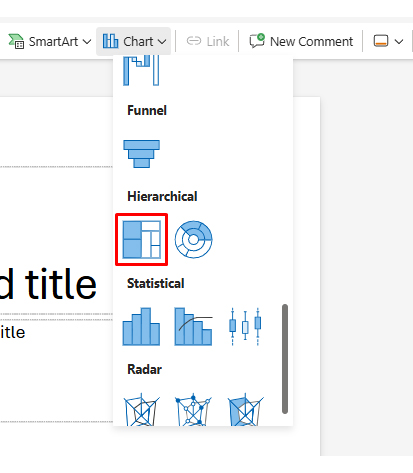
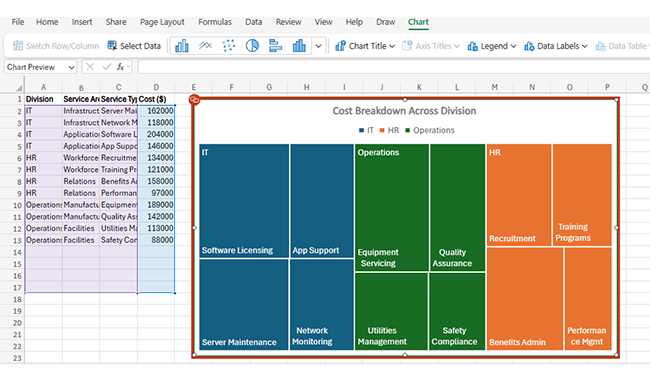
Pick a chart that fits your data and click OK. In this case, we used Treemap.
Enter or adjust values using the standard steps on how to add a chart in Excel.
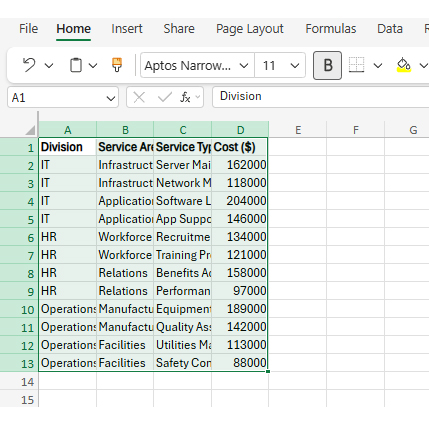
Customize colors, labels, and layout for clarity. This workflow ensures you can insert a graph in PowerPoint while keeping slides clean and professional.
Most people build charts in Excel first. PowerPoint handles this scenario smoothly when you need to move an Excel graph to PowerPoint for presentation use.
Ensure your chart is finalized and accurately reflects the data.
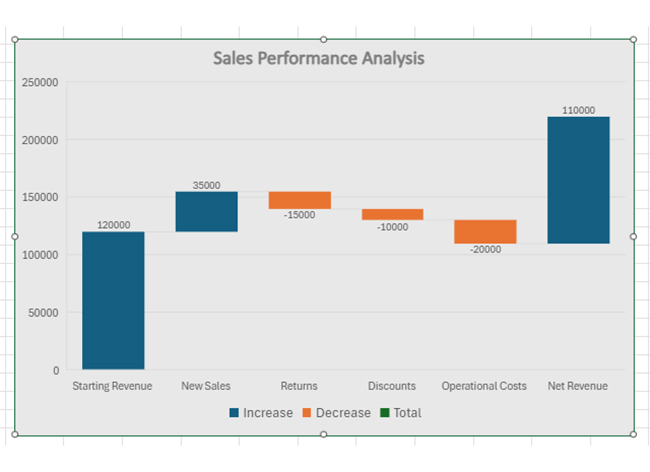
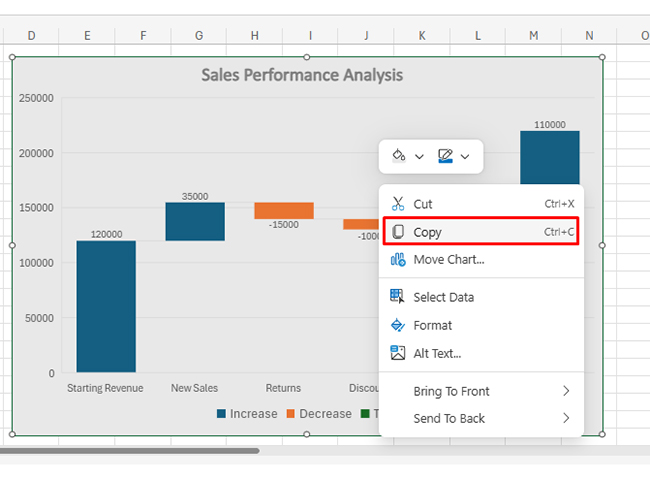
Right-click the chart that you want to use and select Copy. You can also select it and press Ctrl/Cmd + C.
Navigate to the target slide in your presentation.
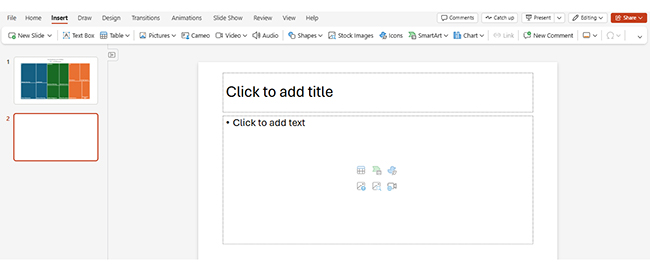
Choose whether to embed or link the chart data. Select the slide and press Ctrl/Cmd + V.
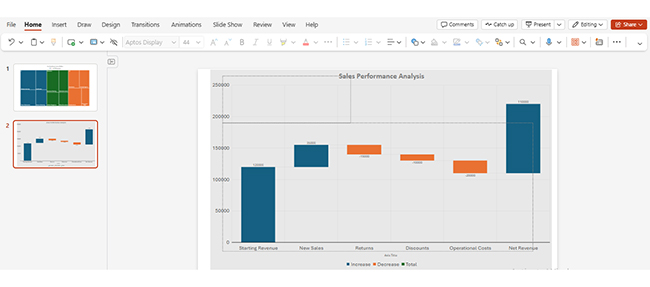
Linked charts refresh automatically when data changes.
Refine layout and size to fit the slide design.
This method works well with a dynamic graph Excel setup where numbers change frequently.
ChartExpo brings more analytical depth before you insert a chart in PowerPoint. It extends Excel with visualizations that go beyond the defaults.
This approach pays off with advanced Excel charts that need precision beyond what PowerPoint’s defaults offer.
Why use ChartExpo?
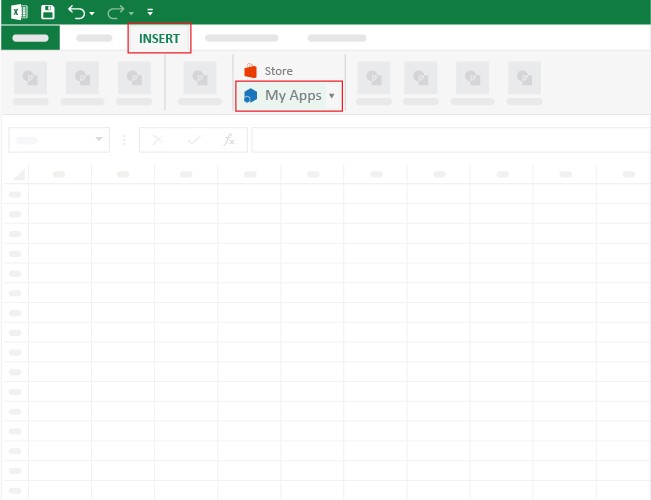
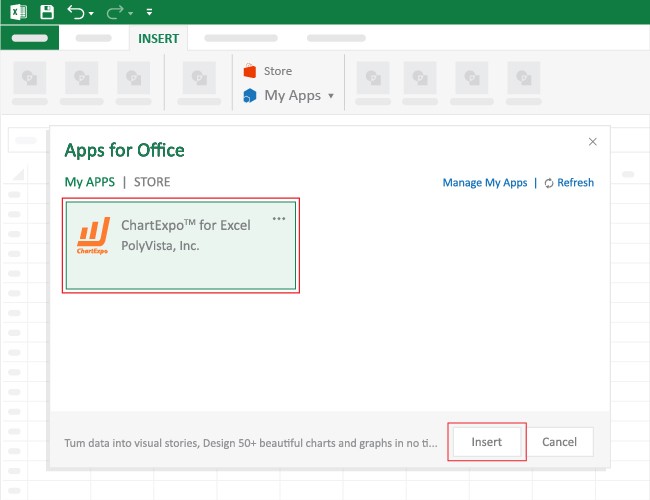
How to install ChartExpo in Excel?
ChartExpo can be used with both Google Sheets and Microsoft Excel. Follow the CTAs to install your favorite tool and create a beautiful visualization with just a few clicks directly on your favorite platform.
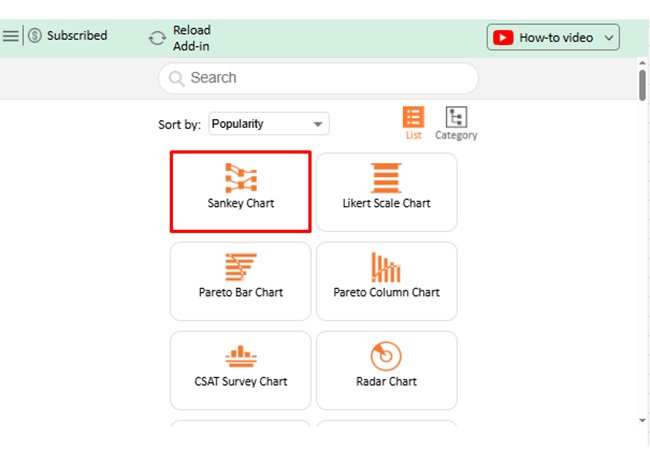
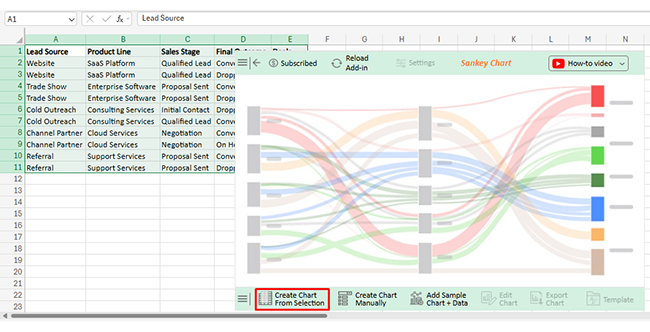
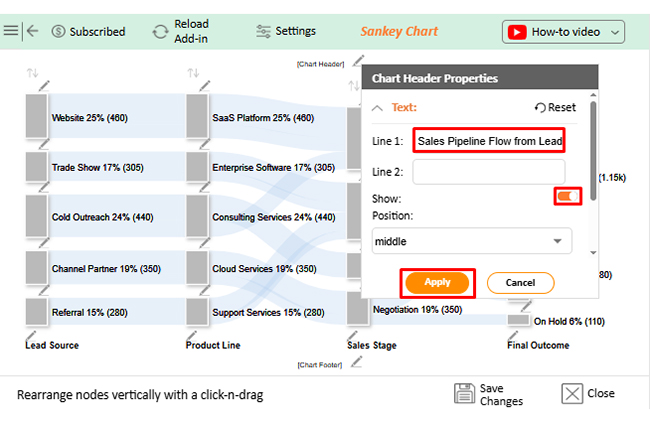
Consider we have the following data for a Sankey Chart.
| Lead Source | Product Line | Sales Stage | Final Outcome | Deals |
| Website | SaaS Platform | Qualified Lead | Converted | 320 |
| Website | SaaS Platform | Qualified Lead | Dropped | 140 |
| Trade Show | Enterprise Software | Proposal Sent | Converted | 210 |
| Trade Show | Enterprise Software | Proposal Sent | Dropped | 95 |
| Cold Outreach | Consulting Services | Initial Contact | Dropped | 260 |
| Cold Outreach | Consulting Services | Qualified Lead | Converted | 180 |
| Channel Partner | Cloud Services | Negotiation | Converted | 240 |
| Channel Partner | Cloud Services | Negotiation | On Hold | 110 |
| Referral | Support Services | Proposal Sent | Converted | 195 |
| Referral | Support Services | Proposal Sent | Dropped | 85 |
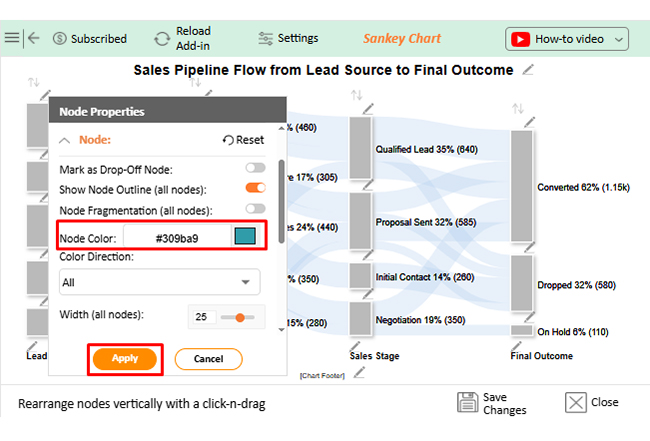
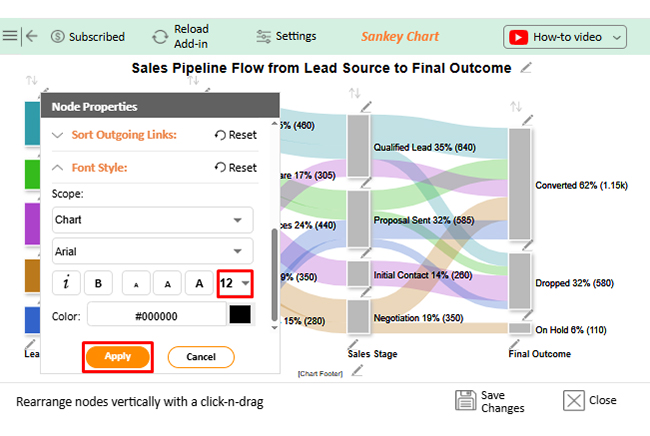
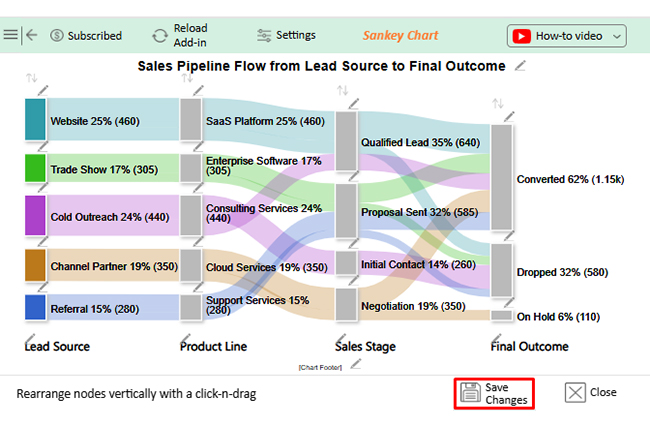
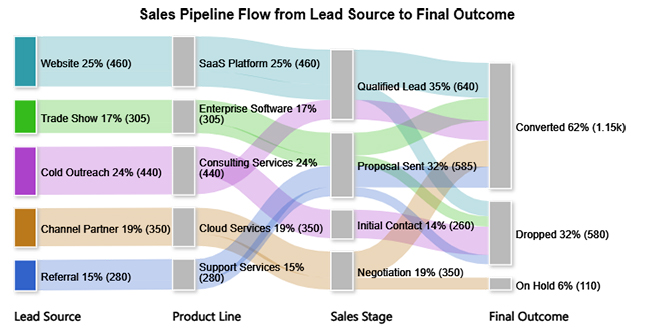
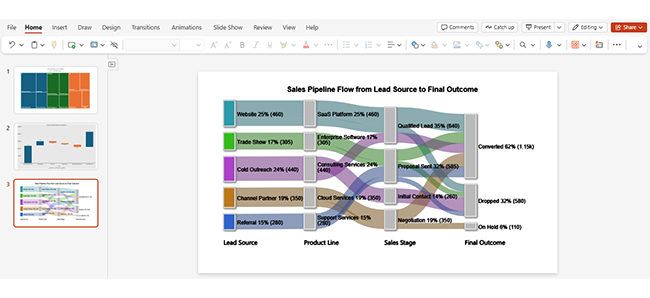
Industries use charts constantly to show outcomes and progress. When you insert a chart in PowerPoint, credibility and comprehension both improve.
Common use cases include:
Teams often build comparison charts in Excel before bringing them into slides.
Design carries as much weight as the numbers. Best practices matter when you insert a chart in PowerPoint.
Key recommendations include:
Knowing how to interpret graphs and charts lets presenters build visuals that direct focus toward insights that matter.
You can import a chart by creating one directly using the Insert Chart feature or by copying it from a spreadsheet and pasting it into a slide.
A structure chart can be added by selecting an organizational or hierarchy chart type from the chart options. These charts are useful for showing reporting lines and structured relationships.
Yes. Once you insert a chart in PowerPoint, you can edit the data through the embedded data sheet or by updating the linked source file. Any changes are reflected automatically in the chart.
Mastering how to insert a chart in PowerPoint quickly turns raw numbers into visuals people remember. You can build charts with the Insert > Chart workflow or paste an Excel chart you already analyzed, linking it for automatic updates or embedding it when the deck must travel.
Aim for clarity: choose the right chart type, keep design simple and consistent, label axes, and avoid overcrowding. If you need more specialized visuals, an Excel add-in like ChartExpo can help you build advanced charts before pasting them into slides. Do this well and your presentation shifts from data dump to decision-ready story.
How much did you enjoy this article?


Calculate accounts receivable turnover ratio to measure credit collection speed, improve cash flow, and strengthen your financial strategy. Read on!

Change Management KPIs are the key to tracking adoption, performance, and ROI during transitions. Find out which metrics matter. Read on!
Data collection methods and techniques determine the quality of every insight you act on. Explore key approaches for gathering reliable data. Read on!