• Home
  • Tools dropdown img
    • Spreadsheet Charts

      • ChartExpo for Google Sheets
      • ChartExpo for Microsoft Excel
    • Power BI Charts

      • Power BI Custom Visuals by ChartExpo
    • Word Cloud

  • Charts dropdown img
    • Chart Category

      • Bar Charts
      • Circle Graphs
      • Column Charts
      • Combo Charts
      • Comparison Charts
      • Line Graphs
      • PPC Charts
      • Sentiment Analysis Charts
      • Survey Charts
    • Chart Type

      • Box and Whisker Plot
      • Clustered Bar Chart
      • Clustered Column Chart
      • Comparison Bar Chart
      • Control Chart
      • CSAT Survey Bar Chart
      • CSAT Survey Chart
      • Dot Plot Chart
      • Double Bar Graph
      • Funnel Chart
      • Gauge Chart
      • Likert Scale Chart
      • Matrix Chart
      • Multi Axis Line Chart
      • Overlapping Bar Chart
      • Pareto Chart
      • Radar Chart
      • Radial Bar Chart
      • Sankey Diagram
      • Scatter Plot Chart
      • Slope Chart
      • Sunburst Chart
      • Tornado Chart
      • Waterfall Chart
      • Word Cloud
    • Google Sheets
      Microsoft Excel
  • Services
  • Pricing
  • Contact us
  • Blog
  • Support dropdown img
      • Gallery
      • Videos
      • Contact us
      • FAQs
      • Resources
    • Please feel free to contact us

      atsupport@chartexpo.com

Categories
All Data Visualizations Data Analytics Surveys
Add-ons/
  • Google Sheets
  • Microsoft Excel
  • Power BI
All Data Visualizations Data Analytics Surveys
Add-ons
  • Google Sheets
  • Microsoft Excel
  • Power BI

We use cookies

This website uses cookies to provide better user experience and user's session management.
By continuing visiting this website you consent the use of these cookies.

Ok

ChartExpo Survey


Home > Blog > Power BI

Power BI Embedded: Process Explained

Power BI Embedded is more than a reporting tool. Do you know how it connects to the daily choice between making something in-house or buying it externally?
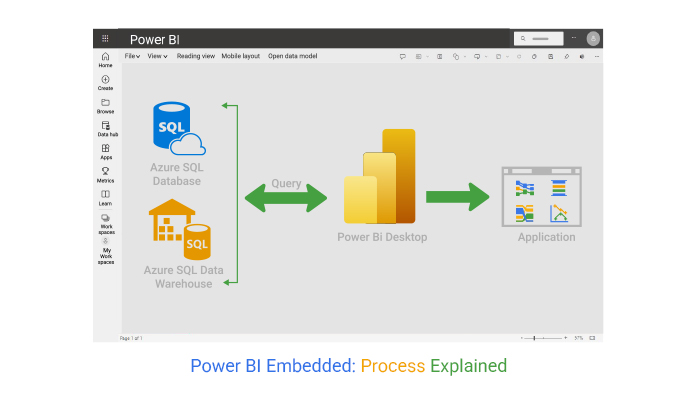
Power BI Embedded

I will help you understand. To begin with, every business faces this decision at some point. Research shows that 57% of companies outsource at least one business process. In manufacturing, smart make-or-buy strategies can cut costs by nearly 15%. These decisions go beyond money. They influence efficiency, innovation, and long-term growth.

Think of software, spare parts, or even support services. Do you build them with internal teams, or do you source them from outside? Making the wrong decision can be extremely expensive. Studies reveal that poor sourcing choices cost U.S. companies billions each year. That is why visualization tools matter. With Power BI report builder, data becomes easier to understand. Complex cost models turn into visuals that leaders can act on with confidence.

Excel still plays a strong role in quick calculations. Yet many businesses now combine spreadsheets with smarter analytics. Power BI datasets can merge multiple data sources into a single view, making comparisons faster and more reliable. Numbers no longer sit in isolation. They form patterns that guide decisions.

Clarity drives strategy. A Power BI KPI dashboard can highlight whether producing in-house improves margins or if outsourcing frees valuable resources. When combined with Power BI Embedded, decision-makers gain real-time insights across teams. That is how a simple make-or-buy question transforms into a powerful advantage.

Let me take you through this concept…

Table of Contents:

  1. What is Power BI Embedded?
  2. Why Use Power BI Embedded Report?
  3. When to Use Power BI Embedded?
  4. How to Purchase Power BI Embedded?
  5. Explaining Power BI Embedded Pricing
  6. What are Power BI Embedded Examples?
  7. How to Create Power BI Embedded Analytics in Power BI?
  8. How to Use Power BI Embedded?
  9. Pros and Cons of Power BI Embedded
  10. FAQs
  11. Wrap Up

What is Power BI Embedded?

Definition: Power BI Embedded is a Microsoft service that allows developers to integrate interactive reports and dashboards into their applications. It provides users with insights without leaving the app they are working in.

Businesses use Power BI Embedded to share data-driven stories with clients or teams. With Power BI Pro, organizations can collaborate and securely manage shared content. Developers can also connect multiple data sources and create a Power BI data model that supports real-time decision-making. Companies value the flexibility and scalability it offers.

Why Use Power BI Embedded Report?

Have you noticed how users expect insights to be simple, fast, and right where they work? A Power BI embedded report makes this possible by bringing analytics directly into your app or portal. Instead of moving between tools, teams see the data they need in the same space where they make decisions. Let us look at why using Power BI embedded reports can be a smart choice:

  • Enhanced user experience: Users interact with live dashboards inside applications they already use. Reports load quickly and feel integrated, making data exploration a natural process.
  • White-label analytics: Companies can present professional dashboards under their own branding. Clients see insights that look native, which builds trust and improves engagement.
  • High security and governance: Reports follow strict Power BI best practices to control access. Sensitive information is protected while ensuring the right people see the right data.
  • No individual licensing needed: Organizations save costs because users do not need separate Power BI licenses. Reports remain fully functional, and access is simplified for large groups.

When to Use Power BI Embedded?

Have you ever struggled to share insights with clients or teams without forcing them to leave your application? That is where Power BI Embedded shines. It integrates analytics directly into your software, making data an integral part of everyday workflows. With Power BI cloud, scaling and managing reports is effortless.

Here are four scenarios where using Power BI Embedded makes sense:

  • Customer portals: Share interactive dashboards with clients inside your app. They get real-time insights without leaving the platform.
  • Internal applications: Teams view key metrics and trends while using tools they are already familiar with. This enhances adoption and accelerates decision-making.
  • SaaS products: Enhance your software with built-in analytics. Users benefit from data-driven features without needing separate BI tools.
  • Deployment and testing. Integrate dashboards during development and use the Power BI deployment pipeline to manage updates. This ensures reports are consistent and accurate across environments.

How to Purchase Power BI Embedded?

Thinking about adding embedded analytics to your app? Buying Power BI Embedded is simpler than it sounds. You get dedicated capacity that keeps reports and dashboards running smoothly. This approach gives control, flexibility, and cost-efficiency, especially if you know your expected user load.

Here’s how to get started:

  1. Sign in to your Azure Portal.
  2. Create a new resource and select Power BI Embedded.
  3. Pick a capacity SKU, from A1 to A6, based on your anticipated user load and report requirements.
  4. Assign the capacity to a workspace in the Power BI Service.
  5. Monitor usage regularly and adjust the capacity to ensure efficient processing.

Explaining Power BI Embedded Pricing

Power BI Embedded helps developers add Power BI reports and analytics directly into their applications. It lets you give users a branded, personalized experience without leaving your product. This can make your software more engaging and valuable.

The cost of using Power BI Embedded depends on the type and number of nodes you choose. Each node comes with different amounts of virtual cores and RAM, where pricing varies based on these combinations. This allows you to scale resources according to your needs and budget:

Node Type Virtual Cores Memory Price
A1 1 3 GB RAM $1.0081/hour
A2 2 5 GB RAM $2.0081/hour
A3 4 10 GB RAM $4.0242/hour
A4 8 25 GB RAM $8.0565/hour
A5 16 50 GB RAM $16.121/hour
A6 32 100 GB RAM $32.2506/hour
A7 64 200 GB RAM N/A
A8 128 400 GB RAM N/A

What are Power BI Embedded Examples?

Ever wondered how businesses bring data to life inside their apps? Power BI Embedded examples demonstrate how analytics can be seamlessly integrated to provide users with real-time insights. These embedded solutions transform raw numbers into interactive visuals, enabling faster and smarter decision-making. Here are examples where Power BI Embedded shines:

  • Customer dashboards: Deliver personalized dashboards inside your app. Users see metrics that matter to them without switching platforms.
  • Retail analytics: Track sales, inventory, and trends in real time. Power BI advanced features help spot patterns that drive smarter merchandising.
  • Healthcare reporting: Share patient data and operational metrics securely. Embedded analytics improves efficiency and supports better outcomes.
  • Project management insights: Teams can visualize project progress, risks, and resources in one place. Power BI cross-filter direction ensures that data updates instantly across all visuals.

How to Create Power BI Embedded Analytics in Power BI?

Creating Power BI Embedded analytics is a step-by-step process that brings your reports and visuals directly into your applications. It involves designing the reports, setting up dedicated capacities, and integrating the visuals through Azure and Power BI services.

Here’s how to do it:

  1. Build your report in Power BI Desktop.
  2. Publish the report to a dedicated workspace in the Power BI service.
  3. Link the workspace to an Azure Power BI Embedded capacity.
  4. Generate an embed token using REST APIs.
  5. Use the JavaScript SDK to integrate the report into your application.

While Power BI provides strong analytics embedding, combining it with ChartExpo can enhance your visuals further. ChartExpo is a no-code visualization tool that offers advanced chart types and creative designs not available natively in Power BI. It is ideal for embedded analytics where impactful, clear visuals make a difference. This combination ensures your users get insightful and visually compelling reports within your app.

Example

Consider we have the following data for a Multi Axis Line Chart. We want to visualize it and glean valuable insights from the visualization. Follow the steps below to make your data sing insights:

Month

Report Views Load Time (s)

Azure Cost ($)

Jan 1,200 3.5 900
Feb 1,450 3.2 1,050
Mar 1,800 2.9 1,250
Apr 2,000 2.7 1,400
May 2,300 2.5 1,550
Jun 2,800 2.4 1,700
Jul 3,200 2.3 1,850
Aug 3,500 2.1 2,000
Sep 3,700 2 2,150
Oct 4,000 1.9 2,300
Nov 4,300 1.8 2,450
Dec 4,700 1.7 2,600

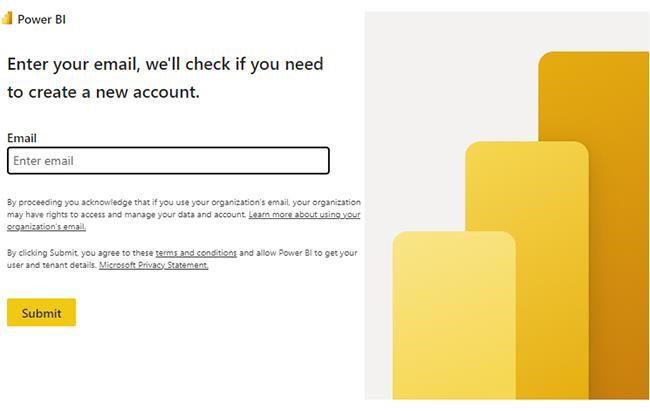
Power BI Login:
  • Log in to Power BI.
  • Enter your email. Click the “Submit” button.
Power BI Embedded
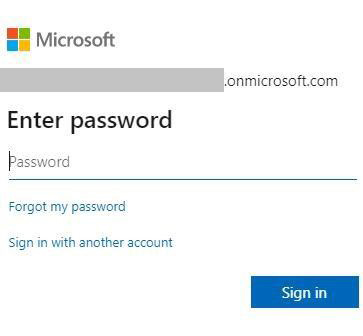
  • You are redirected to your Microsoft account.
  • Enter your password and click “Sign in.”
Power BI Embedded
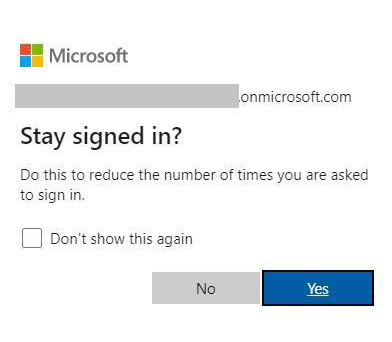
  • Choose whether to stay signed in.
Power BI Embedded
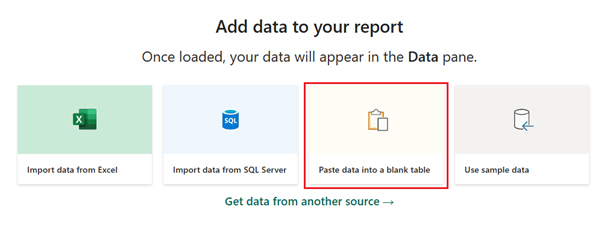
  • Once done, the Power BI home screen will open. First, you need to add data to your report and click on the “Paste data into a blank report”.
Power BI Embedded
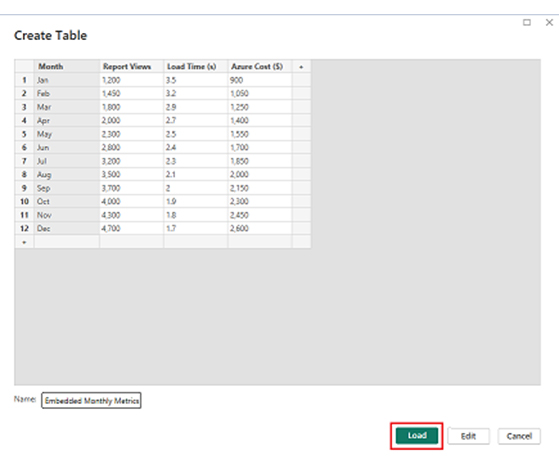
  • Paste the data table above into a blank table, name it, and click on the “Load” button.
Power BI Embedded
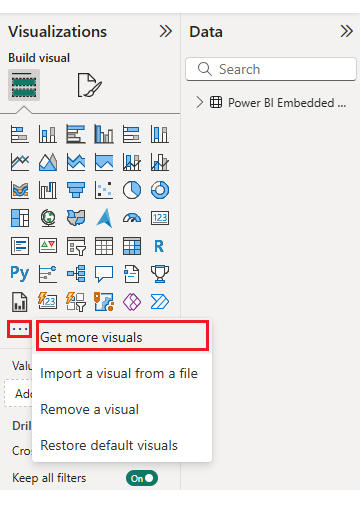
  • To build a Multi Axis Line Chart, you will initially have to import an add-in or Power BI visual through App Source. You will find the Visualizations panel on the right side of your Power BI dashboard.
  • Select “Get more Visuals”.
Power BI Embedded
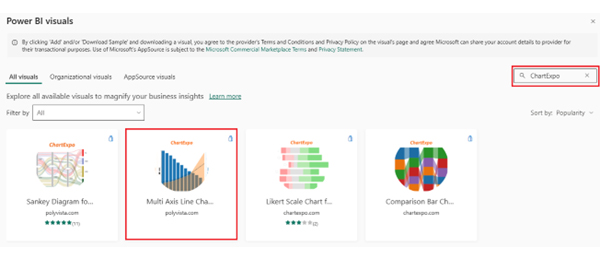
  • Search ChartExpo and select the Multi Axis Line Chart.
Power BI Embedded
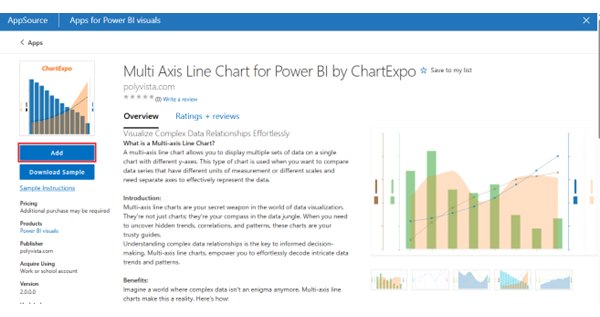
  • Click on the “Add” button.
Power BI Embedded
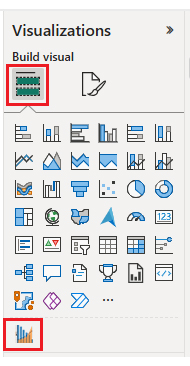
  • After that, you can select the “Multi Axis Line Chart” icon in the visualization panel.
Power BI Embedded
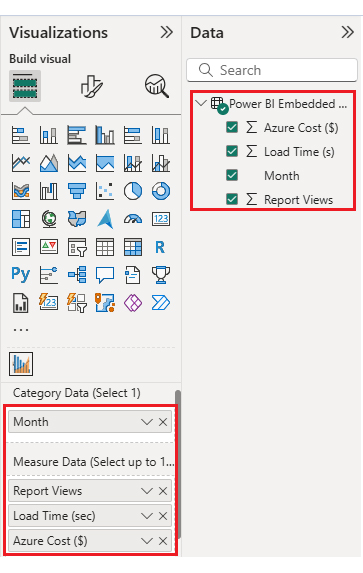
  • To add the Multi Axis Line Chart visual, click on the chart icon, and choose the dimension and measures:
Power BI Embedded
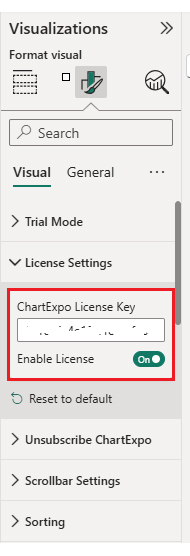
  • Open the Visualization properties and go to License Settings. Enter your ChartExpo key to remove the watermark and make your chart look excellent.
Power BI Embedded
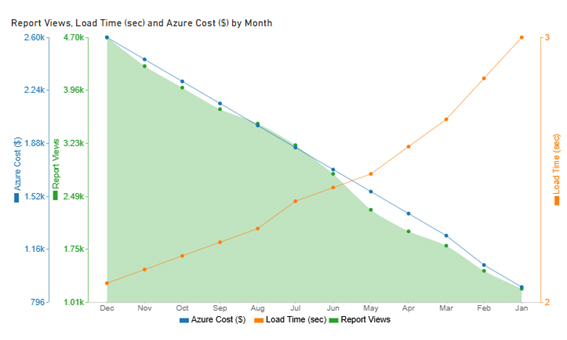
  • Now, after applying the key, the watermark is removed from the chart. Our chart will look like the image shown below:
Power BI Embedded
  • If you notice in the chart, the months on the x-axis are not in the specific order as we have in our data. To make data in sorting order from Jan to Dec, follow the steps below:
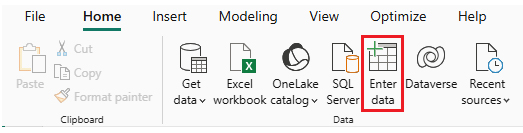
  • Create a new table.
Power BI Embedded
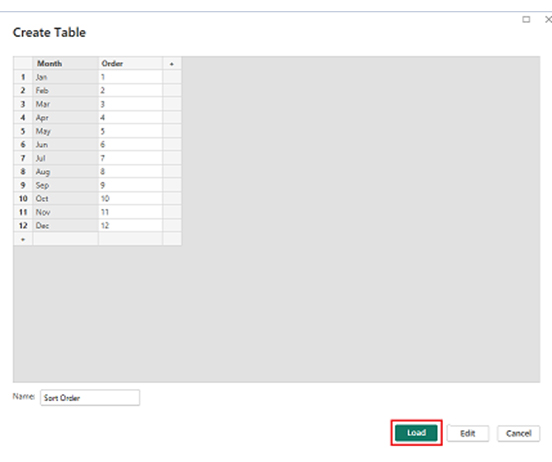
  • Enter data manually, name it, and click on the “Load” button.
Power BI Embedded
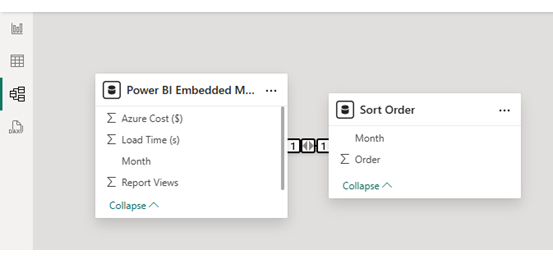
  • A new data table named “Sort Order” will be created. Moreover, a relationship will be established between this table and the main data table, as illustrated below.
Power BI Embedded
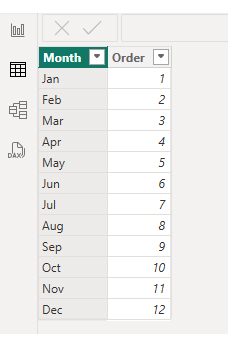
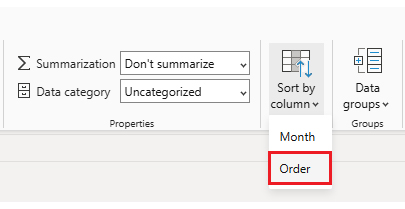
  • Open “Table View”, select the “Sort Order” table, select the “Month Column”, and set the sorting order column.
Power BI Embedded
Power BI Embedded
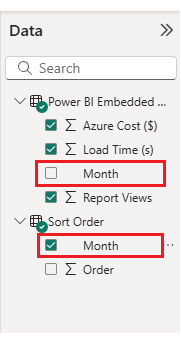
  • Now that custom sorting is set up, we’ll use the “Month” column from the “Sort Order” table instead of the “Month” column from the “Power BI Embedded Monthly Metrics” table, as shown below.
Power BI Embedded
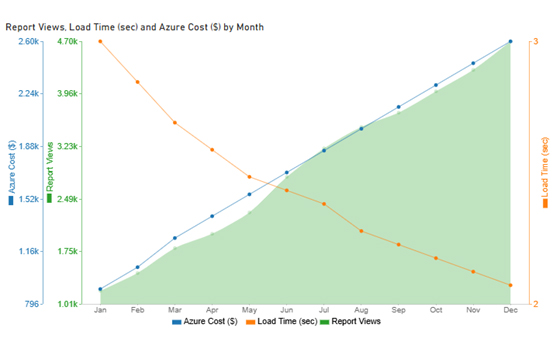
  • The chart should now display with the custom sorting order applied on the X-axis.
Power BI Embedded
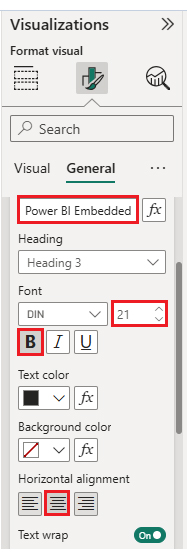
  • Now, we will enhance the chart’s appearance. To do so, we can modify the chart’s title to better align with the visualized data.
Power BI Embedded
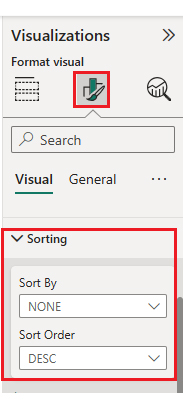
  • Next, we will sort the data columns:
Power BI Embedded
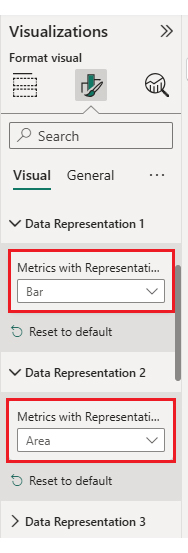
  • You can change the data representation as well:
Power BI Embedded
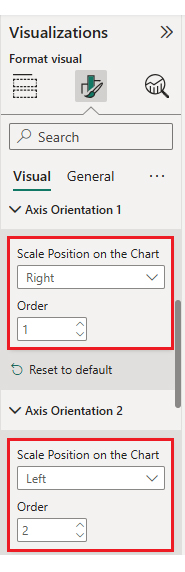
  • Adjust the axis orientation to better suit your report layout:
Power BI Embedded
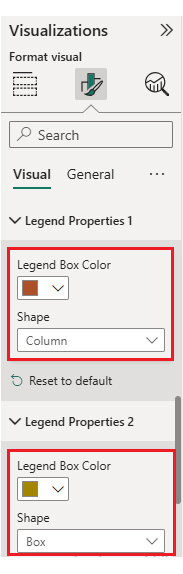
  • Next, we will change legend properties to set the shape type: Column, Box, Line, and Circle.
Power BI Embedded
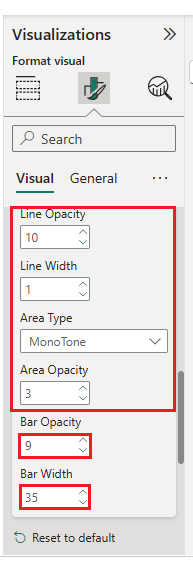
  • Adjust bar width and opacity from “Common Chart Properties”:
Power BI Embedded
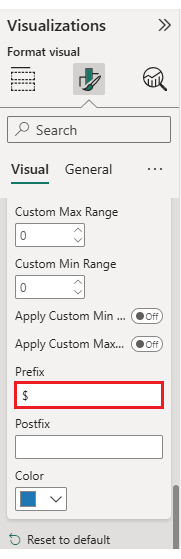
  • Next, add the $ sign with Azure cost and expand “Y Axis Properties”:
Power BI Embedded
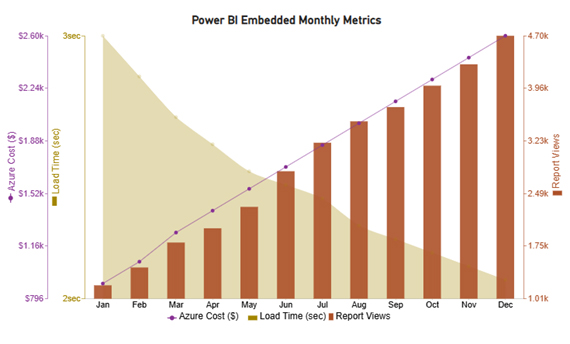
  • The final look of the Multi Axis Line Chart is shown below:
Power BI Embedded

Key Insights

  • Report views rose to 1,200 in January compared to 4,700 in December.
  • Azure costs showed steady month-over-month growth.
  • Higher traffic improved load time from 3.5 seconds to 1.7 seconds.
  • Greater usage led to optimized infrastructure and better performance.
  • Power BI Embedded delivered scalability, cost efficiency, and simplicity.

How to Use Power BI Embedded?

Delivering insights only matters if they reach the right person at the right moment. And that is the promise of Power BI Embedded analytics. It allows businesses to integrate reports directly into apps and control how users interact with data. With smart filtering and monitoring, every report becomes more meaningful.

Here are four ways to make the most of it:

  1. Start by signing in through Azure AD or a Master User account. This ensures secure access for your users.
  2. Apply row-level security so each person only sees data that is relevant to them. This improves trust and accuracy.
  3. Use the SDK to set filters programmatically. With Power BI cross-filter direction, visuals stay aligned and respond instantly to user choices.
  4. Track user behavior with the Power BI deployment pipeline and usage stats. This helps refine reports and optimize performance.

To keep everything smooth, always follow Power BI best practices. Limit visuals per page, use DAX efficiently, and compress models where possible. With these steps, you get faster reports and happier users.

Pros and Cons of Power BI Embedded

Power BI Embedded provides businesses with a way to integrate reports directly into their apps. It saves time, reduces friction, and makes insights part of daily workflows. But like any technology, it comes with both advantages and limitations.

Here’s what I’m talking about:

Pros

  • Seamless integration: Reports created with the Power BI report builder can be embedded directly into applications, making analytics feel built-in.
  • Scalable performance: With Power BI cloud, you can scale capacity to match user demand without losing performance.
  • Smarter insights: Power BI datasets consolidate multiple sources, enabling users to explore trends and patterns in one place.
  • Engaging dashboards: Embedding a Power BI KPI dashboard provides users with real-time visibility into performance metrics.

Cons

  • Pricing complexity: Understanding Power BI embedded pricing can be tricky, especially when user loads fluctuate.
  • Development effort: Setting up and maintaining embedded solutions requires technical skills and ongoing monitoring.
  • Limited customization: While powerful, embedded reports may not offer the same level of design freedom as fully custom-built analytics tools.

FAQs

What is Power BI embedded used for?

Power BI Embedded is used to bring interactive reports and dashboards directly into applications. It allows users to access insights without leaving the app. Businesses use it for real-time analytics, personalized dashboards, and data-driven decision-making within their software.

Is Power BI embedded still available?

Yes, Power BI Embedded is still available. Microsoft continues to support and update it. Businesses can embed interactive reports and dashboards into their applications. It remains a popular choice for delivering analytics and real-time insights within software platforms.

Wrap Up

Power BI Embedded empowers businesses to deliver advanced analytics and interactive data visualizations directly within their applications and digital platforms.

By embedding insights where users already work, organizations can improve data accessibility, enhance user experience, and drive faster, more informed decision-making.

Its scalable architecture, secure access controls, and real-time data capabilities make it an ideal solution for companies looking to turn complex data into meaningful insights without adding friction for end users.

With Power BI Embedded, developers and businesses can fully customize the analytics experience to match their brand and user interface, ensuring seamless integration and consistent user engagement. It supports a wide range of data sources, making it easy to combine, visualize, and analyze data from multiple systems in one centralized view.

Additionally, Power BI Embedded reduces operational overhead by eliminating the need for individual Power BI licenses for each user. Companies can deliver powerful, interactive analytics at scale, providing actionable insights to employees, customers, or partners while maintaining full control over data security and governance. This makes it a cost-effective and efficient solution for any organization aiming to become truly data-driven.

How much did you enjoy this article?

PBIAd2
Start Free Trial!
157797

Related articles

next previous
Power BI14 min read

Power BI Data Visualizations: Best Charts, Tips, and Use Cases

Discover the power of Power BI data visualizations. Learn how to use Power BI charts to simplify complex data and uncover key business insights.

Power BI11 min read

How to Create Sankey Diagram in Microsoft Power BI?

Discover the power of Sankey Diagrams in Power BI. Visualize complex data flows, track relationships, and make smarter decisions through interactive visuals.

Power BI10 min read

Power BI Tooltips: A Step-by-Step Walkthrough

This guide delves into what the Power BI Tooltip is and how it works. You'll also discover why it is useful, and how to create multiple tooltips in Power BI.

Power BI7 min read

Power BI Data Sources: Connecting for Better Insights

The guide explains what Power BI Data Sources are and the various types of Power BI Data Sources. You'll discover how to visualize source data in Power BI.

Power BI7 min read

Time Intelligence in Power BI to build Insightful Reports

Discover all you need to know about Time Intelligence in Power BI. This guide explores the benefits of Time Intelligence and tips for using Time Intelligence.

ChartExpo logo

Turn Data into Visual
Stories

CHARTEXPO

  • Home
  • Gallery
  • Videos
  • Services
  • Pricing
  • Contact us
  • FAQs
  • Privacy policy
  • Terms of Service
  • Sitemap

TOOLS

  • ChartExpo for Google Sheets
  • ChartExpo for Microsoft Excel
  • Power BI Custom Visuals by ChartExpo
  • Word Cloud

CATEGORIES

  • Bar Charts
  • Circle Graphs
  • Column Charts
  • Combo Charts
  • Comparison Charts
  • Line Graphs
  • PPC Charts
  • Sentiment Analysis Charts
  • Survey Charts

TOP CHARTS

  • Sankey Diagram
  • Likert Scale Chart
  • Comparison Bar Chart
  • Pareto Chart
  • Funnel Chart
  • Gauge Chart
  • Radar Chart
  • Radial Bar Chart
  • Sunburst Chart
  • see more
  • Scatter Plot Chart
  • CSAT Survey Bar Chart
  • CSAT Survey Chart
  • Dot Plot Chart
  • Double Bar Graph
  • Matrix Chart
  • Multi Axis Line Chart
  • Overlapping Bar Chart
  • Control Chart
  • Slope Chart
  • Clustered Bar Chart
  • Clustered Column Chart
  • Box and Whisker Plot
  • Tornado Chart
  • Waterfall Chart
  • Word Cloud
  • see less

RESOURCES

  • Blog
  • Resources
  • YouTube
SIGN UP FOR UPDATES

We wouldn't dream of spamming you or selling your info.

© 2026 ChartExpo, all rights reserved.