• Home
  • Tools dropdown img
    • Spreadsheet Charts

      • ChartExpo for Google Sheets
      • ChartExpo for Microsoft Excel
    • Power BI Charts

      • Power BI Custom Visuals by ChartExpo
    • Word Cloud

  • Charts dropdown img
    • Chart Category

      • Bar Charts
      • Circle Graphs
      • Column Charts
      • Combo Charts
      • Comparison Charts
      • Line Graphs
      • PPC Charts
      • Sentiment Analysis Charts
      • Survey Charts
    • Chart Type

      • Box and Whisker Plot
      • Clustered Bar Chart
      • Clustered Column Chart
      • Comparison Bar Chart
      • Control Chart
      • CSAT Survey Bar Chart
      • CSAT Survey Chart
      • Dot Plot Chart
      • Double Bar Graph
      • Funnel Chart
      • Gauge Chart
      • Likert Scale Chart
      • Matrix Chart
      • Multi Axis Line Chart
      • Overlapping Bar Chart
      • Pareto Chart
      • Radar Chart
      • Radial Bar Chart
      • Sankey Diagram
      • Scatter Plot Chart
      • Slope Chart
      • Sunburst Chart
      • Tornado Chart
      • Waterfall Chart
      • Word Cloud
    • Google Sheets
      Microsoft Excel
  • Services
  • Pricing
  • Contact us
  • Blog
  • Support dropdown img
      • Gallery
      • Videos
      • Contact us
      • FAQs
      • Resources
    • Please feel free to contact us

      atsupport@chartexpo.com

Categories
All Data Visualizations Data Analytics Surveys
Add-ons/
  • Google Sheets
  • Microsoft Excel
  • Power BI
All Data Visualizations Data Analytics Surveys
Add-ons
  • Google Sheets
  • Microsoft Excel
  • Power BI

We use cookies

This website uses cookies to provide better user experience and user's session management.
By continuing visiting this website you consent the use of these cookies.

Ok

ChartExpo Survey


Home > Blog > Microsoft Excel

Sparkline in Excel: Visual Insights at a Glance

It hit faster than most trends. One day, reports felt static, and now everything screams for visual clarity. Have you heard of Sparkline in Excel? These tiny charts pack big insight into single cells. Numbers no longer need to sit flat on a spreadsheet. A sparkline makes them tell a story.

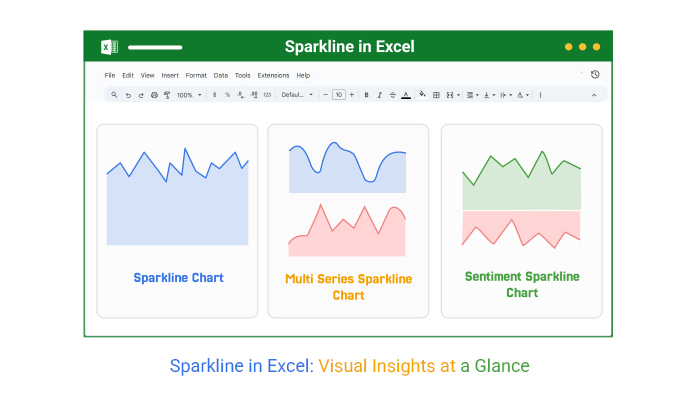
Sparkline in Excel

Think about quarterly sales. Instead of scrolling through rows of data, a sparkline instantly shows the rise and fall. That’s a speed you can’t ignore. You can even pair sparklines with chart formatting in Excel to make data pop. It’s a way to read patterns at a glance, whether you’re tracking performance or spotting trends before they grow.

Sparklines go beyond simple visuals. You can experiment with dynamic tables in Excel to make them respond to changes in the data. That means your reports stay alive, updating instantly as numbers shift. Business leaders thrive on this kind of clarity.

And if you’re wondering how to level up further, tools like ChartExpo step in. They simplify reporting and add depth to these mini-charts. Imagine combining sparklines with a full dashboard in Excel. You get a data view that’s sharp, interactive, and ready for action.

So, why settle for static spreadsheets? A sparkline in Excel turns raw figures into insight-packed visuals. It’s time to rethink how you present data.

Let me help you get started…

Table of Contents:

  1. What is Sparkline in Excel?
  2. Types of Sparkline in Excel
  3. What is an Excel Sparkline Formula?
  4. How to Create Sparklines in Excel?
  5. How to Change a Sparkline in Excel?
  6. How to Analyze Sparklines Using ChartExpo in Excel?
  7. How to Use Excel Sparkline?
  8. Benefits of Excel Win-Loss Sparkline
  9. Use Cases of Sparkline Chart in Excel
  10. FAQs
  11. Wrap Up

What is Sparkline in Excel?

Definition: A Sparkline in Excel is a small chart that fits in a single cell. It quickly shows trends and patterns, allowing you to track sales, expenses, or performance in seconds. Many users use it to highlight changes over time.

You can also apply automatic formatting in Excel to make this chart stand out. These visuals are easy to create and update. Teams use them to spot growth or decline instantly. This feature saves time and makes data easy to read. It helps turn plain numbers into clear, visual stories.

Types of Sparkline in Excel

Data can be overwhelming when it spans endless rows. But don’t worry, sparklines make it easier to see meaning fast. These mini charts fit neatly into cells, turning numbers into simple visuals. Let’s look at the three main types:

  1. Line Sparkline: This sparkline shows data trends over time. It works well for sales growth or performance tracking. A single glance reveals highs and lows.
  2. Column Sparkline: This type uses vertical bars to compare values. It highlights differences clearly and works well for quick analysis.
  3. Win/Loss Sparkline: This shows positive and negative results. It is ideal for tracking profits, setting goals, or conducting performance reviews.

What is an Excel Sparkline Formula?

Definition: The Excel Sparkline formula enables you to create small charts within single cells. It clearly shows patterns and trends. However, this formula is not a traditional one like SUM or AVERAGE. Excel does not offer a “Sparkline formula” in the same way it offers standard functions. Instead, sparklines are created using built-in tools under the Insert tab.

You can select a data range and insert a sparkline with one click. Once added, you can change its data source using cell references and formulas. This means your sparkline updates automatically whenever the source data changes, keeping reports dynamic. You can also use automatic formatting and frequency tables in Excel to make your sparklines more insightful and visually clear.

How to Create Sparklines in Excel?

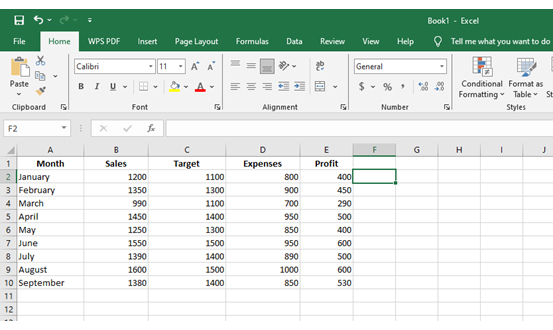
You don’t need advanced skills to use sparklines. With a few clicks, you can turn rows of numbers into a clear trend line or chart. This makes your spreadsheet easier to read and much more engaging. Here’s how to add your first sparkline in Excel:

  • Select the empty cell where you want the sparkline to appear. Many users place it at the bottom of their data for easy viewing.
Sparkline in Excel
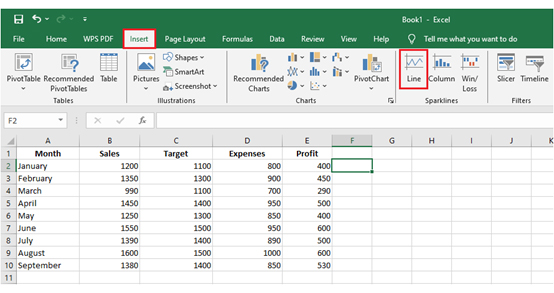
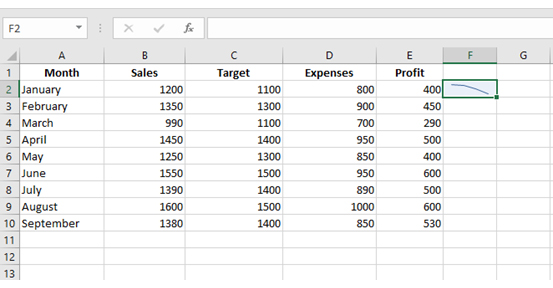
  • Go to the Insert tab. In the Sparklines group, choose Line, Column, or Win/Loss.
Sparkline in Excel
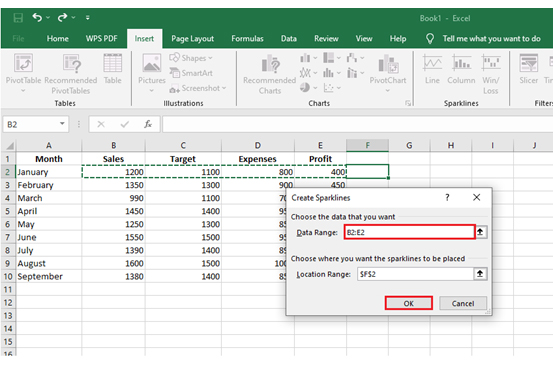
  • In the Create Sparklines dialog, click the Data Range box and highlight your data.
  • Click OK.
Sparkline in Excel
  • Excel will add a line sparkline to the selected cell.
Sparkline in Excel
  • To create a Column or Win/Loss sparkline, repeat these steps and choose your preferred type.

How to Change a Sparkline in Excel?

Sometimes the first style you choose may not fit your data story. Maybe a column sparkline would highlight differences better than a line. Or a win-loss sparkline could make gains and losses clearer. The good news is that you can easily change an existing sparkline in Excel without starting over:

How?

  1. Click on the sparkline or select a group of sparklines in your worksheet.
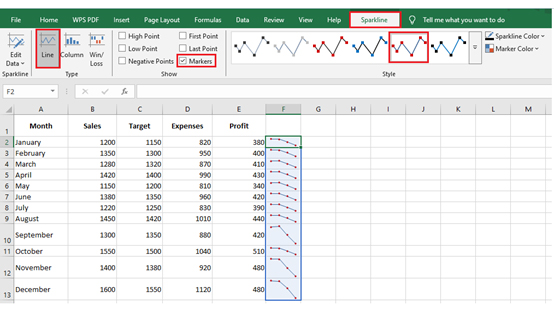
  2. Go to the Sparkline tab in the ribbon.
  3. In the Type group, choose the new sparkline style you want.
Sparkline in Excel

3 Sparkline Visuals Using ChartExpo in Excel

Sparklines transform data into quick insights, and ChartExpo takes this even further. These visuals fit neatly into your reports without taking up space. They make it simple to track patterns and trends at a glance. Let’s explore three powerful ways to use them with ChartExpo.

Use Case 1:

A Multi-Series Sparkline Chart shows multiple metrics in one view. It makes comparing trends across different KPIs easy. Pairing this with frequency tables in Excel helps you organize large datasets for a clearer perspective. This is ideal for monitoring performance while keeping your dashboard clean.

Sparkline in Excel

Use Case 2:

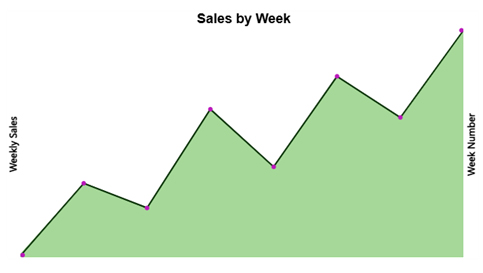
A Sparkline Chart highlights weekly sales trends. You can see fluctuations and growth quickly. Use a moving average in Excel to smooth out patterns and make changes easier to interpret. Its compact design helps you scan variations in seconds.

Sparkline in Excel

Use Case 3:

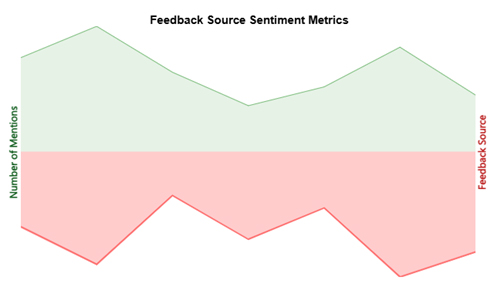
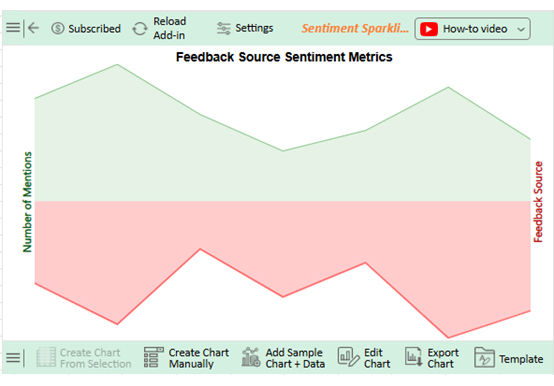
A Sentiment Sparkline Chart shows positive and negative mentions from different feedback sources. Combining this with variance in Excel helps measure the spread of sentiment across platforms. It helps you spot areas where customers are happiest and where improvement is needed.

Sparkline in Excel

How to Analyze Sparklines Using ChartExpo in Excel?

Data tells stories, but reading them in plain numbers feels like staring at static. Excel is powerful, yet its visuals often lack depth. Charts can feel flat and leave trends hidden.

That is where ChartExpo steps in. It turns basic spreadsheets into clear, engaging visuals that make analysis easier. You can finally see patterns and connections without extra effort.

Whether you are learning how to add data bars in Excel or exploring advanced tools, ChartExpo simplifies the process. It helps you unlock insights faster. Sparklines become sharper, and your reports feel alive. Data visualization has never been this effortless.

How to Install ChartExpo in Excel?

  1. Open your Excel application.
  2. Open the worksheet and click the “Insert” menu.
  3. You’ll see the “My Apps” option.
  4. In the Office Add-ins window, click “Store” and search for ChartExpo on my Apps Store.
  5. Click the “Add” button to install ChartExpo in your Excel.

ChartExpo charts are available both in Google Sheets and Microsoft Excel. Please use the following CTAs to install the tool of your choice and create beautiful visualizations like a Pareto chart with a few clicks in your favorite tool.

Example

Let’s assume you have the data below for a Sparkline Chart. I will show you how to visualize it in Excel using ChartExpo and glean valuable insights from the visual.

Feedback Source

Positive Mentions

Negative Mentions

Twitter 45 12
Facebook 60 18
LinkedIn 38 7
Support Email 22 14
Live Chat 31 9
App Reviews 50 20
Online Forums 27 16
  • To get started with ChartExpo, install ChartExpo in Excel.
  • Now, click on My Apps from the INSERT menu.
Sparkline in Excel
  • Choose ChartExpo from My Apps, then click Insert.
Sparkline in Excel
  • Once it loads, choose the “Sentiment Sparkline Chart” from the charts list.
Sparkline in Excel
  • Click the “Create Chart From Selection” button after selecting the data from the sheet, as shown.
Sparkline in Excel
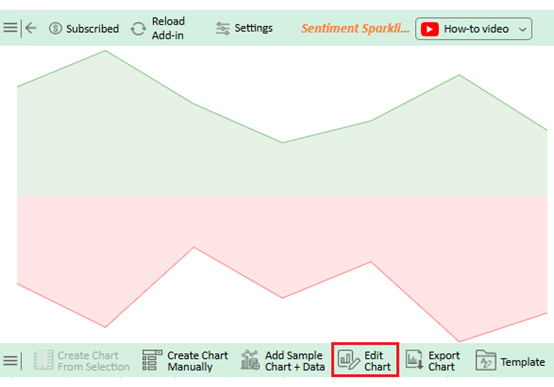
  • ChartExpo will generate the visualization below for you.
Sparkline in Excel
  • To display the chart’s title, click Edit Chart, as shown in the image above.
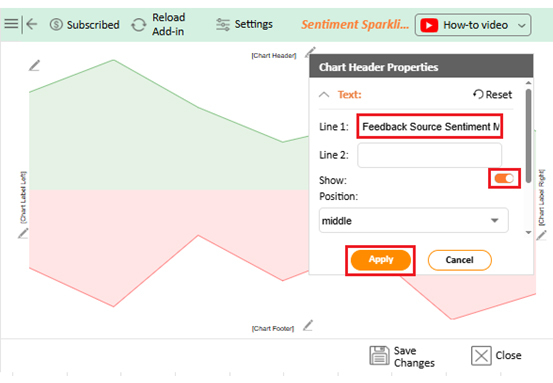
  • Click the pencil icon next to the Chart Header to change the title.
  • It will open the properties dialog. Under the Text section, you can add a heading in Line 1 and enable Show.
  • Give the appropriate title of your chart and click the Apply button.
Sparkline in Excel
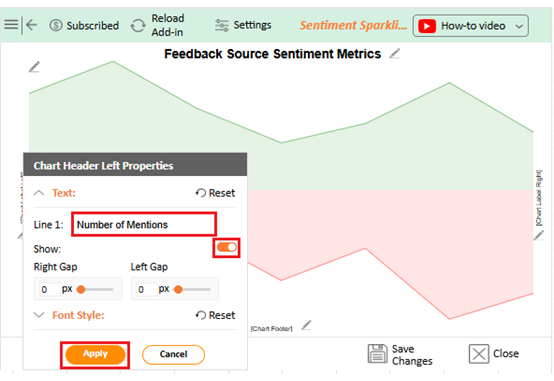
  • Add the chart’s left and right label text:
Sparkline in Excel
  • You can change the area’s color and opacity from Area &Line Properties.
Sparkline in Excel
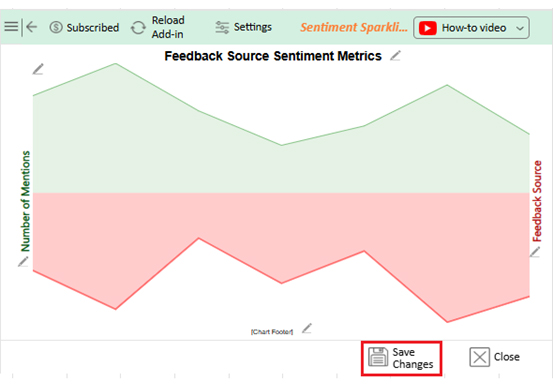
  • When you are done with all the changes, click the “Save” button to save them.
Sparkline in Excel
  • The final look of the Sentiment Sparkline Chart is shown below.
Sparkline in Excel

Key Insights

  • The chart visually compares sentiment across channels such as Twitter, Facebook, and LinkedIn.
  • The green area represents the total number of positive mentions from each feedback source.
  • The red area represents the negative mentions collected across all platforms.

How to Use Excel Sparkline?

Sparklines turn boring rows of numbers into clear visuals. They help you spot trends in seconds. Excel makes it easy to add them, but using them well can make a big difference. Here are the best practices for using Excel Sparkline effectively:

  1. Keep sparklines close to their data for easy reference.
  2. Choose the sparkline type that fits your data trend: Line for patterns, Column for comparisons, Win/Loss for outcomes.
  3. Limit the number of sparklines in a single view to avoid clutter.
  4. Use consistent scaling across sparklines for accurate comparisons.
  5. Combine sparklines with tools like moving averages in Excel to highlight trends clearly.
  6. Apply subtle formatting to emphasize key changes without overwhelming the viewer.
  7. Regularly update your data to keep sparklines accurate and relevant.

Benefits of Excel Win-Loss Sparkline

Tracking performance can be tricky when numbers stretch across rows. Excel Win-Loss Sparkline makes it simple. It shows positive and negative results at a glance, where you can spot trends quickly without scanning long tables. Here are the key benefits of using it:

  • Highlights wins and losses instantly: You can see positive and negative outcomes at a single glance. This speeds up data-driven decision-making and reduces the need to analyze long rows of data.
  • Makes reports easier to read: Sparklines turn raw numbers into visuals. Reports become cleaner and more engaging for anyone reviewing them.
  • Helps compare outcomes across metrics: You can place multiple sparklines side by side. This makes it simple to track performance across different teams, products, or time periods.
  • Supports advanced calculations: You can combine the sparkline chart with a weighted average in Excel. This allows you to measure overall performance while keeping the visual clarity of wins and losses analysis.

Use Cases of Sparkline Chart in Excel

Numbers can be overwhelming, especially when data stretches across rows and columns. Sparklines make it easy to spot trends fast. They fit into single cells and show patterns clearly. Using them can save time and make reports more engaging.

Here are some practical use cases for a Sparkline chart in Excel:

  • Financial reporting: Sparklines help track revenue, expenses, and profits over time. Trends become visible instantly, making it easier to spot growth or decline.
  • Tracking sales: You can visualize weekly or monthly sales at a glance. It simplifies monitoring performance across products or regions.
  • Project management: Sparklines show task progress or milestones. They make it simple to see which tasks are on track and which are delayed.
  • Inventory monitoring: Stock levels over time can be displayed in a compact view. It allows you to anticipate shortages or overstock efficiently.

FAQs

How to insert Sparklines in Excel online?

To insert sparklines in Excel online:

  • Select an empty cell near your data.
  • Go to the Insert tab, choose Line, Column, or Win/Loss.
  • Highlight your data range.
  • Click OK. The sparkline appears instantly in the selected cell.

How to make horizontal Sparklines in Excel?

To make horizontal sparklines in Excel:

  • Insert a sparkline in a cell.
  • Resize the row height to stretch it horizontally.
  • Adjust the column width and formatting to display trends clearly across the row.

Wrap Up

Mastering Sparkline in Excel gives your data a new life. Sparklines make trends easy to see. They turn long rows of numbers into quick visuals. This helps teams spot patterns and make faster decisions. Using them improves clarity and focus.

Understanding chart formatting in Excel is key. Proper formatting makes sparklines clear and readable. Colors, line styles, and markers guide the eye to what matters most. This small step enhances data interpretation and reduces errors.

Formulas like GETPIVOTDATA in Excel take analysis further. They link sparklines to dynamic reports. This keeps visuals accurate even when data changes. Teams can trust the results and act confidently.

Adding emphasis matters. Learning how to add data bars in Excel highlights critical numbers. It makes trends pop and comparisons obvious. Combining this with sparklines creates powerful insights at a glance.

Excel alone has limits. Complex visuals are hard to design. And that’s where ChartExpo excels. It simplifies sparkline creation, formatting, and analysis. Charts are clear, professional, and easy to use.

Do not hesitate.

Start using ChartExpo today and transform how you create and analyze sparklines. Sparklines and ChartExpo together take your Excel skills to the next level.

How much did you enjoy this article?

ExcelAd2
Start Free Trial!
157583

Related articles

next previous
Microsoft Excel12 min read

Excel Chart Templates for Insightful Presentations

Learn how chart templates save time and boost consistency in Excel. This guide covers benefits and top chart examples to improve your data visuals.

Microsoft Excel13 min read

Excel Automation: Turning Data into Insights Faster

Excel automations help you save time, reduce errors, and streamline your tasks. Learn simple methods to automate reports and work smarter in Excel.

Microsoft Excel13 min read

Excel Template for Job Tracking: A Complete Guide

An Excel template for job tracking helps organize tasks and progress. This guide shows how to use it and boost results with smart tips and tools.

Microsoft Excel12 min read

Audit Dashboard in Excel: A Complete Walkthrough

An audit dashboard in Excel tracks audits and risks using clear visuals. Learn how to build, use, and improve dashboards with charts and practical tips.

Microsoft Excel11 min read

How to Create a Matrix in Excel: Core Insights

Learn how to create a matrix in Excel to organize and analyze data. This guide shares simple steps, smart tips, and how to use visual tools like ChartExpo.

ChartExpo logo

Turn Data into Visual
Stories

CHARTEXPO

  • Home
  • Gallery
  • Videos
  • Services
  • Pricing
  • Contact us
  • FAQs
  • Privacy policy
  • Terms of Service
  • Sitemap

TOOLS

  • ChartExpo for Google Sheets
  • ChartExpo for Microsoft Excel
  • Power BI Custom Visuals by ChartExpo
  • Word Cloud

CATEGORIES

  • Bar Charts
  • Circle Graphs
  • Column Charts
  • Combo Charts
  • Comparison Charts
  • Line Graphs
  • PPC Charts
  • Sentiment Analysis Charts
  • Survey Charts

TOP CHARTS

  • Sankey Diagram
  • Likert Scale Chart
  • Comparison Bar Chart
  • Pareto Chart
  • Funnel Chart
  • Gauge Chart
  • Radar Chart
  • Radial Bar Chart
  • Sunburst Chart
  • see more
  • Scatter Plot Chart
  • CSAT Survey Bar Chart
  • CSAT Survey Chart
  • Dot Plot Chart
  • Double Bar Graph
  • Matrix Chart
  • Multi Axis Line Chart
  • Overlapping Bar Chart
  • Control Chart
  • Slope Chart
  • Clustered Bar Chart
  • Clustered Column Chart
  • Box and Whisker Plot
  • Tornado Chart
  • Waterfall Chart
  • Word Cloud
  • see less

RESOURCES

  • Blog
  • Resources
  • YouTube
SIGN UP FOR UPDATES

We wouldn't dream of spamming you or selling your info.

© 2026 ChartExpo, all rights reserved.