• Home
  • Tools dropdown img
    • Spreadsheet Charts

      • ChartExpo for Google Sheets
      • ChartExpo for Microsoft Excel
    • Power BI Charts

      • Power BI Custom Visuals by ChartExpo
    • Word Cloud

  • Charts dropdown img
    • Chart Category

      • Bar Charts
      • Circle Graphs
      • Column Charts
      • Combo Charts
      • Comparison Charts
      • Line Graphs
      • PPC Charts
      • Sentiment Analysis Charts
      • Survey Charts
    • Chart Type

      • Box and Whisker Plot
      • Clustered Bar Chart
      • Clustered Column Chart
      • Comparison Bar Chart
      • Control Chart
      • CSAT Survey Bar Chart
      • CSAT Survey Chart
      • Dot Plot Chart
      • Double Bar Graph
      • Funnel Chart
      • Gauge Chart
      • Likert Scale Chart
      • Matrix Chart
      • Multi Axis Line Chart
      • Overlapping Bar Chart
      • Pareto Chart
      • Radar Chart
      • Radial Bar Chart
      • Sankey Diagram
      • Scatter Plot Chart
      • Slope Chart
      • Sunburst Chart
      • Tornado Chart
      • Waterfall Chart
      • Word Cloud
    • Google Sheets
      Microsoft Excel
  • Services
  • Pricing
  • Contact us
  • Blog
  • Support dropdown img
      • Gallery
      • Videos
      • Contact us
      • FAQs
      • Resources
    • Please feel free to contact us

      atsupport@chartexpo.com

Categories
All Data Visualizations Data Analytics Surveys
Add-ons/
  • Google Sheets
  • Microsoft Excel
  • Power BI
All Data Visualizations Data Analytics Surveys
Add-ons
  • Google Sheets
  • Microsoft Excel
  • Power BI

We use cookies

This website uses cookies to provide better user experience and user's session management.
By continuing visiting this website you consent the use of these cookies.

Ok

ChartExpo Survey


Home > Blog > Microsoft Excel

How to Create a Matrix in Excel: Core Insights

“How to create a matrix in Excel?”—Have you ever asked yourself this while buried in data? You’re not alone. Whether you’re building reports, comparing options, or mapping relationships, creating a matrix can simplify the process.
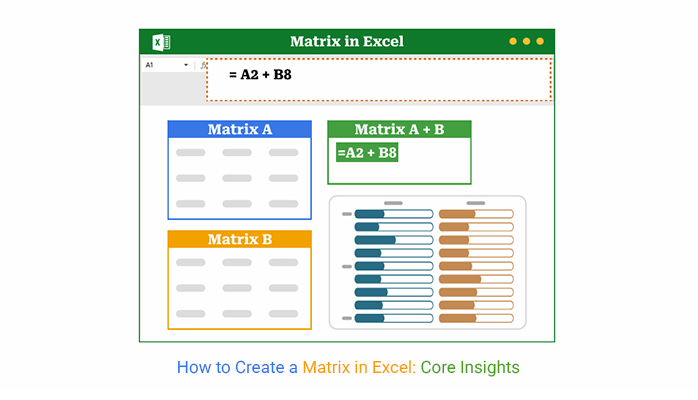
How to Create a Matrix in Excel

Think about decision-making. Businesses often rely on tools like the decision matrix to compare options with clarity and precision. Without the proper structure, you risk basing big moves on guesswork. Excel makes it easier—but only if you know how to use it.

And it’s not just about choices. In project planning or resource allocation, a well-built matrix can spotlight what’s urgent or impactful. That’s where tools like the impact vs. effort matrix help, especially when time and resources are limited.

So why do people avoid building matrices? Often, it’s because they don’t know how to create a matrix in Excel without getting lost in formulas or formatting. However, once you learn the steps, they become second nature. You’re not looking for a fancy template—you need something that works and saves time.

Whether you’re organizing team skills, comparing performance, or analyzing data relationships, Excel is more than capable. And how to create a matrix in Excel doesn’t have to be a question anymore. Why? I will take you through the practical steps you need.

Let’s get started.

Table of Contents:

  1. What is a Matrix in Excel?
  2. Why Use a Matrix in Excel?
  3. Explain the Methods to Create a Matrix in Excel
  4. How to Create a Matrix in Excel?
  5. How to Create and Analyse an Excel Matrix Chart?
  6. Benefits of Creating a Matrix in Excel
  7. Best Practices to Create an Excel Matrix Table
  8. Tips for Building a Matrix in Excel
  9. FAQs
  10. Wrap Up

What is a Matrix in Excel?

Definition: A matrix in Excel is a table that shows data in rows and columns. It helps you organize, compare, or analyze information quickly. You can use it to build a prioritization matrix or even track progress with skills matrix templates.

Whether it’s numbers, tasks, or people, matrices help make sense of it all. In Excel, they’re easy to build – once you know the basics. Think of it as a smart way to bring clarity to data.

Why Use a Matrix in Excel?

Have you ever stared at a messy spreadsheet and felt overwhelmed? That’s where a matrix steps in. It turns clutter into clarity, helping you focus and organize your thoughts. Here’s why so many professionals rely on Excel for this:

  • Intuitive layout: A matrix in Excel is just rows and columns. That’s familiar, easy to follow, and perfect for things like matrix survey questions or team skill overviews.
  • Powerful formulas: Excel formulas think for you. Whether you’re calculating totals or revealing co-occurrence patterns, it’s all a few keystrokes away.
  • PivotTables: PivotTables turn messy data into clean summaries. For instance, I know you have found yourself trying to understand something like what a confusion matrix is. A PivotTable makes it clearer.
  • Conditional formatting: Colors bring meaning. You can highlight top performers, deadlines, or issues instantly—without saying a word.
  • Integration: Excel plays well with other platforms. You can pull in data from surveys, CRMs, or exports, and update it all in one place.

Explain the Methods to Create a Matrix in Excel

You’ve got data. Now you want structure. A matrix helps, but how do you build one in Excel? Good news: you’ve got options. Whether you prefer simplicity or want complete control, there’s a method that suits you.

  • Manual table: This is the easiest way to start. Type your data into rows and columns, format the headers, and build your decision matrix in minutes.
  • PivotTables: These are ideal when you’re working with lots of data. They enable you to group, filter, and summarize data without needing formulas or headaches.
  • Formula-driven matrices: Want more automation? Use functions like INDEX, MATCH, or IF to build dynamic tables. Formulas are great for things like a covariance matrix, where calculations matter.
  • Chart-based matrices: Sometimes you need your matrix to show something, not just sit there. Use color-coded charts or conditional formatting to transform your impact vs. effort matrix into a visual decision-making tool.

How to Create a Matrix in Excel?

Have you ever felt stuck looking at numbers, unsure of how to make them meaningful? A matrix in Excel can change that. It helps you see patterns, compare options, and make more intelligent choices—fast. This step-by-step guide shows you how to create a matrix in Excel—the easy way:

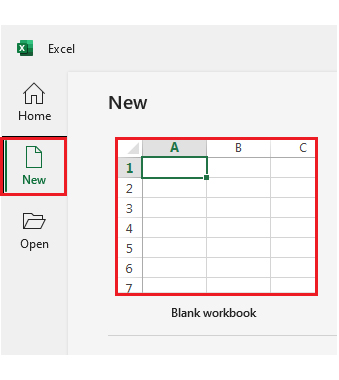
Step 1: Open Excel. Start fresh with a blank workbook or open one you’re already working on.
How to Create a Matrix in Excel

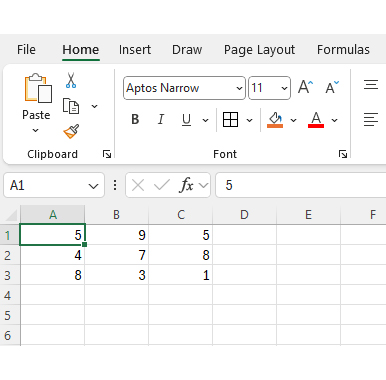
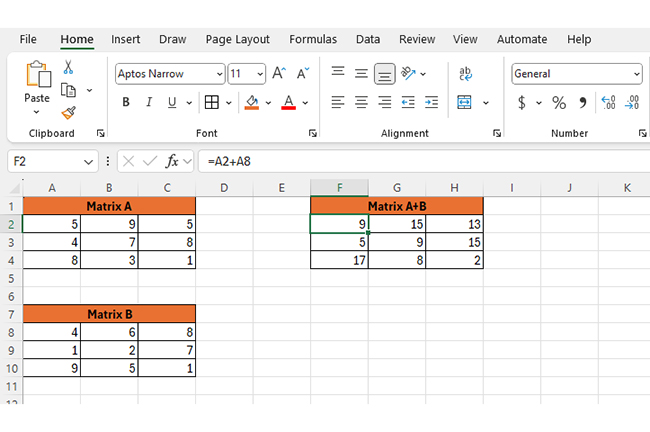
Step 2: Type your values into rows and columns. For a 3×3 matrix, fill cells A1 to C3 with nine data points.
How to Create a Matrix in Excel

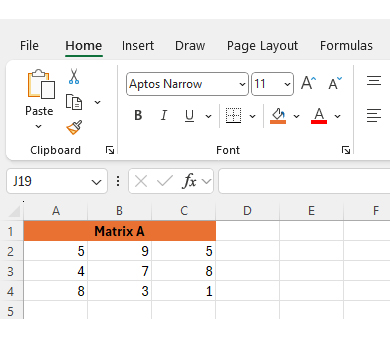
Step 3: Select the cells that hold your matrix. Right-click and choose “Format Cells.” Add borders, select a font, and adjust the text size to ensure readability. That’s your fundamental matrix.
How to Create a Matrix in Excel

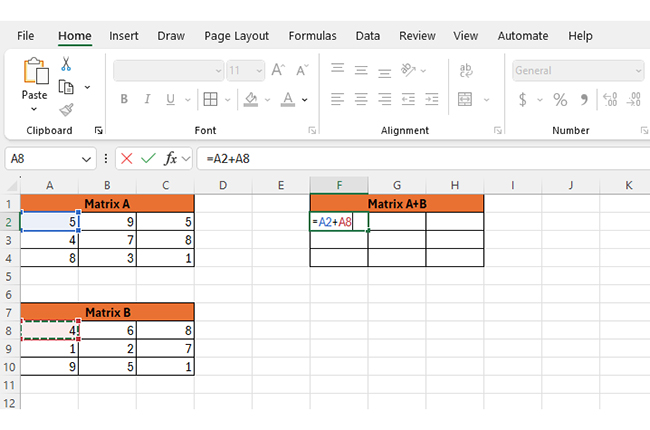
Step 4: Let’s add some math. Create a second matrix—call it Matrix B. To add the two, enter a formula in a third matrix (e.g., =A2 + A8). Do this for each cell to build Matrix A + B. It’s fast and effective.
How to Create a Matrix in Excel

After adding both matrices, the matrix A+B should look like this:
How to Create a Matrix in Excel

Create a Matrix Using PivotTable in Excel

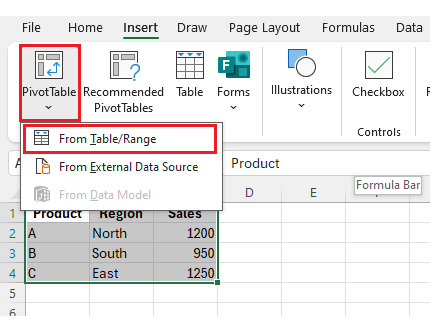
Step 1: Set up your data like this:

Product Region

Sales

A North 1200
B South 950
C East 1250

Step 2: Highlight your data range. Go to Insert > PivotTable, and choose to place it in a new sheet.
How to Create a Matrix in Excel

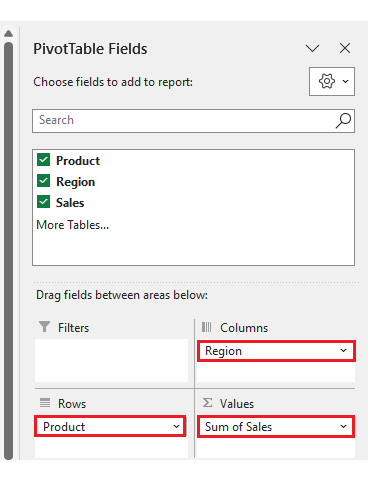
Step 3: Now customize: Drag product to rows. Drag the region to the columns. Drag sales to values.
How to Create a Matrix in Excel

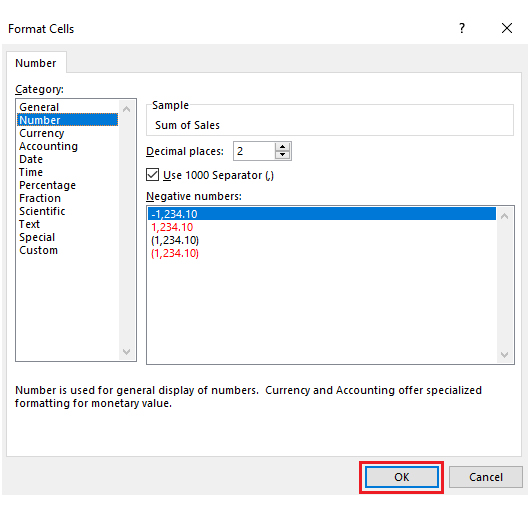
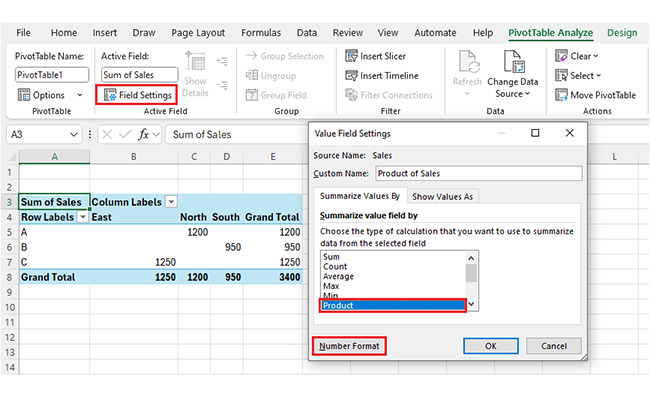
Step 4: Click “Field Settings” under the Sales field. Pick Product from “Summarize value field by”, then go to Number Format.
How to Create a Matrix in Excel

Select the number and click OK.

How to Create a Matrix in Excel

After the number format, our matrix looks as follows:
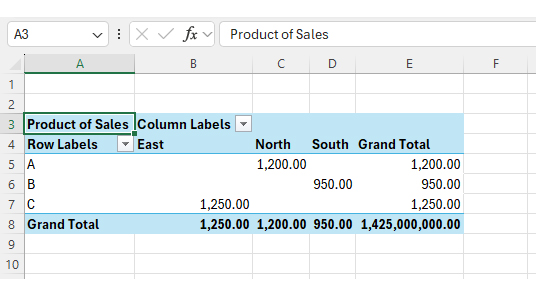
How to Create a Matrix in Excel

Step 5: Final polish: Use tabular form in the PivotTable Design tab. Add conditional formatting for color-based highlights.

How to Create and Analyse an Excel Matrix Chart?

Are you drowning in spreadsheets? You’re not alone. Data analysis begins with numbers, but it ends with clarity—and that’s where many get stuck. Sure, Excel handles rows and columns like a pro. But when it comes to data visualization, things can fall flat. Clunky charts. Limited styles. No spark.

Enter ChartExpo. This tool brings life to your data, filling the gap Excel leaves behind. You can build smarter matrices and make them shine with better visuals.

How to Install ChartExpo in Excel?

  1. Open your Excel application.
  2. Open the worksheet and click the “Insert” menu.
  3. You’ll see the “My Apps” option.
  4. In the Office Add-ins window, click “Store” and search for ChartExpo on my Apps Store.
  5. Click the “Add” button to install ChartExpo in your Excel.

ChartExpo charts are available both in Google Sheets and Microsoft Excel. Please use the following CTAs to install the tool of your choice and create beautiful visualizations with a few clicks in your favorite tool.

Example

Let’s analyze this sample data in Excel using ChartExpo.

Department Region Type Score
Finance South Actual 90
Finance South Planned 95
Finance East Actual 94
Finance East Planned 95
Finance West Actual 96
Finance West Planned 80
Finance North Actual 92
Finance North Planned 85
Compliance South Actual 70
Compliance South Planned 40
Compliance East Actual 85
Compliance East Planned 65
Compliance West Actual 83
Compliance West Planned 60
Compliance North Actual 78
Compliance North Planned 75
HR South Actual 60
HR South Planned 70
HR East Actual 55
HR East Planned 50
HR West Actual 51
HR West Planned 60
HR North Actual 58
HR North Planned 60
IT South Actual 65
IT South Planned 60
IT East Actual 62
IT East Planned 45
IT West Actual 54
IT West Planned 60
IT North Actual 61
IT North Planned 60
Legal South Actual 65
Legal South Planned 65
Legal East Actual 50
Legal East Planned 50
Legal West Actual 60
Legal West Planned 60
Legal North Actual 58
Legal North Planned 60
  • To get started with ChartExpo, install ChartExpo in Excel.
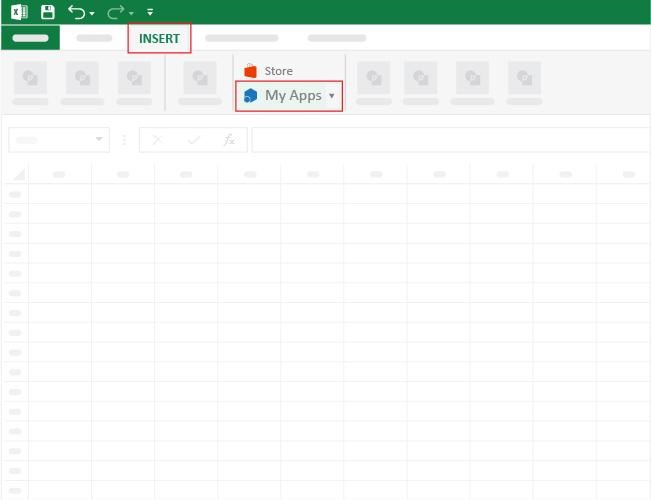
  • Now, click on My Apps from the INSERT menu.
How to Create a Matrix in Excel
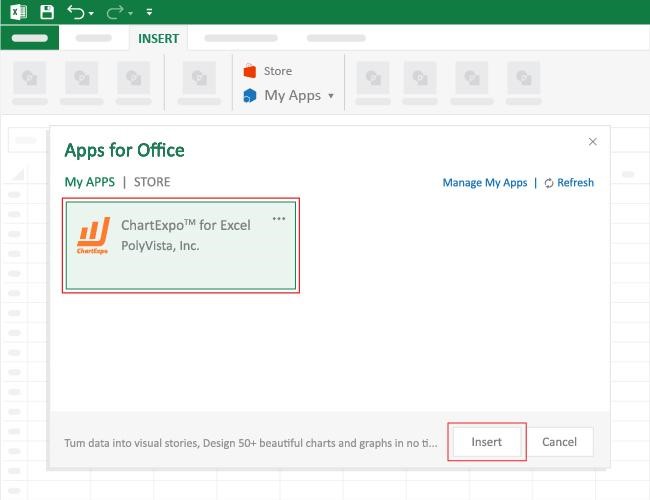
  • Choose ChartExpo from My Apps, then click Insert.
How to Create a Matrix in Excel
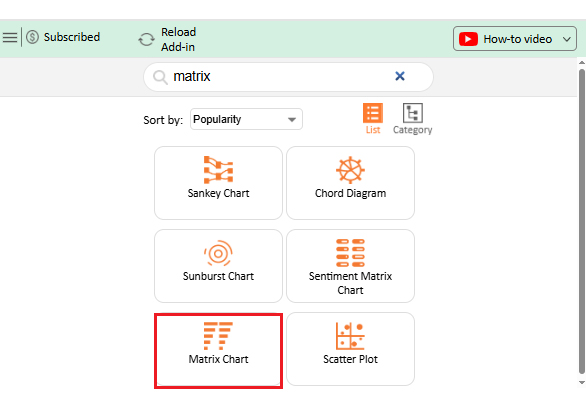
  • Once it loads, scroll through the charts list to locate and choose the “Matrix Chart”.
How to Create a Matrix in Excel
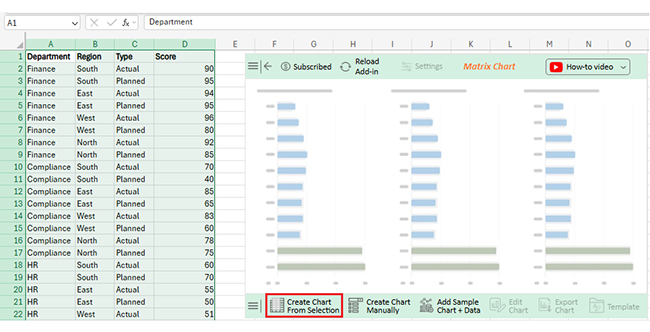
  • Click the “Create Chart From Selection” button after selecting the data from the sheet, as shown.
How to Create a Matrix in Excel
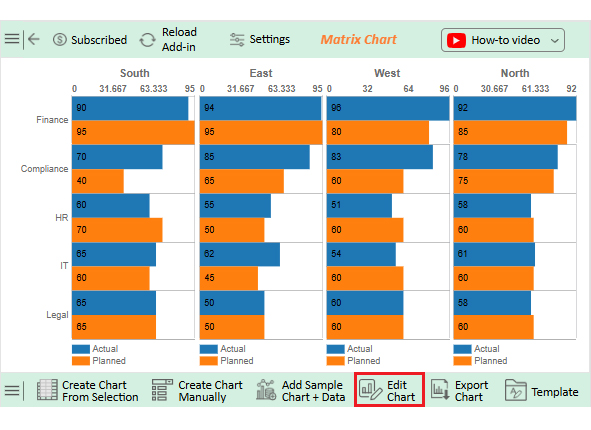
  • ChartExpo will generate the visualization below for you.
How to Create a Matrix in Excel
  • If you want to add anything to the chart, click the Edit Chart button:
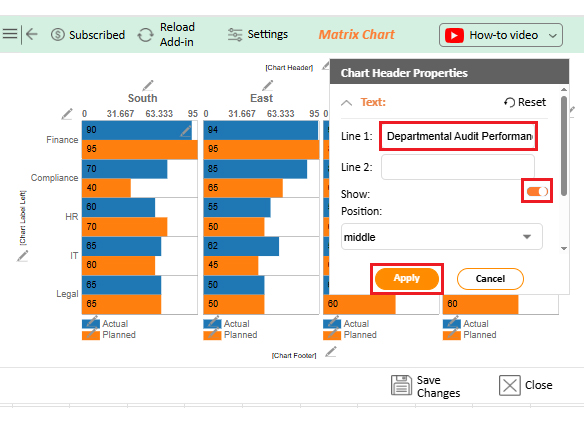
  • Click the pencil icon next to the Chart Header to change the title.
  • It will open the properties dialog. Under the Text section, you can add a heading in Line 1 and enable Show.
  • Give the appropriate title of your chart and click the Apply button.
How to Create a Matrix in Excel
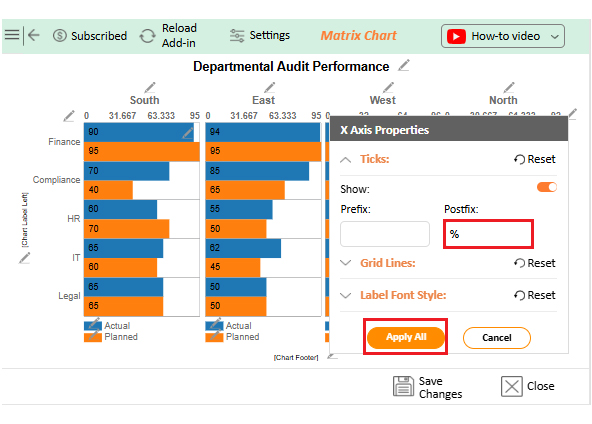
  • You can add the (%) as a postfix for representing Score:
How to Create a Matrix in Excel
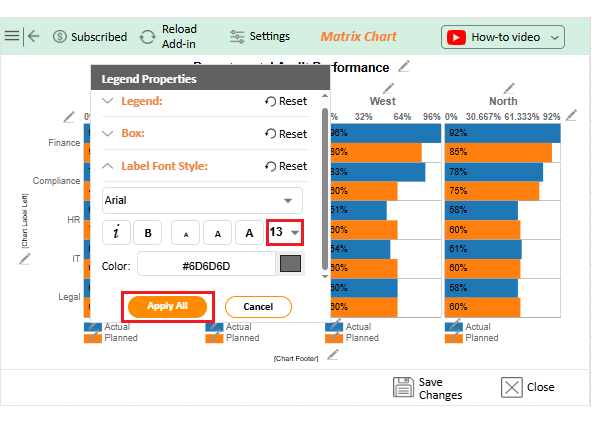
  • You can increase legend font size properties for better readability:
How to Create a Matrix in Excel
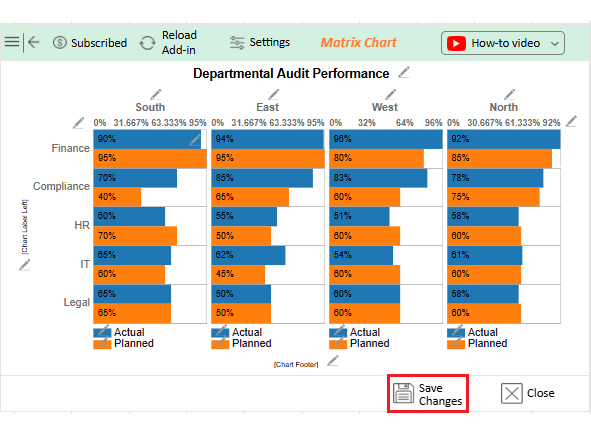
  • Click the “Save Changes” button to persist the changes made to the chart.
How to Create a Matrix in Excel
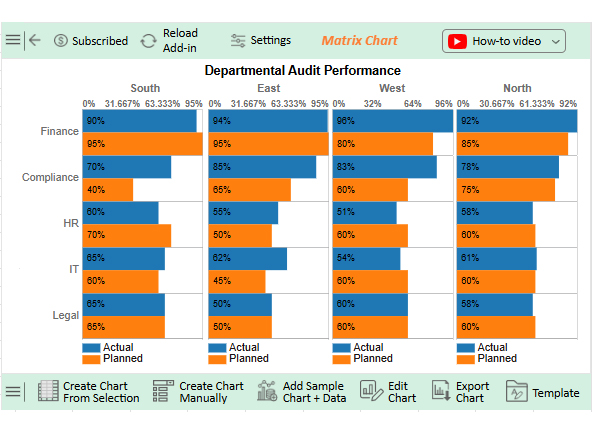
  • Your final Matrix Chart will look like the one below.
How to Create a Matrix in Excel

Insights

  • Finance (East): Strong execution with 94% Actual vs. 100% Planned. This shows accurate forecasting and audit follow-through.
  • Compliance (West): Lagging at 33% Actual vs. 60% Planned. This points to possible gaps in operations or audit coverage.
  • IT (East): Outperformed expectations with 62% Actual vs. 45% Planned. This could signal overachievement or low planning benchmarks.
  • HR: Mixed results—underperformance in the East, strong alignment in the West, showing regional inconsistencies.
  • North Region: Most consistent—Actual vs. Planned audits closely match across departments, reflecting solid audit oversight.

Benefits of Creating a Matrix in Excel

Have you ever felt like your data is talking, but you can’t quite hear what it’s saying? A matrix in Excel helps clear the noise by bringing structure to chaos. It turns rows of numbers into something you can use. Here’s why building one is worth it:

  • Better clarity: A matrix shows everything in one place—no hunting through tabs or scattered notes.
  • Smarter decisions: Whether it’s a decision matrix or an impact vs. effort matrix, comparing options side by side makes choices easier.
  • Faster communication: Do you want your team to get the point quickly? A matrix makes it clear without the need for lengthy explanations.
  • Flexible use cases: From skills matrix templates to tracking project tasks, a matrix fits nearly any goal.
  • Data you can trust: This matrix helps you see gaps, patterns, and wins—all backed by real numbers.

Best Practices to Create an Excel Matrix Table

Let’s be honest—Excel can either make you feel brilliant or completely lost. And when you’re building a matrix? One wrong move, and things spiral fast. But don’t worry. A few smart habits can keep your matrix clean, clear, and helpful. These tips will save you time (and your sanity):

  • Plan before you type: Familiarize yourself with your rows, columns, and the comparison you want to make before diving in.
  • Use clear labels: Headers should speak for themselves—no guessing games.
  • Keep it simple: Don’t overload your matrix. More data isn’t always better—clarity is key.
  • Format with purpose: Borders, bold fonts, and color coding help your brain process information more efficiently.
  • Use named ranges: This keeps formulas clean and your data easier to manage.

Tips for Building a Matrix in Excel

Have you ever built a matrix in Excel, hit Enter, and then nothing makes sense? We’ve all been there. The data is in the cells, but it’s not working. The truth is, building a matrix takes more than dragging and typing. It’s part logic, part layout, and part “don’t mess this up” awareness. These tips will help you build smarter, not harder:

  • Sketch it first: Grab a pen, and map your matrix before touching Excel. It’ll save you time and confusion later.
  • Stick to a grid: Keep your rows and columns aligned. A clean layout makes the data easier to read and use.
  • Use drop-downs for inputs: Data validation makes your matrix interactive and reduces entry errors.
  • Add conditional formatting: Use color to show trends, gaps, or performance levels. It brings your matrix to life.
  • Think ahead with formulas: Utilize dynamic formulas to maintain data integrity. This is super helpful for evolving tools like a covariance matrix.

FAQs

How to convert Excel data into a matrix?

  • Arrange your data in rows and columns.
  • Remove any blank cells or headers you don’t need.
  • Use formulas or PivotTables to group data.
  • Format with borders for clarity.

How to select a matrix in Excel?

  • Click the top-left cell of your matrix.
  • Hold and drag to the bottom-right cell.
  • Use Ctrl + Shift + Arrow Keys for quick selection.
  • Press Ctrl + A to select the entire range.

Wrap Up

Creating a matrix in Excel doesn’t have to be hard. With the right approach, you can turn raw data into clear insights. Whether it’s for analysis or planning, a matrix helps simplify complex information. It’s about seeing patterns, not just numbers.

You can build one manually, with formulas, or through PivotTables. Each method serves a purpose, so choose the one that matches your goal. A clean structure always helps.

Need to explore how things relate? A co-occurrence matrix does that. It shows how often two items appear together. It is ideal for research, customer feedback, or behavioral data analysis.

Trying to collect structured responses? Use matrix survey questions. They’re perfect for tracking multiple answers at once. Excel helps lay them out in a readable format.

Have you ever wondered what a confusion matrix is? It’s a tool in machine learning to evaluate model accuracy. You can also build it in Excel, using formulas and smart formatting.

So yes, Excel may seem basic. But it’s powerful when used right. With the steps in this guide, your following matrix won’t be a challenge—it’ll be a solution. Start small, stay organized, and let the data speak for itself.

Pro tip: To take your visuals further, install ChartExpo. It will transform your matrix into an interactive chart in minutes.

How much did you enjoy this article?

ExcelAd1
Start Free Trial!
156942

Related articles

next previous
Microsoft Excel12 min read

How to Make a Template in Excel: A Simple Guide

Discover how to make a template in Excel for faster, cleaner work. Here, you’ll learn steps, examples, and how ChartExpo enhances your data and more.

Microsoft Excel9 min read

How to Compare Columns in Excel for Clear Insights

Learn how to compare columns in Excel using simple tools and formulas. This guide helps you spot differences, analyze data, and improve accuracy.

Microsoft Excel10 min read

How to Copy Formatting in Excel for Better Insights

Master how to copy formatting in Excel with quick tools and smart tips. You’ll learn methods that boost speed, improve data analysis, and simplify reporting.

Microsoft Excel9 min read

Group Worksheets in Excel for Quick Insights

Discover how to group worksheets in Excel to update multiple sheets at once. Learn with clear steps, visuals, and tips to save time and reduce errors.

Microsoft Excel11 min read

CSV vs. Excel: A Quick Comparison for Everyday

CSV vs. Excel explains the key differences and when to use each. Discover practical tips, tables, and charts to manage and analyze your data better.

ChartExpo logo

Turn Data into Visual
Stories

CHARTEXPO

  • Home
  • Gallery
  • Videos
  • Services
  • Pricing
  • Contact us
  • FAQs
  • Privacy policy
  • Terms of Service
  • Sitemap

TOOLS

  • ChartExpo for Google Sheets
  • ChartExpo for Microsoft Excel
  • Power BI Custom Visuals by ChartExpo
  • Word Cloud

CATEGORIES

  • Bar Charts
  • Circle Graphs
  • Column Charts
  • Combo Charts
  • Comparison Charts
  • Line Graphs
  • PPC Charts
  • Sentiment Analysis Charts
  • Survey Charts

TOP CHARTS

  • Sankey Diagram
  • Likert Scale Chart
  • Comparison Bar Chart
  • Pareto Chart
  • Funnel Chart
  • Gauge Chart
  • Radar Chart
  • Radial Bar Chart
  • Sunburst Chart
  • see more
  • Scatter Plot Chart
  • CSAT Survey Bar Chart
  • CSAT Survey Chart
  • Dot Plot Chart
  • Double Bar Graph
  • Matrix Chart
  • Multi Axis Line Chart
  • Overlapping Bar Chart
  • Control Chart
  • Slope Chart
  • Clustered Bar Chart
  • Clustered Column Chart
  • Box and Whisker Plot
  • Tornado Chart
  • Waterfall Chart
  • Word Cloud
  • see less

RESOURCES

  • Blog
  • Resources
  • YouTube
SIGN UP FOR UPDATES

We wouldn't dream of spamming you or selling your info.

© 2025 ChartExpo, all rights reserved.