It may surprise you, but businesses in the United States lose an estimated $611 billion yearly from poor data quality. This number is enough to make you pause.
Now ask yourself this: Could forecasting using Excel be the difference between guessing and growing?
I will help you get the answer.
Every company, from a local bakery to Fortune 500 giants, runs on decisions. Those decisions are stronger when powered by data. In fact, a Harvard Business Review study found that data-driven organizations are 23 times more likely to acquire customers. Yet most businesses fail to turn raw data into action. Forecasting using Excel gives you a practical path to change that.
How?
Consider, for example, a startup founder trying to secure investment. Their pitch depends on credible numbers. In these moments, financial forecasting for startups becomes the backbone of confidence. Without it, funding dries up. With it, growth feels tangible.
But it’s not just startups that benefit. Retailers rely on time series forecasting to predict sales spikes in advance of holidays. Airlines use it to anticipate passenger loads. Even healthcare systems lean on it to prepare for flu season.
And what ties all this together? The reality is that Excel has become more powerful than most realize. With formulas, automation, and advanced tools, it does more than store numbers. It transforms them into signals about the future. Forecasting using Excel is no longer a back-office task. It is the frontline strategy for companies that want to act, not react.
Now is the time to harness Excel’s potential—start leveraging its advanced capabilities to stay ahead.
Follow my lead…
Definition: Forecasting using Excel involves transforming past data into future insights. It helps businesses identify trends and patterns that are often hidden in plain sight. With a few functions and tools, Excel can project sales, costs, or growth.
Many startups utilize business forecasting to establish trust with investors and inform their next steps. It is not about guessing. It is about using data to make smarter choices. Excel offers charts, formulas, and models that keep things clear. Forecasting in Excel takes what happened yesterday and shows what may happen tomorrow. Consequently, this clarity fuels stronger decisions.
You do not need expensive software to see the future of your business. Excel is already on your computer, waiting to work harder for you. Companies of every size are proving that business forecasting in Excel can be simple, flexible, and powerful. Whether you are a founder, manager, or analyst, forecasting models in Excel put control back in your hands.
How?
You have more power in Excel than you may think. Forecasting does not always demand complex software or data science teams. With a few built-in tools, you can project sales, plan budgets, and test ideas with confidence.
Are you experimenting with what-if analysis in Excel or calculating growth using compound interest? These methods provide structure to decisions that matter. The beauty lies in their simplicity:
Most people view Excel as a tool for storing numbers, but it is a forecasting tool hiding in plain sight. With the right features, you can turn rows of data into a forward-looking plan. It doesn’t matter whether you want to interpolate in Excel to fill gaps or experiment with artificial intelligence add-ins. The software offers more forecasting power than many realize:
Data is powerful only when acted on. That is why Excel shines—it turns numbers into stories about the future. From forecasting revenue to planning expenses, its tools make projections clear. Whether using GETPIVOTDATA in Excel to find insights or considering Excel’s business uses, the goal is the same: better decisions based on data.
These examples will help you get started:
Definition: The forecasting formula in Excel predicts future values using existing data. The most commonly used formula is: =FORECAST.LINEAR(x, known_ys, known_xs). This function commonly predicts future numbers by extending a straight line through known values. It helps you spot steady growth or decline.
You can also use the TREND function, which returns multiple predictions at once, making it useful for large datasets.
Both methods project future outcomes using past values. They transform Excel from a basic spreadsheet into a decision-making tool that provides clear direction for planning.
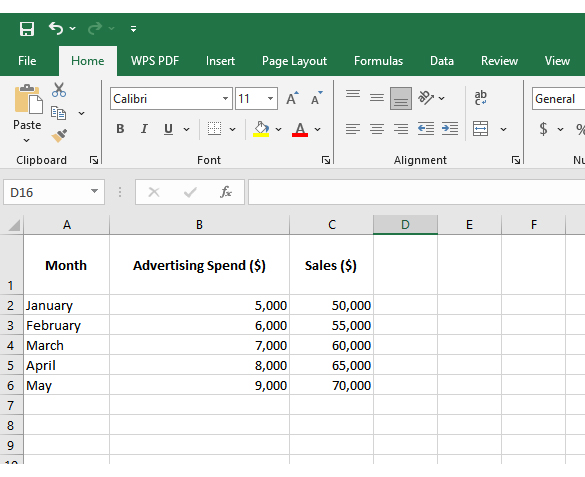
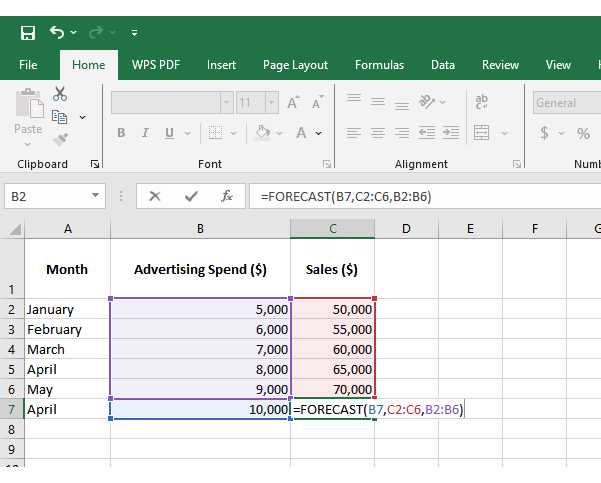
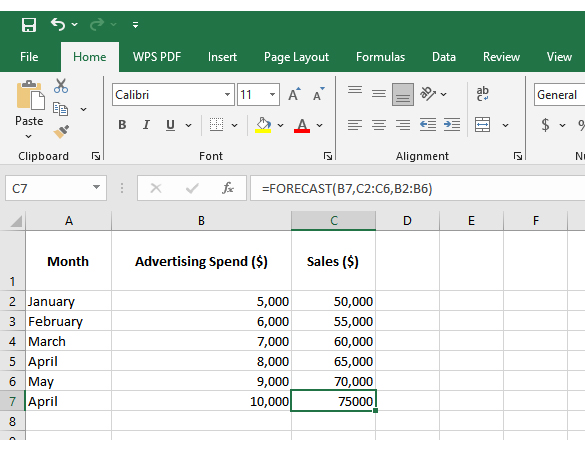
Predicting future trends in Excel does not have to be complicated. The FORECAST function helps you estimate outcomes based on past data. Let us walk through an example to see how it works in practice:
Assume we have data for advertising spend as our known x-values and sales figures as our known y-values. With this information, the FORECAST function can predict future sales. How? It will calculate an additional point along the straight line that best fits the given data.
Numbers alone can seem dry, even when they reveal growth opportunities. That is why forecasting using Excel is crucial. But while Excel handles calculations effectively, its standard charts may not always communicate the story clearly or compellingly. Subtle trends may remain hidden behind ordinary graphs.
And what’s the fuss about charts and graphs? Data visualization bridges the gap between raw numbers and informed decisions.
This is where ChartExpo makes a difference. It converts raw spreadsheets into visuals that communicate effectively. With ChartExpo, forecasts become clearer, more shareable, and more persuasive. Data finally appears as insightful as it is.
Try ChartExpo today and see how your forecasting process transforms.
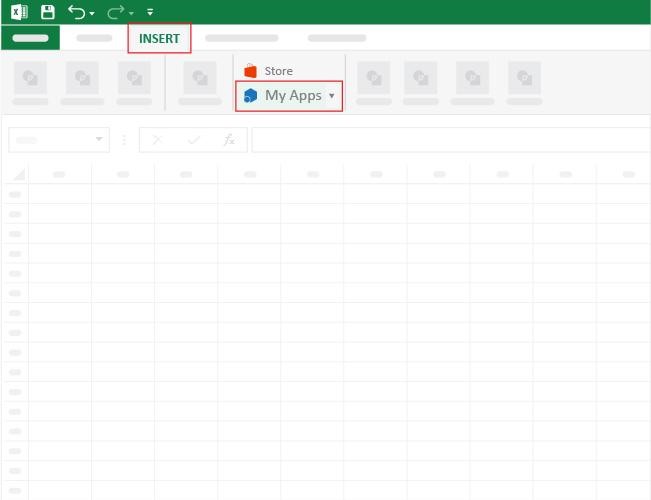
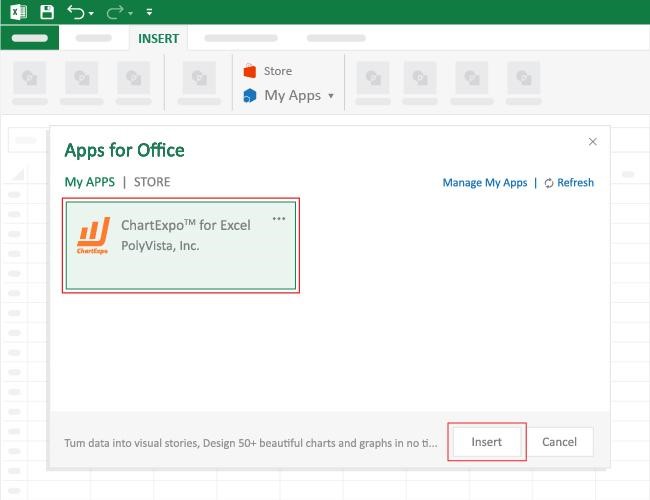
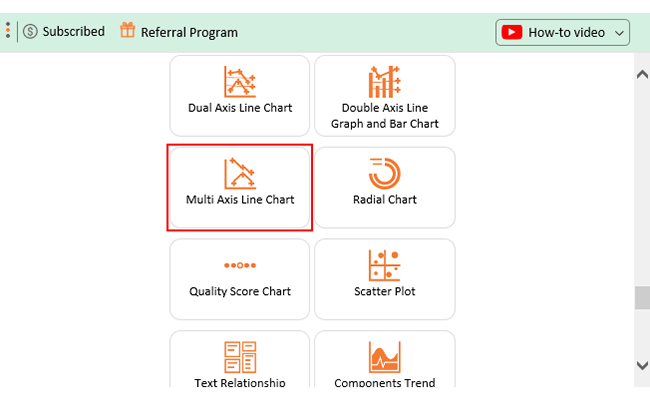
How to Install ChartExpo in Excel?
ChartExpo charts are available both in Google Sheets and Microsoft Excel. Please use the following CTAs to install the tool of your choice and create beautiful visualizations with a few clicks in your favorite tool.
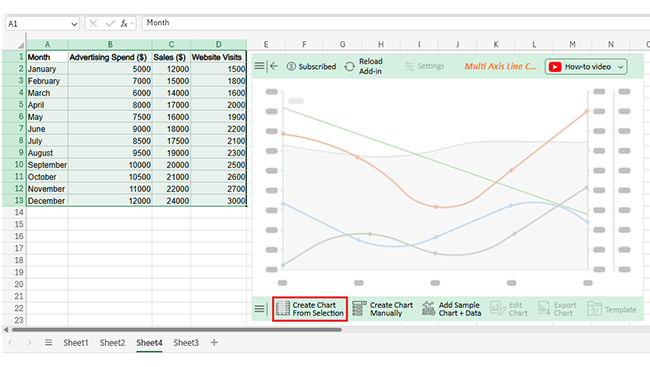
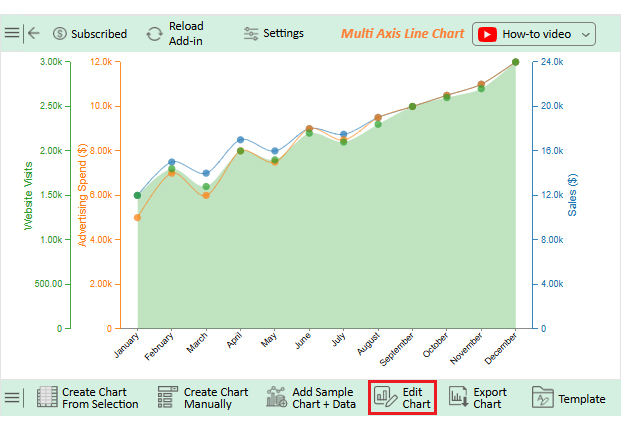
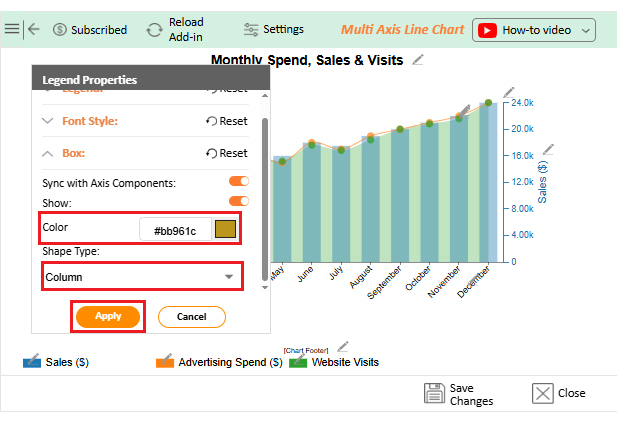
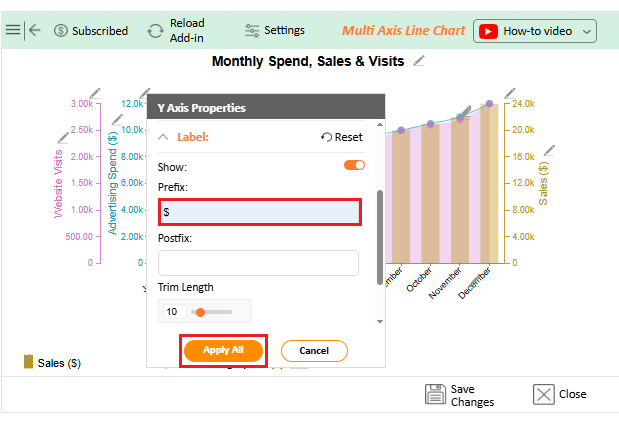
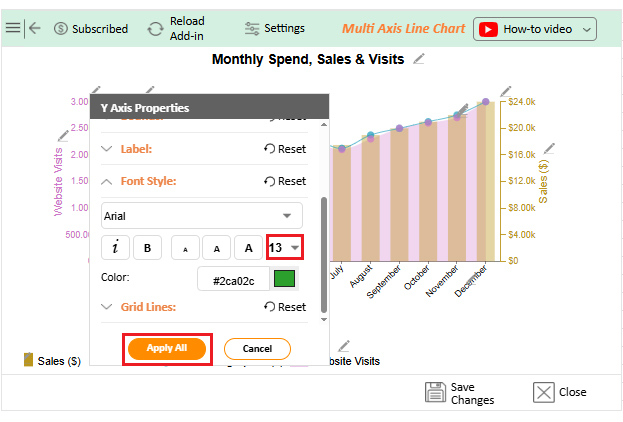
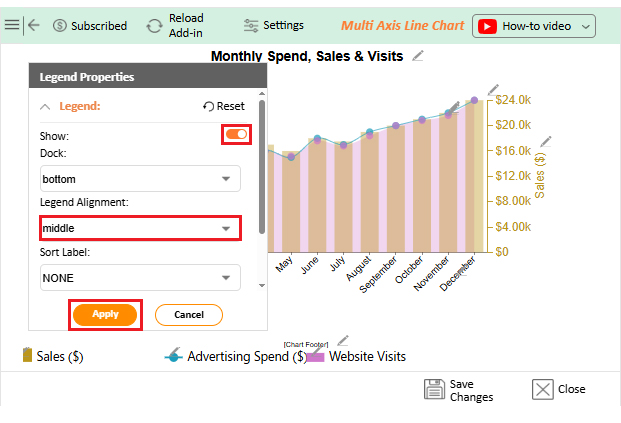
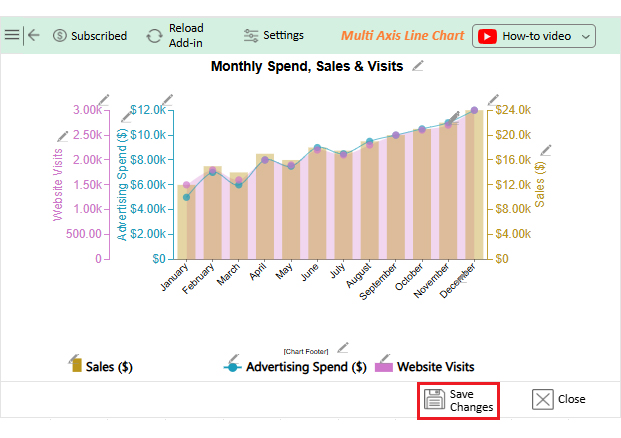
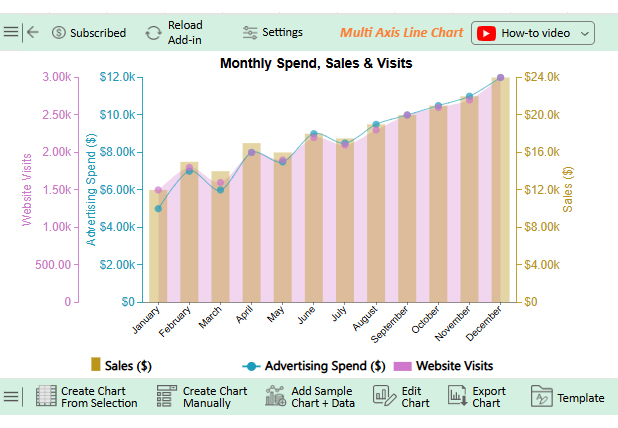
Let’s visualize and analyze this sample data in Excel using ChartExpo.
| Month | Advertising Spend ($) | Sales ($) | Website Visits |
| January | 5000 | 12000 | 1500 |
| February | 7000 | 15000 | 1800 |
| March | 6000 | 14000 | 1600 |
| April | 8000 | 17000 | 2000 |
| May | 7500 | 16000 | 1900 |
| June | 9000 | 18000 | 2200 |
| July | 8500 | 17500 | 2100 |
| August | 9500 | 19000 | 2300 |
| September | 10000 | 20000 | 2500 |
| October | 10500 | 21000 | 2600 |
| November | 11000 | 22000 | 2700 |
| December | 12000 | 24000 | 3000 |
Running a business without forecasting is like driving at night with the headlights off. You may move forward, but every turn is risky. Forecasting in Excel lights the path ahead, turning past data into practical insights for decisions. Here are the benefits plainly explained:
Choose the right Excel method as you would pick the right tool. Each method fits a purpose, but not all suit every job. Adjust your approach based on your timeline, your data pattern, and the needed detail.
Follow these guidelines:
Yes, Excel is effective for forecasting. It offers built-in formulas and tools to analyze data. You can create simple or advanced models. It works well for sales, budgets, and trends. Forecasts remain flexible and accessible.
Excel uses several forecasting methods. These include moving averages, exponential smoothing, and linear regression. Functions like FORECAST.LINEAR and TREND extend data into the future, and you can also apply growth formulas. Each method fits different forecasting needs and goals.
Forecasting is not guessing. It uses data to guide confident choices. Excel helps turn numbers into insights, making forecasting practical for everyone.
Businesses run on decisions, and good decisions come from understanding trends and patterns. Excel answers the question “What is Excel software used for beyond simple spreadsheets?” It is a planning tool that helps leaders see what comes next.
Functions such as GETPIVOTDATA in Excel make analysis easier. They allow you to pull details from large sets of information quickly. This saves time and reduces errors. It also keeps your forecasts reliable.
New tools now expand Excel’s reach. Add-ins bring features that feel close to artificial intelligence in Excel. These tools help automate processes and improve accuracy. Forecasts become smarter with less effort.
Excel has limits in visualization. Charts often look basic and lack clarity.
But don’t worry: ChartExpo helps by turning plain spreadsheets into clear, compelling visuals.
So, the next step is clear: install ChartExpo and see its impact today. Let Excel do the math while ChartExpo reveals insights. Together, they make forecasts sharper, faster, and more convincing.
Take action now and turn data into results.