Excel automations. Is this where spreadsheets think and work for you?
This blog will help you find out.
But first, let’s lay the foundations. Every day, professionals spend hours clicking, dragging, and repeating the same tasks. Now imagine reclaiming that lost time. With Excel automations, you cut repetitive work in half and let Excel handle the details. This gives you the time to focus on higher-value strategic activities.
Excel automations also scale with your needs. It doesn’t matter whether you are dealing with 10 rows or 10,000. What once took hours now takes minutes, freeing your team to do more impactful work. How? Automations handle repetitive calculations, update dashboards, and trigger alerts automatically.
And Excel isn’t standing still. With more users exploring Artificial Intelligence in Excel, automations are getting smarter. Trends are getting predicted, outliers flagged, and insights presented to you in plain sight.
Are you trying to understand what Excel software is used for in modern offices? This guide is your starting point. I will explain it to you, showing how automation plays a key role.
Or are you looking to learn how to add Data Bars in Excel for clearer visuals? You’ll see how automation helps make that process smoother, too.
Without further ado, let’s dive in and boost your Excel workflow…
Definition: Excel automations let Excel handle repetitive tasks, reducing errors and saving time. With tools like formulas, macros, or rules, you set instructions once and let Excel do the rest. Grouping data in Excel becomes much quicker, allowing you to focus on more important work.
It’s not just about speed. Consistency is also part of the game. Once automated, tasks like data entry, sorting, or report generation follow the same logic every time, ensuring reliable results. That means fewer mistakes, less manual effort, and more room for analysis and data-driven decision-making.
Imagine having an assistant who never gets tired, never makes mistakes, and loves spreadsheets. That’s the magic of Excel automation. From speeding up tasks to cutting out errors, it’s changing how people work with data. Here are some of the reasons why more users are ditching the manual grind:
Excel can do more than store data. It can move, clean, combine, and communicate—without you lifting a finger every time. Here’s what Excel automations can handle for you:
Manual reporting eats up valuable time and increases the risk of errors. That’s why more teams are turning to Excel automation. It streamlines workflows, reduces redundancy, and frees up bandwidth for high-value tasks.
Here are three real examples where Excel steps up and takes the wheel:
Have you ever dreamed of Excel doing the boring stuff while you sip your coffee? That’s not a fantasy. It’s Excel automation in action. With a few tools and tricks, you can turn manual chores into one-click tasks or even fully hands-off systems. Here’s how to make it happen:
With automation, Excel can remember your steps and do them every time. Whether you’re tracking sales, reviewing budgets, or managing client updates, automation saves time and cuts out human error. Here’s how to do it step-by-step. Don’t worry if you’ve never used a macro before. Just follow these steps:
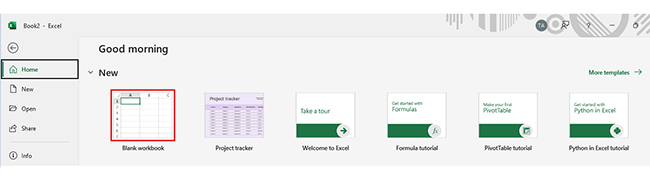
Step 1: To start fresh, go to File and choose New Blank Workbook. If you’re using an existing report, double-click to open it.
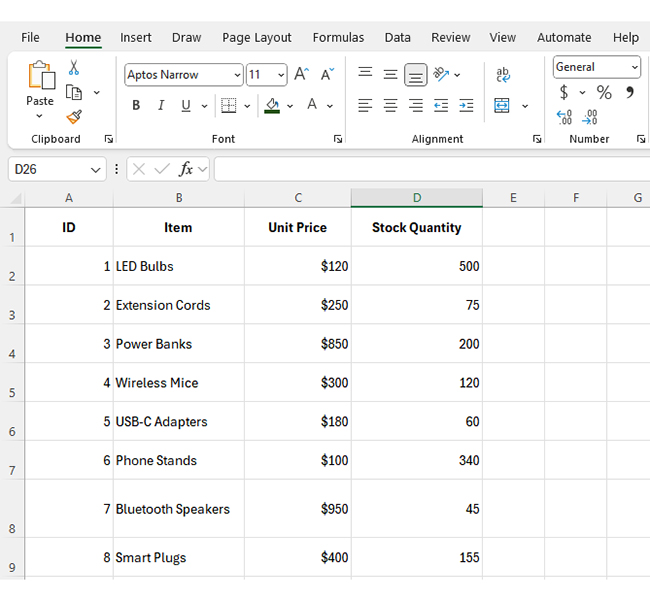
Step 2: Add your data. Make sure column headings are clear and consistent. What you enter now is what Excel will use in automation.
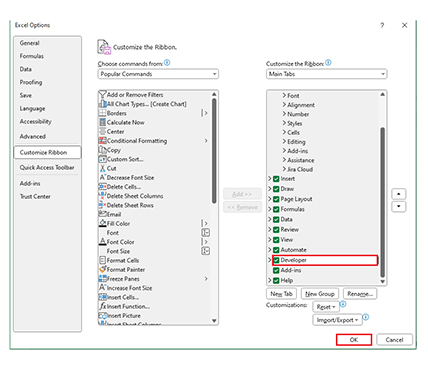
Step 3: Turn on the Developer tab. It’s hidden by default but gives you access to powerful tools like macros and VBA.
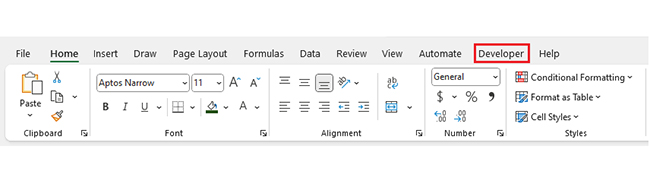
The Developer tab should now be on your ribbon.
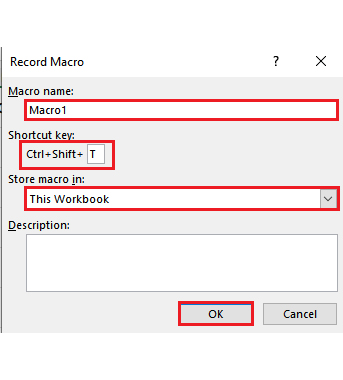
Step 4: Click Record Macro in the Developer tab. A small dialog box will pop up.
Step 5: Name your macro with something clear (e.g., “SalesReportMacro”). Add a shortcut if you like, and store the macro in This Workbook.
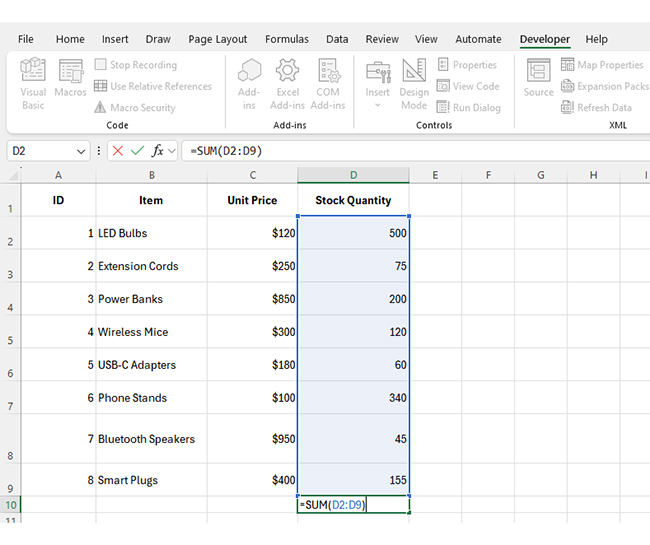
Step 6: Do the tasks you want to automate. Excel records every action—clicks, keystrokes, even formatting.
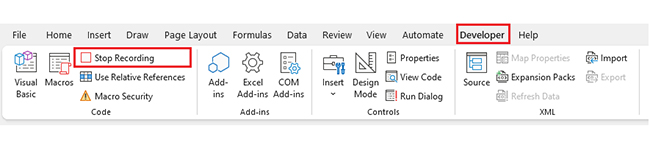
Step 7: When you’re done, go back to Developer and click Stop Recording.
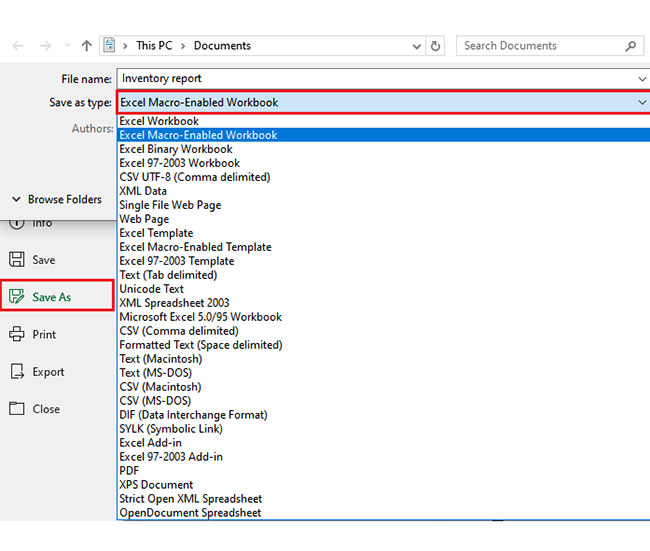
Step 8: Save your file as a macro-enabled workbook. Choose File > Save As, then change the file type to .xlsm. Give it a name, choose a location, and hit Save.
Let’s be honest. Excel automations save time by reducing manual tasks and fixing formulas. But when it comes to uncovering real insights, Excel’s basic charts often fall short. This limits us because data visualization is essential for spotting trends and making smart decisions.
But don’t worry; we have ChartExpo. This Excel add-in bridges the gap and delivers clearer charts and faster, deeper insights. It turns raw data into actionable decisions that Excel’s built-in tools can’t match.
Try ChartExpo today and see the difference for yourself.
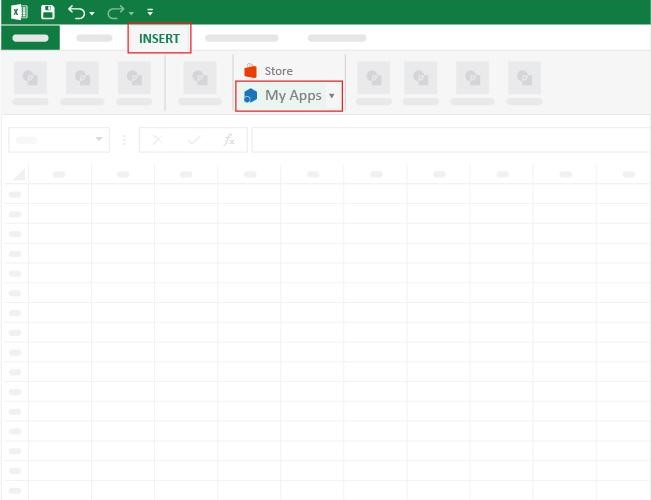
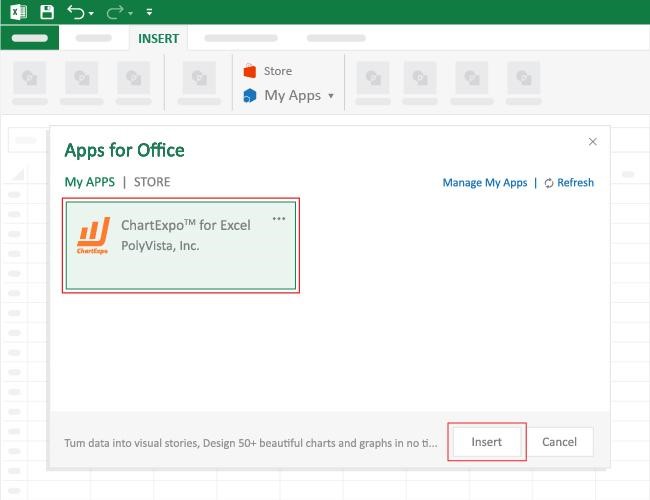
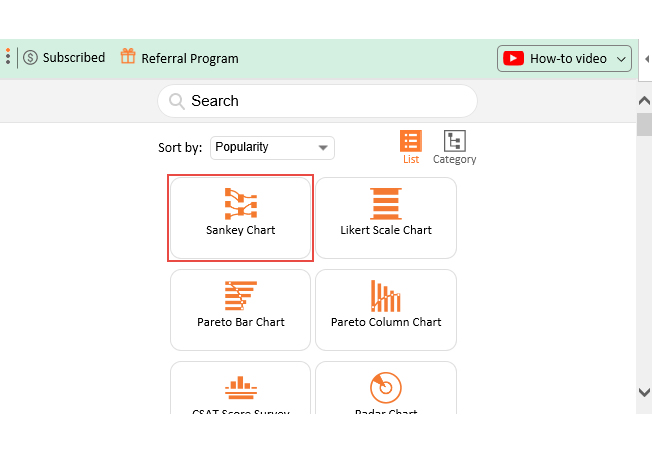
How to Install ChartExpo in Excel?
ChartExpo charts are available both in Google Sheets and Microsoft Excel. Please use the following CTAs to install the tool of your choice and create beautiful visualizations with a few clicks in your favorite tool.
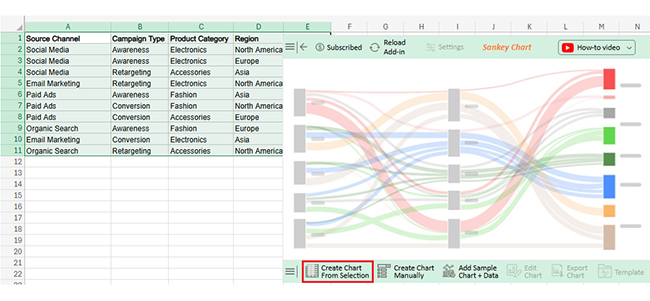
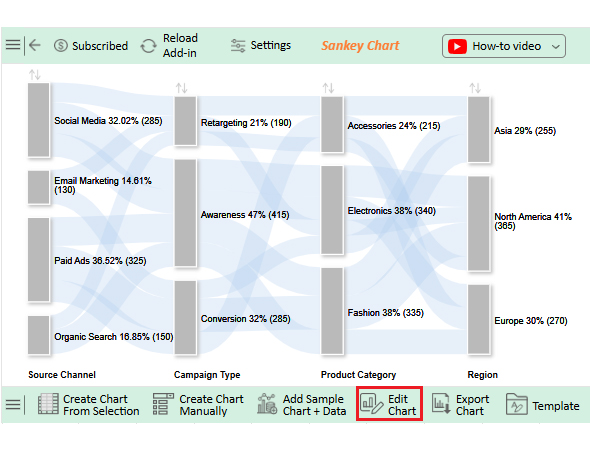
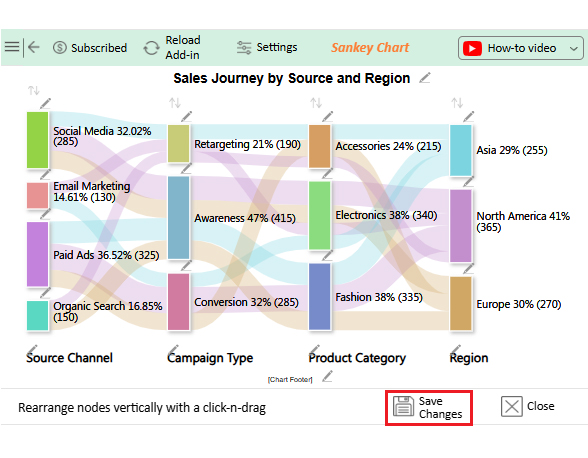
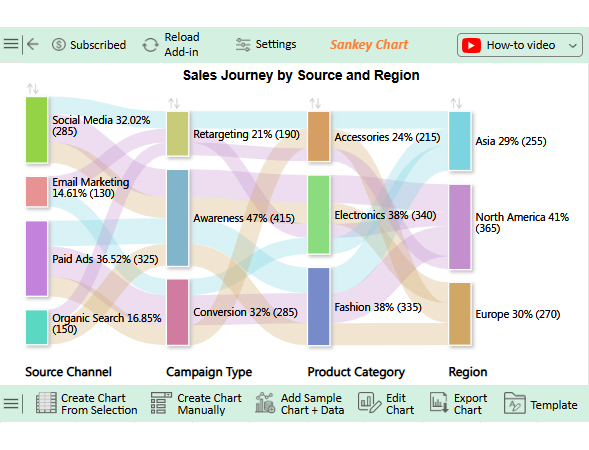
Let’s analyze the Excel automations sample data below using ChartExpo.
|
Source Channel |
Campaign Type | Product Category | Region |
Conversions |
| Social Media | Awareness | Electronics | North America | 120 |
| Social Media | Awareness | Electronics | Europe | 90 |
| Social Media | Retargeting | Accessories | Asia | 75 |
| Email Marketing | Retargeting | Electronics | North America | 60 |
| Paid Ads | Awareness | Fashion | Asia | 110 |
| Paid Ads | Conversion | Fashion | North America | 130 |
| Paid Ads | Conversion | Accessories | Europe | 85 |
| Organic Search | Awareness | Fashion | Europe | 95 |
| Email Marketing | Conversion | Electronics | Asia | 70 |
| Organic Search | Retargeting | Accessories | North America | 55 |
Drowning in spreadsheets? You’re not the only one. The endless tabs, the copy-paste chaos—it adds up fast. But here’s the good news: Excel automation can clear the clutter. It handles the repetitive stuff so you can focus on what actually moves the needle.
Here’s what you gain when Excel starts pulling its weight:
Excel automation feels like magic. You set it up, press a button, and things mostly work. But let’s be real: Excel has limits. And if you’re not careful, those limits can sneak up on you.
Here’s where Excel automation can hit a wall:
Excel can finish your work before your coffee gets cold. It’s not just a wish. It’s the beauty of Excel automation. Automation cuts out repetitive tasks, freeing you up to focus on what really matters. Here’s how it gives your efficiency a real boost:
Yes. You can automate tasks in Excel using tools like Macros, VBA, and Power Query. These methods help with formatting, calculations, and data imports. Excel automation saves time, reduces errors, and improves workflow efficiency.
Choosing the best tool depends on your needs. While Macros are simple for beginners, consider VBA or Power Query for more advanced tasks. If you’re working online, Office Scripts works well. For integration with other apps, Microsoft Power Automate is powerful.
In addition to these tools, several Excel features support automation. For example, Macros record and replay actions, and VBA lets you write custom code. Power Query cleans and transforms data. And it doesn’t stop here. Conditional Formatting and Data Validation automate parts of your workflow without coding.
Excel automation is changing the game. From generating reports to building dashboards, Excel now does more with less manual effort. It’s faster, cleaner, and simply smarter.
And what is MS Excel used for in business? Pretty much everything. Companies across finance, marketing, and operations rely on it to track, analyze, and visualize data. Excel often powers the processes you don’t even see.
Here’s where it gets better—automation. But first, know your basics: Excel workbook vs worksheet. A workbook is the entire file, and each worksheet is a tab inside it. Automation connects them all—no jumping between tabs or copying formulas.
If you’ve ever wondered how to parse data in Excel, automation makes it effortless. Instead of sorting line by line, use tools like Power Query or simple scripts to extract just the data you need. Clean, fast, and on point.
The bottom line? Automation doesn’t replace you—it empowers you. How? It ensures less clicking and more thinking. So, let Excel do the busywork so you can focus on strategy, insights, and decision-making.
Want to take your data visuals to the next level? Pair Excel with ChartExpo for clear, compelling dashboards that speak volumes.