• Home
  • Tools dropdown img
    • Spreadsheet Charts

      • ChartExpo for Google Sheets
      • ChartExpo for Microsoft Excel
    • Power BI Charts

      • Power BI Custom Visuals by ChartExpo
    • Word Cloud

  • Charts dropdown img
    • Chart Category

      • Bar Charts
      • Circle Graphs
      • Column Charts
      • Combo Charts
      • Comparison Charts
      • Line Graphs
      • PPC Charts
      • Sentiment Analysis Charts
      • Survey Charts
    • Chart Type

      • Box and Whisker Plot
      • Clustered Bar Chart
      • Clustered Column Chart
      • Comparison Bar Chart
      • Control Chart
      • CSAT Survey Bar Chart
      • CSAT Survey Chart
      • Dot Plot Chart
      • Double Bar Graph
      • Funnel Chart
      • Gauge Chart
      • Likert Scale Chart
      • Matrix Chart
      • Multi Axis Line Chart
      • Overlapping Bar Chart
      • Pareto Chart
      • Radar Chart
      • Radial Bar Chart
      • Sankey Diagram
      • Scatter Plot Chart
      • Slope Chart
      • Sunburst Chart
      • Tornado Chart
      • Waterfall Chart
      • Word Cloud
    • Google Sheets
      Microsoft Excel
  • Services
  • Pricing
  • Contact us
  • Blog
  • Support dropdown img
      • Gallery
      • Videos
      • Contact us
      • FAQs
      • Resources
    • Please feel free to contact us

      atsupport@chartexpo.com

Categories
All Data Visualizations Data Analytics Surveys
Add-ons/
  • Google Sheets
  • Microsoft Excel
  • Power BI
All Data Visualizations Data Analytics Surveys
Add-ons
  • Google Sheets
  • Microsoft Excel
  • Power BI

We use cookies

This website uses cookies to provide better user experience and user's session management.
By continuing visiting this website you consent the use of these cookies.

Ok

ChartExpo Survey


Home > Blog > Power BI

Power BI Calculated Columns: A Quick Start Guide

Raw datasets rarely arrive fully prepared for reporting. Missing derived values, inconsistent categories, and gaps in logic create obstacles that slow analysis and reduce reporting accuracy.
Power BI Calculated Columns

Power BI Calculated Columns address this directly by allowing analysts to define row-level values within the data model, each one computed using DAX formulas during every dataset refresh.

Whether you are building financial dashboards, monitoring sales trends, or segmenting customer data, these columns add structure and precision to your reports.

This guide covers what calculated columns are, how to build and analyze them, and the best practices that keep your data model running efficiently.

What are Power BI Calculated Columns?

Definition: Power BI Calculated Columns are columns added to a table using DAX expressions, where each row receives an individually computed value.

Unlike measures, which produce results on demand based on active filters, these columns store their output inside the data model after every dataset refresh.

This design makes them ideal for row-level tasks such as labeling, categorization, conditional flags, and metric derivation. For instance, subtracting a cost column from a revenue column produces a profit value for every transaction in the table.

Because results are stored directly in the model, calculated columns in Power BI integrate naturally with charts, slicers, and table visuals.

Relationships between tables also benefit, since a calculated column can serve as a grouping key or filtering dimension, making it a core building block in advanced data modeling.

Why Use Power BI Calculated Columns?

Source data often lacks the fields necessary for thorough analysis. Power BI Calculated Columns fill those gaps by deriving new values from what already exists in the dataset, which is exactly what creating a calculated column in Power BI accomplishes. Key reasons to use them include:

  • Row-level calculations: Evaluate each record independently to surface granular patterns within the dataset.
  • Data model transformations: Shape or restructure data inside the model without altering any upstream source file.
  • New derived fields: Generate additional attributes such as profit figures, percentage margins, or category labels.
  • Filtering support: Enable segmentation across visuals, which can support dynamic logic when you create a measure in Power BI.
  • Custom grouping: Organize records into meaningful bands such as revenue tiers or regional product segments.
  • DAX-based logic: Leverage conditional functions, arithmetic operators, and text expressions within a single formula.
  • Flexible reporting: Enrich dashboards with additional data dimensions, particularly when combined with Power BI quick measures for deeper calculations.

Key Characteristics of Power BI Calculated Columns

Knowing how Power BI Calculated Columns behave inside a data model helps you apply them correctly and avoid performance pitfalls.

Below are the defining characteristics:

  • Row-based evaluation: A separate value is computed for each row individually, rather than summarizing the entire column at once.
  • DAX formulas: Expressions use the DAX language, the same syntax applied when working with the calculate function in Power BI.
  • Stored in model: Calculated results are written directly into the data model and persist until the next scheduled refresh.
  • Refresh-time calculation: Values update only when the dataset refreshes, not when filters or slicers change on a report page.
  • Column references: Formulas draw from columns within the same table or from related tables via defined relationships.
  • Visual compatibility: Columns integrate with any chart or table visual and behave predictably when Power BI cross-filter direction settings are applied.
  • Increases model size: Storing computed values increases the file size, so large numbers of these columns can reduce performance.

Power BI Calculated Columns Formula and Calculation

Understanding how formulas are structured is fundamental to working confidently with calculated columns. DAX expressions follow a consistent pattern: a column name is declared on the left, and an expression that evaluates to a scalar value is placed on the right.

Basic Formula Example

Profit = Sales[Revenue] – Sales[Cost]

This formula reads two existing columns and computes a profit figure for every row in the table.

Calculation Elements

When building a formula, several types of operations can be used:

  • DAX syntax for writing expressions.
  • Column references to pull values from existing fields.
  • Logical functions such as IF or SWITCH.
  • Arithmetic operators like +, –, *, and /.
  • Text functions for string manipulation.
  • Date functions for time-based calculations.

How to Create a Calculated Column in Power BI?

Creating a calculated column is a straightforward process within Power BI Desktop. These steps walk through adding a column to an existing table and validating the result, including working with a calendar table in Power BI for time-based analysis.

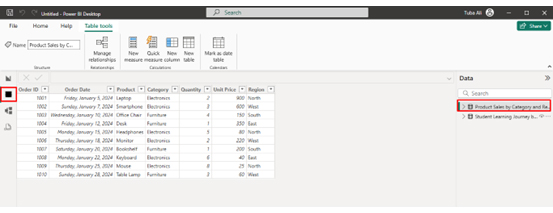
Step 1: Open the Data View

First, open Power BI Desktop and load your dataset. On the left panel, click the Data View icon (table symbol). This view displays your dataset in a tabular format. Next, select the table where you want to create the calculated column.
Power BI Calculated Columns

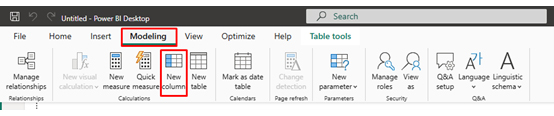
Step 2: Select “New Column”

From the Modeling tab, click New Column.
Power BI Calculated Columns

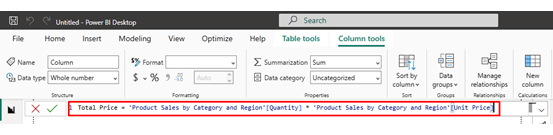
Step 3: Write the DAX Formula

Enter your formula in the formula bar. For example:

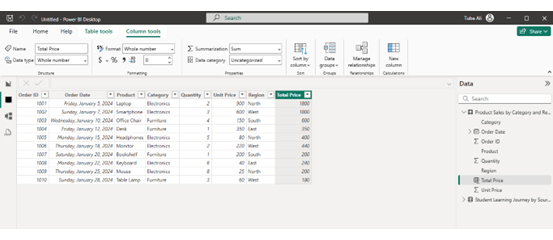
Total Price = ‘Product Sales by Category and Region'[Quantity] * ‘Product Sales by Category and Region'[Unit Price]
Power BI Calculated Columns

Step 4: Validate the Calculation

Power BI automatically evaluates the formula and populates values for every row.

Step 5: Use the Column in Visuals

Once created, the column becomes part of the dataset and can be used in charts, slicers, and filters. You can also organize the results for better visualization using features like Power BI sort by column.
Power BI Calculated Columns

This process allows you to create calculated columns for tasks such as segmentation, transformation, or categorization. Many analysts build on this foundation using Power BI calculation groups or other advanced modeling techniques.

How to Analyze Calculated Columns in Power BI?

Analyzing calculated columns in Power BI helps you derive new insights by transforming existing data into meaningful values. These columns are created using DAX formulas and are useful for segmenting, categorizing, and enhancing your dataset. Follow these steps to analyze them effectively:

Step 1: Create Calculated Columns

Start by creating calculated columns using DAX formulas in Power BI. These columns can combine fields, apply conditions, or categorize data to make the analysis more insightful.

Step 2: Validate the Calculations

Review the logic of your calculated columns to ensure accuracy. Check for errors in formulas and confirm that the results align with your expected outcomes.

Step 3: Integrate with Data Model

Ensure your calculated columns are properly connected within your data model. This allows them to interact with other tables and supports deeper analysis across related data.

Step 4: Use Calculated Columns in Visuals

Incorporate calculated columns into charts and tables to segment your data. For example, use them to group categories, define ranges, or highlight specific conditions.

Step 5: Enhance Visualizations

Create interactive visuals such as bar charts, matrices, or dashboards to explore insights. For more advanced and visually engaging dashboards, you can use ChartExpo to simplify complex data visualization.

Step 6: Analyze Patterns and Relationships

Evaluate how calculated columns influence trends and relationships in your data. Identify patterns, flows, or transitions between categories to uncover deeper insights.

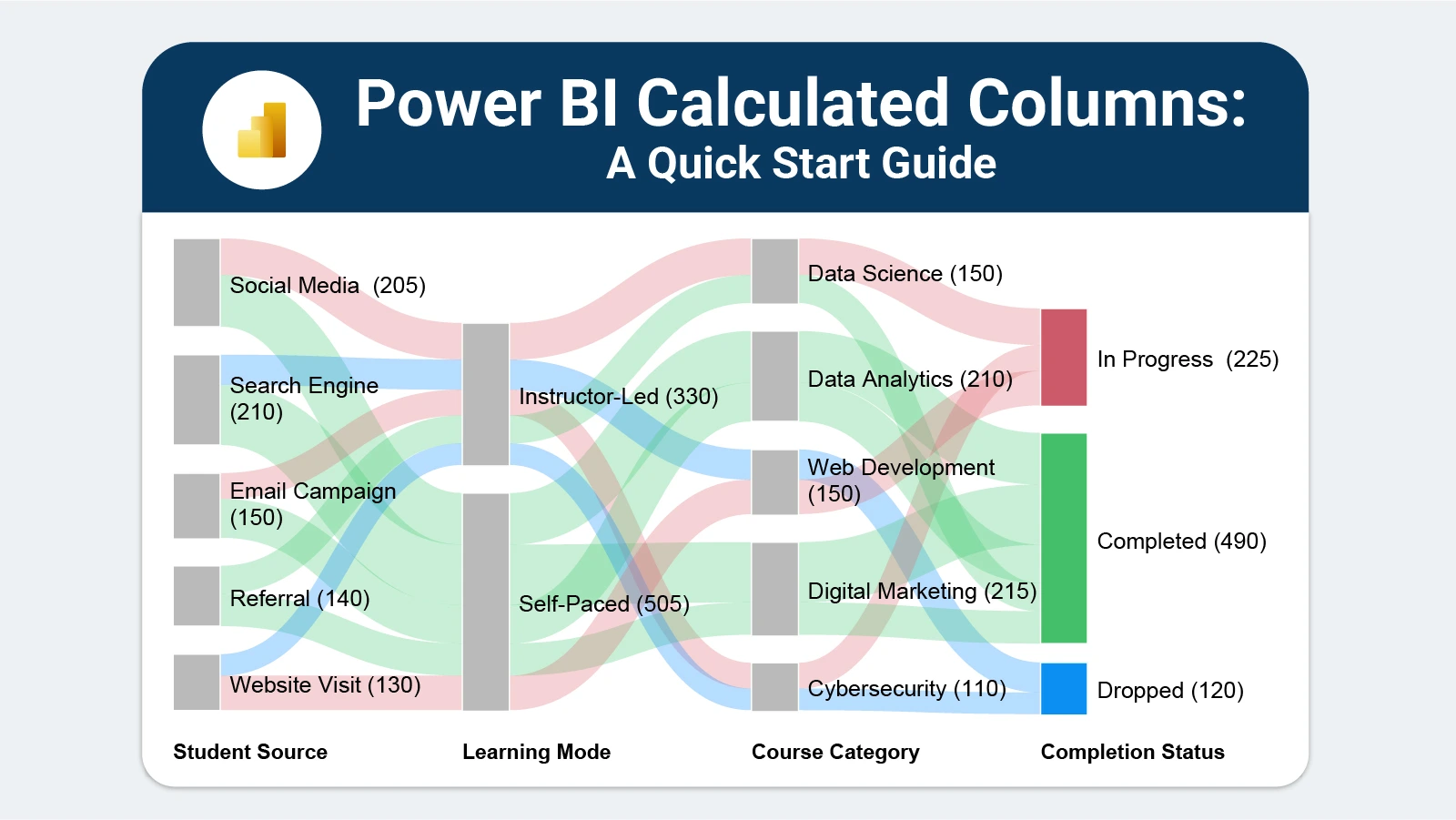
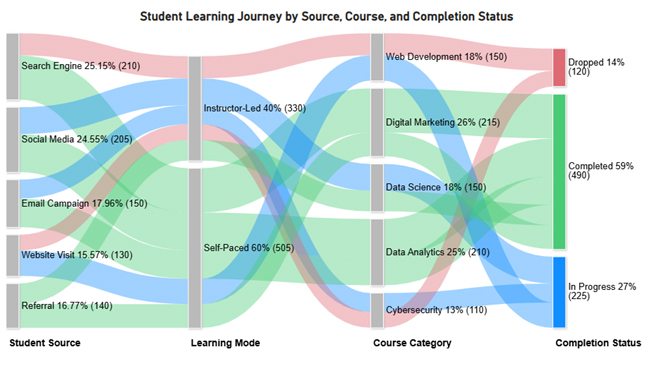
Step 7: Add Final Data Flow Visualization

Include a final visualization, such as a flow-based chart, that illustrates how data moves across multiple stages or categories.

For example, the image can show the progression from sources to categories and outcomes, helping you clearly understand relationships and overall data flow.
Power BI Calculated Columns

Key Insights

  • Students who study at their own pace account for 60% of enrollments, outpacing instructor-led participants by 20 percentage points.
  • Digital Marketing draws 26% of students while Data Analytics accounts for 25%, together representing the top two course categories.
  • Course completions stand at 59%, with 27% of students still in progress and 14% having dropped out before finishing.

Benefits of Using Power BI Calculated Columns

Applied with intention, Power BI Calculated Columns reshape how data is structured for downstream reporting. The ability to create a calculated column in Power BI means analysts can tailor their datasets precisely to each reporting requirement.

Key benefits include:

  • Custom modeling: Extend the dataset with derived logic and new attributes without modifying the original data source.
  • Accurate reporting: Computed values stay consistent across every visual and report that references the column.
  • Better segmentation: Group customers, transactions, or products into precise categories that support detailed analysis.
  • Reusable logic: A column built once can feed multiple visuals, dashboards, and filtered views without duplication.
  • Flexible analysis: Pair derived fields with filters and measures to replicate lookup-style analysis, much like VLOOKUP in Power BI.
  • Reduced prep work: Keep transformations within the model so consistency is maintained as reports advance through a Power BI deployment pipeline.

Tips for Creating Power BI Calculated Columns

Power BI Calculated Columns are powerful, but careless implementation leads to bloated models and slow refresh times. A few disciplined practices keep data models lean and maintainable.

Here are some useful tips:

  • Avoid complex DAX: Write formulas that are concise and focused so they are easier to troubleshoot and less prone to errors.
  • Limit extra columns: Add only the columns your reports actively need, since every stored column adds to the dataset size.
  • Use measures when needed: Reserve calculated columns for static row-level values; use measures for anything that should respond to filter context.
  • Clear naming: Give every column a name that communicates its purpose so team members can understand the logic at a glance.
  • Check performance: Track dataset size and scheduled refresh duration whenever new calculated columns are introduced.
  • Document logic: Record the business rule behind each formula so future analysts can audit, update, or extend the calculation confidently.

FAQs

When should you use Power BI Calculated Columns?

Use them when you need a fixed, row-level value stored in the model, such as a category label, a conditional flag, or a derived numeric field. They work best for attributes that do not need to respond to the current filter context.

Do calculated columns slow Power BI?

They can contribute to slower refresh times and larger file sizes because each value is written into the model. Keeping the number of columns minimal and avoiding unnecessarily complex formulas reduces the impact.

How to write a calculated column in Power BI?

Select the target table, click New Column from the Modeling tab, and enter a DAX expression in the formula bar. For example:

Profit = Sales[Revenue] – Sales[Cost]

Power BI evaluates the expression for each row and fills the column automatically.

How do I combine two Power BI Calculated Columns?

Reference your existing calculated columns by name inside a new DAX expression. For example, if columns named Revenue and Cost already exist, write:

Margin = Sales[Revenue] – Sales[Cost]

Wrap Up

Row-level logic is the foundation of effective data modeling, and Power BI Calculated Columns make that logic accessible without complex preprocessing or external transformations.

By computing values at the row level and storing them in the model, these columns give analysts a reliable base for filtering, segmenting, and visualizing data across any report or dashboard.

Pair them with strong visualization tools and sound DAX practices, and the result is a reporting environment that is both flexible and maintainable.

Start with clear naming, keep formulas simple, and document your logic. The quality of your calculated columns will directly shape the quality of every insight your data delivers.

How much did you enjoy this article?

PBIAd2
Start Free Trial!
147327

Related articles

next previous
Power BI10 min read

Power BI Copilot: Best Tips for Faster Insights

Power BI Copilot converts natural language into instant reports, dashboards, and data insights for teams at every level. Read on to learn more!

Power BI10 min read

Recruitment Dashboard: What to Track and Why It Matters

Recruitment dashboards turn hiring data into real-time KPIs. Track metrics, reduce time-to-hire, and remove bottlenecks. Learn more!

Power BI8 min read

What is Power BI Report Builder: Features, Uses, and Benefits

Learn how to use Power BI Report Builder to create paginated, print-ready reports. Discover when to use it, key features, and real reporting use cases.

Power BI6 min read

KPI Visual in Power BI: From Data Chaos to Clear Insights

Learn how to use KPI visuals in Power BI to track performance against targets, understand trends, and make faster, data-driven decisions.

Power BI8 min read

Power BI Dashboard vs Report: A Comprehensive Guide

Power BI Dashboards vs Reports: key differences, use cases, and when to use each for monitoring KPIs and analyzing data in depth.

ChartExpo logo

Turn Data into Visual
Stories

CHARTEXPO

  • Home
  • Gallery
  • Videos
  • Services
  • Pricing
  • Contact us
  • FAQs
  • Privacy policy
  • Terms of Service
  • Sitemap

TOOLS

  • ChartExpo for Google Sheets
  • ChartExpo for Microsoft Excel
  • Power BI Custom Visuals by ChartExpo
  • Word Cloud

CATEGORIES

  • Bar Charts
  • Circle Graphs
  • Column Charts
  • Combo Charts
  • Comparison Charts
  • Line Graphs
  • PPC Charts
  • Sentiment Analysis Charts
  • Survey Charts

TOP CHARTS

  • Sankey Diagram
  • Likert Scale Chart
  • Comparison Bar Chart
  • Pareto Chart
  • Funnel Chart
  • Gauge Chart
  • Radar Chart
  • Radial Bar Chart
  • Sunburst Chart
  • see more
  • Scatter Plot Chart
  • CSAT Survey Bar Chart
  • CSAT Survey Chart
  • Dot Plot Chart
  • Double Bar Graph
  • Matrix Chart
  • Multi Axis Line Chart
  • Overlapping Bar Chart
  • Control Chart
  • Slope Chart
  • Clustered Bar Chart
  • Clustered Column Chart
  • Box and Whisker Plot
  • Tornado Chart
  • Waterfall Chart
  • Word Cloud
  • see less

RESOURCES

  • Blog
  • Resources
  • YouTube
SIGN UP FOR UPDATES

We wouldn't dream of spamming you or selling your info.

© 2026 ChartExpo, all rights reserved.