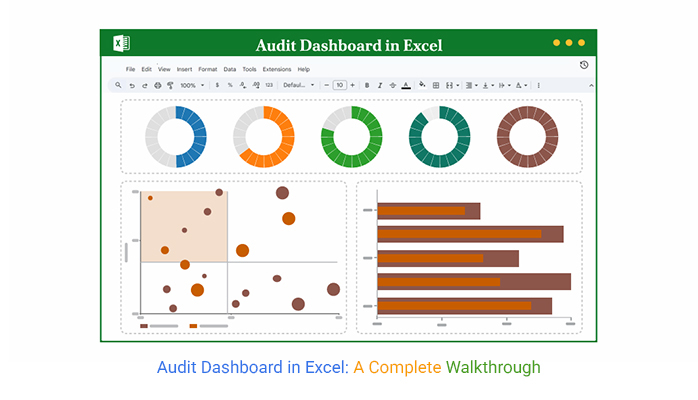
Audit Dashboard in Excel—Can a spreadsheet power smarter audits? More audit teams are answering yes. Excel remains the top choice for data tasks, used by over 750 million people globally.
When built correctly, an audit dashboard in Excel turns raw numbers into actionable insights. You can identify red flags, track risks, and report findings more quickly.
A digital dashboard changes the game. Instead of jumping between files, everything is consolidated in one place. KPIs, risk scores, timelines, and status updates are presented in a clear, concise, and visually appealing format. It brings confidence to what used to feel uncertain.
The beauty? You’re not starting from scratch. You can use dashboard templates in Excel to set the foundation. Then, customize them to fit your controls, objectives, and compliance needs. It saves hours, reduces errors, and gives your team a real sense of control.
An audit dashboard in Excel doesn’t need to be fancy. However, it must be smart, focused, easy to read, and ready to answer tough questions at a glance.
The best part? You already have the tools. Excel is on your desktop, and your audit data is ready. Now it’s about putting them together—clearly and with purpose.
Let’s see how to make that happen.
First…
Definition: An audit dashboard in Excel visually tracks audit activities and internal controls using charts, tables, and KPIs. It displays KPIs, timelines, and exceptions in real time. A well-structured KPI dashboard in Excel enables auditors to identify trends, gaps, and outliers quickly.
You can adapt this dashboard into a finance dashboard in Excel to monitor audit-related financial data. It simplifies reporting and keeps everyone aligned with compliance goals, eliminating the need for multiple tools.
Have you ever felt like audit reports take forever and still miss something? You’re not alone. Many teams are moving from static reports to dashboards—for good reason. If you’ve ever wondered how to create a dashboard using Excel for audits, you’re already halfway there. It’s about turning data into action.
Here’s why an internal audit dashboard is worth your time:
A clean audit file should work like a map. One glance, and you know what’s done, what’s at risk, and what needs attention. Whether you’re using a complete KPI dashboard in Excel or a simple table, structure matters. It’s not about looking fancy. It’s about being useful.
Here’s what every solid internal audit format in Excel should include:
You don’t need special software to build helpful audit visuals. You need the correct layout, the right formulas, and a clear goal. Whether you’re reporting to leadership or tracking team tasks, an innovative dashboard makes all the difference. These audit dashboard examples in Excel demonstrate the power of this approach.
Knowing how to create an audit dashboard in Excel starts with one thing: clarity. Not colors. Not charts. Clarity! The goal is to make issues, risks, and actions visible without explanation.
Here’s how to build one that works:
Let’s be honest—Excel is excellent, until it isn’t. Sorting rows? Perfect. Crunching numbers? No problem. But when is the time to visualize all that data? Excel starts to sweat. Building a clear, dynamic audit dashboard in Excel often turns into a maze of charts, colors, and formulas that are barely comprehensible.
Excel was built for data, not storytelling. For visual data storytelling, use ChartExpo. This tool integrates seamlessly with Excel, making your dashboard appear less like a spreadsheet and more like insights.
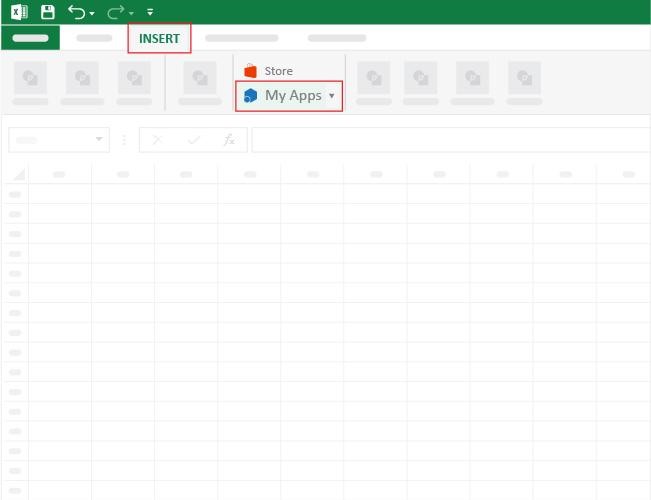
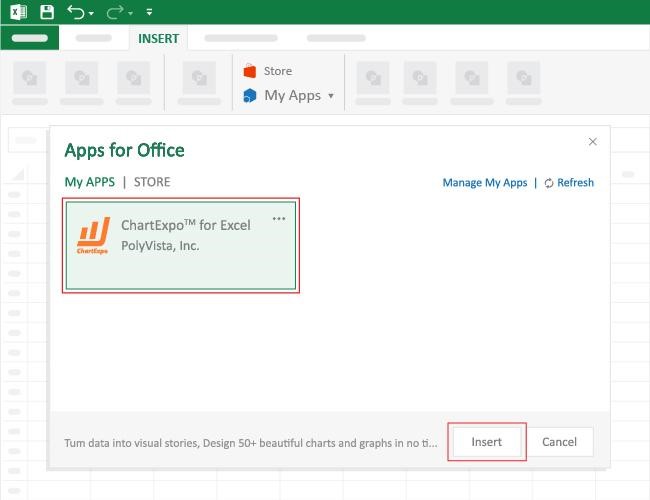
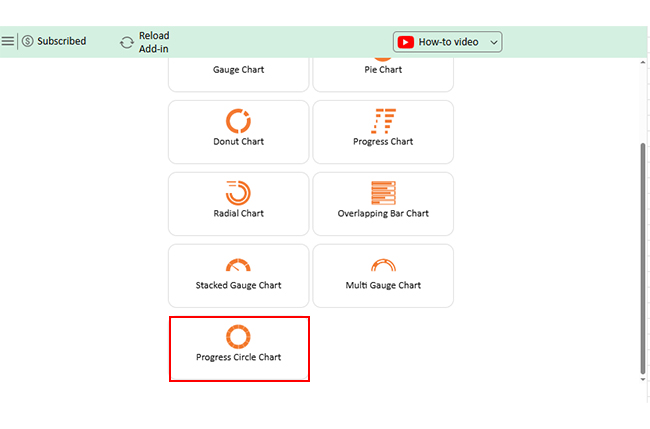
How to Install ChartExpo in Excel?
ChartExpo charts are available both in Google Sheets and Microsoft Excel. Please use the following CTAs to install the tool of your choice and create beautiful visualizations with a few clicks in your favorite tool.
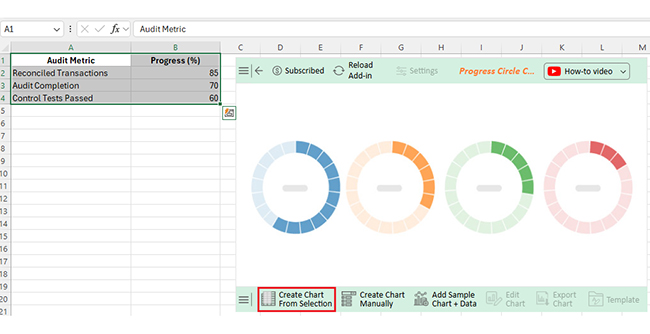
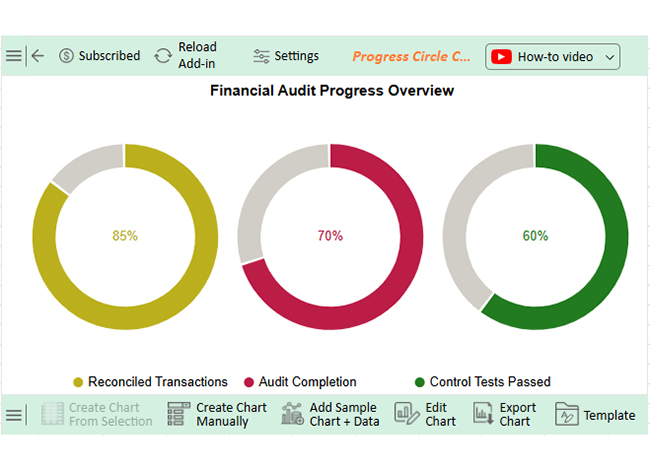
Let’s visualize and analyze this sample data in Excel using ChartExpo.
| Audit Metric | Progress (%) |
| Reconciled Transactions | 85 |
| Audit Completion | 70 |
| Control Tests Passed | 60 |
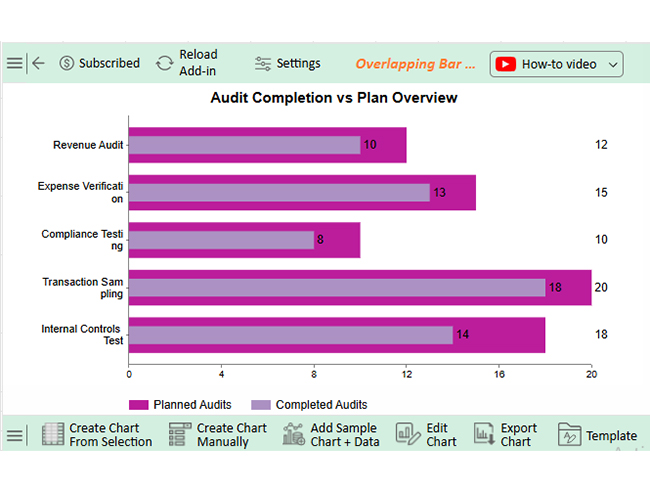
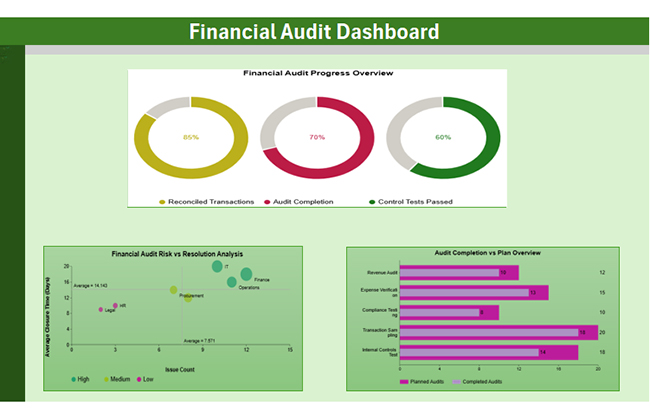
Next, we can add 2 more charts for the financial dashboard:
| Audit Area | Planned Audits | Completed Audits |
| Revenue Audit | 12 | 10 |
| Expense Verification | 15 | 13 |
| Compliance Testing | 10 | 8 |
| Transaction Sampling | 20 | 18 |
| Internal Controls Test | 18 | 14 |
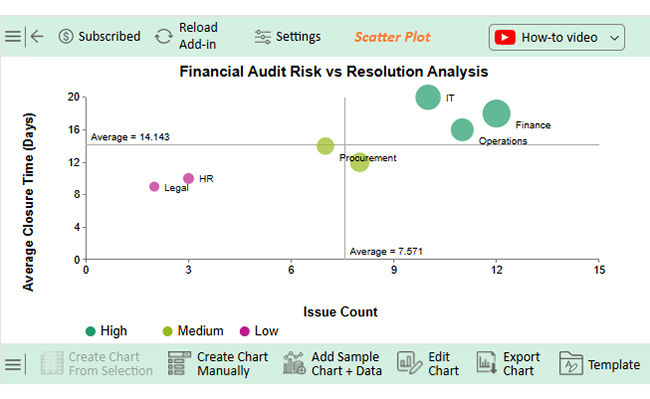
| Department | Risk Level | Issue Count | Average Closure Time (Days) | Monetary Impact (USD) |
| Finance | High | 12 | 18 | 25,000 |
| Procurement | Medium | 7 | 14 | 12,500 |
| HR | Low | 3 | 10 | 5,000 |
| IT | High | 10 | 20 | 22,000 |
| Sales | Medium | 8 | 12 | 15,000 |
| Operations | High | 11 | 16 | 19,000 |
| Legal | Low | 2 | 9 | 3,500 |
It compares departments by risk level, issue volume, closure time, and financial impact—great for spotting high-risk areas fast.
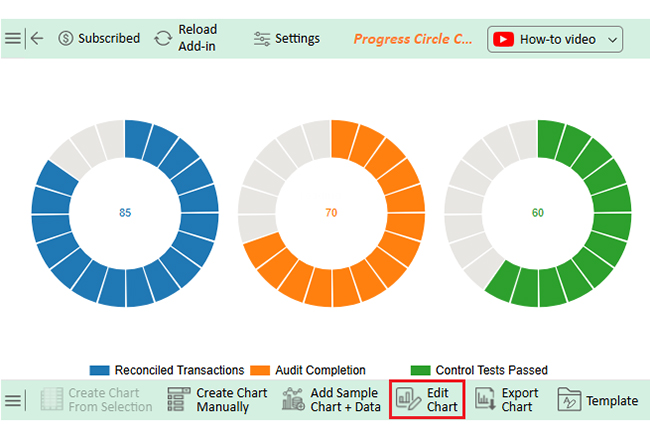
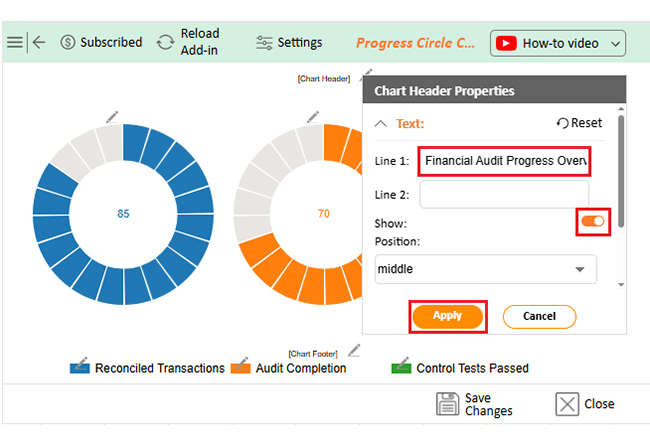
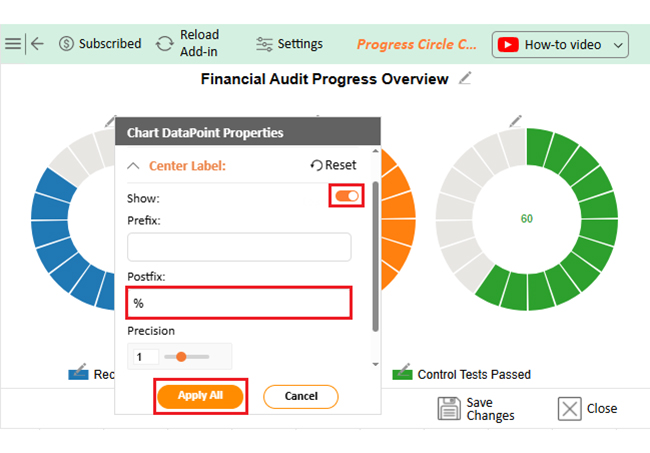
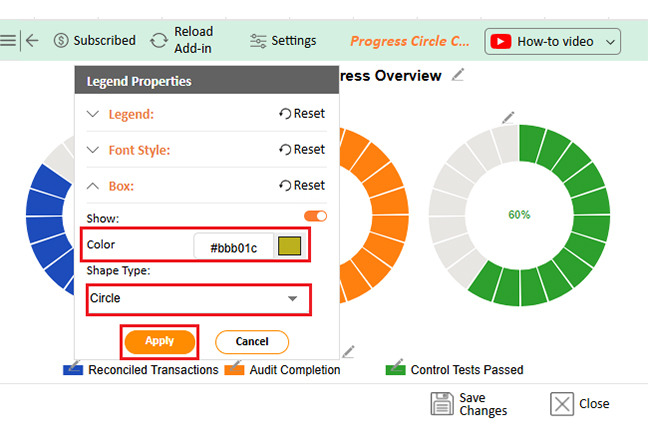
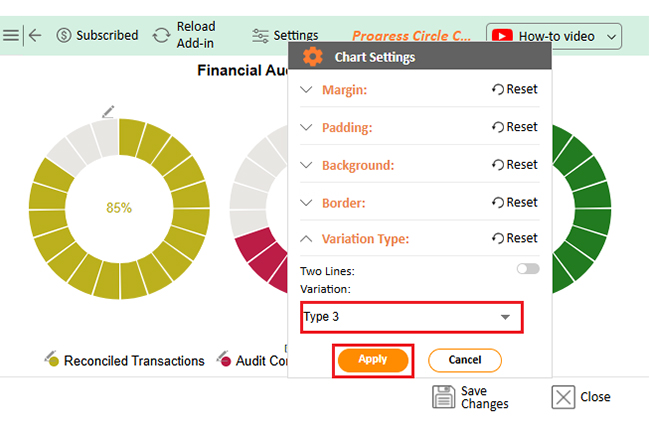
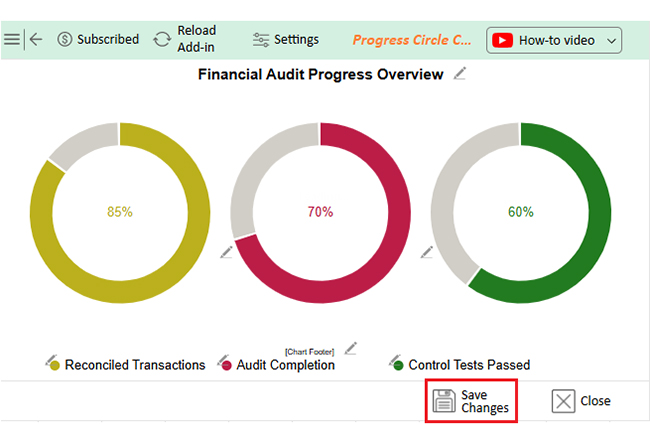
Progress Circle Chart (Top):
Overlapping Bar Chart (Right):
Scatter Plot (Left):
Excel dashboards aren’t meant to sit in a folder collecting digital dust. They’re designed for daily, weekly, or even real-time use. A well-crafted audit dashboard in Excel becomes more than just a report; it becomes a powerful tool. It becomes part of how your team works, shares, and makes decisions.
Here’s how to get the most out of it:
Let’s face it—building audit reports from scratch every time is exhausting. Copy-pasting data, formatting tables, and hoping charts don’t break. Sound familiar? That’s where an internal audit Excel dashboard template comes in handy.
Here’s why using one makes sense:
Excel is powerful, but it has its limits. Yes, an audit dashboard in Excel can organize data, track KPIs, and look quite impressive. But let’s be real—it’s not built for everything. The more complex your data, the more cracks start to show.
Here are some common limitations to keep in mind:
It’s a feature or add-in that helps you review formulas, track changes, and spot errors in spreadsheets. Think of it as a competent helper. It keeps your data accurate and your work clean.
The best audit software depends on your needs. Tools like AuditBoard, TeamMate+, and CaseWare offer advanced features. They support risk management, real-time tracking, and compliance monitoring. For small teams, Excel with ChartExpo can still be very effective.
An audit dashboard in Excel is more than a spreadsheet. It’s a tool for control, clarity, and more intelligent decisions. Teams can see what’s working—and what’s not—at a glance.
Using dashboards keeps audits organized—no more chasing updates or digging through reports. Everything is visible and up to date. Think of it like a marketing dashboard. Just as marketers track ROI and campaign performance, auditors can track risks, issues, and resolutions. Both need clear visuals to drive results.
You’ll find many data dashboard examples across departments. Finance, HR, compliance—they all benefit from visual reports. The key is to build dashboards that are simple and useful. A strong dashboard supports better monthly reviews. If you’re sharing a monthly finance report, add visuals that explain the numbers. It saves time in meetings and improves understanding.
Ultimately, Excel still gets the job done. Especially when paired with innovative tools like ChartExpo. Your audit dashboard in Excel, when done well, can be a reliable source of insight every single month.