Categories

CSV vs Excel—which format works better for data management? This question comes up in boardrooms, classrooms, and home offices every day. And the answer isn’t always straightforward. Each format serves a different purpose, and choosing the wrong one can result in revenue loss.


CSV files are lightweight and fast. They open in seconds. No formulas. No formatting. Just raw data. That’s why many developers and data engineers prefer them. They’re great for transferring data between systems without any extra baggage.
But Excel brings more than data. It brings structure, formulas, and visuals. Professionals in finance, marketing, and education often rely on Excel’s features for deeper analysis. Need to build a dashboard? Excel handles it. Want conditional formatting or pivot tables? Excel wins again.
The difference between the two affects workflow. A business might store customer data in CSV for database import, but use Excel to analyze quarterly trends. Teachers may use CSV for attendance tracking, but rely on Excel for gradebooks and dashboard templates.
Meanwhile, new tech is making Excel even smarter. Artificial intelligence in Excel can now detect patterns, suggest functions, and even clean data automatically. CSV can’t do that.
Let’s dive deeper into this debate.
First…
Definition: A CSV file stands for Comma-Separated Values. It stores data in plain text, with commas separating each value. It’s simple and easy to read across platforms. Excel, on the other hand, is a spreadsheet software with features such as formulas, formatting, and charts.
Excel supports richer data manipulation. People often use custom sorting in Excel or perform What-if analysis in Excel—features not available in CSV. So, while both handle data, Excel offers more tools for in-depth analysis.
You wouldn’t wear hiking boots to a beach party. Choosing between CSV and Excel works similarly—it depends on the task. Let’s break it down with quick, clear reasons for picking one over the other:
Have you ever opened a file and wondered why it ends in .csv instead of .xlsx? That tiny difference means a lot. One is raw and fast. The other is smart and full of features.
Here’s a side-by-side look that makes the choice crystal clear:
| Feature | CSV File | XLSX (Excel) File |
| Data Format | Plain text, comma-separated. | Structured spreadsheet with cells. |
| Speed | Opens fast. | Slower with large data sets. |
| Sorting & Filtering | Basic sorting via external tools. | Built-in features like custom sorting in Excel. |
| Compatibility | Universal (across platforms & systems). | Best with Microsoft products. |
| Size | Smaller. | Larger due to added features. |
| Use Case | Data transfer, automation, backups. | Data analysis, presentations, and planning. |
CSV and Excel might seem like total opposites—one’s plain, the other polished. But believe it or not, they share some common ground. Think of them as two roads leading to the same data destination, just with different scenery.
Choosing between Excel and CSV can feel like picking between power and precision. One brings features, the other brings speed. Both are useful, but for very different reasons. Let’s stack them side by side and see how they compare:
| Feature | Excel (.xlsx) | CSV (.csv) |
| Multiple Sheets | Supports multiple tabs in one file. | Limited to one table per file. |
| Built-In Features | Rich tools like formulas, pivot tables, and what-if analysis in Excel. | No built-in tools—manual or external tools required. |
| AI Integration | Smart features with artificial intelligence in Excel for predictions and suggestions. | No AI or intelligent processing. |
| Data Sharing | Better for sharing with context (charts, labels, notes). | Better for backend systems, APIs, or data migrations. |
| Data Size Handling | Handles large files but may slow down with heavy features. | Loads faster, even with large datasets. |
| Conversion & Flexibility | Great for converting text files to Excel with full formatting control. | It can be created or exported from almost any tool. |
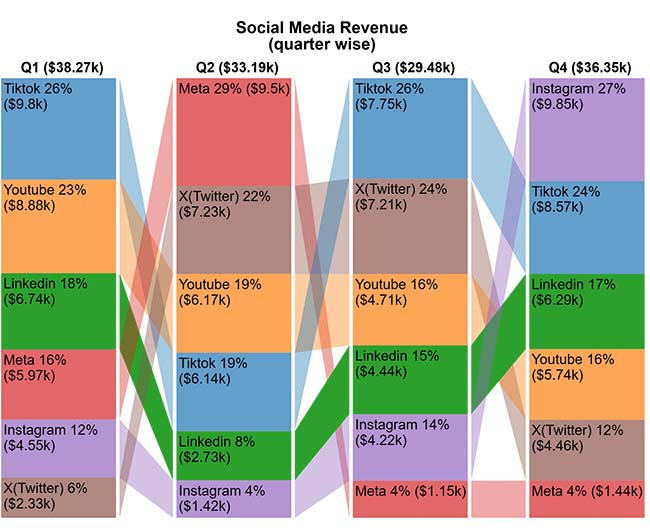
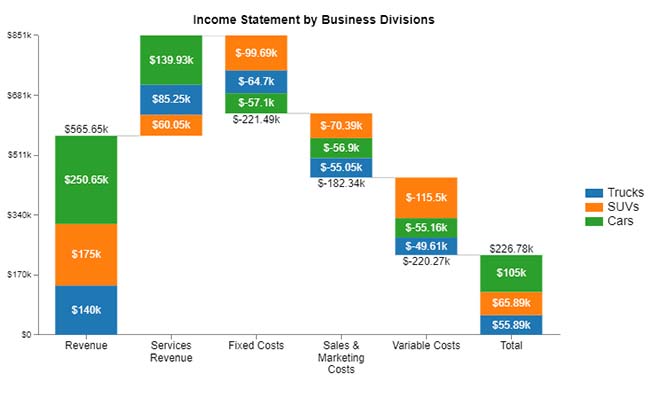
Staring at rows of data in Excel can be exhausting. Visuals make the message clear in seconds, and that’s precisely what ChartExpo’s charts do. Here are five powerful visuals, including a Sankey diagram, that bring your spreadsheets to life and help you make faster, smarter decisions:
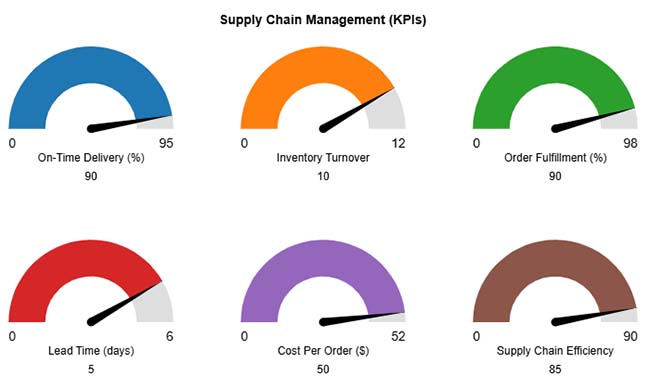
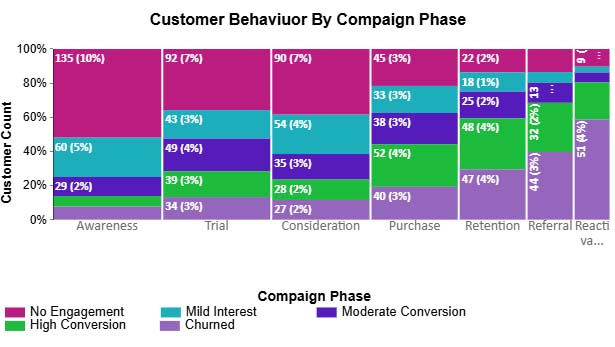
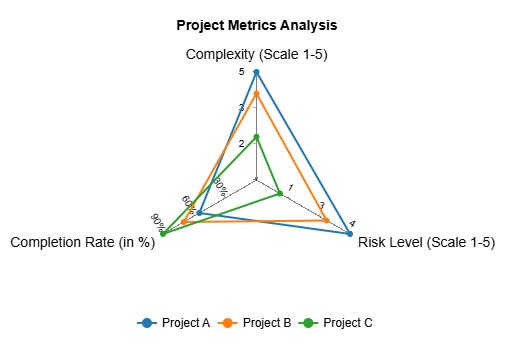
Spreadsheets are savvy—until they’re not. CSV vs. Excel might help you organize data, but analyzing it? That’s a different story. Numbers don’t speak unless you make them. That’s where data visualization changes the game. It turns rows into revelations.
But let’s be honest—Excel’s built-in charts often fall flat. They are limited, clunky, and frustrating.
You want insights, not eye strain. Enter ChartExpo—a tool that makes your data not only speak but shout clearly with clean Excel charts. Clean visuals, quick insights, no headaches.
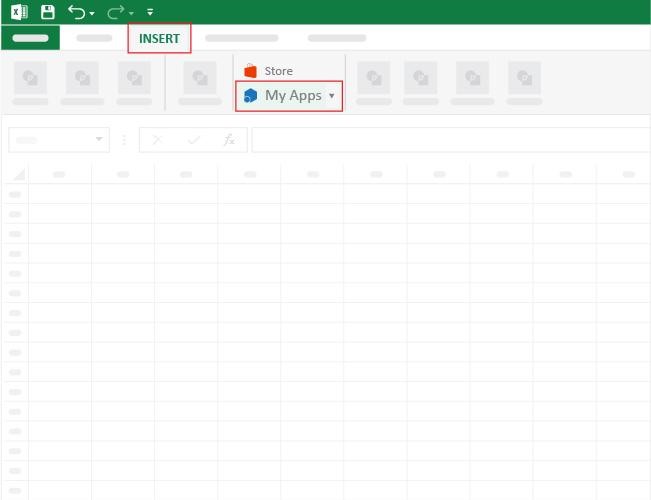
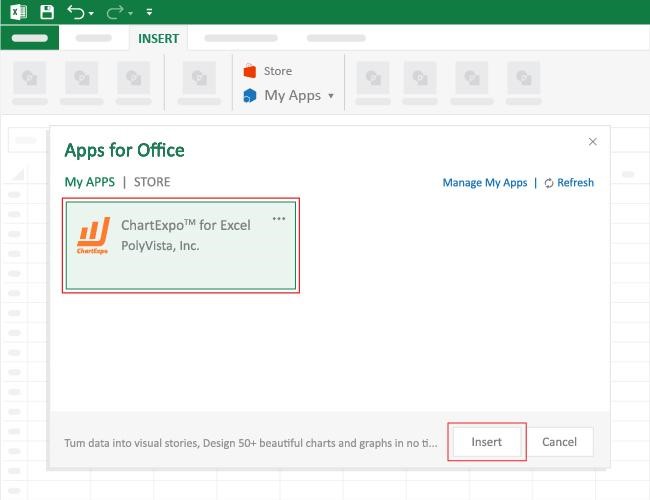
How to Install ChartExpo in Excel?
ChartExpo charts are available both in Google Sheets and Microsoft Excel. Please use the following CTAs to install the tool of your choice and create beautiful visualizations with a few clicks in your favorite tool.
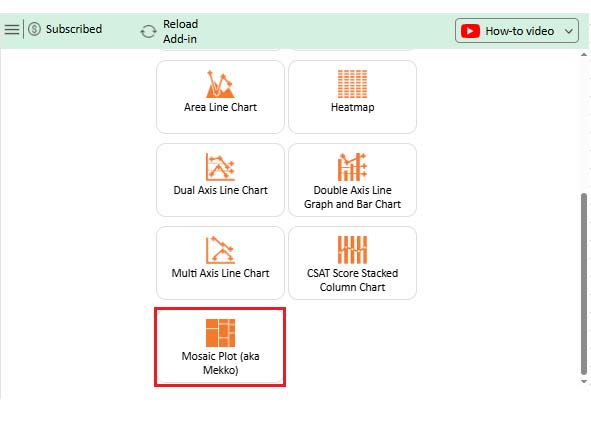
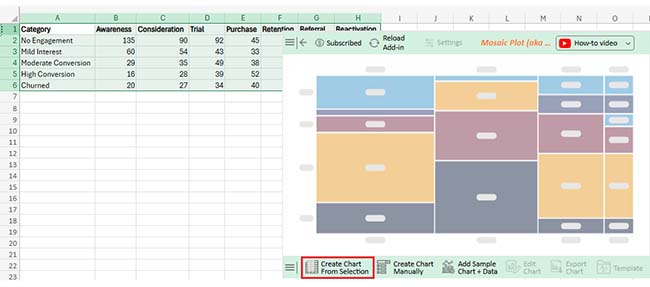
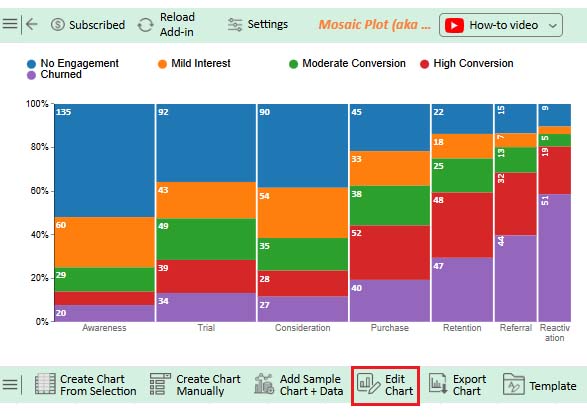
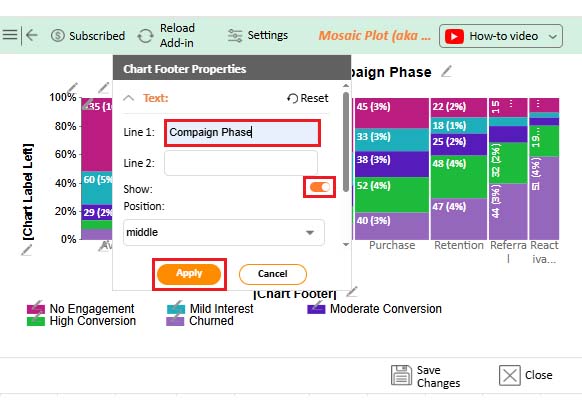
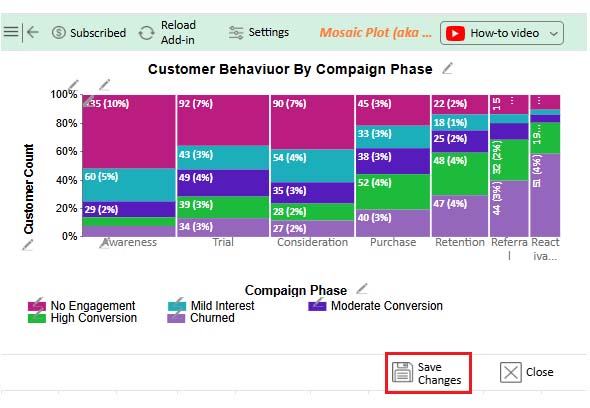
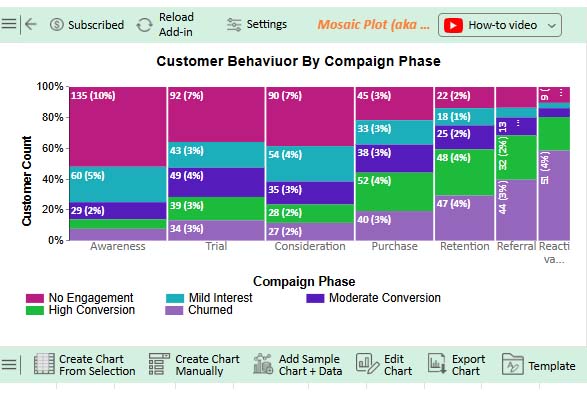
Let’s see what Excel software is used for in data analysis using ChartExpo.
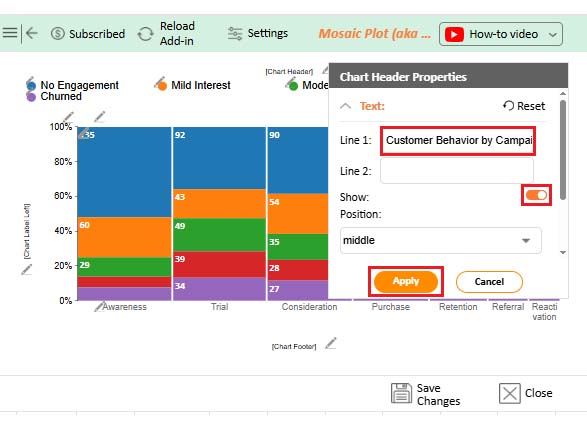
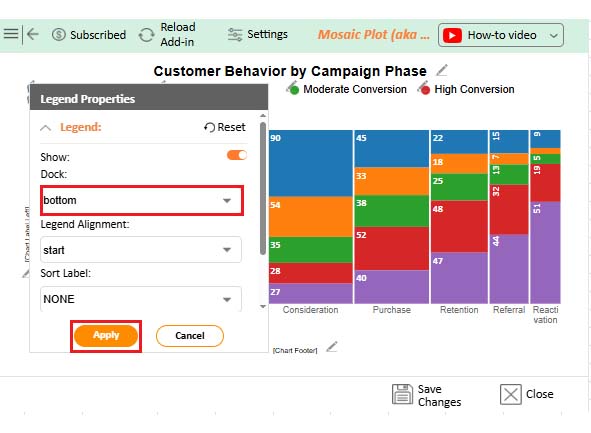
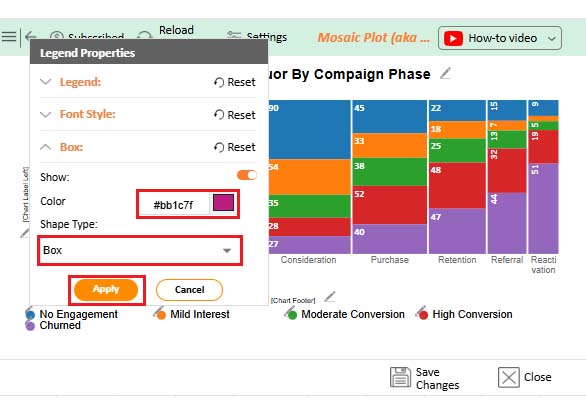
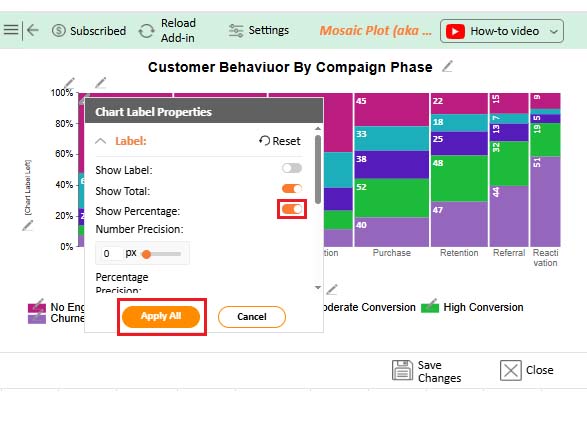
| Category | Awareness | Consideration | Trial | Purchase | Retention | Referral | Reactivation |
| No Engagement | 135 | 90 | 92 | 45 | 22 | 15 | 9 |
| Mild Interest | 60 | 54 | 43 | 33 | 18 | 7 | 3 |
| Moderate Conversion | 29 | 35 | 49 | 38 | 25 | 13 | 5 |
| High Conversion | 16 | 28 | 39 | 52 | 48 | 32 | 19 |
| Churned | 20 | 27 | 34 | 40 | 47 | 44 | 51 |
;


Have you ever wondered why some people swear by Excel while others stick to CSV? It’s not about who’s right—it’s about what your data needs. Whether you want fast and feature-packed or straightforward and flexible, both formats bring something valuable to the table. Let’s compare the benefits of CSV vs. XLSX so you can choose smartly and work faster.
| Benefit Category | CSV Benefits | XLSX (Excel) Benefits |
| Speed & Size | Loads quickly due to smaller file size. | Handles large datasets with more structure. |
| Simplicity | Plain text makes it easy to edit and process. | Built-in tools make complex tasks easier. |
| Compatibility | Works across most platforms and apps. | Seamless with Microsoft tools and Excel-based platforms. |
| Data Sharing | Easy to export, email, or import into other systems. | Great for collaboration and sharing with teams. |
| User Experience | Best for machines. | Best for humans—clean, readable, and visual. |
If you work with data, then you’ve probably juggled both CSV and Excel files more times than you can count. One is fast and straightforward. The other is powerful and polished. Here are the best practices to keep your files clean, clear, and chaos-free:
It depends on your goal. CSV is faster and lighter. Excel is richer and more visual. For raw data transfers, CSV is the preferred format. For analysis and visuals, Excel shines. Choose based on what you need most.
Choosing between CSV vs. Excel doesn’t have to be an uphill task. Both serve different purposes – the key is knowing when to use each one.
Excel is powerful. It’s used for analysis, dashboards, and planning. That’s a simple answer for those who ask, “What is Excel software used for?” It’s the go-to for teachers, marketers, analysts, and more.
CSV is simple and efficient. It’s perfect for moving data between systems. It loads faster and works well with code, APIs, and scripts.
You can easily switch between the two. Knowing how to save Excel as CSV is essential for sharing clean, raw data. It ensures compatibility with databases and apps. Sometimes, you’ll get files in a basic format. In that case, converting text Files to Excel helps bring structure back. Excel adds rows, columns, and formulas to flat files.
So, which one should you pick? If you need visuals and features, go to Excel. If speed and simplicity matter, go CSV. Use both smartly, and install ChartExpo. Your data management will get stronger.
How much did you enjoy this article?


Learn how to use sparklines in Excel to quickly visualize trends inside cells. Discover types, creation steps, customization, use cases, benefits, and best practices.

Learn what a confidence interval graph is, how to create it in Excel, and how to interpret results to make more reliable, data-driven decisions.

A correlation matrix in Excel helps identify relationships between variables. Learn how to create, read, and use it for effective data analysis.