• Home
  • Tools dropdown img
    • Spreadsheet Charts

      • ChartExpo for Google Sheets
      • ChartExpo for Microsoft Excel
    • Power BI Charts

      • Power BI Custom Visuals by ChartExpo
    • Word Cloud

  • Charts dropdown img
    • Chart Category

      • Bar Charts
      • Circle Graphs
      • Column Charts
      • Combo Charts
      • Comparison Charts
      • Line Graphs
      • PPC Charts
      • Sentiment Analysis Charts
      • Survey Charts
    • Chart Type

      • Box and Whisker Plot
      • Clustered Bar Chart
      • Clustered Column Chart
      • Comparison Bar Chart
      • Control Chart
      • CSAT Survey Bar Chart
      • CSAT Survey Chart
      • Dot Plot Chart
      • Double Bar Graph
      • Funnel Chart
      • Gauge Chart
      • Likert Scale Chart
      • Matrix Chart
      • Multi Axis Line Chart
      • Overlapping Bar Chart
      • Pareto Chart
      • Radar Chart
      • Radial Bar Chart
      • Sankey Diagram
      • Scatter Plot Chart
      • Slope Chart
      • Sunburst Chart
      • Tornado Chart
      • Waterfall Chart
      • Word Cloud
    • Google Sheets
      Microsoft Excel
  • Services
  • Pricing
  • Contact us
  • Blog
  • Support dropdown img
      • Gallery
      • Videos
      • Contact us
      • FAQs
      • Resources
    • Please feel free to contact us

      atsupport@chartexpo.com

Categories
All Data Visualizations Data Analytics Surveys
Add-ons/
  • Google Sheets
  • Microsoft Excel
  • Power BI
All Data Visualizations Data Analytics Surveys
Add-ons
  • Google Sheets
  • Microsoft Excel
  • Power BI

We use cookies

This website uses cookies to provide better user experience and user's session management.
By continuing visiting this website you consent the use of these cookies.

Ok

ChartExpo Survey


Home > Blog > Google Sheets

Google Sheet Expense Tracker Template: A Complete Guide

Money slips away when the record is fuzzy. A spreadsheet that captures every purchase makes spending hard to ignore.

Dates, categories, and amounts sit in plain view, and totals update as entries land. No drama. Just numbers that can be filtered, grouped, and compared.
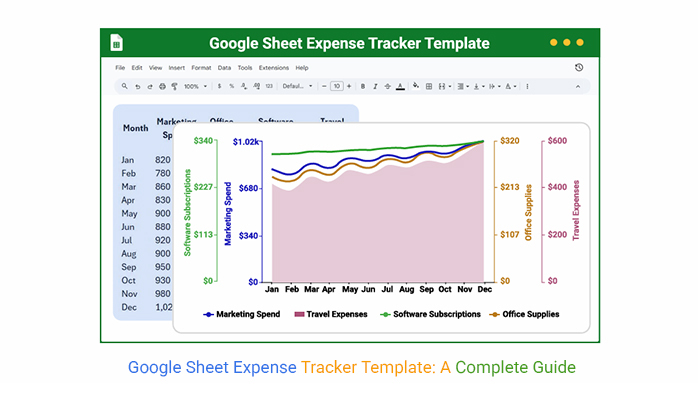
Google Sheet Expense Tracker Template

This guide walks through a practical tracker built in Google Sheets: how to lay out columns, add formulas, and use charts to spot trends. It also shows how to review category totals and spot spikes early.

Keep the routine simple and consistent, and the file becomes a daily checkpoint instead of a once-a-month panic with clear examples.

Table of Contents:

  1. What is a Google Sheet Expense Tracker Template?
  2. Why Use a Google Sheet Expense Tracker Template?
  3. Key Components of a Google Sheet Expense Tracker Format
  4. Google Sheet Expense Tracker Template: Tools and Methods
  5. Top 5 Google Sheet Expense Tracker Template Examples
  6. How to Create an Expense Tracker Template in Google Sheets?
  7. How to Analyze an Expense Tracker Template in Google Sheets?
  8. Benefits of a Google Sheet Expense Tracker Template
  9. Google Sheets Expense Tracker Templates vs. ChartExpo
  10. Best Practices for Google Sheet Expense Tracker Template
  11. FAQs
  12. Wrap Up

What is a Google Sheet Expense Tracker Template?

Definition: A Google Sheet Expense Tracker Template is a ready-built worksheet that records income and spending in a consistent layout. It uses columns and formulas to keep every transaction readable and totals current.

Entries can be logged as they happen, tagged with a category, and rolled up into daily, weekly, or monthly views. With rules and summaries in place, the sheet becomes a logbook and a quick diagnostic tool.

Why Use a Google Sheet Expense Tracker Template?

Handwritten notes and scattered receipts invite gaps. A tracker in Sheets keeps the process boring, which is the goal, because boring data gets entered and checked. A Google Sheet Expense Tracker Template keeps definitions consistent.

Reasons it earns its keep:

  • Tracks day-to-day spend without hunting for receipts.
  • Shows category patterns before the month gets away.
  • Let’s formulas handle math and cut copy mistakes.
  • Keeps budgets tied to actual totals, not guesses.
  • Supports goals with numbers that can be reviewed.
  • Stays synced across devices for quick updates.
  • Turns rows into charts for faster decisions.

A Google Sheet expenses tracker keeps the money story in one place, with totals that refresh on every edit and history that can be audited in seconds.

Key Components of a Google Sheet Expense Tracker Format

A Google Sheet Expense Tracker Template is less about fancy design and more about clean inputs. The right fields, a few guardrails, and a summary view keep the sheet usable after week three.

  • Category labels for spend, such as food, transport, and bills.
  • Date and notes fields that explain each entry.
  • A section for income deposits and paydays.
  • Formulas that total and subtotal without manual math.
  • Conditional formatting that flags overspend or odd entries.
  • A summary tab that rolls results into totals and trends.
  • Charts that show where cash goes over time.

With these pieces in place, an expense tracker template in Sheets stays consistent and easier to review as categories change and rows expand.

Google Sheet Expense Tracker Template: Tools and Methods

A Google Sheet Expense Tracker Template relies on simple mechanics in Sheets. Formulas, validation, and pivots handle totals if the setup stays consistent.

Tools that matter most:

  • Built-in formulas such as SUM, IF, and SUMIF for totals and conditional rollups.
  • Conditional formatting that highlights limits, spikes, and missing fields.
  • Data validation dropdowns that keep categories consistent.
  • Filters and sorting to inspect a time window or category fast.
  • Pivot tables that summarize categories and expose patterns.
  • Chart tools that turn totals into visuals and keep a budget on Google Sheets honest.

Top 5 Google Sheet Expense Tracker Template Examples

The same layout can serve personal budgets, small teams, or project work. The examples below show chart patterns for faster reviews.

Example # 1:

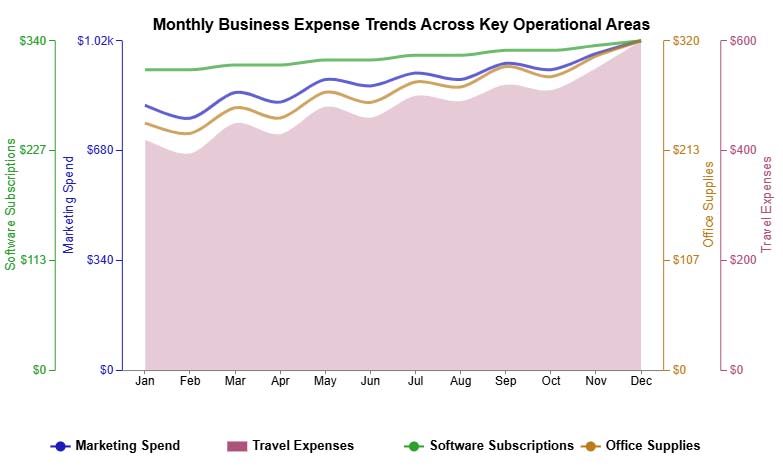
A multi-axis line view is useful when several cost lines move at once. It shows month-to-month shifts across a business expenses Spreadsheet without hiding one category behind another.
Google Sheet Expense Tracker Template

Example # 2:

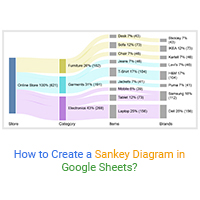
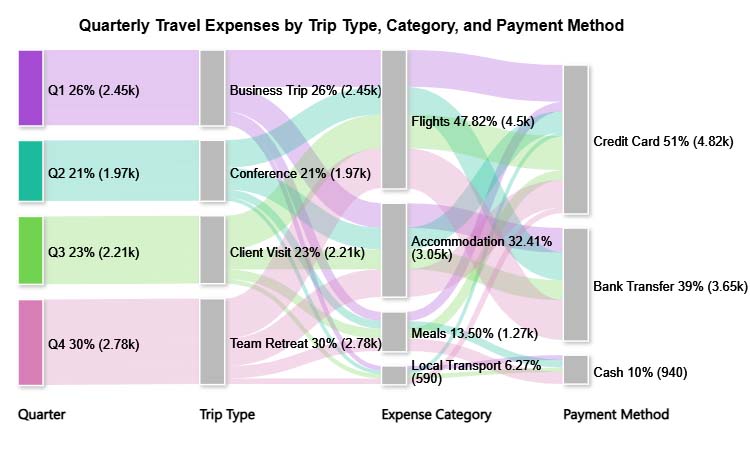
A Sankey Chart works when the question is, “Where did it go?” Using a travel itinerary template, it maps money from sources to categories in a way that makes leakage obvious.
Google Sheet Expense Tracker Template

Example # 3:

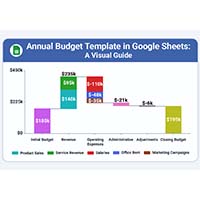
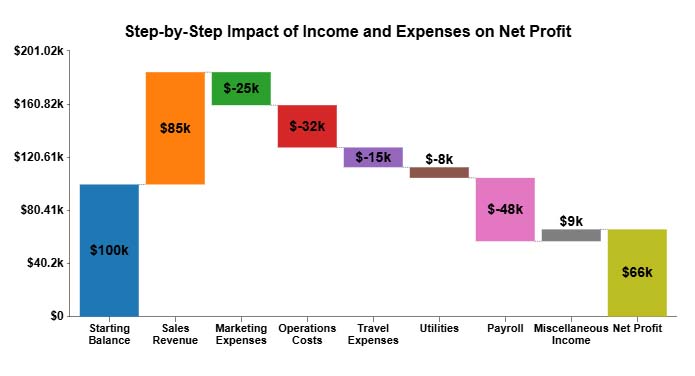
A Waterfall Chart view breaks a total into a running story. Each charge pushes the balance up or down, which makes it easier to explain how a budget ended where it did.
Google Sheet Expense Tracker Template

Example # 4:

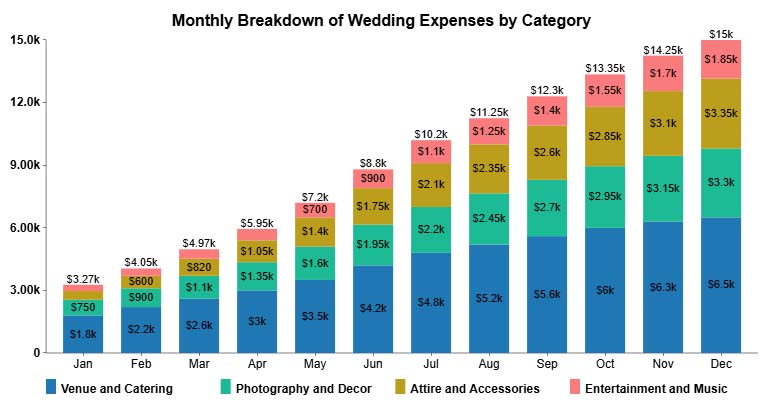
Stacked Column Charts are built for category mix. For wedding planning, they show how costs stack up over time and help keep a wedding budget template in a Google Sheet grounded in actual spend.
Google Sheet Expense Tracker Template

 Example # 5:

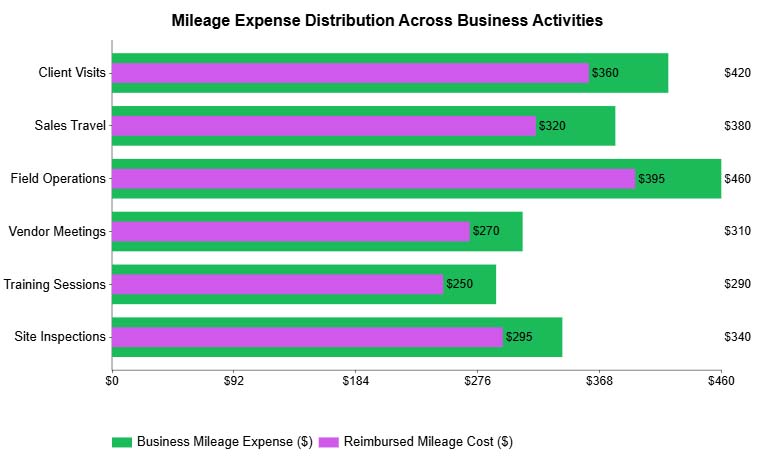
An overlapping bar chart is great for side-by-side checks. They compare out-of-pocket travel versus reimbursed amounts, which fits well with a mileage tracker template Google Sheet.
Google Sheet Expense Tracker Template

How to Create an Expense Tracker Template in Google Sheets?

A Google Sheet Expense Tracker Template is quick to build in Sheets when control matters. The layout can mirror your categories and still stay compatible with Google Spreadsheet templates used for planning.

Follow these steps:

  • Set up columns for date, notes, category, and amount, then keep the order fixed.
  • Enter data on a schedule that doesn’t slip; daily works best.
  • Add totals with formulas for daily, weekly, and monthly rollups.
  • Use filters and sorts to review a category or date range.
  • Format labels and spacing so entries stay readable on a phone.
  • Build a summary tab that reports totals and highlights changes.

How to Analyze an Expense Tracker Template in Google Sheets?

Logging is step one. The value shows up when the sheet is reviewed for trends, spikes, and category drift that pushes budgets off track.

  1. Scan category totals to find the biggest drains and repeat charges.
  2. Compare months to catch season swings and one-off spikes.
  3. Use conditional formatting to flag overruns and odd entries.
  4. Check income versus spend to see if the plan holds.
  5. Read charts to spot patterns without digging through rows.

ChartExpo can turn rows into charts that call out comparisons and outliers with less setup. That helps when the tracker supports project tracking in Google Sheets, and stakeholders need a fast read.

Why use ChartExpo?

  • Turns spreadsheet tables into charts built for interpretation.
  • Surfaces trends, comparisons, and outliers with less setup.
  • Includes a 7-day trial, then $10 per month.

How to install ChartExpo in Google Sheets?

  • Go to Google Sheets and open the file you are interested in. Then click on the Extensions tab in the upper menu.
  • Click on the Add-ons and enter “Get add-ons.”
  • Go to the Google Workspace Marketplace and search for ChartExpo.
  • Explore “Charts, Graphs & Visualizations by ChartExpo, and click the “Install” button.
  • Allow the necessary access and confirm your Google account when asked.

Example:

Consider we have the following data for the Multi Axis Line Chart.

Month Marketing Spend Office Supplies Software Subscriptions Travel Expenses
Jan 820 240 310 420
Feb 780 230 310 395
Mar 860 255 315 450
Apr 830 245 315 430
May 900 270 320 480
Jun 880 260 320 460
Jul 920 280 325 500
Aug 900 275 325 490
Sep 950 295 330 520
Oct 930 285 330 510
Nov 980 305 335 550
Dec 1,020 320 340 600
  • To get started with ChartExpo, install ChartExpo in Google Sheets.
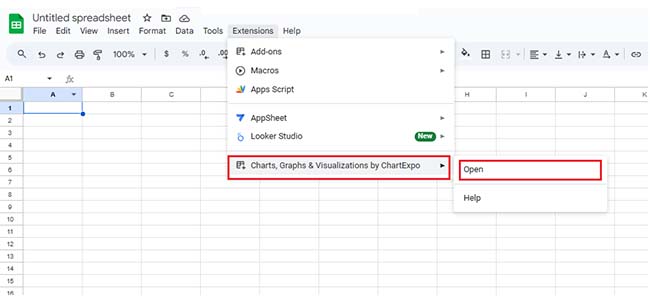
  • Go to Extensions > Charts, Graphs & Visualizations by ChartExpo > Open.
Google Sheet Expense Tracker Template
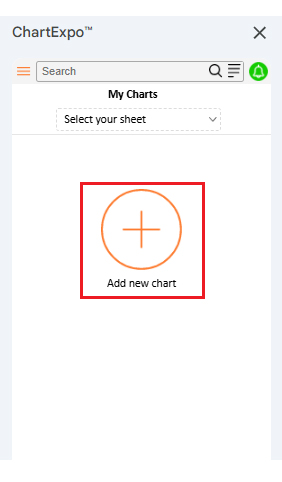
  • Once ChartExpo is installed in Google Sheets, click on the “Add new chart” button.
Google Sheet Expense Tracker Template
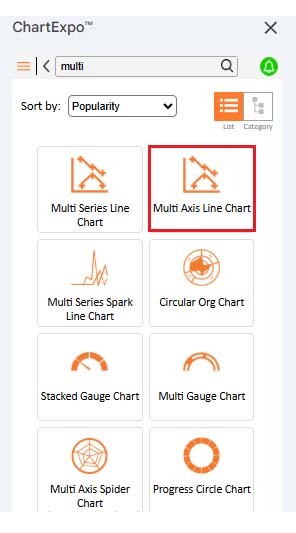
  •  Once ChartExpo is loaded into your sheet, you need to search for or select the “Multi Axis Line Chart” in the chart options, and you are off to a good start to render your data.
Google Sheet Expense Tracker Template
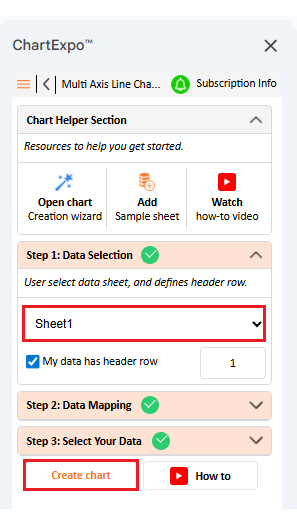
  • Then, select your worksheet and confirm the data range; your data is automatically mapped, and with a click on the Create button, your chart is generated in seconds.
Google Sheet Expense Tracker Template
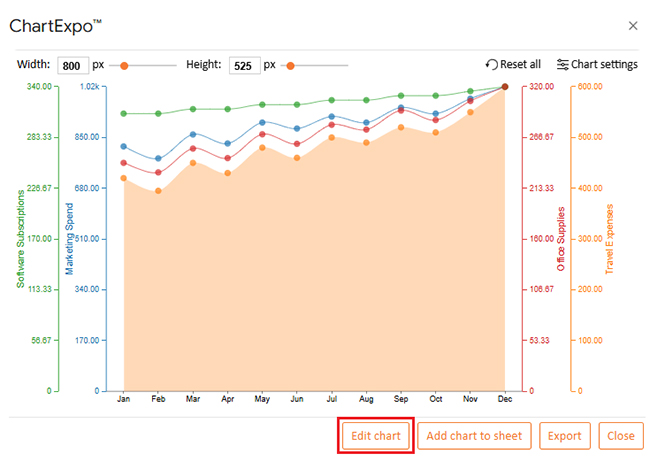
  • If you want to customize your chart, select the ‘Edit Chart’ option and design it to your specifications.
Google Sheet Expense Tracker Template
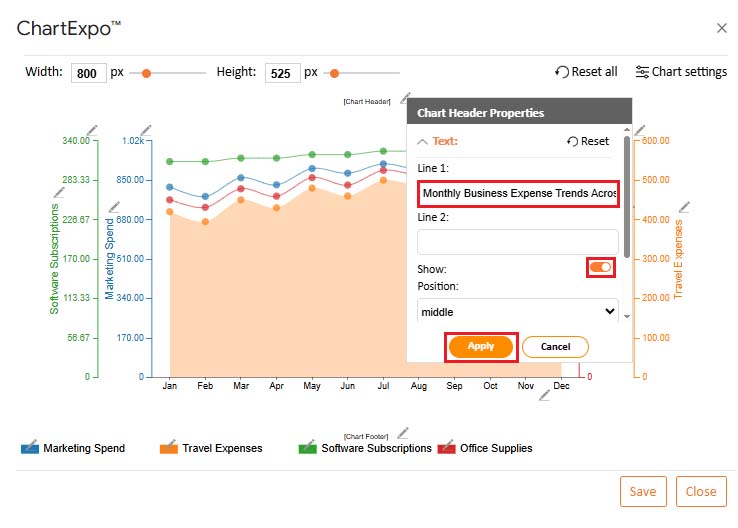
  • To change the chart’s title, select the pencil icon on the header. Then, enter the text you want and select “Apply”.
Google Sheet Expense Tracker Template
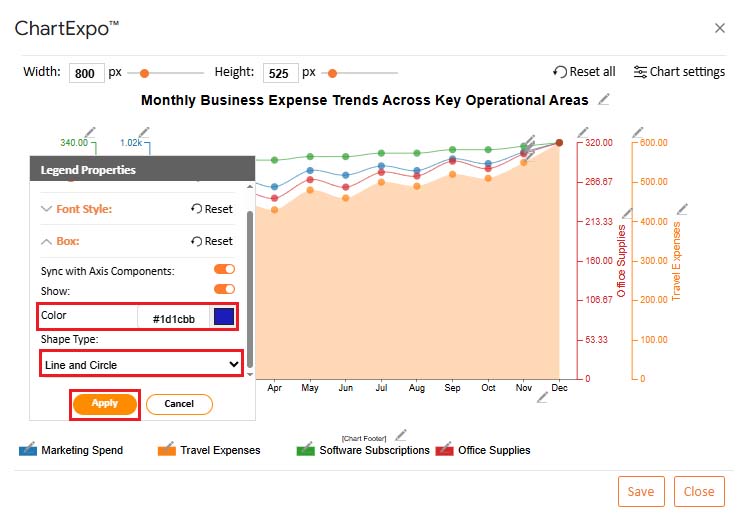
  • You can also change the legend shape type and color.
Google Sheet Expense Tracker Template
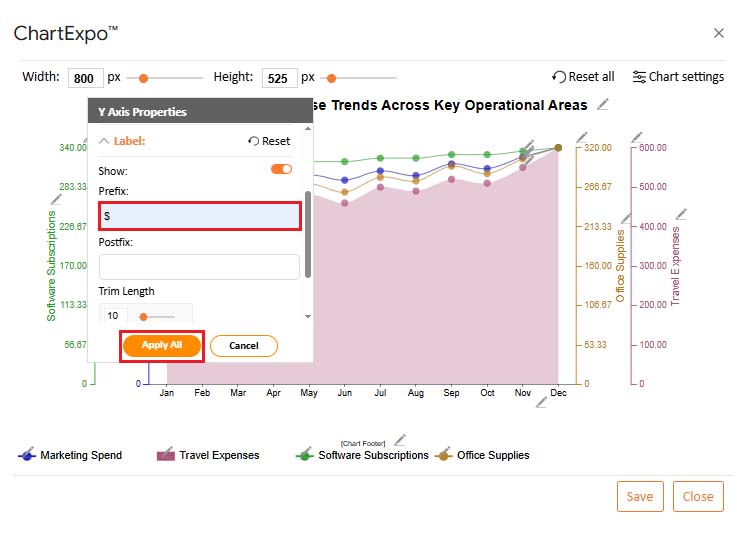
  • You can add a prefix sign as well.
Google Sheet Expense Tracker Template
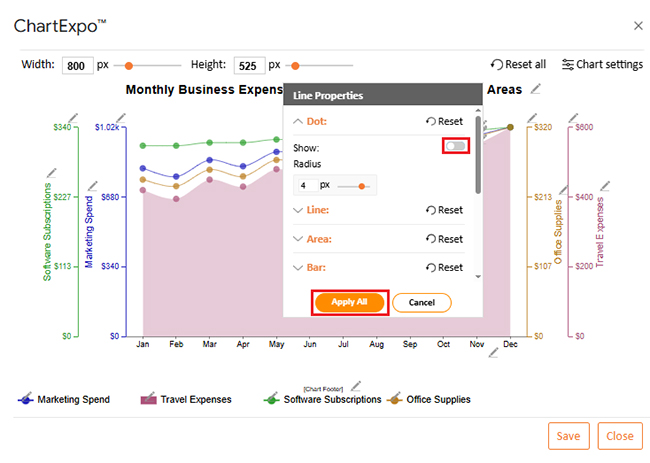
  • You can hide dots from “Line Properties”.
Google Sheet Expense Tracker Template
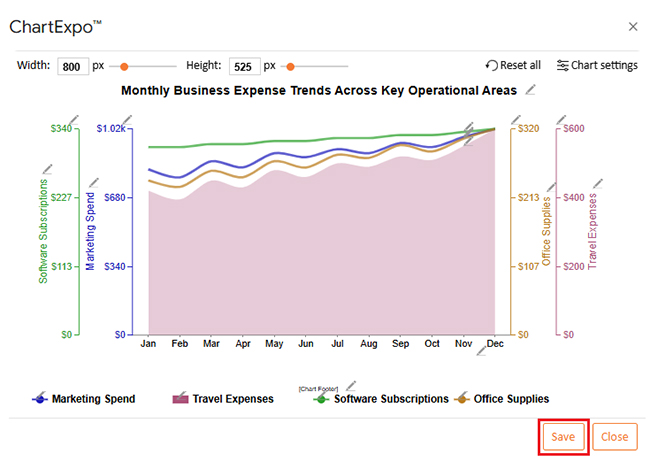
  • When you are done with all the changes, click the “Save” button to save them.
Google Sheet Expense Tracker Template
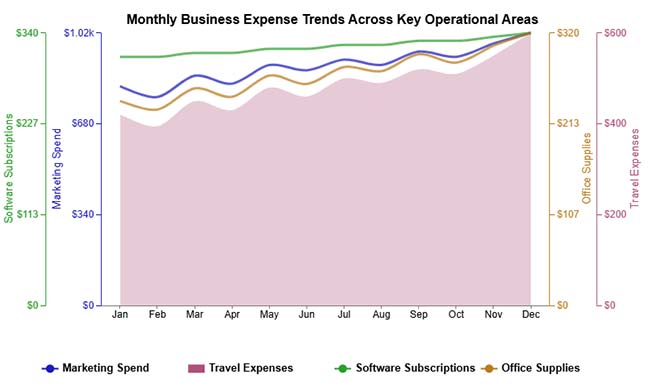
  • The final look of the Multi Axis Line Chart is shown below.
Google Sheet Expense Tracker Template

Key Insights

  • Marketing and travel climb across the year, with no real dip.
  • Software subscriptions stay flat and easy to plan for.
  • Office supplies rise slowly and stay controlled.

Benefits of a Google Sheet Expense Tracker Template

Benefits show up when surprises drop, and reviews get faster. With a Google Sheet Expense Tracker Template, one file can log, check, and plan. It also supports sharing and audit trails.

Benefits that show up fast:

  • Cost-Effective: Avoids paid software while still tracking spend and totals.
  • Accessibility & Real-Time Sync: Works across devices and syncs updates.
  • Customization: Adjusts categories, layouts, and formulas to fit the workflow.
  • Automation & Accuracy: Uses formulas to cut manual math errors.
  • Visual Insights: Uses charts and summaries to show patterns at a glance.
  • Financial Literacy: Builds better habits through routine review.

This setup can sit beside related sheets, like a debt tracker in Google Sheets, without changing the core layout or formulas.

Google Sheets Expense Tracker Templates vs. ChartExpo

Feature

Google Sheets Expense Tracker Templates

ChartExpo

Ease of setup Simple spreadsheet setup Add-on based
Customization options Manual customization Advanced controls
Visual reporting quality Basic charts Insight-focused visuals
Built-in analytics and insights Limited Advanced
Automation and scalability Moderate High
Error handling and data validation Manual Automated
Best use case Expense tracking Deep data analysis

Best Practices for Google Sheet Expense Tracker Template

A Google Sheet Expense Tracker Template only stays useful if it stays clean. A few habits keep the tracker accurate, searchable, and ready for reviews.

Habits to follow:

  • Use built-in features first to keep costs down and complexity low.
  • Update entries on schedule, and keep sync turned on across devices.
  • Customize categories to match plans, including an event budget template.
  • Rely on formulas for totals, and avoid manual math edits.
  • Review charts and summaries often to catch drift early.
  • Check results weekly to build habits that stick.

FAQs

How does it work?

Transactions are entered as rows, and formulas update totals as soon as amounts change. Categories and dates let the sheet group be spent by month, vendor, or purpose.

Why pick Sheets over software?

Sheets keeps data visible and portable, and it avoids subscriptions. It also plays well with custom categories and team sharing when that is needed.

Can it be customized?

Yes. Categories, formulas, and dashboards can be changed without breaking the basic log. Keep the core columns stable, and the rest can evolve.

Wrap Up

An expense tracker gets results when it’s used, not admired. A Google Sheet Expense Tracker Template keeps entries tidy, totals current, and summaries ready for review.

Copy the layout each month, lock key formulas, and use validation lists so categories stay consistent. Charts turn raw rows into signals, and ChartExpo can speed up that visualization work when default charts fall short.

Review totals weekly, export a snapshot, and adjust budgets before leaks become problems. Save receipts as notes for audits. A Google Sheet Expense Tracker Template should be simple to maintain. That is the point of a Google Sheet expenses tracker.

How much did you enjoy this article?

GSAd2
Start Free Trial!
159348

Related articles

next previous
Google Sheets11 min read

Google Workspace for Business to Turn Data into Insight

Google Workspace for Business offers secure tools for teams. Click here to see how smarter charts and features enhance efficiency and streamline operations.

Google Sheets10 min read

Data Analysis in Google Sheets: Best Ways to Show Insights

Discover how data analysis in Google Sheets transforms raw spreadsheets into clear insights with pivot tables, charts, formulas, and built-in AI tools.

Google Sheets11 min read

Small Business Budget Spreadsheet: A Complete Guide

A small business budget template tracks income and cash flow. Learn pros and cons, and best practices to manage budgets effectively in Google Sheets.

Google Sheets13 min read

Real Estate Investment Spreadsheet for Property Insights

A real estate investment spreadsheet tracks income, expenses, and ROI. This blog offers sample templates and tips to enhance property investment decisions.

Google Sheets13 min read

Sales Projection Template in Google Sheets for Clear Insights

A sales projection template helps predict revenue with clarity. Learn best practices, examples, and tips in Google Sheets to improve planning and growth.

ChartExpo logo

Turn Data into Visual
Stories

CHARTEXPO

  • Home
  • Gallery
  • Videos
  • Services
  • Pricing
  • Contact us
  • FAQs
  • Privacy policy
  • Terms of Service
  • Sitemap

TOOLS

  • ChartExpo for Google Sheets
  • ChartExpo for Microsoft Excel
  • Power BI Custom Visuals by ChartExpo
  • Word Cloud

CATEGORIES

  • Bar Charts
  • Circle Graphs
  • Column Charts
  • Combo Charts
  • Comparison Charts
  • Line Graphs
  • PPC Charts
  • Sentiment Analysis Charts
  • Survey Charts

TOP CHARTS

  • Sankey Diagram
  • Likert Scale Chart
  • Comparison Bar Chart
  • Pareto Chart
  • Funnel Chart
  • Gauge Chart
  • Radar Chart
  • Radial Bar Chart
  • Sunburst Chart
  • see more
  • Scatter Plot Chart
  • CSAT Survey Bar Chart
  • CSAT Survey Chart
  • Dot Plot Chart
  • Double Bar Graph
  • Matrix Chart
  • Multi Axis Line Chart
  • Overlapping Bar Chart
  • Control Chart
  • Slope Chart
  • Clustered Bar Chart
  • Clustered Column Chart
  • Box and Whisker Plot
  • Tornado Chart
  • Waterfall Chart
  • Word Cloud
  • see less

RESOURCES

  • Blog
  • Resources
  • YouTube
SIGN UP FOR UPDATES

We wouldn't dream of spamming you or selling your info.

© 2026 ChartExpo, all rights reserved.