• Home
  • Tools dropdown img
    • Spreadsheet Charts

      • ChartExpo for Google Sheets
      • ChartExpo for Microsoft Excel
    • Power BI Charts

      • Power BI Custom Visuals by ChartExpo
    • Word Cloud

  • Charts dropdown img
    • Chart Category

      • Bar Charts
      • Circle Graphs
      • Column Charts
      • Combo Charts
      • Comparison Charts
      • Line Graphs
      • PPC Charts
      • Sentiment Analysis Charts
      • Survey Charts
    • Chart Type

      • Box and Whisker Plot
      • Clustered Bar Chart
      • Clustered Column Chart
      • Comparison Bar Chart
      • Control Chart
      • CSAT Survey Bar Chart
      • CSAT Survey Chart
      • Dot Plot Chart
      • Double Bar Graph
      • Funnel Chart
      • Gauge Chart
      • Likert Scale Chart
      • Matrix Chart
      • Multi Axis Line Chart
      • Overlapping Bar Chart
      • Pareto Chart
      • Radar Chart
      • Radial Bar Chart
      • Sankey Diagram
      • Scatter Plot Chart
      • Slope Chart
      • Sunburst Chart
      • Tornado Chart
      • Waterfall Chart
      • Word Cloud
    • Google Sheets
      Microsoft Excel
  • Services
  • Pricing
  • Contact us
  • Blog
  • Support dropdown img
      • Gallery
      • Videos
      • Contact us
      • FAQs
      • Resources
    • Please feel free to contact us

      atsupport@chartexpo.com

Categories
All Data Visualizations Data Analytics Surveys
Add-ons/
  • Google Sheets
  • Microsoft Excel
  • Power BI
All Data Visualizations Data Analytics Surveys
Add-ons
  • Google Sheets
  • Microsoft Excel
  • Power BI

We use cookies

This website uses cookies to provide better user experience and user's session management.
By continuing visiting this website you consent the use of these cookies.

Ok

ChartExpo Survey


Home > Blog > Google Sheets

Compare Two Columns in Google Sheets: A Quick Guide

Compare two columns in Google Sheets—Is it easier said than done? Many users struggle to identify differences, find matches, or eliminate duplicate entries. But with the right tools, the process becomes faster, more reliable, and less prone to human error.
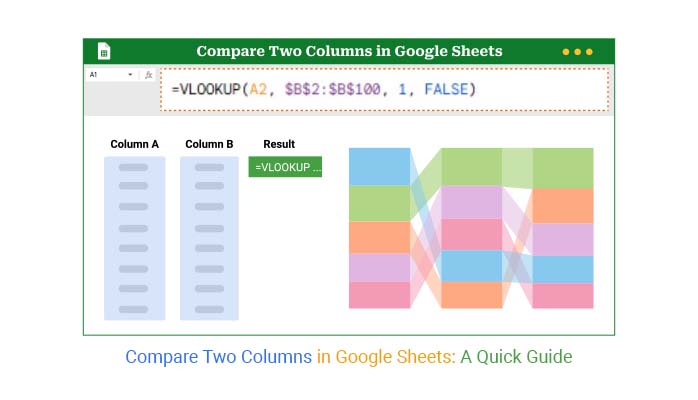
Compare Two Columns in Google Sheets

Over 2 billion people use Google Workspace, and Google Sheets functionality is a key reason why. Whether tracking inventory or matching sales data, knowing how to compare two columns in Google Sheets can save you hours.

Google Sheets’ artificial intelligence is also stepping up to help. Sheets are getting smarter with features like bright fill and suggestions. But knowing the right functions still matters. Many explore what-if analysis in Google Sheets to predict how changes will affect totals or outputs. But it all starts with solid, clean data. Comparing columns is step one. From there, analysis becomes meaningful.

So, how do you spot the differences? How do you highlight matches, eliminate duplicates, or make your spreadsheet more straightforward to read?

Let’s turn confusion into clarity—one cell at a time.

First…

Table of Contents:

  1. What Does it Mean to Compare Two Columns in Google Sheets?
  2. Why is It Useful to Compare Columns in Google Sheets?
  3. Methods Used for Google Sheets to Compare Two Columns
  4. How to Compare 2 Columns in Google Sheets Using Formulas?
  5. How to Analyze Compared Columns in Google Sheets?
  6. Benefits of Comparing Columns in Google Sheets
  7. Advanced Tips for Comparing Two Columns in Google Sheets
  8. FAQs
  9. Wrap Up

What Does it Mean to Compare Two Columns in Google Sheets?

Definition: Comparing two columns in Google Sheets involves examining how the data in one column relates to the data in another. You can look for matches, differences, or duplicates. This helps clean up data and avoid errors. It’s often used to track changes or verify lists.

Tools like VLOOKUP for Google Sheets make it simple. You can also use Google Sheets Slicers to filter data visually. Comparing columns ensures that your information is accurate and organized for analysis or reporting.

Why is It Useful to Compare Columns in Google Sheets?

Have you ever wasted an hour scanning two lists line by line? Probably you were managing inventory, comparing user data, or double-checking survey results. Listen to this: knowing how to compare columns in Google Sheets can save you serious time and headaches.

Here’s why it’s so helpful:

  • Easily spot differences: It’s inefficient to do a manual data comparison, while you can detect discordant columns with a simple Google Sheets formula.
  • Clean your data more quickly: Analysis can be spoiled by duplicate entries. Combining “compare columns” with “remove duplicates” in Google Sheets will clean up your columns in a snap.
  • Improve decision-making: Informed analysis using precise data helps to make better decisions. It’s easier to spot trends or anomalies when your data is clean and in line.
  • Automate repetitive tasks: Formulas like VLOOKUP for Google Sheets reduce hours of manual work. They automatically select matching values across columns by fetching related values between columns.
  • Make your data easier to visualize: Once your columns are matched or filtered, charts become more meaningful and informative. Try learning skills like how to make a comparison chart in Google Sheets to create a visual overview.
  • Transform layout for better analysis: Sometimes rows should be columns, or vice versa. The Google Sheets Transpose function enables you to switch data orientation instantly.

Methods Used for Google Sheets to Compare Two Columns

Have you ever stared at two long columns and thought, “There has to be an easier way to compare these”? You’re not alone. Comparing two columns in Google Sheets is a daily task for many teams. But doing it manually? That’s a recipe for missed errors and wasted time.

Let’s break down the most effective ways to do it:

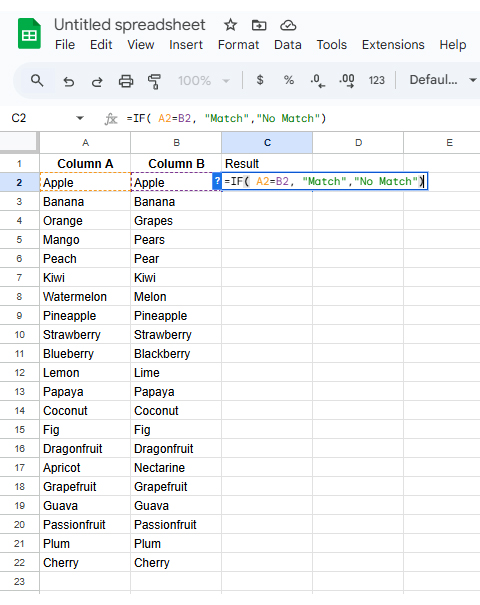
  • Using the IF Function: The IF function compares values in two cells and returns “Match” if they’re the same, or “No Match” if they differ. This makes it easy to scan a column and instantly see where data aligns or doesn’t.

This is How to Do It:

    • Select a cell in a new column (e.g., C2) by clicking it.
    • Insert the following formula:
    • =IF( A2=B2, “Match” “No Match”)
    • Click Enter.
Compare Two Columns in Google Sheets
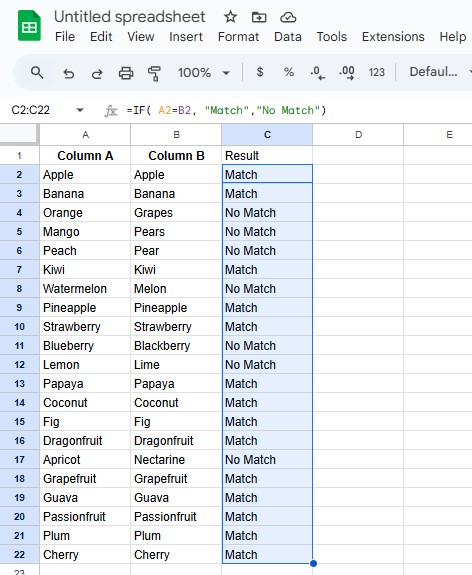
    • You can drag down the fill handle to apply the formula to other rows. Each row will show “Match” or “No Match”, making differences easy to spot.
Compare Two Columns in Google Sheets
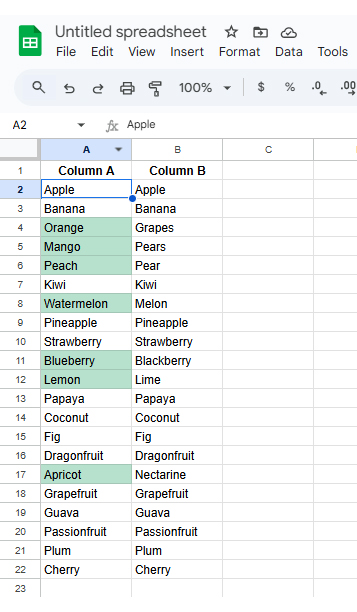
  • Conditional Formatting: This method visually highlights mismatches by applying custom formatting rules using a formula. When values in two columns don’t match, cells are automatically colored—no need to read line by line.

Follow these steps to apply conditional formatting:
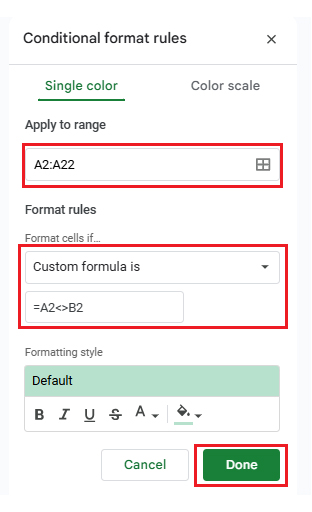
    • Select the cells in Column A to compare.
    • Go to Format > Conditional formatting.
    • In “Format cells if”, choose “Custom formula is” and enter: =A2<>B2.
    • Pick a fill color (e.g., light red) for mismatches and click “Done”.
    • Drag to extend formatting across rows or the entire column.
Compare Two Columns in Google Sheets
    • The final Table image will be as shown below.
Compare Two Columns in Google Sheets
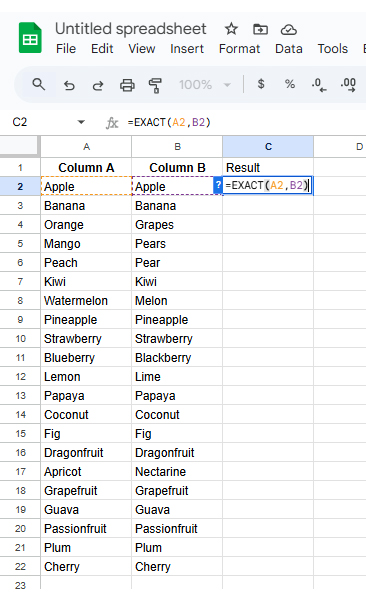
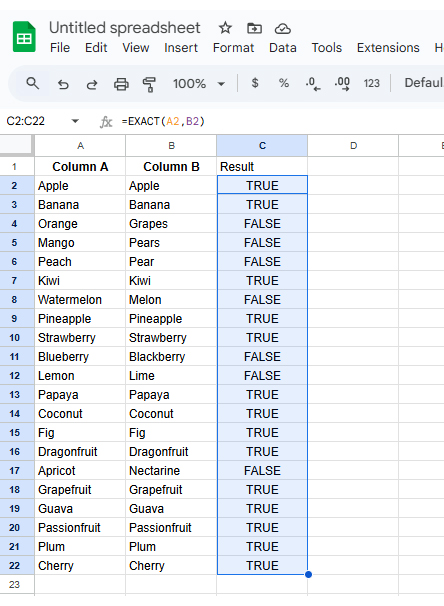
  • Using the EXACT Function:
    • Type the EXACT Formula: In a new column (like Column C), enter =EXACT(A2, B2) in the first row. Replace A2 and B2 with the actual cells you want to compare.
Compare Two Columns in Google Sheets
    • Use the formula across the column: Click the small square at the cell corner and drag it down to the desired cell. This applies the formula to all rows in your dataset.
Compare Two Columns in Google Sheets
    • Result analysis: The formula returns TRUE if the values are identical, including case and spacing. If there’s any difference, it shows FALSE.
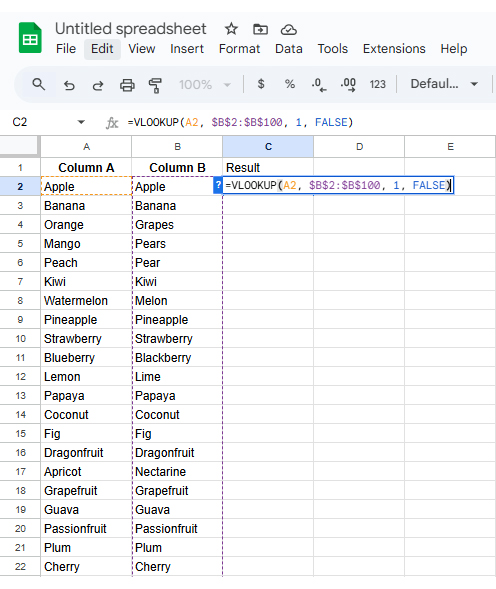
  • VLOOKUP Function:
    • Type VLOOKUP formula: Enter =VLOOKUP(A2, $B$2:$B$100, 1, FALSE) in a new column. It checks if the value in A2 exists in Column B.
Compare Two Columns in Google Sheets
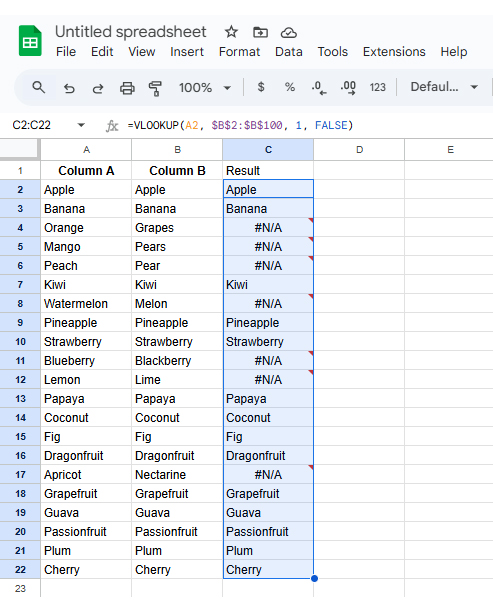
    • Copy the formula: Drag the fill handle down to apply the formula to more rows. This checks each value in Column A against Column B.
    • Output analysis: If a match is found, that value appears in Column C. If not, you’ll see #N/A to indicate no match.
Compare Two Columns in Google Sheets

How to Compare 2 Columns in Google Sheets Using Formulas?

Have you ever felt overwhelmed trying to compare two columns full of names, IDs, or values? You’re not alone. Doing it by eye is slow and risky. Fortunately, Google Sheets provides formulas that enable fast, accurate, and stress-free comparisons.

Here are three powerful formulas to help you compare two columns in Google Sheets like a pro:

  • IF for row-wise comparisons: To check if two values in the same row are equal, use the IF function in Google Sheets. It returns “Match” if they’re the same and “No Match” if they’re different — ideal for speed side-by-sides.
  • VLOOKUP formula: VLOOKUP for Google Sheets is used for searching in a column, but in a different range. If found, it returns the value; if not, it shows #N/A to indicate it’s missing.
  • MATCH, formula: The MATCH function tells us where in the target column we can find the value from the column we are checking.

How to Analyze Compared Columns in Google Sheets?

Are you tired of squinting at rows trying to spot differences? Welcome to the spreadsheet struggle. Comparing two columns in Google Sheets should be quick, but it often feels like digital detective work.

Sure, Google Sheets gets the job done, but when it comes to data visualization, it hits a wall. Charts are basic, and options are limited. Visual clarity? Sometimes, not so much.

That’s where ChartExpo steps in. It brings powerful, easy-to-use visuals right into Google Sheets.

How to Install ChartExpo in Google Sheets?

  1. To start using ChartExpo, download it directly from Google Sheets. To do this, select Extensions from the top toolbar.
  2. A menu will appear. Click the Get add-ons option.
  3. Search for ChartExpo, and click on Charts, Graphs & Visualizations by ChartExpo when it appears in the results.
  4. Click the Install button. You will have to confirm your Google account and accept some permissions.

ChartExpo charts are available both in Google Sheets and Microsoft Excel. Please use the following CTAs to install your favorite tool and create beautiful visualizations in a few clicks.

Example

Let’s analyze this sample data in Google Sheets using ChartExpo.

Service Type Region Number of Complaints
Mobile North America 320
Mobile Europe 280
Mobile Asia 450
Internet North America 210
Internet Europe 190
Internet Asia 370
Cable TV North America 180
Cable TV Europe 140
Cable TV Asia 300
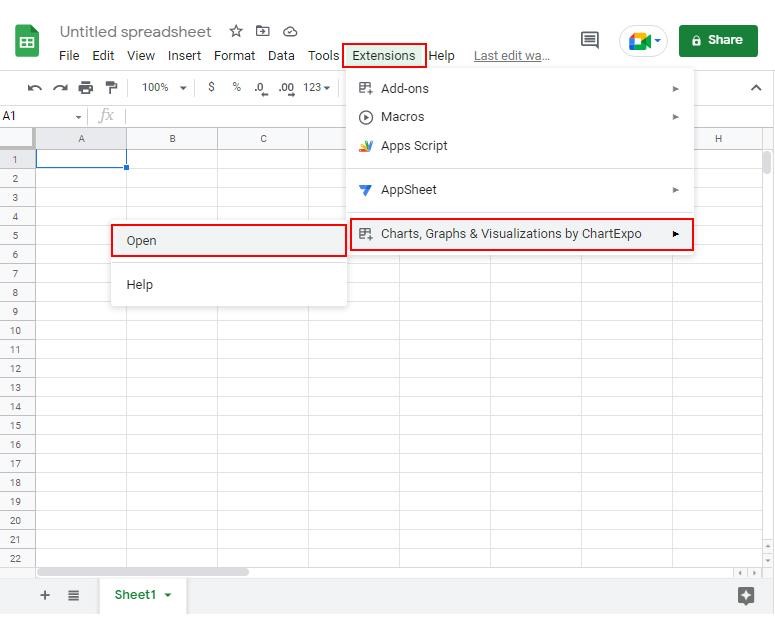
  • To get started with ChartExpo, install ChartExpo in Google Sheets.
  • Go to Extensions > Charts, Graphs & Visualizations by ChartExpo > Open.
Compare Two Columns in Google Sheets
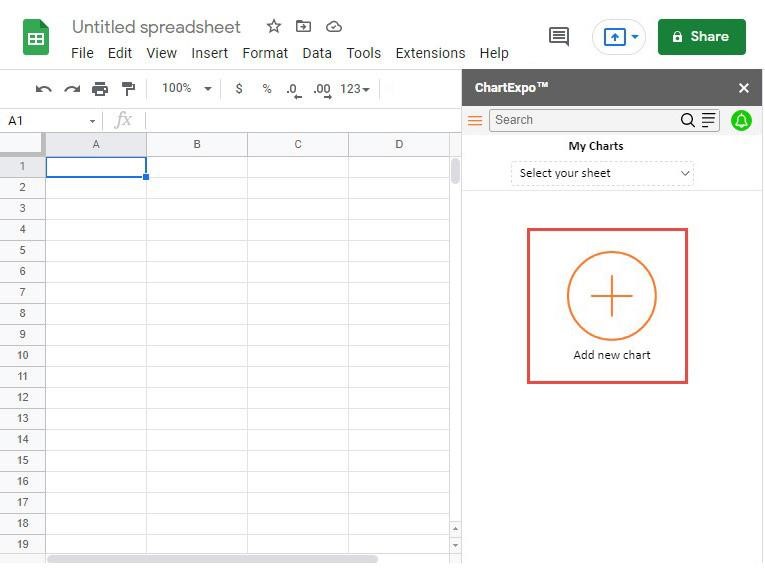
  • To access the charts library, click the Add new chart button.
Compare Two Columns in Google Sheets
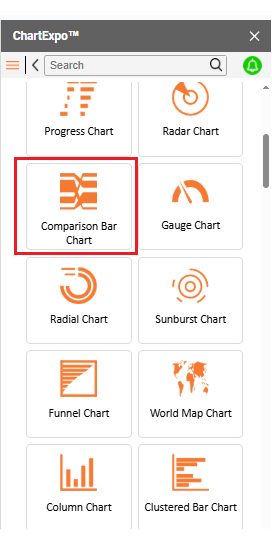
  • Once it loads, scroll through the charts list to locate and choose the “Comparison Bar Chart”.
Compare Two Columns in Google Sheets
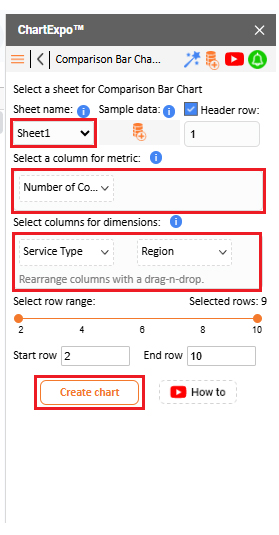
  • Put the data table in the sheet first. Then, choose the Sheet name from the drop-down in the ChartExpo section.
  • Select the metric column; metric is the numeric column in your data sheet.
  • Select the dimensions column; the dimension is the categorical column in your datasheet that contains text information.
  • Click the Create chart button to complete the process.
Compare Two Columns in Google Sheets
    • If you want to add anything to the chart, click the Edit Chart button:
Compare Two Columns in Google Sheets
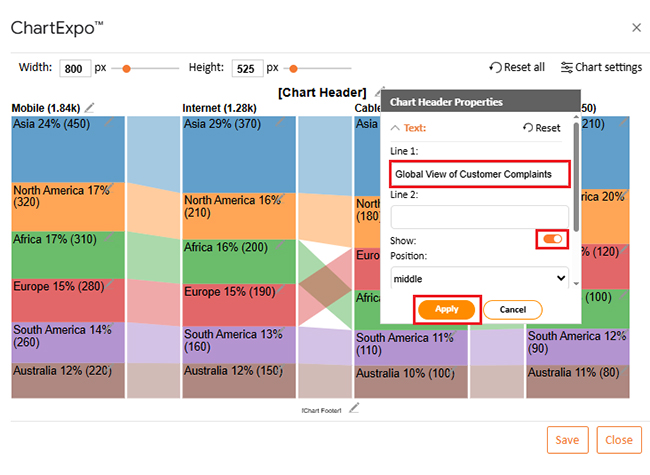
  • Click the pencil icon next to the Chart Header to change the title.
  • It will open the properties dialog. Under the Text section, you can add a heading in Line 1 and enable Show.
  • Give the appropriate title of your chart and click the Apply button.
Compare Two Columns in Google Sheets
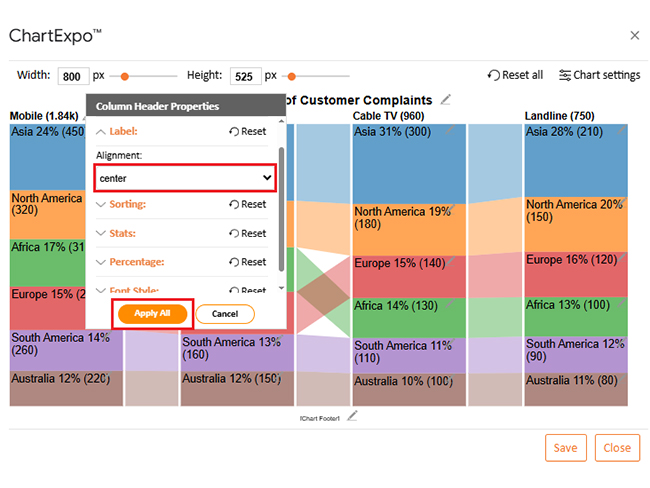
  • Change the alignment of the label of Column Header Properties as follows:
Compare Two Columns in Google Sheets
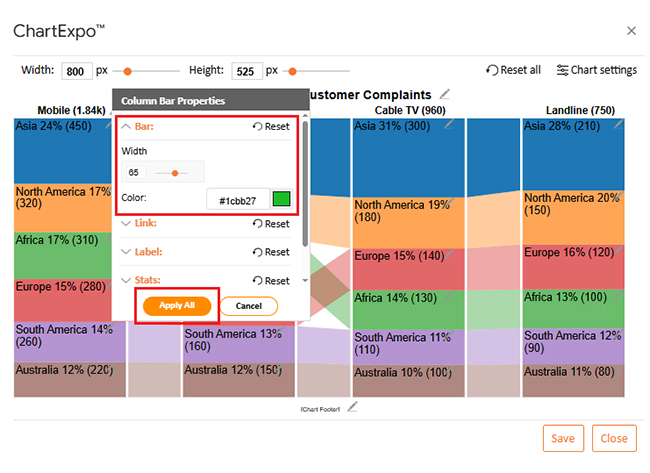
  • Change bar color from the “Column Bar Properties” menu as follows:
Compare Two Columns in Google Sheets
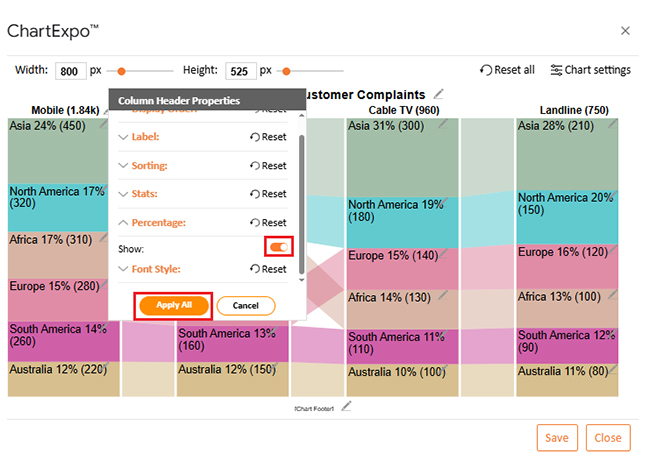
  • You can show the percentage on the label as follows:
Compare Two Columns in Google Sheets
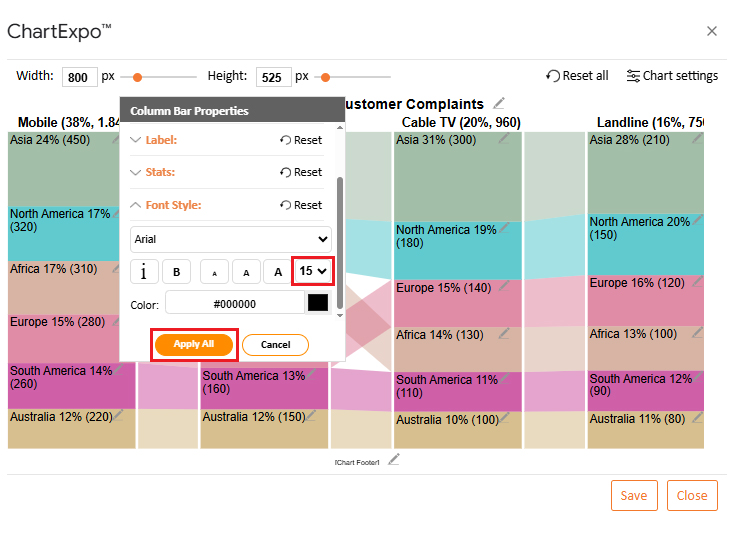
  • You can increase font size for better readability from “Font Style.”
Compare Two Columns in Google Sheets
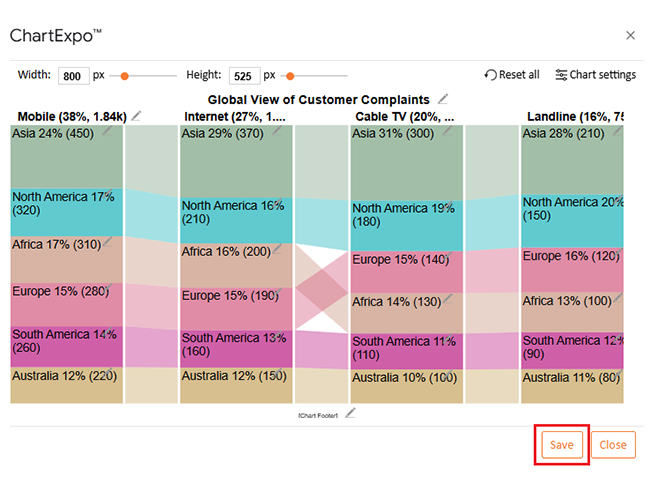
  • After making all changes, click on the “Save” button:
Compare Two Columns in Google Sheets
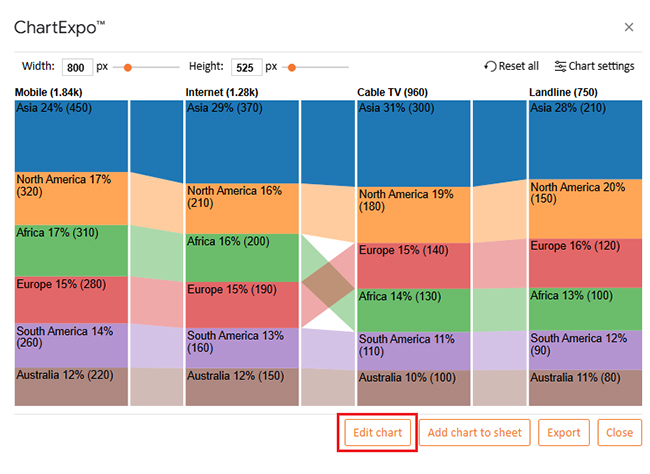
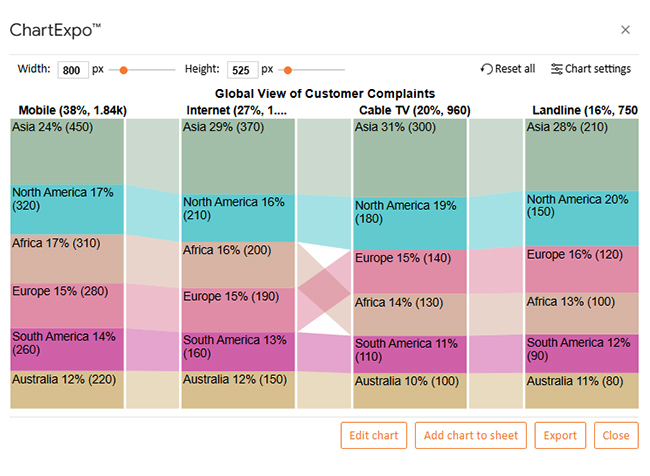
  • Your final chart will look like the one below.
Compare Two Columns in Google Sheets

Insights

  • Mobile services account for the highest number of complaints (38%), mainly in Asia and North America.
  • Internet (27%) and Cable TV (20%) also show high complaint volumes, with Asia leading in both categories.
  • Landline issues are less common (16%) but still notable in Asia and North America.
  • Overall, Asia reports the most complaints, suggesting widespread service challenges across multiple categories.

Benefits of Comparing Columns in Google Sheets

Have you ever stared at a messy spreadsheet and thought, “Something’s off—but I can’t tell what”? That’s where comparing columns comes in. It’s fast, clear, and keeps your data honest.

Here’s why this simple action brings serious value:

  • Saves time: No more manual checks. Formulas and functions do the work for you.
  • Reduces errors: Mismatches and duplicates get flagged instantly. That means fewer reporting mistakes.
  • Improves data accuracy: Comparing columns ensures your records match across sheets or systems. Clean data leads to better decisions.
  • Supports intelligent analysis: When your columns align, your charts and summaries become more meaningful and informative. This is especially useful when performing what-if analysis in Google Sheets.
  • Simplifies large datasets: Whether it’s 100 rows or 10,000, a quick formula reveals exactly where things go wrong—or right.

Advanced Tips for Comparing Two Columns in Google Sheets

Have you ever felt like you’ve mastered the basics, but your spreadsheet still isn’t telling the whole story? That’s your cue to level up. Comparing two columns doesn’t stop at IF formulas—it can get brighter, sharper, and more automated.

Here are some advanced tips to take your Google Sheets functionality further:

  • Use ARRAYFORMULA for bulk comparisons: Instead of dragging formulas, wrap them in ARRAYFORMULA to apply across an entire range automatically. It’s cleaner, faster, and updates with your data.
  • Combine IF with ISERROR and VLOOKUP: Use =IF(ISERROR(VLOOKUP(…)), “No Match”, “Match”) to avoid messy #N/A errors. This keeps your sheet clean while still doing the job.
  • Use conditional formatting + formulas to highlight discrepancies: Combine Google Sheets slicers and conditional formatting to visualize when things don’t match by category or region. This is a way of “dynamically filtering” your visual explorations.
  • Use UNIQUE with COUNTIF to identify duplicates across columns: Need to know where your values are doubling up? You can also list what is in both columns – try =UNIQUE(FILTER(A:A,COUNTIF(B:B,A:A)))
  • Use Google Sheets machine intelligence to get suggestions: When you enter data, Sheets uses machine intelligence to offer you suggestions for what to type. Sheets also intelligently auto-suggests formulas that you are most likely to need.

FAQs

Can you compare two columns in Google Sheets for differences?

Yes, you can. Use formulas like =IF(A2=B2, “Match”, “No Match”). It highlights where values differ. Conditional formatting can also help. It makes differences easy to spot visually.

How do I compare two lists in Google Sheets to find matches?

  • Use =IF(COUNTIF(B:B, A2), “Match”, “No Match”).
  • Try VLOOKUP to search values between lists.
  • Highlight matches using conditional formatting.
  • Use MATCH to find row positions.
  • These methods reveal exact or partial matches fast.

Wrap Up

Comparing two columns in Google Sheets doesn’t have to be complicated. With the right tools, it becomes fast and accurate. You don’t need to be a spreadsheet expert. A few formulas go a long way.

Start with simple functions. Use IF for row-by-row checks. Also, try using VLOOKUP in Google Sheets when searching for a value in one list within another. These give clear answers in seconds.

Want something more visual? Learn how to make a Comparison Chart in Google Sheets. Charts make differences more straightforward to spot. They also help when sharing your data with others.

Cleaning data matters too. Use the ‘Remove Duplicates in Google Sheets before you start comparing. This step saves time and avoids false mismatches. Clean data is always better data.

Conditional formatting adds color to your checks. It highlights problems fast. You can scan and act without having to dig through rows of information.

Finally, comparing columns is more than a technical task. It improves accuracy, boosts confidence, and saves hours. Utilize the functions and tips we’ve discussed to transform messy data into clear, informed decisions.

And don’t stop there. Install ChartExpo to create visuals quickly and highlight insights.

How much did you enjoy this article?

GSAd2
Start Free Trial!
156483

Related articles

next previous
Google Sheets11 min read

Gemini in Google Sheets: Simplifying Data for Insights

Gemini in Google Sheets lets you automate tasks with simple prompts. Click here to learn how to use it, create charts, and boost productivity with expert tips.

Google Sheets13 min read

Google Spreadsheet Templates: You Can Use Today

Google spreadsheet templates simplify tracking, planning, and reporting. Click here to learn how to use them with examples, tips, visual tools, and more.

Google Sheets12 min read

Google Sheets Tips and Tricks to Work Like a Pro

Google Sheets tips and tricks help you save time and work smarter. Click here to learn quick fixes, charting tools, and smart features to boost productivity.

Google Sheets14 min read

How to Import HTML into Google Sheets for Better Insights

Discover how Import HTML Google Sheets brings live web data into your sheet. Learn HLOOKUP, data tips, and chart tricks to simplify analysis.

Google Sheets5 min read

How to Create a Sankey Diagram in Google Sheets?

Learn how to create a Sankey Diagram in Google Sheets to visualize flows like customer journeys, energy transfers, and cash movement for deeper analysis.

ChartExpo logo

Turn Data into Visual
Stories

CHARTEXPO

  • Home
  • Gallery
  • Videos
  • Services
  • Pricing
  • Contact us
  • FAQs
  • Privacy policy
  • Terms of Service
  • Sitemap

TOOLS

  • ChartExpo for Google Sheets
  • ChartExpo for Microsoft Excel
  • Power BI Custom Visuals by ChartExpo
  • Word Cloud

CATEGORIES

  • Bar Charts
  • Circle Graphs
  • Column Charts
  • Combo Charts
  • Comparison Charts
  • Line Graphs
  • PPC Charts
  • Sentiment Analysis Charts
  • Survey Charts

TOP CHARTS

  • Sankey Diagram
  • Likert Scale Chart
  • Comparison Bar Chart
  • Pareto Chart
  • Funnel Chart
  • Gauge Chart
  • Radar Chart
  • Radial Bar Chart
  • Sunburst Chart
  • see more
  • Scatter Plot Chart
  • CSAT Survey Bar Chart
  • CSAT Survey Chart
  • Dot Plot Chart
  • Double Bar Graph
  • Matrix Chart
  • Multi Axis Line Chart
  • Overlapping Bar Chart
  • Control Chart
  • Slope Chart
  • Clustered Bar Chart
  • Clustered Column Chart
  • Box and Whisker Plot
  • Tornado Chart
  • Waterfall Chart
  • Word Cloud
  • see less

RESOURCES

  • Blog
  • Resources
  • YouTube
SIGN UP FOR UPDATES

We wouldn't dream of spamming you or selling your info.

© 2025 ChartExpo, all rights reserved.