Categories

Spreadsheet overwhelm is real. Rows and columns blur together when you’re staring at hundreds of values trying to spot what matters. Color solves this problem instantly.
A Heatmap in Excel converts raw numbers into an intuitive gradient where darker shades signal higher values and lighter tones show lower ones. Pattern recognition becomes automatic instead of tedious.
This guide shows what a Heatmap chart in Excel does, why data analysts rely on it, when to use it over other visuals, and two ways to build one. You’ll see examples across different scenarios and learn which approach fits your needs.
Definition: Think of a Heatmap in Excel as your data’s temperature reading. Each cell gets a color based on its value—hot colors for high numbers, cool colors for low ones. This transforms a grid of digits into a visual story where patterns jump out without squinting at individual entries.
The magic lies in comparison, instead of reading “127” versus “134” versus “98,” your brain processes “darker red” versus “lighter red” versus “pale yellow” in milliseconds. A Heatmap chart in Excel turns scanning into seeing. Clusters, outliers, and trends become obvious through color gradients rather than mental math.
Large datasets turn into cognitive puzzles without a visual hierarchy. You can’t just “see” the problem areas when everything looks identical. Color coding changes that dynamic entirely.
Here’s why this visualization matters:
Not every dataset needs color treatment. Bar charts work fine for simple comparisons. Line graphs handle time series beautifully. But when you’ve got a matrix of values where relationships matter more than individual numbers, that’s Heatmap territory.
Build one when you’re facing:
Color gradients communicate magnitude better than numbers alone in these contexts.
A Heatmap chart in Excel isn’t just colored cells. Specific capabilities make it work for serious analysis. Core features include:
Seeing beats explaining. These examples show how a Heatmap chart in Excel handles different data types.
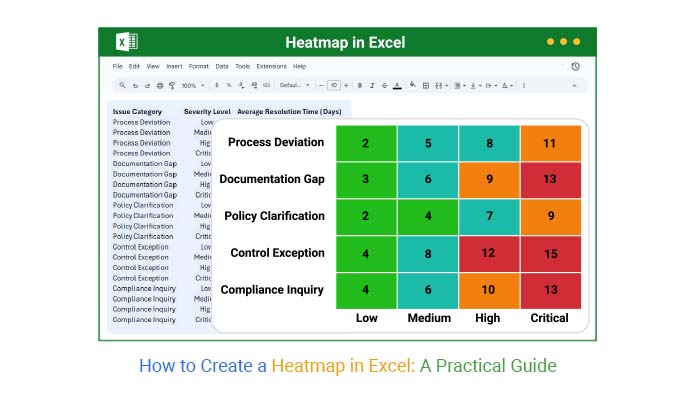
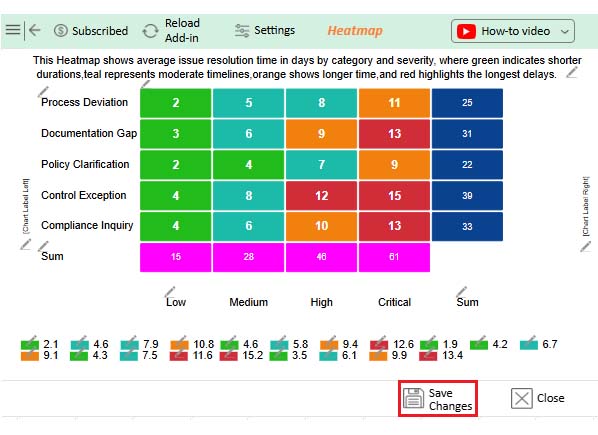
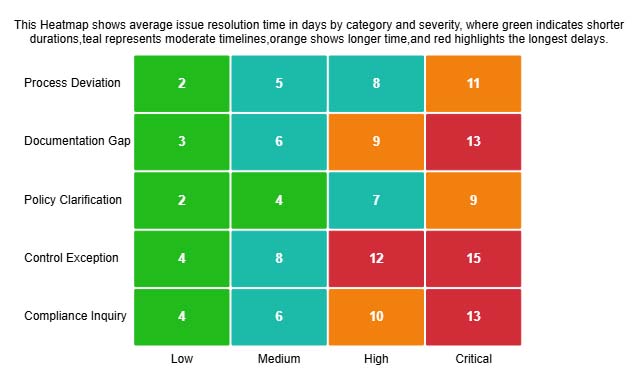
Resolution delays escalate predictably as severity climbs. This Heatmap reveals how days to close an issue expand from minor infractions through critical failures.
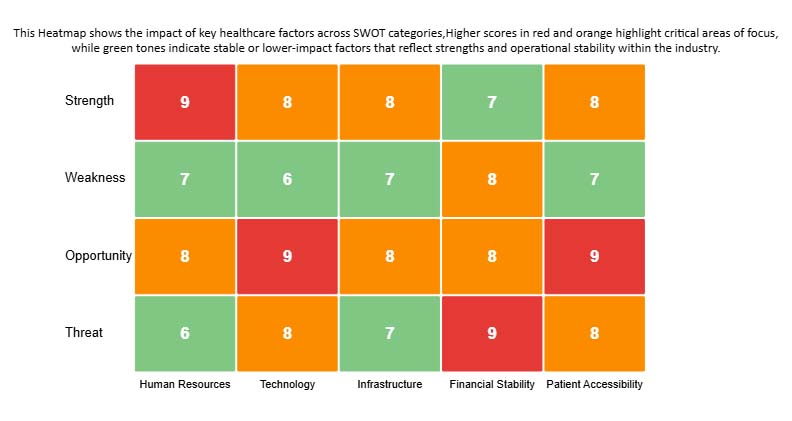
Department scores across half a year tell stories numbers can’t. Color gradients expose which teams consistently deliver and which ones struggle month after month.
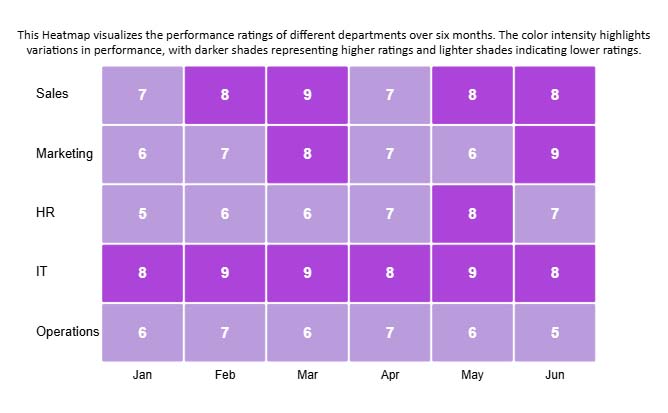
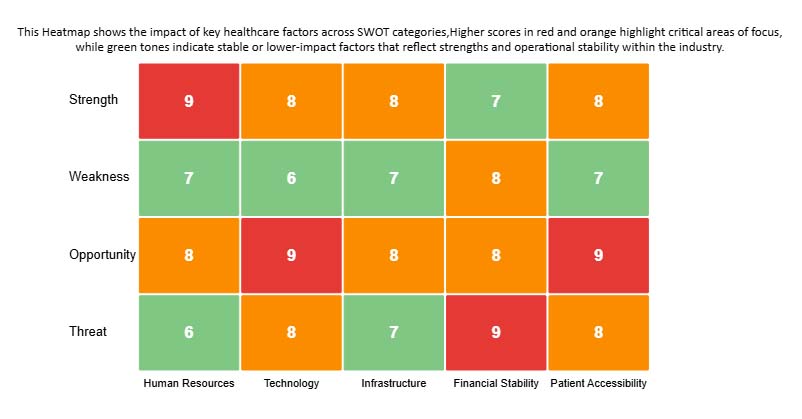
Healthcare planning demands visual priority mapping. This SWOT Heatmap uses saturation to distinguish mission-critical factors from stable baseline conditions across strategic dimensions.
Excel’s native tools handle basic Heatmap needs through conditional formatting. This approach works when you want quick visuals without specialized software.
Start with organized, clean information ready for Excel chart creation.
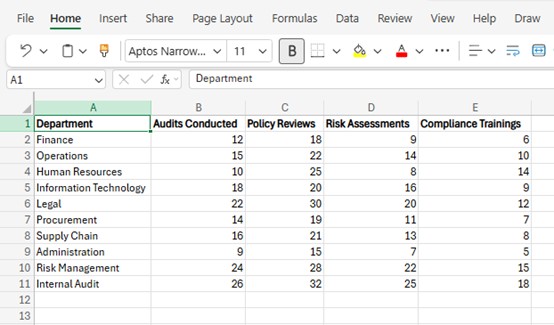
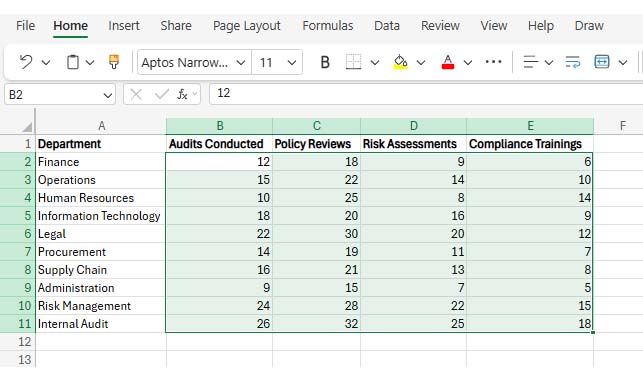
Highlight cells B2 through E11 as your Heatmap source range.
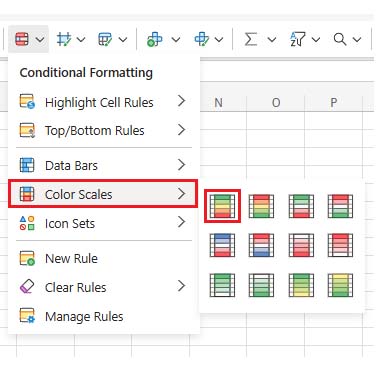
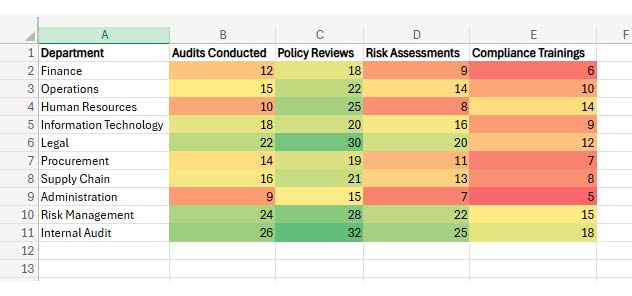
Click the Home tab, find Conditional Formatting, then choose Color Scales. Browse the gradient options to match your data visualization style. Check chart elements in Excel to verify everything displays correctly.
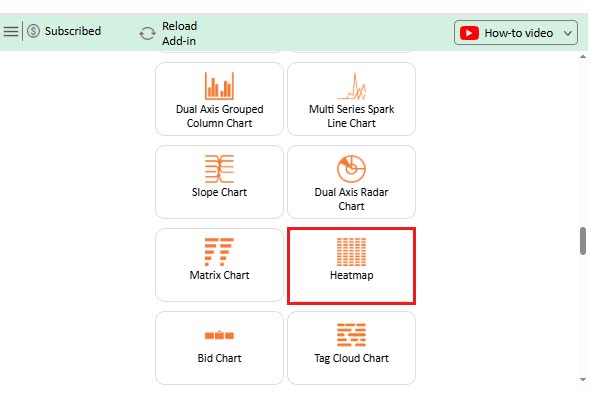
ChartExpo delivers advanced Heatmap capabilities beyond Excel’s defaults. The workflow balances power with simplicity, similar to how to create an org chart in Excel, but with deeper customization.
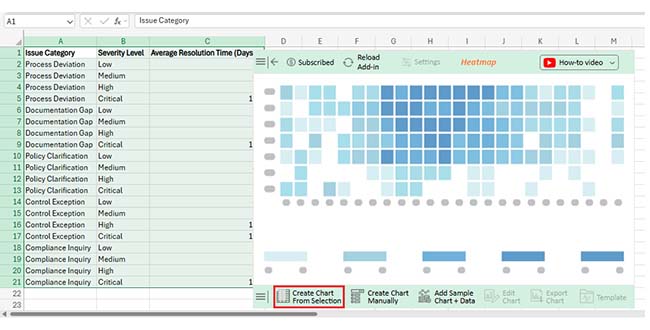
Here’s the process:
ChartExpo bridges technical precision with visual storytelling, making Heatmap creation both intuitive and powerful.
Why use ChartExpo?
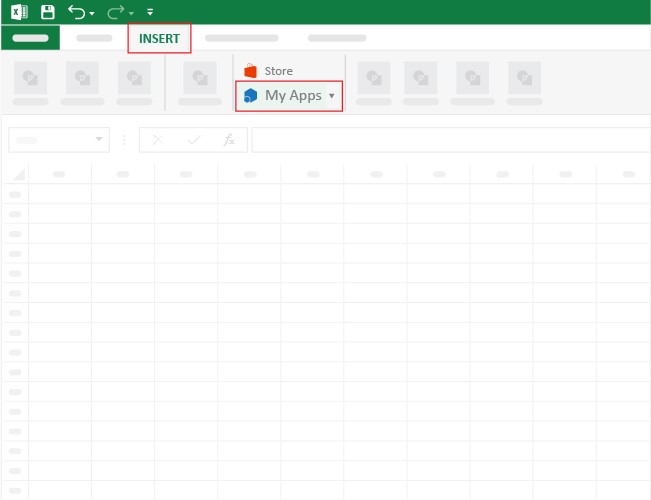
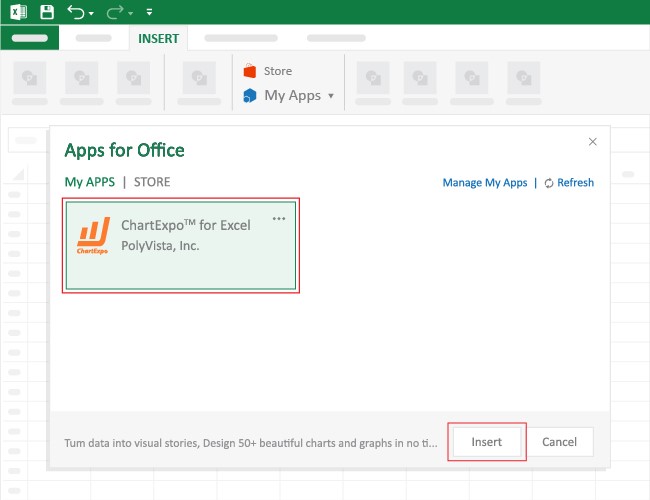
How to install ChartExpo in Excel?
ChartExpo can be used with both Google Sheets and Microsoft Excel. Follow the CTAs to install your favorite tool and create a beautiful visualization with just a few clicks directly on your favorite platform.
Consider we have the following data for a heatmap.
| Issue Category | Severity Level | Average Resolution Time (Days) |
| Process Deviation | Low | 2.1 |
| Process Deviation | Medium | 4.6 |
| Process Deviation | High | 7.9 |
| Process Deviation | Critical | 10.8 |
| Documentation Gap | Low | 3 |
| Documentation Gap | Medium | 5.8 |
| Documentation Gap | High | 9.4 |
| Documentation Gap | Critical | 12.6 |
| Policy Clarification | Low | 1.9 |
| Policy Clarification | Medium | 4.2 |
| Policy Clarification | High | 6.7 |
| Policy Clarification | Critical | 9.1 |
| Control Exception | Low | 4.3 |
| Control Exception | Medium | 7.5 |
| Control Exception | High | 11.6 |
| Control Exception | Critical | 15.2 |
| Compliance Inquiry | Low | 3.5 |
| Compliance Inquiry | Medium | 6.1 |
| Compliance Inquiry | High | 9.9 |
| Compliance Inquiry | Critical | 13.4 |
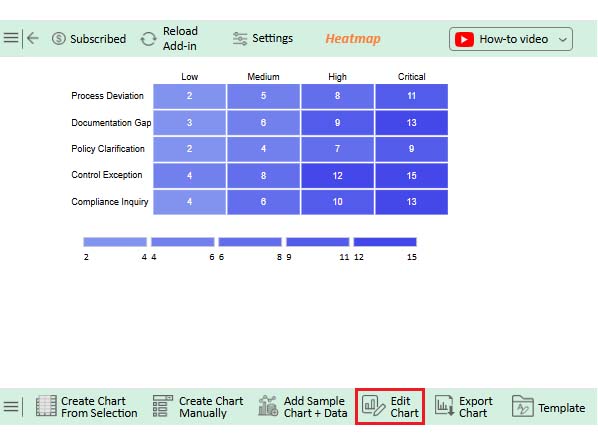
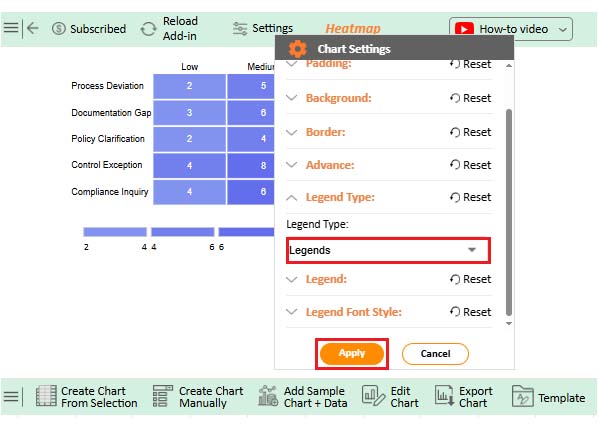
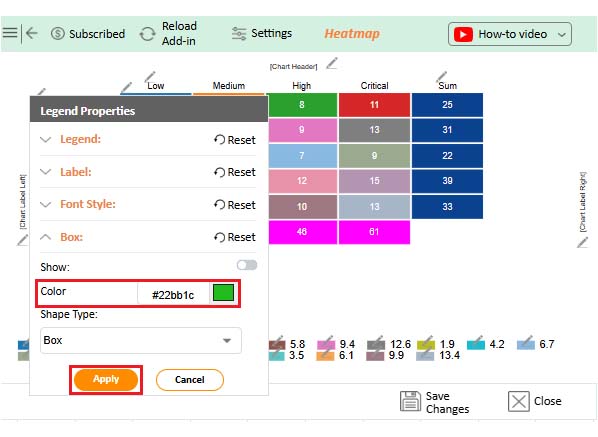
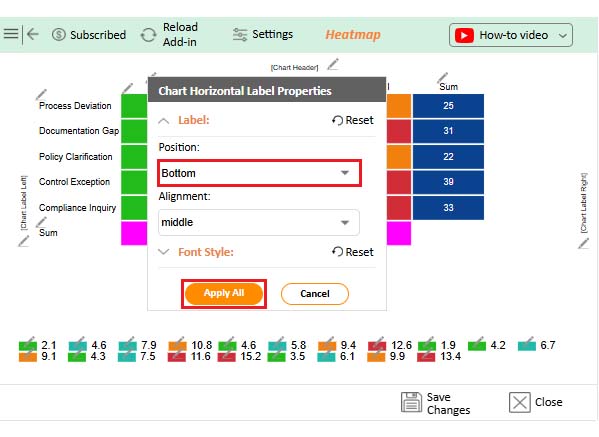
Converting numerical grids into visual gradients unlocks advantages you won’t get from raw data. A Heatmap in Excel delivers specific benefits:
Building effective visualizations demands deliberate choices. Follow these practices:
Understanding capability differences helps pick the right visualization method.
|
Feature |
Excel Heatmap Chart |
ChartExpo |
| Chart flexibility | Limited | High |
| Customization options | Basic | Advanced |
| Data volume handling | Moderate | Large datasets |
| Ease of use | Manual setup | Guided workflow |
| Visual clarity | Standard | Enhanced |
| Overall Excel Heatmap comparison | Functional | Professional-grade |
ChartExpo offers superior flexibility and scaling for demanding visualization requirements.
Manual Heatmap building hits walls fast. ChartExpo eliminates those constraints through advanced automation and customization. It digests large datasets without performance drops and produces sharper visuals than formatting rules allow. Saved layouts and reusable Excel chart templates keep your reporting consistent across projects.
Plus, ChartExpo integrates cleanly with Excel plug-ins, expanding your native toolkit without friction. Teams running frequent, detailed analysis benefit most from this combination of power and efficiency.
Absolutely. A Heatmap chart in Excel lets you modify color schemes through conditional formatting or specialized tools to fit analytical requirements.
Use a Heatmap in Excel when you need to evaluate large grids, spot trends visually, or flag outliers without manual scanning.
Yes. Excel’s built-in formatting handles basic Heatmaps, though advanced platforms deliver greater control.
Mastering how to create a heatmap in Excel converts confusing grids into instant insight. Color does what numbers can’t—reveals structure at a glance. Excel’s defaults work fine for quick jobs, but ChartExpo raises the ceiling significantly.
Advanced customization, sharper clarity, and effortless scaling make pattern analysis faster, presentation preparation smoother, and data for Excel chart decisions smarter.
How much did you enjoy this article?


Learn how to use sparklines in Excel to quickly visualize trends inside cells. Discover types, creation steps, customization, use cases, benefits, and best practices.

Learn what a confidence interval graph is, how to create it in Excel, and how to interpret results to make more reliable, data-driven decisions.

A correlation matrix in Excel helps identify relationships between variables. Learn how to create, read, and use it for effective data analysis.




