Categories

Slides live or die on the chart. A messy graphic turns a meeting into a debate about colors, not numbers. Template-driven charts fix that.
They lock in spacing, fonts, and labeling so every deck looks like it came from one shop. Swap the data, keep the structure, move on.
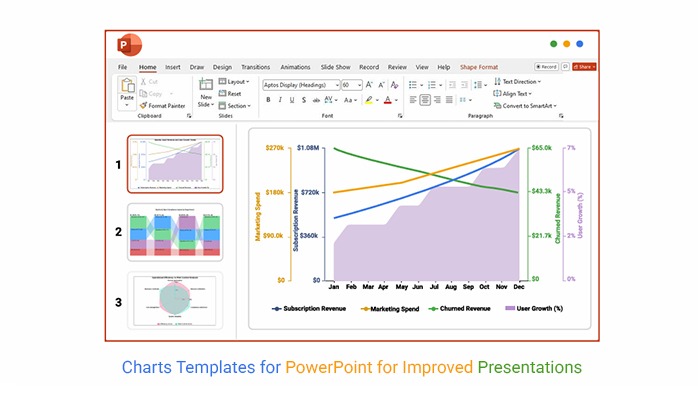
It also keeps teams from reinventing the same chart every Monday. Leaders get the story, analysts keep their sanity, and the brand stops drifting slide to slide.
Clean visuals win trust, even when the numbers sting. When reports repeat, the design work shouldn’t. Build once, reuse often, and spend time on the message that matters.
Definition: Charts Templates for PowerPoint are preset chart builds that control layout, fonts, colors, and where data labels land on the slide. Instead of rebuilding a chart from scratch, the template keeps the structure and swaps in new numbers.
That means fewer alignment fights and fewer off-brand charts. When the same report shows up every week, the format stays stable. Some teams refer to these as ppt charts templates, but the job is the same: reuse the design and focus on the insight.
Charts Templates for PowerPoint cut the busywork because the chart shell is already set. The payoff shows up fast in recurring updates and review meetings. Don’t waste time nudging labels and legends. Spend it on the story.
Charts Templates for PowerPoint rest on a few building blocks. Layout rules define where titles, axes, and labels sit, so every slide reads the same. Results from Google Sheets linear regression can drop into the same structure without breaking the story. Keep these parts stable, and the template earns its keep.
Example # 1:
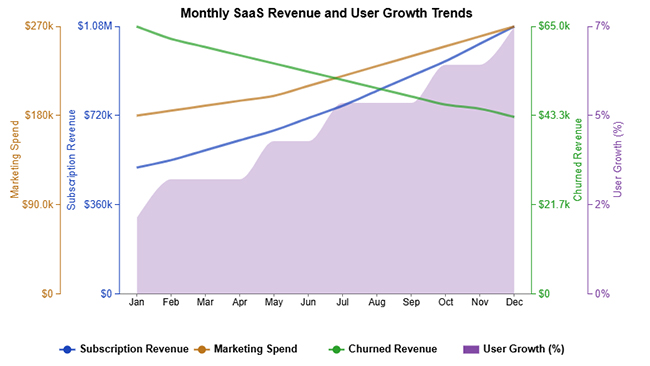
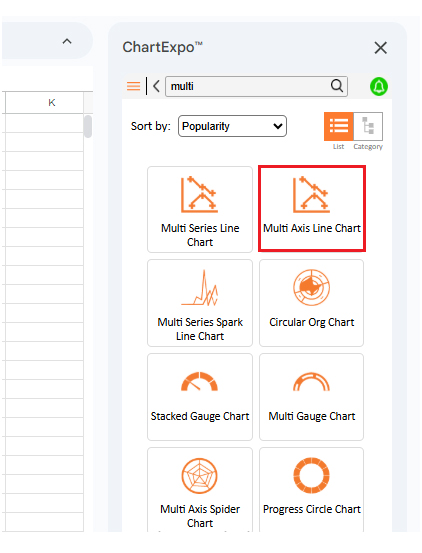
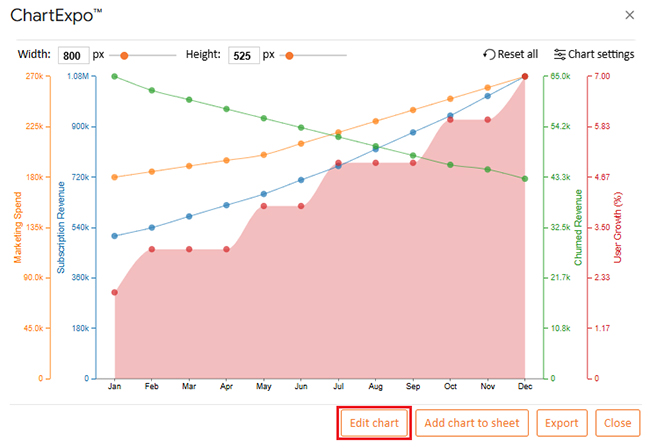
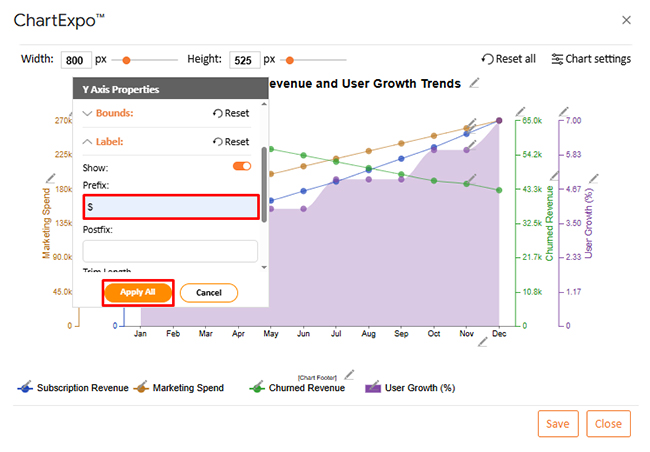
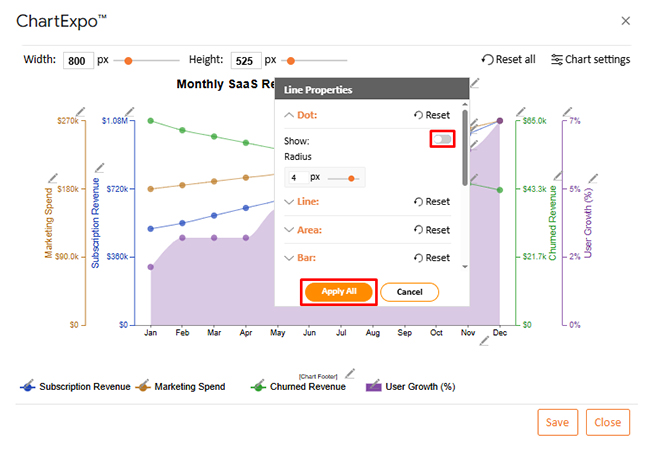
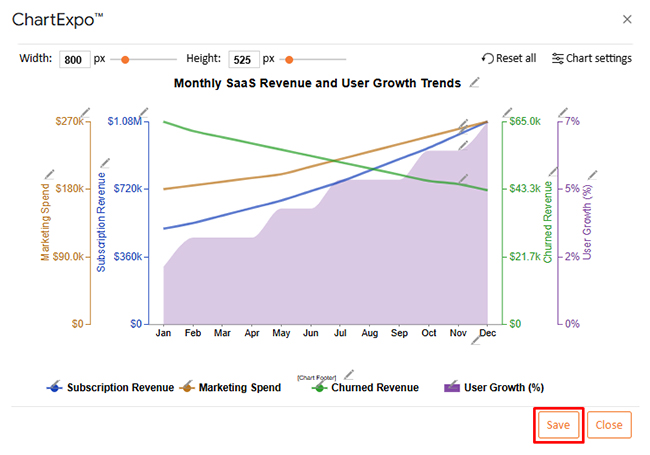
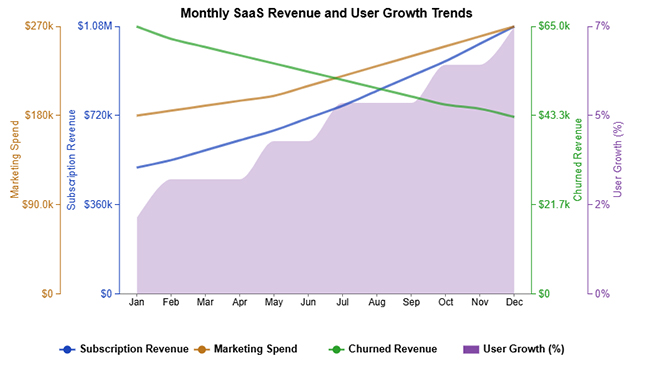
Multi-axis line charts compare two metrics that don’t share a scale. One axis can track revenue, while the other tracks churn or users. As a template, it keeps axis labels and legends consistent across slides.
Example # 2:
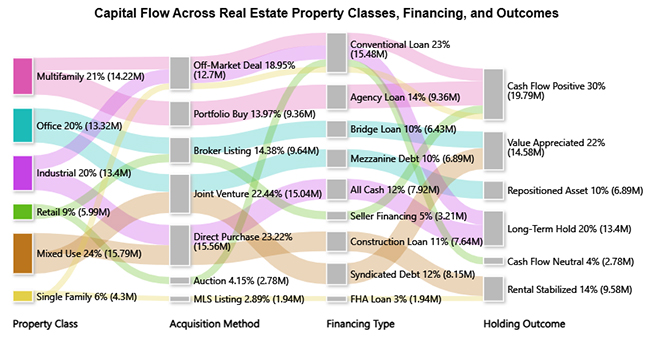
A Sankey chart shows how volume moves from one stage to the next. It’s useful for funnels, budget flows, or product journeys. In a template, the node spacing and color mapping stay fixed, so changes in flow stand out.
Example # 3:
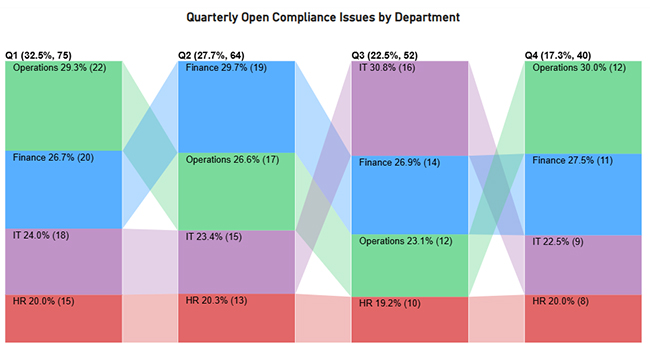
Comparison bars put two groups head-to-head across the same categories. It’s a blunt chart, and that’s the point. When it’s templated, category order and label spacing stay stable, so the difference reads fast.
Example # 4:
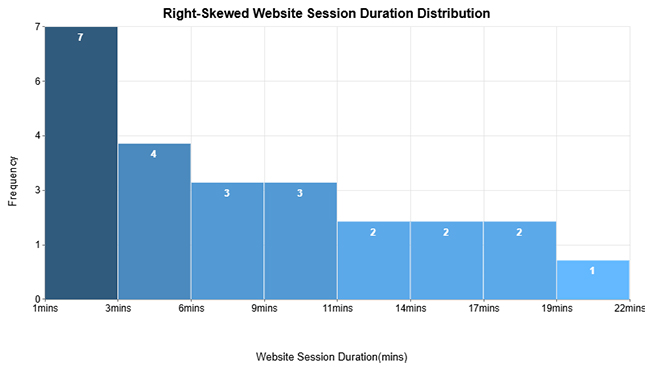
A histogram bins values so the distribution is obvious. It’s the quickest way to spot skew, gaps, or outliers in a dataset. When a Google Sheets histogram is pulled into a slide template, bin labels and axis ticks stay consistent across updates.
Example # 5:
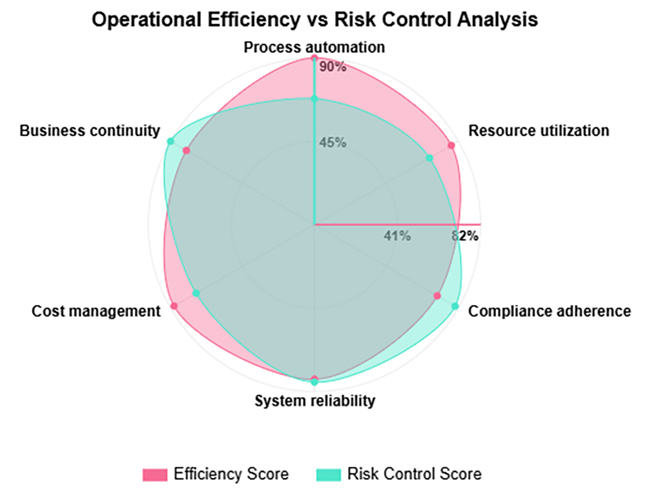
Dual-axis radar charts compare several measures across the same set of attributes. They’re handy for product scorecards when a table feels flat. A template keeps spokes and label placement consistent, so small shifts don’t get lost.
Example # 6:
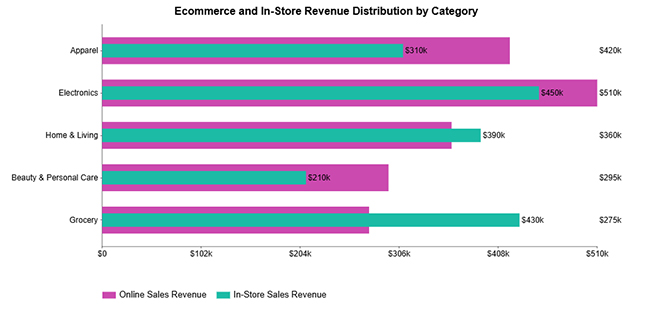
Overlapping bars show two series on the same baseline, making gaps easy to see. This works for year-over-year or plan-versus-actual views. A template locks the overlap style and transparency choices, so the comparison stays honest.
Example # 7:
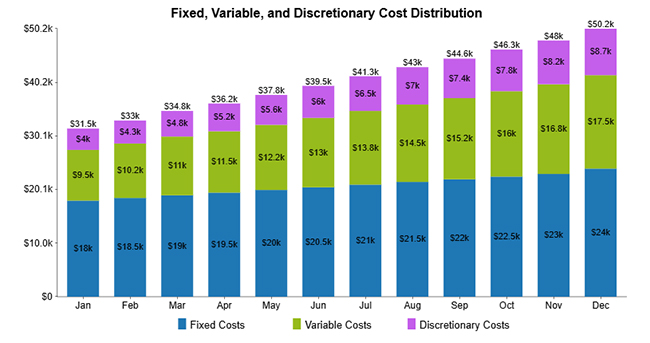
Stacked columns show totals and parts in one view. They’re common in revenue breakdowns and survey responses. With a template, the stack order and legend mapping stay the same, which helps readers compare slides.
Example # 8:
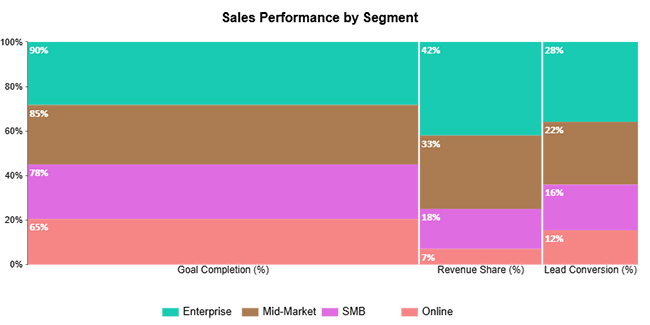
A mosaic plot (aka Mekko chart) compares both share and volume at once. Width shows one dimension, height shows the other, so each block carries two signals. A template keeps axes and label rules predictable, making the chart easier to scan.
Example # 9:
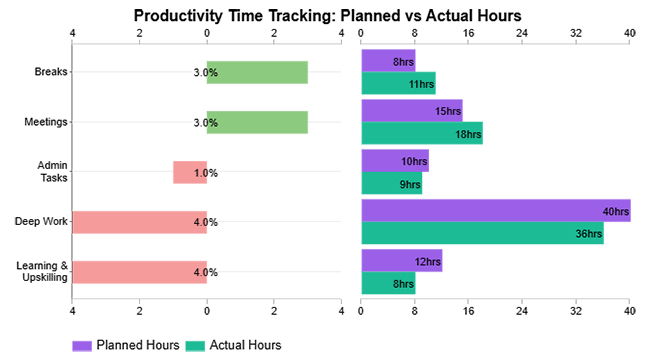
Progress charts show how far each item is from its target. They’re perfect for project status and KPI tracking. As a template, target markers and color rules don’t change, so progress cannot be hidden.
Example # 10:
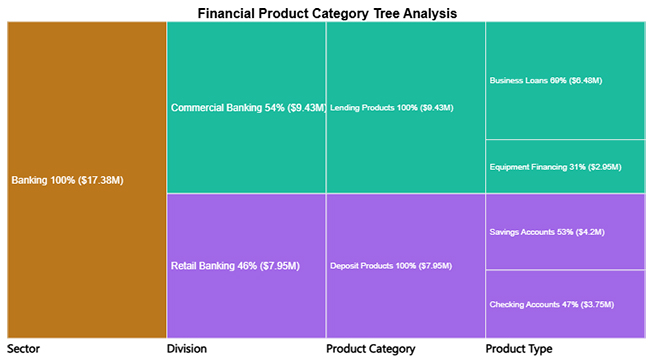
Tree diagrams break a hierarchy into branches and levels. They’re useful for org structure, product taxonomy, or root-cause analysis. Templating keeps spacing and connector styling consistent, so the hierarchy reads clean.
Charts Templates for PowerPoint don’t happen by accident. A solid template starts with a clear goal, then locks in the rules that shouldn’t change. Build the structure first, then let data do the talking.
Start with the decision the slide must support. A template built for executives won’t match one built for analysts. Lock the layout around that reality.
Pick visuals that match the question, not the tool. Lines show change, bars compare categories, and combos explain tradeoffs. Keep the set small so the library stays usable.
Set font sizes, grid spacing, and label rules up front. Use color to separate series, not to show off. If the text needs zooming, the template failed.
Bake in fonts and approved colors, then stop debating them. That consistency earns trust with each deck. It also speeds up reviews.
If charts update often, connect them to Sheets or Excel and refresh instead of pasting new screenshots. Keep a clean data range and avoid hidden filters. The template should survive updates.
Store templates in a shared folder and name versions clearly. Document what changed, so teams don’t guess. Old versions can be retired without chaos.
ChartExpo can build charts inside Google Sheets, then those visuals can be dropped into Charts Templates for PowerPoint. The add-on covers specialty chart types and keeps formatting controls close to the data. Create in Sheets, export the chart, and reuse it in slides.
Why use ChartExpo?
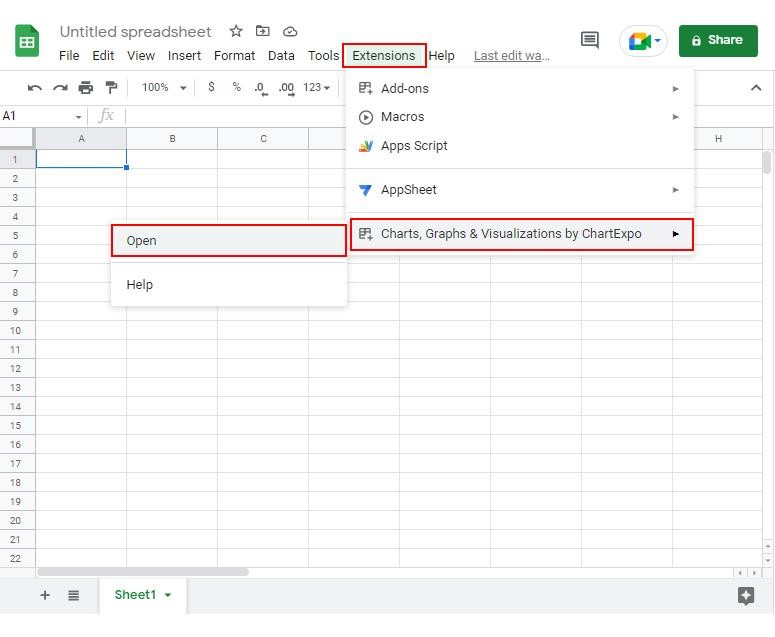
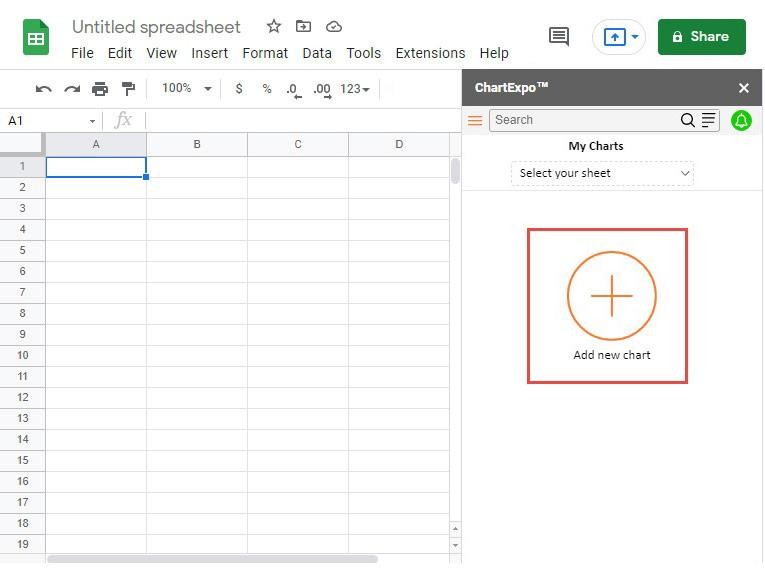
How to install ChartExpo in Google Sheets?
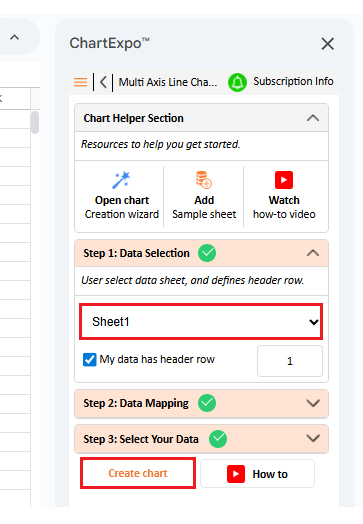
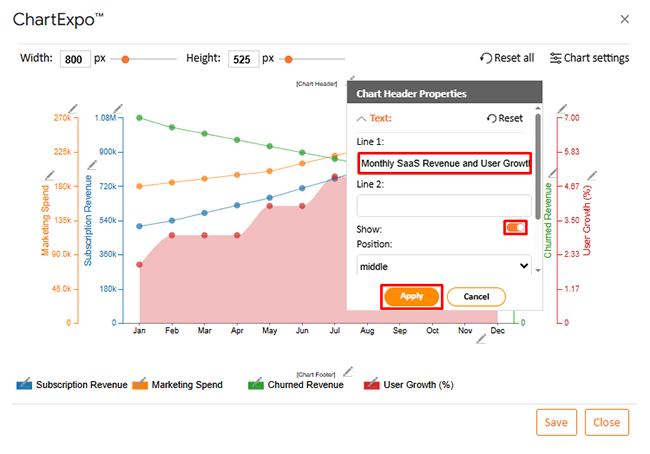
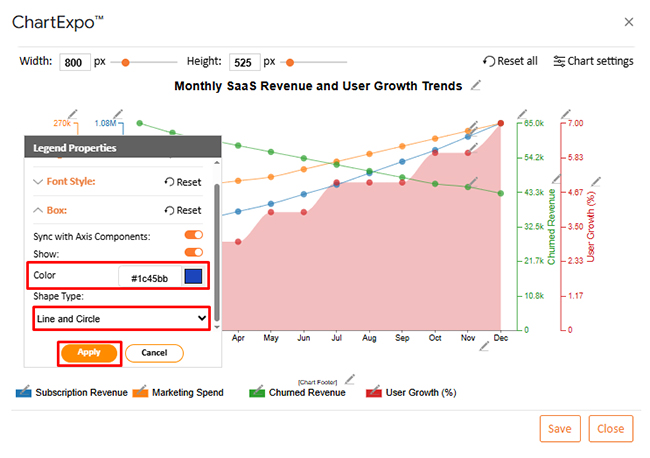
Use the dataset below to build a Multi-Axis Line Chart.
|
Month |
Subscription Revenue | Churned Revenue | Marketing Spend |
User Growth (%) |
| Jan | 510,000 | 65,000 | 180,000 | 2 |
| Feb | 540,000 | 62,000 | 185,000 | 3 |
| Mar | 580,000 | 60,000 | 190,000 | 3 |
| Apr | 620,000 | 58,000 | 195,000 | 3 |
| May | 660,000 | 56,000 | 200,000 | 4 |
| Jun | 710,000 | 54,000 | 210,000 | 4 |
| Jul | 760,000 | 52,000 | 220,000 | 5 |
| Aug | 820,000 | 50,000 | 230,000 | 5 |
| Sep | 880,000 | 48,000 | 240,000 | 5 |
| Oct | 940,000 | 46,000 | 250,000 | 6 |
| Nov | 1,010,000 | 45,000 | 260,000 | 6 |
| Dec | 1,080,000 | 43,000 | 270,000 | 7 |
Charts Templates for PowerPoint keep chart formatting consistent across decks and teams.
When a group standardizes ppt chart templates, the time spent on alignment drops, and the review cycle becomes calmer. The audience sees the trend, not the tool.
Charts Templates for PowerPoint work best when the rules are written down, and the template is treated as shared gear.
PowerPoint charts templates should be tested with real data and real deadlines, not a polished demo set. A few habits keep the template stable while the numbers change.
They set a repeatable chart layout so reports look consistent across slides. The template lets new data drop into the same structure.
A fixed style reduces clutter and makes trends easier to spot. It also speeds up edits because formatting doesn’t need to be rebuilt.
Yes. Colors, fonts, labels, and chart types can be adjusted, then saved for reuse. Set guardrails so changes don’t break consistency.
Yes. Reports benefit from stable visuals because readers compare periods and categories fast. Templates also help meet brand and compliance needs.
Charts Templates for PowerPoint turn recurring reporting into a repeatable workflow. They standardize how charts look, even when data sources change.
When the template is set, layout, labels, and color rules stay fixed from slide to slide, so teams can drop in new numbers and keep moving.
That consistency helps readers scan faster, trust the message, and stop arguing about formatting; it also cuts the hidden tax of rechecking every visual before a meeting.
As decks scale across teams and quarters, Charts Templates for PowerPoint keep the work sane and the story sharp, so maintain a library and reuse it.
How much did you enjoy this article?


Calculate accounts receivable turnover ratio to measure credit collection speed, improve cash flow, and strengthen your financial strategy. Read on!
Change Management KPIs are the key to tracking adoption, performance, and ROI during transitions. Find out which metrics matter. Read on!
Data collection methods and techniques determine the quality of every insight you act on. Explore key approaches for gathering reliable data. Read on!