Categories

Are you wondering how to group columns in Google Sheets without wasting time and getting lost in endless data? Don’t worry, you’ve come to the right place. To begin with, this is a question every busy professional faces.


Why? Reports, sales numbers, and budgets all pile up. From this, spreadsheets can quickly become overwhelming, rows of figures stretch on, and critical insights hide in the noise.
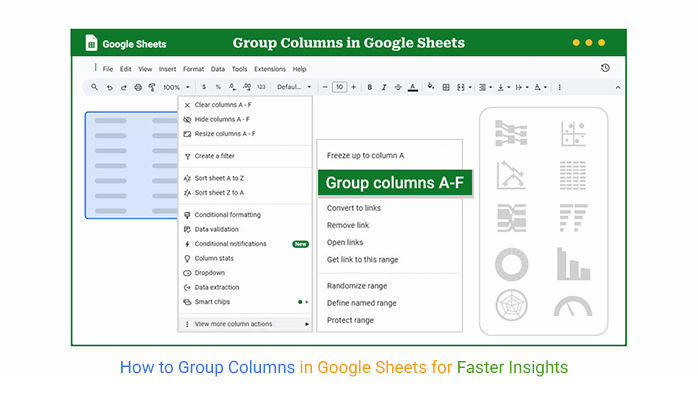
I have a solution for you: Learn how to group columns in Google Sheets. Learning how to group columns in Google Sheets can cut through that clutter. It helps you collapse, expand, and manage data with a few clicks.
Imagine handling an annual sales report with dozens of columns. Without grouping, you scroll endlessly. With grouping, you toggle sections on and off in seconds. The difference is not slight; it’s the difference between wasting hours and finishing early. From this convenience, teams can share clean, readable sheets. Moreover, managers can review reports without having to dig through raw data.
Whether building financial reports, using inventory tracking, or creating a comparison chart, grouping columns keeps clarity. It’s a skill that makes spreadsheets easier to read and present. Once you learn it, you’ll never go back to scrolling through endless grids.
This guide will walk you through the process step-by-step. We’ll also give you helpful tips to enable you to complete it more efficiently.
Ready? Let’s dive in…
Definition: Grouping columns in Google Sheets means organizing related data so you can expand or collapse sections as needed. It helps simplify large datasets and keeps reports clean and organized.
This feature is beneficial for inventory tracking in Google Sheets, especially when managing multiple categories. It also supports building a custom dashboard in Google Sheets, which can display only the data you need. Many use it to add a series in Google Sheets reports to keep data organized.
Have you ever opened a spreadsheet and felt lost in an endless sea of columns? That’s where grouping comes in. Learning to group columns makes everything easier to manage. It keeps sheets clear for what-if analysis in Google Sheets or creating a comparison chart like a Waterfall chart in Google Sheets.
Why?
Have you ever stared at a massive spreadsheet and wished it looked cleaner? Grouping columns can make that happen. It turns messy grids into easy-to-read sections. Whether you handle sales data or create dashboards in Google Sheets, this feature helps save time and create clear Google Sheets charts.
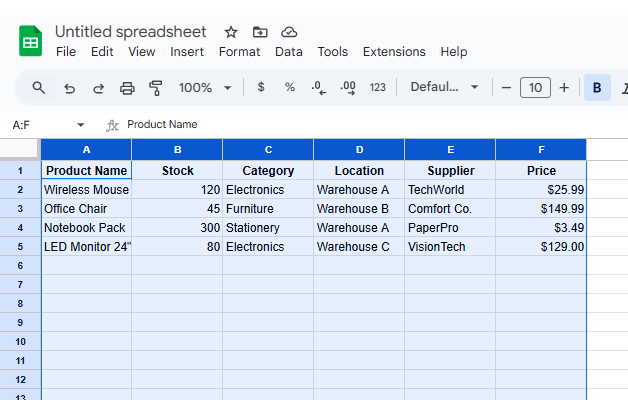
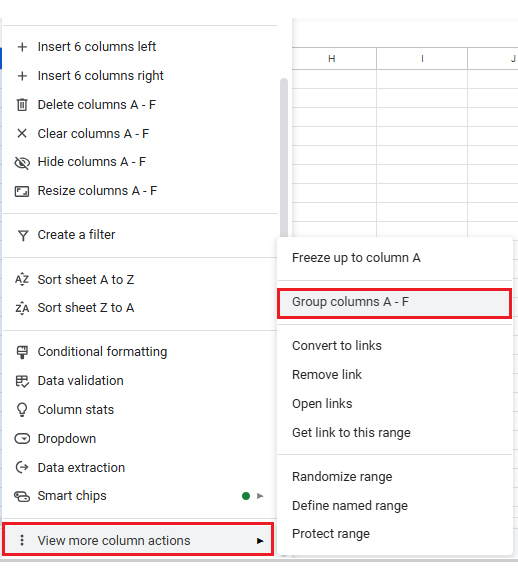
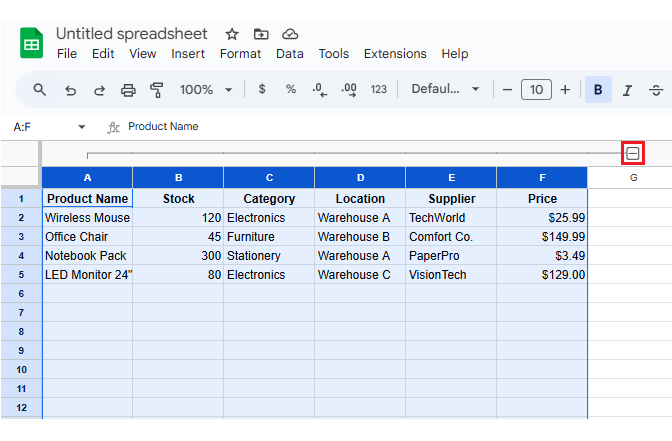
Follow these steps to achieve this level of convenience:
Charts turn raw data into stories people can understand. How? They make patterns jump out. Using ChartExpo inside Google Sheets, you can build visuals like a Scatter plot in Google Sheets to transform dull grids into interactive reports. These tools also pair well when you want to create a simple yet powerful dashboard in Google Sheets.”
Here are the top 10 charts you can create in Google Sheets using ChartExpo.
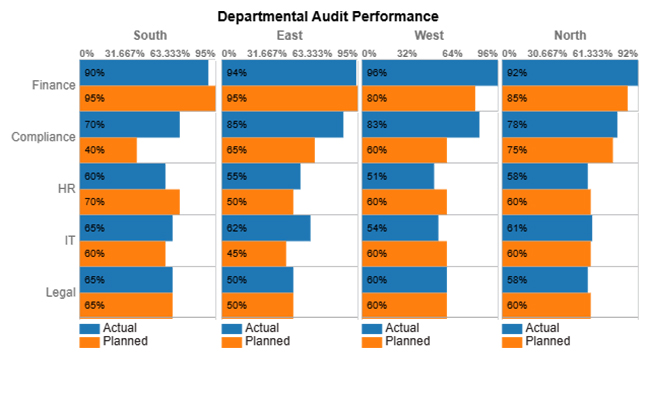
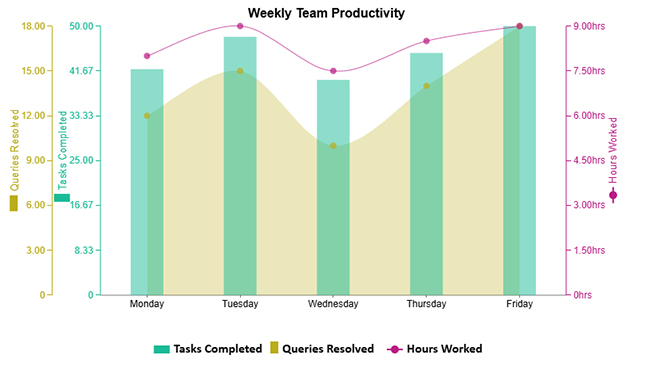
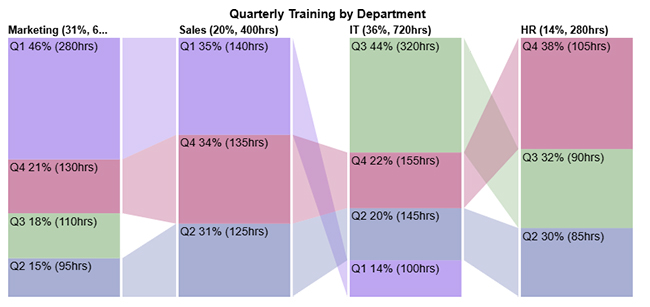
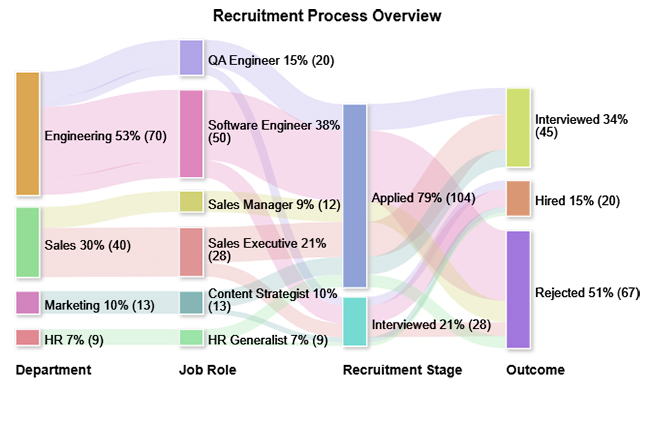
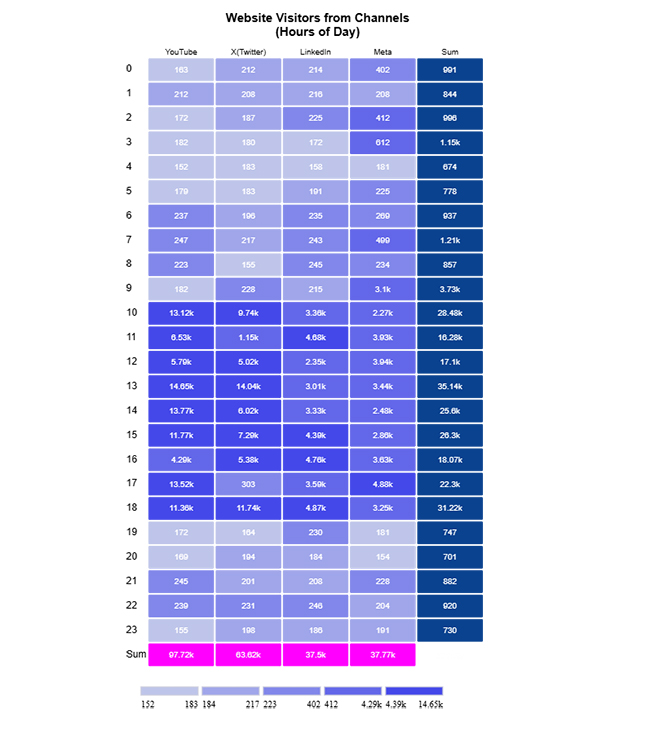
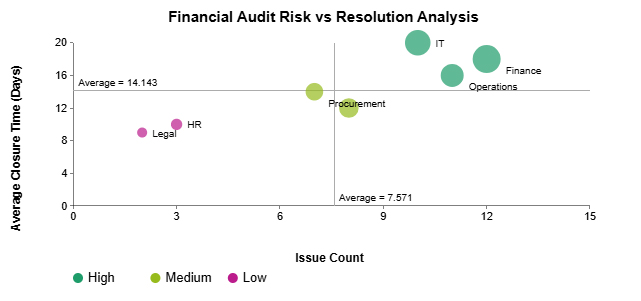
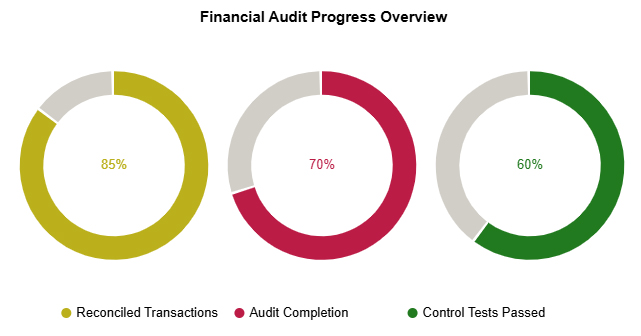
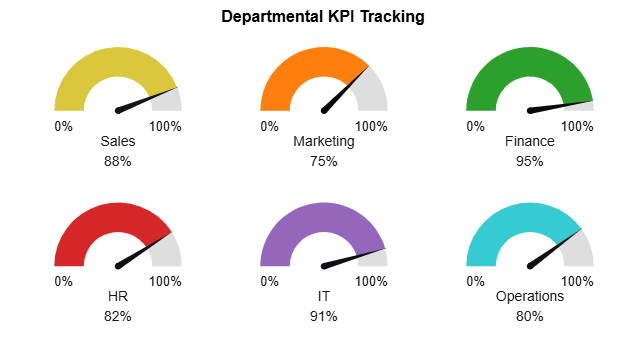
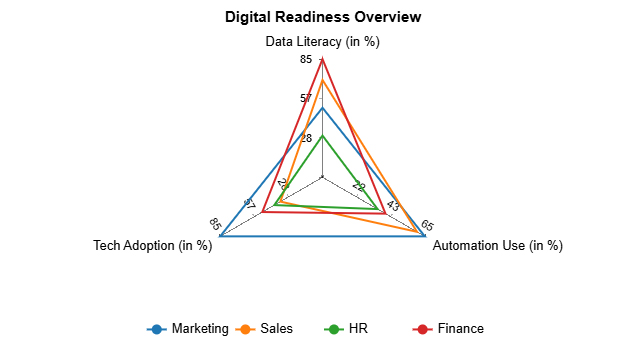
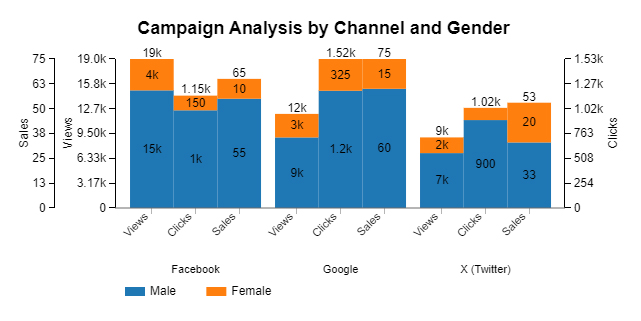
Data is everywhere. But making sense of it? That’s the real trick. Grouped columns in Google Sheets can reveal patterns, only if you know how to analyze them. This is where Data visualization comes into play. Visuals make data analysis easier by turning raw numbers into clear insights.
Sadly, Google Sheets often drops the ball here. Its charts lack depth and clarity.
We have a solution: ChartExpo. This add-on brings smart visuals to your Google Sheets, helping you spot trends and make better decisions—fast.
How to Install ChartExpo in Google Sheets?
ChartExpo charts are available both in Google Sheets and Microsoft Excel. Please use the following CTAs to install the tool of your choice and create beautiful visualizations in a few clicks in your favorite tool.
Let’s analyze this sample data in Google Sheets using ChartExpo.
| Job Role | Performance Score (%) | Goal Benchmark (%) |
| Manager | 92 | 100 |
| Analyst | 85 | 100 |
| Developer | 90 | 100 |
| Designer | 80 | 100 |
| QA Tester | 86 | 100 |
| Intern | 75 | 100 |
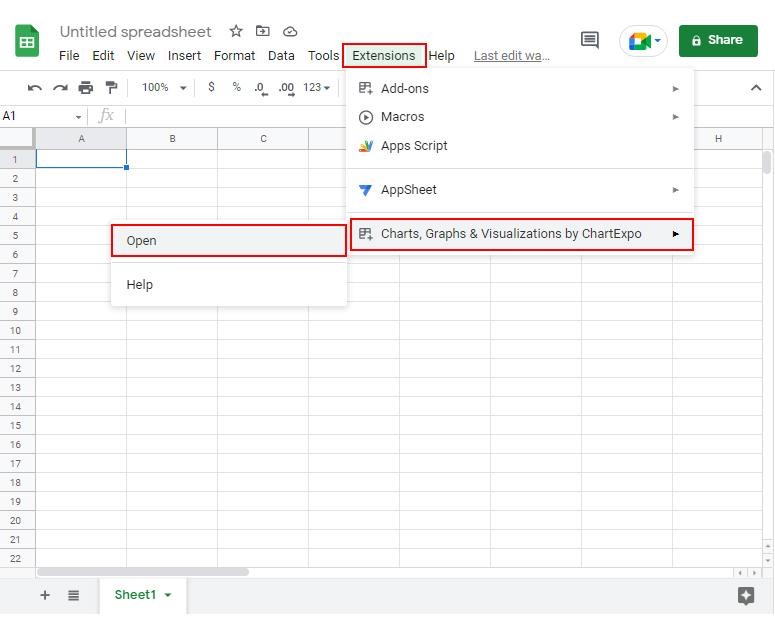
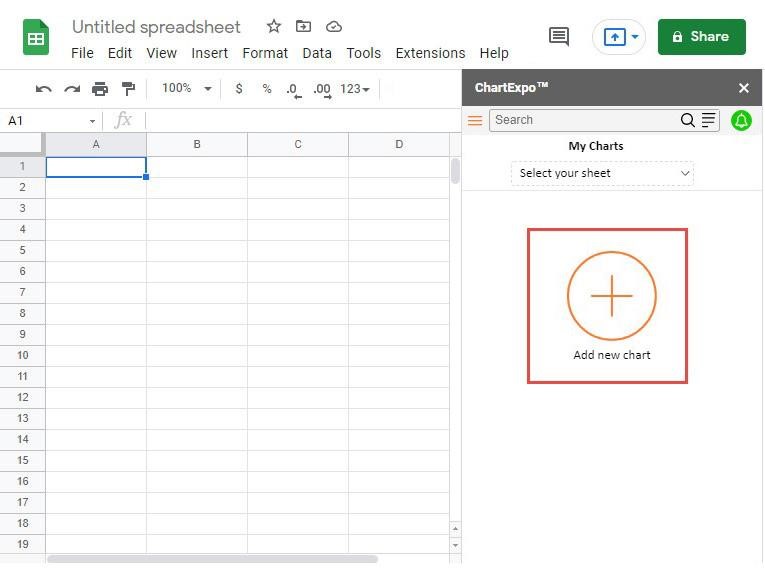
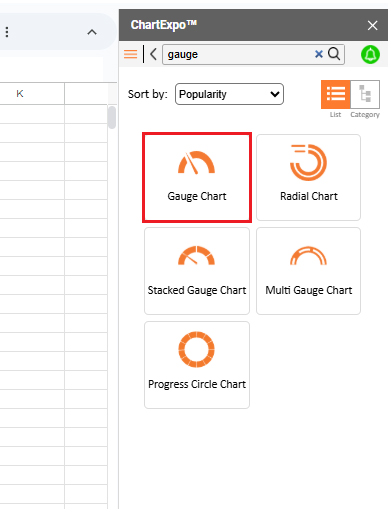
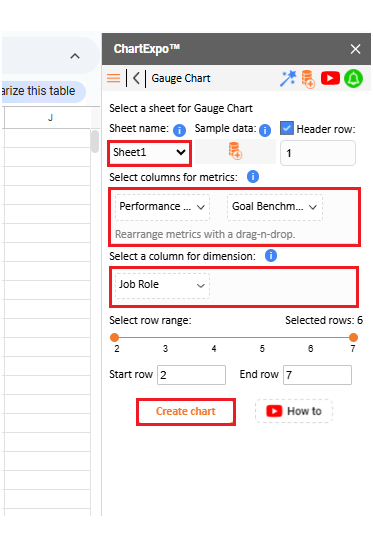
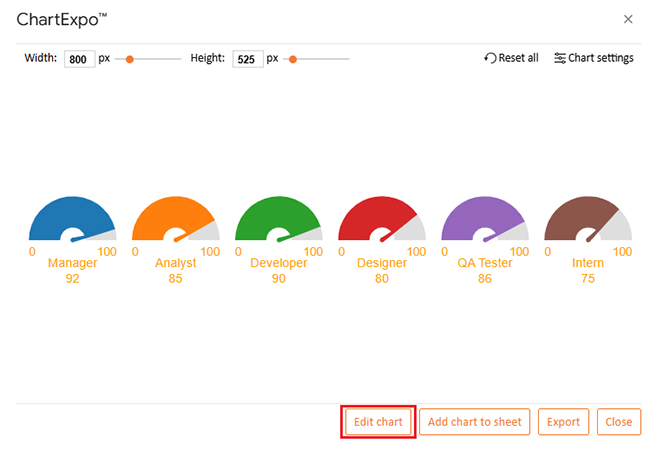
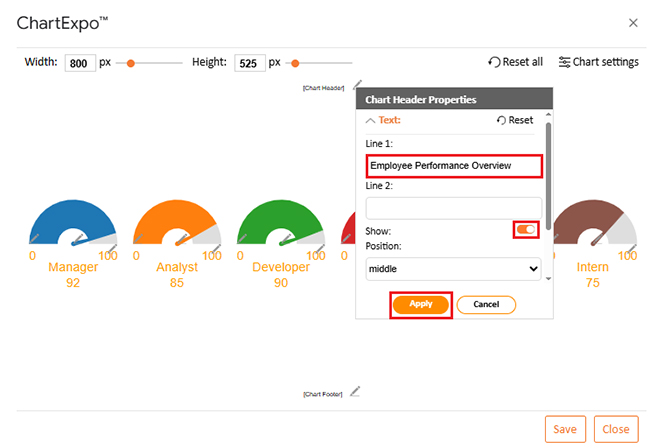
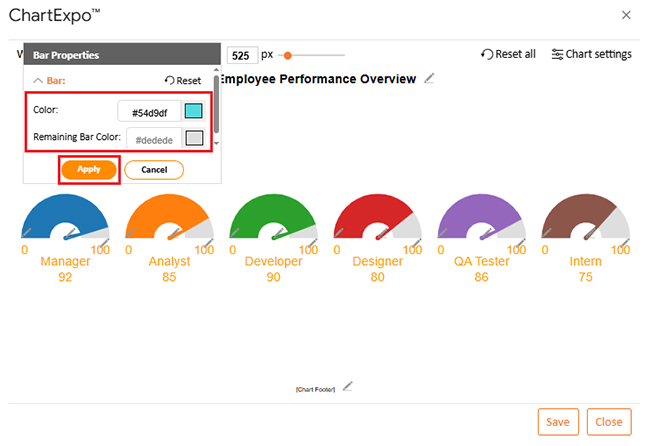
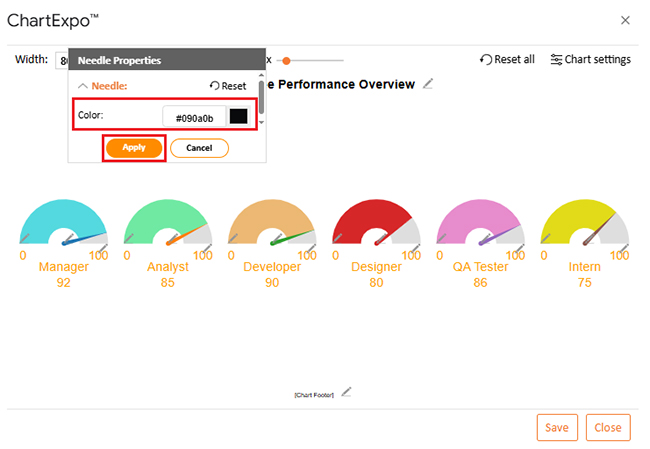
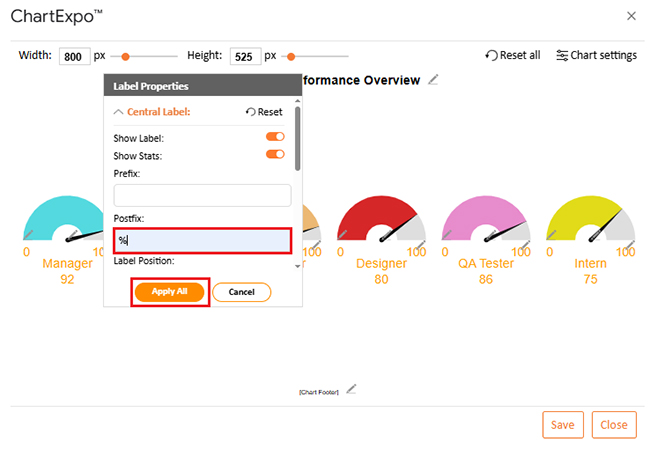
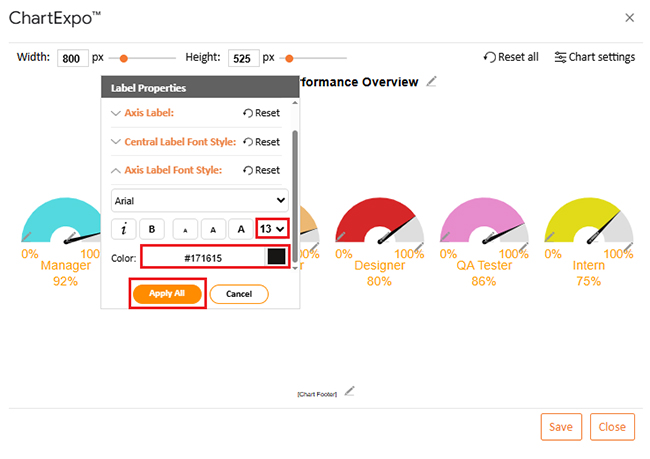
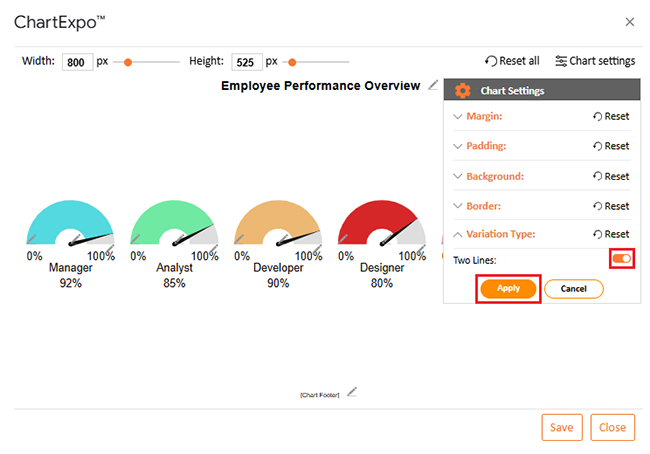
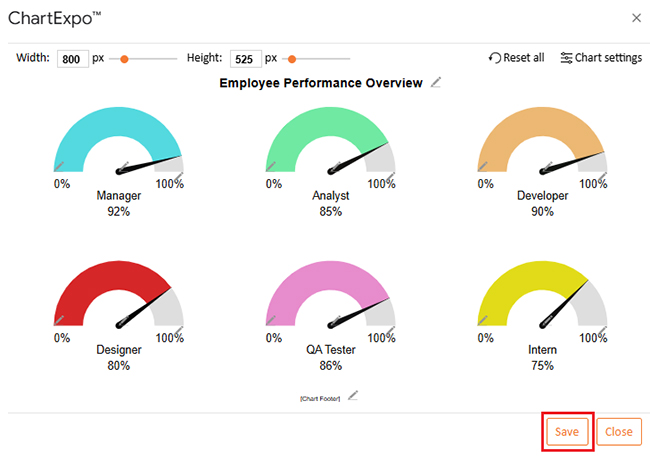
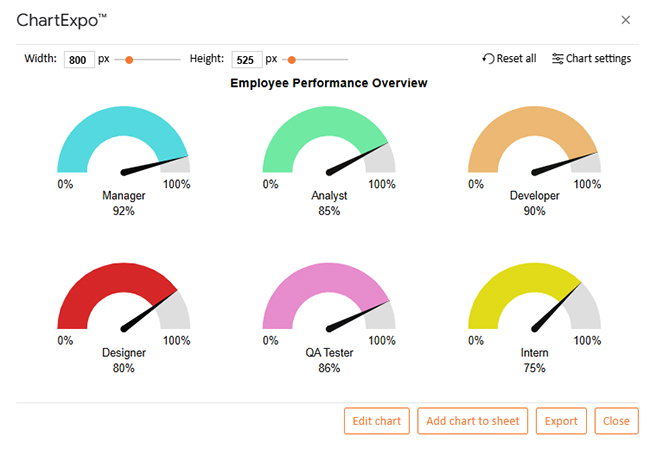


I know you love convenience. From this, you’ve likely asked yourself how to organize your spreadsheet in one quick move. That’s what the group columns shortcut does. It saves clicks, keeps things tidy, and makes data easy to manage.
Here are the benefits of grouping related columns in Google Sheets:
On Windows, press Alt + Shift + →. On Mac, press Shift + Option + →. Select the columns first, then the shortcut groups them instantly. Use it to organize data and save time quickly.
Grouping columns in Google Sheets makes large datasets easier to manage and organize. It organizes information into sections you can collapse or expand. This keeps your spreadsheet clean and easy to read.
When data is well-organized, building visuals becomes effortless. You can quickly learn how to create a chart in Google Sheets using grouped data. This turns raw numbers into clear, readable insights.
Grouped columns also make testing scenarios smoother. Running a what-if analysis in Google Sheets is faster when data is separated into logical sections. It reduces errors and improves decision-making.
If you work across multiple spreadsheets, grouping pairs well with IMPORTRANGE in Google Sheets. It keeps imported data organized and ready for analysis. This is especially helpful when combining information from different teams.
You can also create a comparison chart in Google Sheets using grouped columns. It makes performance tracking or side-by-side analysis more accurate. Cleanly arranged data always leads to better visuals.
Conclusively, grouping, charts, and analysis tools work together to create smarter spreadsheets. With the proper structure, Google Sheets becomes a powerful tool for data-driven decisions. So, don’t hesitate. Install ChartExpo to simplify grouped charts and unlock visual insights.
How much did you enjoy this article?


SUMPRODUCT in Google Sheets handles multi-condition calculations without extra columns. Master its syntax, uses, and errors. Read on!
An annual budget template in Google Sheets organizes your yearly finances, tracks every dollar, and reveals spending patterns. Read on!

Learn the best graph to show profit and loss with practical examples and use cases. Discover how to visualize your business data, track trends, and make smarter financial decisions.