• Home
  • Tools dropdown img
    • Spreadsheet Charts

      • ChartExpo for Google Sheets
      • ChartExpo for Microsoft Excel
    • Power BI Charts

      • Power BI Custom Visuals by ChartExpo
    • Word Cloud

  • Charts dropdown img
    • Chart Category

      • Bar Charts
      • Circle Graphs
      • Column Charts
      • Combo Charts
      • Comparison Charts
      • Line Graphs
      • PPC Charts
      • Sentiment Analysis Charts
      • Survey Charts
    • Chart Type

      • Box and Whisker Plot
      • Clustered Bar Chart
      • Clustered Column Chart
      • Comparison Bar Chart
      • Control Chart
      • CSAT Survey Bar Chart
      • CSAT Survey Chart
      • Dot Plot Chart
      • Double Bar Graph
      • Funnel Chart
      • Gauge Chart
      • Likert Scale Chart
      • Matrix Chart
      • Multi Axis Line Chart
      • Overlapping Bar Chart
      • Pareto Chart
      • Radar Chart
      • Radial Bar Chart
      • Sankey Diagram
      • Scatter Plot Chart
      • Slope Chart
      • Sunburst Chart
      • Tornado Chart
      • Waterfall Chart
      • Word Cloud
    • Google Sheets
      Microsoft Excel
  • Services
  • Pricing
  • Contact us
  • Blog
  • Support dropdown img
      • Gallery
      • Videos
      • Contact us
      • FAQs
      • Resources
    • Please feel free to contact us

      atsupport@chartexpo.com

Categories
All Data Visualizations Data Analytics Surveys
Add-ons/
  • Google Sheets
  • Microsoft Excel
  • Power BI
All Data Visualizations Data Analytics Surveys
Add-ons
  • Google Sheets
  • Microsoft Excel
  • Power BI

We use cookies

This website uses cookies to provide better user experience and user's session management.
By continuing visiting this website you consent the use of these cookies.

Ok

ChartExpo Survey


Home > Blog > Microsoft Excel

How to Add Trendline in Excel? A Quick and Easy Guide

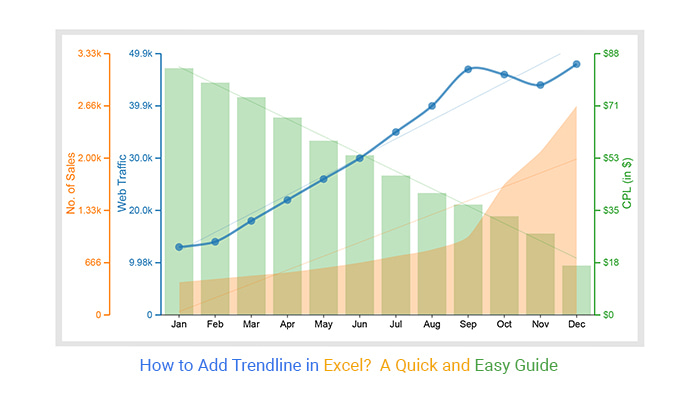
How to Add a Trendline in Excel: Reveal patterns and predict trends with a simple line. Visualizing your data’s direction becomes effortless with Excel’s trendline feature.
How to Add Trendline in Excel

Whether you’re tracking sales over time, monitoring website traffic, or analyzing any numerical dataset, adding a trendline in Excel can uncover underlying patterns and even help forecast future values.

You don’t need to be a data scientist or Excel expert to use this feature. Adding a trendline in Excel is straightforward, and in just a few simple steps, you can highlight trends, simplify complex data, and make informed decisions.

By the end of this guide, you’ll know exactly how to add a trendline in Excel, customize it, and analyze it effectively—turning raw numbers into clear, actionable insights.

Let’s get started.

What is a Trendline in Excel?

Definition: A Trendline in Excel is a graphical representation that shows the general direction or pattern of a dataset over time. It’s a line added to a chart, usually a line, column, or Scatter plot, that highlights trends, correlations, or tendencies in your data.

Trendlines can be linear, exponential, logarithmic, polynomial, or moving averages, depending on the type of data and the insights you want to uncover. They help you identify patterns, forecast future values, and make data-driven decisions with ease, without manually analyzing complex datasets.

How to Add a Trendline in Excel?

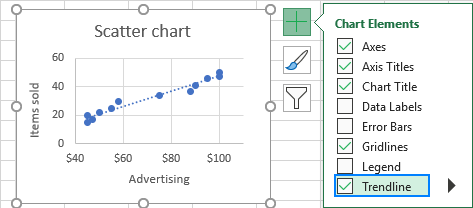
In Excel 2019, 2016, and 2013, adding a trendline is a straightforward three-step process:
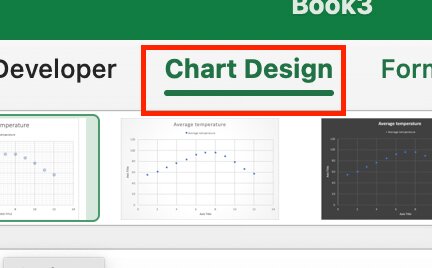
Step 1: Click and Select Chart

Select Chart

Step 2: Add Chart Elements

    • Tick the Trendline box to insert a default linear trendline.
Add Trendline Excel

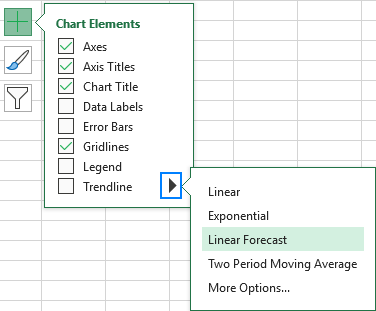
Step 3: Select The Trendline

Add Trendline Excel

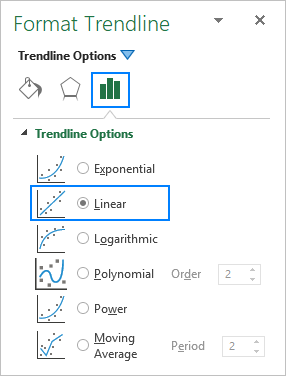
Step 4: Click and Select Trendline type

Add Trendline Excel

Tip: You can add a trendline by right-clicking on the data series and selecting ‘Add Trendline.

How to Draw a Trendline in Excel 2010?

To add a trendline in Excel 2010, follow these steps:
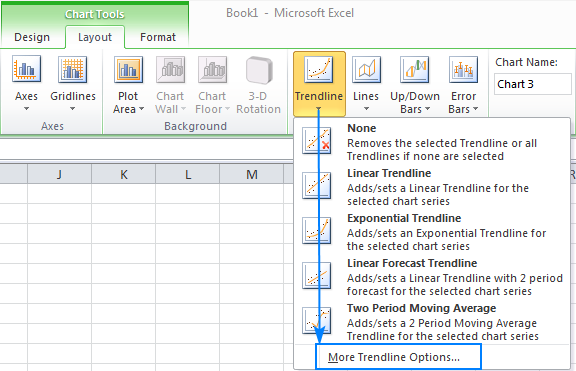
  1. Select the data series in the chart where you wish to add the trendline.
  2. Go to the Layout tab under Chart Tools, then in the Analysis group, click Trendline. You can either:
    • Select one of the predefined trendline options, or
    • Select ‘More Trendline Options…’ to pick the specific trendline type for your chart.
Add Trendline Excel

How to Add Multiple Trendlines To a Single Chart?

Microsoft Excel supports adding several trendlines to a chart. Here’s how to manage two common situations:
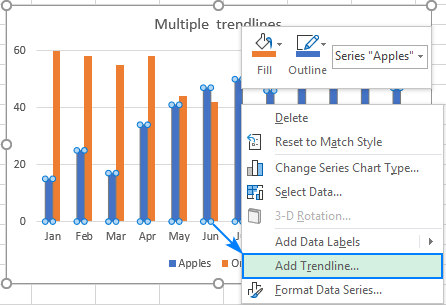
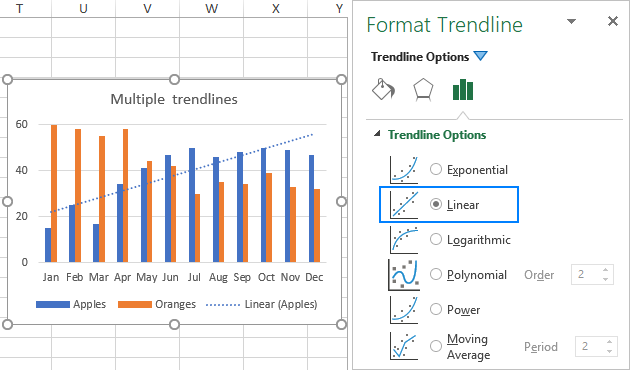
Adding a Trendline for Each Data Series:

  • Right-click on the data points for the series you wish to trend (such as those highlighted in blue) and choose ‘Add Trendline…’ from the context menu. This action will add a trendline to that specific data series. Then, in the Trendline Options tab that appears, select the type of trendline you want.
Add Trendline Excel
  • In the Trendline Options tab that appears, choose the type of trendline you prefer.
Add Trendline Excel
  • Repeat these steps for each additional data series.

As a result, each data series will display its trendline in the corresponding color.
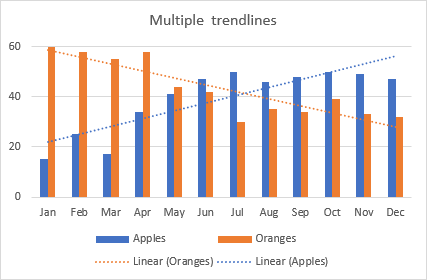
Add Trendline Excel

Alternative Method:

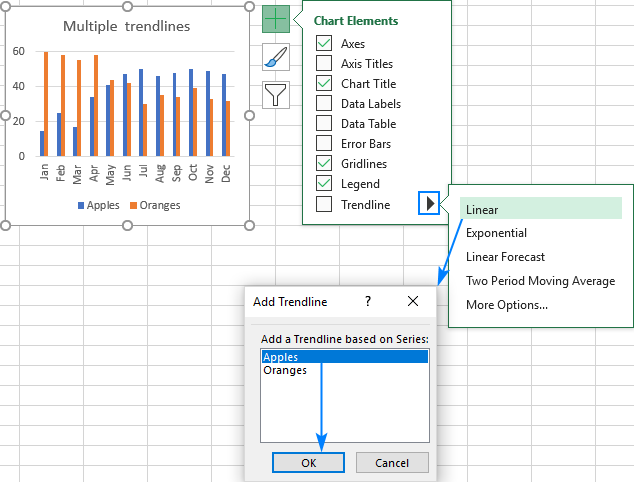
Click the chart elements button, then click the arrow beside Trendline, and choose the trendline type you want. Excel will list all data series in the chart. Choose the one you need and click OK.
Add Trendline Excel

Why and When You Should Use Trendlines?

Why and when, you may ask, are these lines so darn useful?

Let’s find out:

  • Pattern identification: Trendlines cut through the noise, revealing patterns and trends you might have missed.
  • Prediction: When you extrapolate the trend, you can estimate where data points are likely to fall. This is valuable for forecasting sales, stock prices, or other variables.
  • Simplification: In a world where data can be as complex as a Rubik’s Cube, trendlines provide the cheat codes. They simplify data, turning chaos into order. No more squinting at endless data points. Just a sleek line that says, “Here’s the gist of it.”
  • Decision-making: Trendlines hold the answer. They guide your decisions by showing if your actions are on the right track or veering into a data ditch.
  • Monitoring and control: Trendlines and Multi-Axis graphs in Excel provide a means to monitor the progress of different parameters across time. This simplifies the identification of anomalies and the implementation of corrective measures when required.

Different Types of Trendlines in Excel

Trendline Type Description When to Use / Use Case Example
Linear A straight line that best fits the data points Data changes at a constant rate over time Monthly website traffic is increasing steadily
Exponential Curved line showing rapid growth or decay Data with accelerating growth or decline Compound interest growth, viral social media shares
Logarithmic Rapid initial change, then levels off Data with a fast start that slows down over time Technology adoption curves, saturation-type data
Polynomial / Power Curved line capturing multiple peaks and troughs Nonlinear data with fluctuations Stock market prices, product sales with seasonal ups and downs
Moving Average Smooths out short-term fluctuations Highlight the underlying trend in noisy data Daily sales with high volatility
Time Series Trendline Line for data collected over equal time intervals Historical data analysis, detecting seasonality Historical stock prices, temperature changes over the years

How to Format a Trendline in Excel?

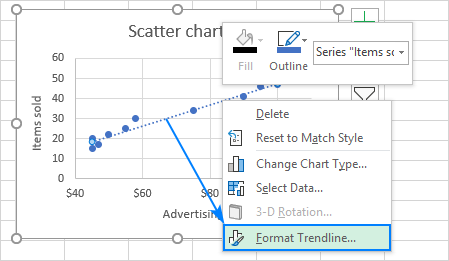
To enhance the clarity and interpretability of your graph, you might want to adjust the default appearance of a trendline. Right-click on the trendline and choose ‘Format Trendline…’ or simply double-click the trendline to access the Format Trendline pane.
Add Trendline Excel

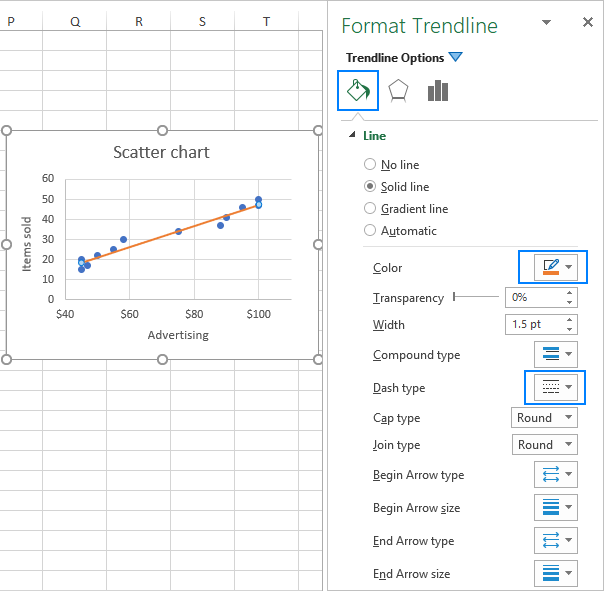
In the pane, go to the Fill & Line tab where you can customize the color, width, and dash style of your trendline. For example, you can switch it from a dashed line to a solid line.
Add Trendline Excel

How to Extend a Trendline in Excel?

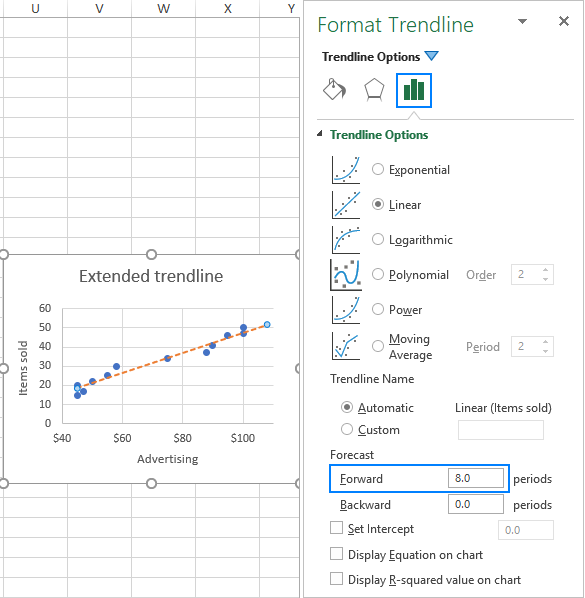
To extend the trendline into the future or past, follow these steps:

  1. Double-click the trendline to open the Format Trendline pane.
  2. Go to the Trendline Options tab (the last tab) and enter the desired values in the Forward and/or Backward boxes under Forecast.

For example, you can extend the trendline 8 periods beyond the last data point.
Add Trendline Excel

How to Remove a Trendline in Excel?

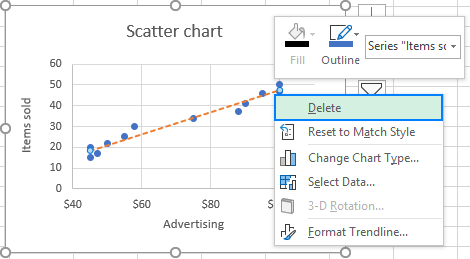
To remove a trendline from your chart, right-click the trendline and select ‘Delete.’
Add Trendline Excel

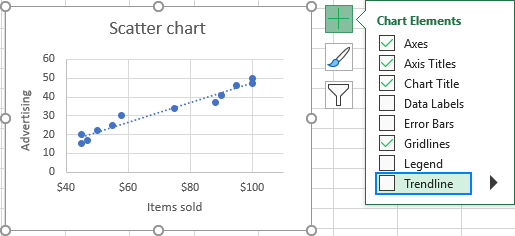
or click the Chart Elements button and uncheck the Trendline box.
Add Trendline Excel


In either method, Excel will immediately remove the trendline from the chart.

Excel Trendline Formula

Here’s the linear trendline formula in Excel:

                                                                                        y=mx+b

  • m is the slope of the line.
  • b is the y-intercept where the line crosses the Y-axis.

This formula is used when you have data that shows a consistent, linear relationship.

How to Analyze a Trendline in Excel?

Trendlines help you identify patterns, relationships, and forecast future trends in your data. Here’s a structured process to analyze a trendline effectively in Excel:

Step 1: Prepare Your Data

  • Ensure your data is clean, chronological (for time-based data), and formatted properly in Excel.
  • Trendlines work best with continuous numerical data, such as sales, revenue, or website traffic.

Step 2: Insert a Trendline

  1. Select the chart you want to analyze (line chart, scatter plot, or bar chart).
  2. Click the Chart Elements (+) icon and enable Trendline.
  3. Choose the trendline type that suits your data:
    • Linear – steady increase or decrease
    • Exponential – rapid growth/decay
    • Logarithmic – fast initial change, then levels off
    • Polynomial – fluctuating data with multiple peaks and valleys
    • Moving Average – smooths short-term fluctuations

Step 3: Display the Trendline Equation and R-Squared

  1. Right-click the trendline and select Format Trendline.
  2. Check the Display Equation on chart and Display R-squared value on chart.
  3. The equation shows the mathematical relationship, while R-squared indicates how well the trendline fits the data (closer to 1 = better fit).

Step 4: Interpret the Trendline

  • Equation: Understand how your dependent variable changes with the independent variable.
  • Slope: Positive slope = upward trend; negative slope = downward trend.
  • R-squared: High R² (0.8–1) = trendline accurately represents your data; low R² (<0.5) = consider a different trendline type.

Step 5: Forecast Future Values

  • Use the trendline equation to predict future data points.
  • Extend the trendline in Format Trendline → Forecast → Forward to visualize projections.

Step 6: Enhance Insights

For a more intuitive analysis, you can use ChartExpo. It provides pre-built charts with advanced trendline options and visualizations, making interpretation faster and easier, especially for complex datasets.

Step 7: Document Your Analysis

  • Add labels, highlight key trends, and summarize findings for stakeholders.
  • Ensure clarity so the trendline insights support decision-making effectively.
Final How to Add Trendline in Excel

Best Practice to Add a Trendline in Excel

  1. Select Your Data: Highlight the data series you want to analyze.
  2. Insert a Chart: Navigate to the ‘Insert’ tab and select a scatter or line chart that best fits your data.
  3. Add a Trendline: Click on the data series, then right-click and select “Add Trendline.” Choose the trendline type (linear, exponential, etc.) that fits your data trend.
  4. Customize the Trendline: In the ‘Format Trendline’ pane, modify settings such as line color, thickness, and display options. You may also choose to show the equation and R-squared value for a more in-depth analysis.
  5. Review and Interpret: Ensure the trendline accurately represents your data’s direction and strength. Use this visual guide to make data-driven decisions.

FAQs

How do you add a Trendline in Excel on a Mac?

To add a trendline in Excel on a Mac:

  1. Select your chart.
  2. Click on the chart data series.
  3. Go to “Chart Design” or “Format” in the ribbon.
  4. Choose “Add Chart Element.”
  5. Select “Trendline” and pick the desired type.

What is the shortcut to add a trendline in Excel?

In Excel, you can quickly add a trendline by selecting your chart and then pressing “Alt” + “J” + “T” on a PC. Or “Fn” + “Option” + “Command” + “T” on a Mac. This keyboard shortcut streamlines the process for convenience.

How is Trendline calculated in Excel?

Excel calculates a trendline using various mathematical methods. For linear trendlines, it uses the least-squares method. This method finds the line that minimizes the sum of squared differences between data points and the line. Other trendline types employ specific equations and algorithms suited to their respective patterns.

Does Excel trendline make forecasts?

Yes. Excel trendlines can project future values based on historical data, helping you forecast trends and make predictions.

Wrap Up

Adding trendlines in Excel is more than just drawing a line—it’s about uncovering patterns, simplifying complex data, and making forecasts that drive decisions. Whether you’re analyzing sales trends, website traffic, or any time-based dataset, trendlines help you identify relationships, predict future values, and communicate insights clearly.

Excel makes it easy to add trendlines with a few clicks, letting you choose from linear, exponential, logarithmic, and other types depending on your data and objectives. However, for more advanced visualization and customization, tools like ChartExpo can provide ready-made trendline charts, saving time and enhancing interpretability.

Mastering trendlines empowers you to turn raw data into actionable insights. Start applying them today and let your data tell its story with clarity and precision.

How much did you enjoy this article?

ExcelAd2
Start Free Trial!
131000

Related articles

next previous
Microsoft Excel11 min read

How to Make Cool Excel Charts & Graphs?

Discover 11 cool Excel charts and graphs and learn how to turn raw data into clear insights for better analysis, reporting, and decisions.

Microsoft Excel11 min read

How to Create Control Chart in Excel?

Learn how to create a Control chart in Excel to track process stability, detect unusual variation early, and improve data-driven decision-making.

Microsoft Excel8 min read

Frequency Chart in Excel: Easy Methods Explained

Learn how to create and use frequency charts in Excel to simplify data analysis, visualize distributions, and make better business decisions with clear insights.

Microsoft Excel9 min read

How to Identify Box Plot Outliers? Easy Steps

Learn what box plot outliers in Excel are, how to detect them using the IQR method, and how to interpret them with real-world examples and Excel use cases.

Microsoft Excel11 min read

Data Validation in Excel: A Complete Guide

Data validation in Excel prevents errors before they spread. Explore types, setup steps, removal, and benefits for cleaner data. Read on!

ChartExpo logo

Turn Data into Visual
Stories

CHARTEXPO

  • Home
  • Gallery
  • Videos
  • Services
  • Pricing
  • Contact us
  • FAQs
  • Privacy policy
  • Terms of Service
  • Sitemap

TOOLS

  • ChartExpo for Google Sheets
  • ChartExpo for Microsoft Excel
  • Power BI Custom Visuals by ChartExpo
  • Word Cloud

CATEGORIES

  • Bar Charts
  • Circle Graphs
  • Column Charts
  • Combo Charts
  • Comparison Charts
  • Line Graphs
  • PPC Charts
  • Sentiment Analysis Charts
  • Survey Charts

TOP CHARTS

  • Sankey Diagram
  • Likert Scale Chart
  • Comparison Bar Chart
  • Pareto Chart
  • Funnel Chart
  • Gauge Chart
  • Radar Chart
  • Radial Bar Chart
  • Sunburst Chart
  • see more
  • Scatter Plot Chart
  • CSAT Survey Bar Chart
  • CSAT Survey Chart
  • Dot Plot Chart
  • Double Bar Graph
  • Matrix Chart
  • Multi Axis Line Chart
  • Overlapping Bar Chart
  • Control Chart
  • Slope Chart
  • Clustered Bar Chart
  • Clustered Column Chart
  • Box and Whisker Plot
  • Tornado Chart
  • Waterfall Chart
  • Word Cloud
  • see less

RESOURCES

  • Blog
  • Resources
  • YouTube
SIGN UP FOR UPDATES

We wouldn't dream of spamming you or selling your info.

© 2026 ChartExpo, all rights reserved.