• Home
  • Install
    • ChartExpo for Google Sheets
    • ChartExpo for Microsoft Excel
    • ChartExpo for Power BI
  • Charts
    • Chart type
      • Box and Whisker Plot
      • Clustered Bar Chart
      • Clustered Column Chart
      • Comparison Bar Chart
      • Control Chart
      • CSAT Score Bar Chart
      • CSAT Score Survey Chart
      • Dot Plot Chart
      • Double Bar Graph
      • Funnel Chart
      • Gauge Chart
      • Likert Scale Chart
      • Matrix Chart
      • Multi Axis Line Chart
      • Overlapping Bar Chart
      • Pareto Chart
      • Radar Chart
      • Radial Bar Chart
      • Sankey Diagram
      • Scatter Plot Chart
      • Slope Chart
      • Sunburst Chart
      • Tornado Chart
      • Waterfall Chart
      • Word Cloud
    • Chart category
      • Bar Charts
      • Circle Graphs
      • Column Charts
      • Combo Charts
      • Comparison Charts
      • Line Graphs
      • PPC Charts
      • Sentiment Analysis Charts
      • Survey Charts
  • Gallery
  • Videos
  • Pricing
  • Contact Us
  • FAQs
  • Blog
  • Resources

Get a reward

Categories
All Data Visualizations Data Analytics Data Stories
Add-ons
  • Google Sheets
  • Microsoft Excel
  • Power BI
All Data Visualizations Data Analytics
Data Stories
  • Healthcare
Add-ons
  • Google Sheets
  • Microsoft Excel
  • Power BI

We use cookies

This website uses cookies to provide better user experience and user's session management.
By continuing visiting this website you consent the use of these cookies.

Ok

ChartExpo Survey


Home > Blog > Data Visualization > Add-ons > Microsoft Excel >

Analyzing & Interpreting Survey Data Using 7-Point Likert Scale

Analyzing survey responses for in-depth insights shouldn’t be a hassle. Or even overwhelming to you.

7 point likert scale

Why?

Survey data come in a complex form and may have qualitative and numerical data. This needs a strategy change, especially during the analysis phase.

A 7-point Likert Scale Chart comes in handy in this phase to analyze and interpret the survey results gathered using the 7 Point Likert Scale.

This visualization design is popular among seasoned data visualization experts, especially when extracting actionable insights from survey data.

Why?

It’s straightforward to read and interpret a 7-point Likert Scale Chart, as you shall see later.

Excel lacks ready-to-go, easy-to-read, and insightful Likert Scale Charts.

We’re not pushing you to dispose of your Microsoft Excel.

Install a particular third-party app (add-ins) to access ready-made and easy-to-decode Likert Scale Charts.

You don’t want to miss this if your goal is to grow your data storytelling skills.

In this blog, you’ll learn:

  • How to generate a 7-point Likert Scale?
  • What is a 7-point Likert Scale?
  • What are the benefits of using a 7-point Likert Scale?
  • 7-point Likert Scale in Excel.
  • 7-point Likert Scale examples.
  • The tested add-in you can install in Excel to access ready-to-go and visually stunning 7-point Likert Scale Graphs.

How to Generate a 7-point Likert Scale in Excel?

Before delving into the core of the blog, we’ll address the following question: what is a 7-point Likert Scale?

What is a 7-point Likert Scale Chart?

Let’s start with the basics.

What’s a Likert Scale?

A Likert Scale is a psychometric scale you can use to measure values, perceptions, attitudes, knowledge, and behavioral changes.

This psychometric scale-based chart can help you understand the perspectives of the market toward your products or services. A 7-point Likert Scale Chart comes in handy to analyze, interpret and present the survey results gathered using the 7 Point Likert Scale.

Yes, you read that right.

The Likert Charts can help your business personalize communication and resonate with your target market, among other benefits by analyzing Survey Data.

Also, you can leverage the chart to measure qualitative data (opinions and sentiments) by categorically assigning values. Essentially, responses are measured on the basis of disagreement or agreement (yes or no).

What’s a 7-point Likert Scale?

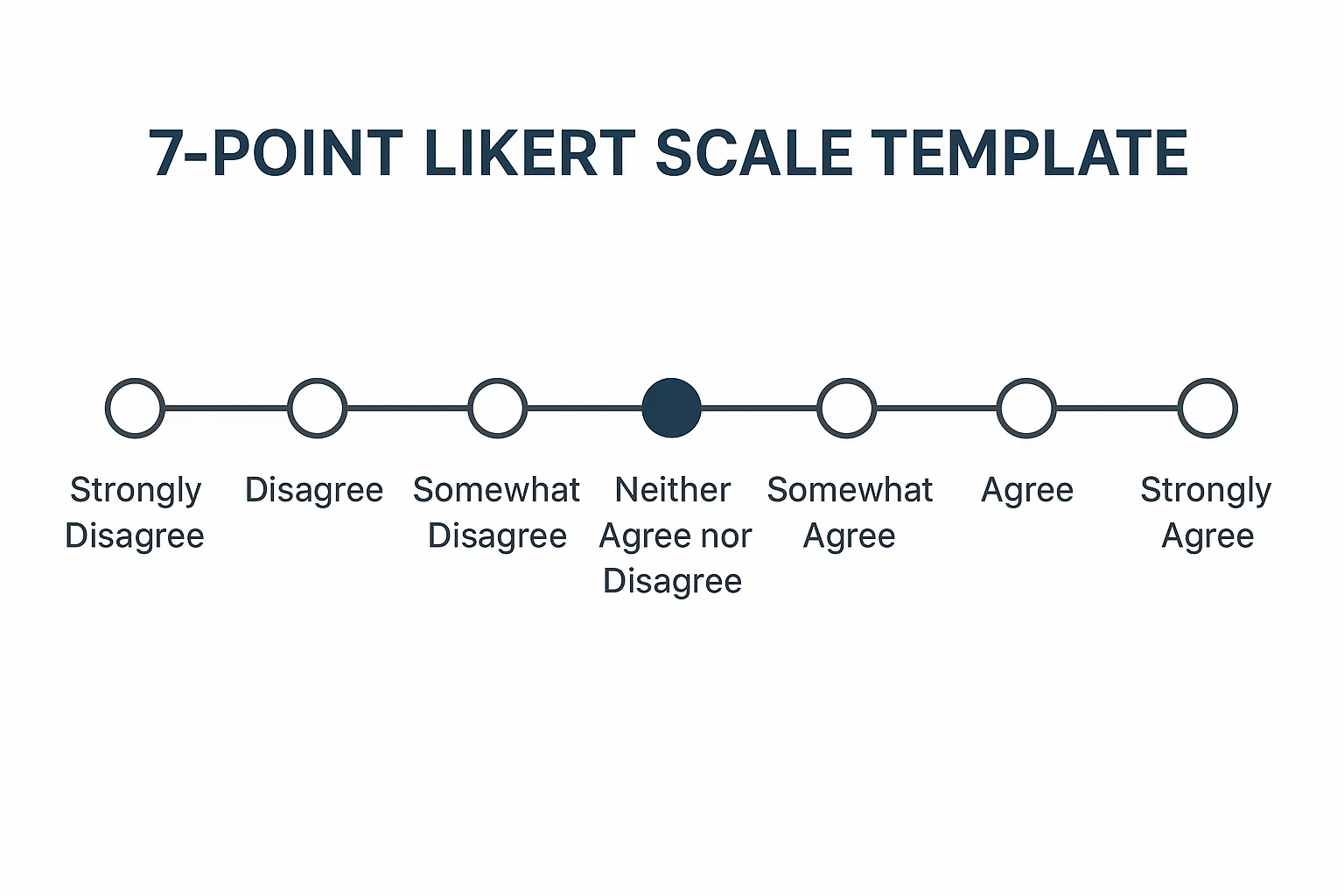
A 7-point Likert Scale offers you 7 different options in every question to capture in-depth opinions at every level.

Respondents are provided with 7 options each time they come across a question. This chart can help you narrow your target market’s feelings and opinions.

Check out an example of a 7-point Likert Scale below.

You’re likely to recommend our brand to your family and friends.

1 = Strongly Disagree

2 = Disagree

3 = Partially Disagree

4 = Neutral

5 = Partially Agree

6 = Agree

7 = Strongly Agree

In the coming section, we’ll address the following question: what are the benefits of using a 7-point Likert Scale?

You don’t want to miss this.

What are the Benefits of Using a 7-point Likert Scale?

One of the key benefits of a 7-point Likert Scale is that it provides different degrees (up to 7) of agreement and disagreement

This implies your survey responses can be analyzed with relative ease.

Secondly, this scale is relatively straightforward. Respondents can easily understand the varying degrees of yes and no in questionnaires.

Also, you can quickly drill down the opinions and sentiments of your respondents.

We’ll take you through detailed 7-point Likert Scale Examples in the coming section.

Top 7-point Likert Scale Examples

  • Example #1

The data below is about respondents and their views towards training that was recently conducted.

Questions Scale Responses
This training was relevant to the work I perform daily 1 100
This training was relevant to the work I perform daily 2 120
This training was relevant to the work I perform daily 3 34
This training was relevant to the work I perform daily 4 130
This training was relevant to the work I perform daily 5 210
This training was relevant to the work I perform daily 6 230
This training was relevant to the work I perform daily 7 200
The location of the training was appropriate 1 170
The location of the training was appropriate 2 180
The location of the training was appropriate 3 100
The location of the training was appropriate 4 180
The location of the training was appropriate 5 130
The location of the training was appropriate 6 295
The location of the training was appropriate 7 300
The facilities were clean 1 180
The facilities were clean 2 100
The facilities were clean 3 130
The facilities were clean 4 150
The facilities were clean 5 300
The facilities were clean 6 350
The facilities were clean 7 400
The instructor was good and knowledgeable 1 80
The instructor was good and knowledgeable 2 120
The instructor was good and knowledgeable 3 180
The instructor was good and knowledgeable 4 200
The instructor was good and knowledgeable 5 250
The instructor was good and knowledgeable 6 300
The instructor was good and knowledgeable 7 350

Note the difference after visualizing the survey data below.

7-point Likert scale in excel

Insights

  • The overall rating is 4.7/7
  • The question “this training was relevant to the work I do” got a 4.7 rating
  • The question “ the instructor was good and knowledgeable” got a 4.8

Example #2

The survey data below is about ratings of a particular shoe brand.

Let’s dive in.

Questions Scale Responses
I felt very stylish whenever I put these shoes on 1 70
I felt very stylish whenever I put these shoes on 2 130
I felt very stylish whenever I put these shoes on 3 200
I felt very stylish whenever I put these shoes on 4 250
I felt very stylish whenever I put these shoes on 5 150
I felt very stylish whenever I put these shoes on 6 220
I felt very stylish whenever I put these shoes on 7 300
I am confident in the quality of shoes 1 120
I am confident in the quality of shoes 2 100
I am confident in the quality of shoes 3 200
I am confident in the quality of shoes 4 250
I am confident in the quality of shoes 5 300
I am confident in the quality of shoes 6 270
I am confident in the quality of shoes 7 320
I would recommend these shoes to others 1 210
I would recommend these shoes to others 2 200
I would recommend these shoes to others 3 180
I would recommend these shoes to others 4 300
I would recommend these shoes to others 5 250
I would recommend these shoes to others 6 210
I would recommend these shoes to others 7 320
I plan to buy these shoes for friends or family members 1 100
I plan to buy these shoes for friends or family members 2 120
I plan to buy these shoes for friends or family members 3 150
I plan to buy these shoes for friends or family members 4 200
I plan to buy these shoes for friends or family members 5 180
I plan to buy these shoes for friends or family members 6 250
I plan to buy these shoes for friends or family members 7 280

 Check out the final 7-point Likert Scale chart below.

7-point Likert scale chart

Insights

  • The overall rating is 4.5/7.
  • The question “I plan to buy these shoes for friends, or family members got a 4.6/7 rating.
  • The question “I would recommend these shoes to others” got a 4.3/7 rating.

How to Analyze 7-Point Likert Scale Data?

Excel & Google Sheets are popular visualization tools among business owners. But they lack ready-made Likert Scale Charts with up to 7 levels.

We’re not advising you to dump Microsoft Excel. 

There’s an amazingly affordable tool that comes as an add-in you can easily install in Excel & Google Sheets to access a ready-to-go and easy-to-read Likert Scale Chart.

The application is called ChartExpo.

What is ChartExpo?

ChartExpo is an add-in you can easily install in your Excel to access a ready-made and visually appealing 7-point Likert Scale Chart.

Features and Benefits

  • ChartExpo has an ultra-friendly user interface (UI) to help save time.
  • You can turn overwhelming tables and spreadsheets into ready-made and visually stunning charts and graphs with just a few clicks.
  • ChartExpo has a 7-day trial, which is free. So, if you’re not satisfied with the data visualization add-in within a week, you can easily opt within minutes.
  • You have unlimited freedom to customize your visualizations according to your preferences.

In the next section, we’ll show you how to visualize your survey responses using a 7-point Likert Scale using the ChartExpo add-in.

Let’s get on with it.

How to Create 7 Point Likert Scale Chart in Excel?

To get started with ChartExpo in Excel, follow the steps below:

  • Open your Excel.
  • Open the worksheet and click the Insert button to access the My Apps option.
insert chartexpo in excel
  • Click the Insert button to initiate the ChartExpo engine.
open chartexpo in excel
  • Once ChartExpo is loaded, you will see a list of charts.
list of charts in excel
  • Click on the Likert Scale Chart icon to get started.
search likert scale chart in excel
  • Highlight your data and click the Create Chart From Selection button, as shown.
create likert scale chart in excel
  • To access a 7-point Likert Chart, click the Settings buttons.
  • Once the Chart Settings shows, click the Scale Type.
  • Click the Select Scale box and select #7, as shown below.
settings likert scale chart in excel
  • Click the Apply button to preserve your changes.
  • Check out the final chart below.
7-point Likert scale in excel

How to Create a 7-point Likert Scale Chart in Google Sheets?

To install the ChartExpo, add-on for Google Sheets from this link.

  • Open your Google Sheets application.
  • Open the worksheet and click the Extensions menu.
  • Then go to Charts, Graphs, & Visualizations by ChartExpo.
  • Finally, click the Open button in the dropdown.
open chartexpo in google sheets
  • Click the Add New Chart button to access your fully stocked library of charts.
add new chart in google sheets
  • Once ChartExpo is loaded, you will see a list of charts. Look for the “Likert Scale Chart.”
search likert scale chart in google sheets
  • Select the sheet holding your data and select the Metrics option. Fill in the numerical numbers (in our scenario, we’ll fill in Responses)
  • Select the Dimensions button and fill in the dimensional data (in our example, we’ll use Questions and Scale).
  • Click the Create Chart button, as shown below.
create likert scale chart in google-sheets
  • After changing from 5-Point Likert Scale Chart to 7-Point Likert Scale Chart like below.
create likert scale chart in google sheets
7-point Likert scale chart

FAQs:

What is the difference between 5-point Likert Scale and 7-point Likert Scale?

A 5-point Likert Scale provides you with up to 5 options in a survey question.

A 7-point Likert Scale offers you 7 different answer options tied to the objective of the survey. Respondents are provided with 7 options each time they come across a question.

How is a Likert Scale different from a rating scale?

A Likert Scale Chart is a visualization design you can use to measure values, perceptions, attitudes, knowledge, and behavioral changes.

This psychometric scale-based chart can help you understand the perspectives of the market toward your products or services.

On the other hand, a rating scale is a chart you can use to visualize ratings, such as in e-commerce stores.

Wrap Up

Analyzing survey responses for in-depth insights shouldn’t be a hassle. Or even overwhelming to you.

Survey responses are complex and may have textual and numerical data. This requires you to change your strategy during the analysis phase.

A 7-point Likert Scale Chart comes in handy in this phase.

This visualization design is popular among seasoned data visualization experts, especially when extracting actionable insights from survey data.

How much did you enjoy this article?

chartexpo ad

Get a reward

chartexpo ad
122279

Related articles

next previous
Microsoft Excel9 min read

Interpolate in Excel: A Complete Walkthrough

Imagine you have missing values in a dataset and must estimate them accurately. What do you do? I have a solution – interpolation in Excel. It helps fill the gaps between known data points, making calculations smoother.

Microsoft Excel9 min read

Dynamic Tables in Excel Visualizing Data with Ease

What are dynamic tables in Excel, and why do they matter? Excel remains a cornerstone for managing and analyzing information in today’s data-driven age. Dynamic tables are a powerful tool. They make it easier to organize, filter, and analyze data precisely.

Microsoft Excel8 min read

Action Plan Template for Excel: Steps for Better Insights

Too many plans stay in your head or get lost in long email threads. That’s a recipe for missed deadlines and crossed wires. An action plan template for Excel gives structure to your tasks so you can actually finish what you start.

Microsoft Excel26 min read

Net Promoter Score: Leverage Feedback for Your Success

Imagine a world where one simple question could unlock the secrets to your business’s success. That’s exactly what the Net Promoter Score (NPS) offers.

Microsoft Excel24 min read

Leading Questions: Are They Skewing Your Survey Results?

Have you ever answered a question and felt gently nudged toward a specific response? That’s the quiet power of leading questions.

ChartExpo logo

Turn Data into Visual
Stories

CHARTEXPO

  • Home
  • Gallery
  • Videos
  • Pricing
  • Contact us
  • FAQs
  • Privacy policy
  • Terms of Service
  • Sitemap

INSTALL

  • ChartExpo for Google Sheets
  • ChartExpo for Microsoft Excel
  • ChartExpo for Power BI

CATEGORIES

  • Bar Charts
  • Circle Graphs
  • Column Charts
  • Combo Charts
  • Comparison Charts
  • Line Graphs
  • PPC Charts
  • Sentiment Analysis Charts
  • Survey Charts

TOP CHARTS

  • Sankey Diagram
  • Likert Scale Chart
  • Comparison Bar Chart
  • Pareto Chart
  • Funnel Chart
  • Gauge Chart
  • Radar Chart
  • Radial Bar Chart
  • Sunburst Chart
  • see more
  • Scatter Plot Chart
  • CSAT Score Bar Chart
  • CSAT Score Survey Chart
  • Dot Plot Chart
  • Double Bar Graph
  • Matrix Chart
  • Multi Axis Line Chart
  • Overlapping Bar Chart
  • Control Chart
  • Slope Chart
  • Clustered Bar Chart
  • Clustered Column Chart
  • Box and Whisker Plot
  • Tornado Chart
  • Waterfall Chart
  • Word Cloud
  • see less

RESOURCES

  • Blog
  • YouTube
SIGN UP FOR UPDATES

We wouldn't dream of spamming you or selling your info.

© 2023 ChartExpo, all rights reserved.