

• Home
  • Tools dropdown img
    • Spreadsheet Charts

      • ChartExpo for Google Sheets
      • ChartExpo for Microsoft Excel
    • Power BI Charts

      • Power BI Custom Visuals by ChartExpo
    • Word Cloud

  • Charts dropdown img
    • Chart Category

      • Bar Charts
      • Circle Graphs
      • Column Charts
      • Combo Charts
      • Comparison Charts
      • Line Graphs
      • PPC Charts
      • Sentiment Analysis Charts
      • Survey Charts
    • Chart Type

      • Box and Whisker Plot
      • Clustered Bar Chart
      • Clustered Column Chart
      • Comparison Bar Chart
      • Control Chart
      • CSAT Survey Bar Chart
      • CSAT Survey Chart
      • Dot Plot Chart
      • Double Bar Graph
      • Funnel Chart
      • Gauge Chart
      • Likert Scale Chart
      • Matrix Chart
      • Multi Axis Line Chart
      • Overlapping Bar Chart
      • Pareto Chart
      • Radar Chart
      • Radial Bar Chart
      • Sankey Diagram
      • Scatter Plot Chart
      • Slope Chart
      • Sunburst Chart
      • Tornado Chart
      • Waterfall Chart
      • Word Cloud
    • Google Sheets
      Microsoft Excel
  • Services
  • Pricing
  • Contact us
  • Blog
  • Support dropdown img
      • Gallery
      • Videos
      • Contact us
      • FAQs
      • Resources
    • Please feel free to contact us

      atsupport@chartexpo.com

Categories
All Data Visualizations Data Analytics Surveys
Add-ons/
  • Google Sheets
  • Microsoft Excel
  • Power BI
All Data Visualizations Data Analytics Surveys
Add-ons
  • Google Sheets
  • Microsoft Excel
  • Power BI

We use cookies

This website uses cookies to provide better user experience and user's session management.
By continuing visiting this website you consent the use of these cookies.

Ok

ChartExpo Survey


Home > Blog > Microsoft Excel

How to Create Sankey Diagram in Excel? Easy Steps

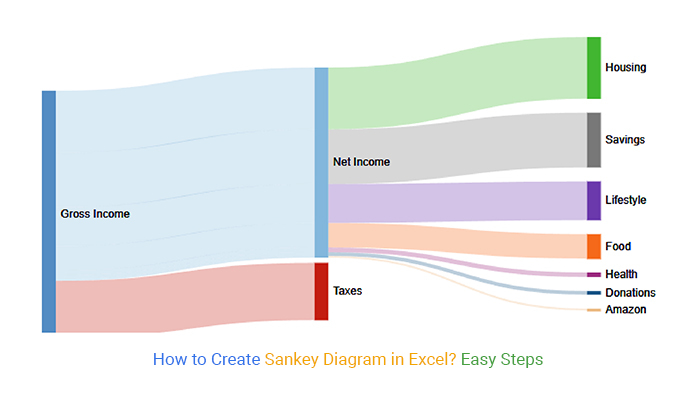
A Sankey Diagram in Excel is a flow visualization that shows how quantities move between stages in a process. The width of each flow reflects the magnitude being transferred, making it simple to see where resources, energy, or data are concentrated.

sankey diagram in excel

This type of visualization is commonly used to analyze energy consumption, financial flows, customer journeys, and marketing funnels because it clearly shows how inputs are distributed across multiple outcomes.

Although Excel does not include a built-in option for creating this type of flow visualization, you can still build one using specialized tools or add-ins. In this guide, you’ll learn when to use this visualization and how to create a Sankey diagram in Excel step by step.

Understanding a Sankey Diagram in Excel

Sankey diagrams in Excel provide a clear visual representation of flows, helping you analyze how values transfer from one stage to another. Each connection’s width corresponds to the size of the flow, which allows you to quickly spot major contributors, bottlenecks, or inefficiencies.

To create these visuals, your Excel data should be well-structured: columns represent categories or stages, and rows define the flows with corresponding numeric values.

By transforming raw numbers into a chart, you can better understand complex relationships and patterns in your datasets, making insights more accessible to stakeholders and decision-makers.

what is a sankey diagram

Top 5 Real-World Sankey Diagram Examples in Excel

Sankey diagrams in Excel are ideal for visualizing how values move between stages in a process. They help you understand flows of resources, energy, costs, or data, and highlight key bottlenecks or patterns. Here are five practical examples with real-world use cases:

  1. Job Application Analysis Example
  2. Sentiment Analysis Example
  3. Presenting Financial Flows Example
  4. Package Delivery Analysis Example
  5. Store Order Analysis Example

Example #1: Job Application Analysis

Track the flow of candidates from application submission to onboarding. By representing each stage in a Excel Sankey chart, HR professionals can identify bottlenecks in recruitment and optimize hiring processes.

sankey diagram example job application analysis

Example #2: Sentiment Analysis

Visualize market sentiment toward a brand or product. Each flow can represent positive, neutral, and negative responses, allowing marketers to see patterns in customer perception.

sankey chart example sentiment analysis

Example #3: Presenting Financial Flows

Show the movement of money from sources to recipients. This helps finance teams identify major inflows and outflows and improve cash management decisions.

sankey graph example government financial flows

Example #4: Package Delivery Analysis

Track packages from dispatch to delivery across different regions. This chart can make it easy to identify delays or lost shipments.

sankey diagram example package delivery analysis

Example #5: Store Order Analysis

Visualize the journey of online orders by brand or category. Excel Sankey charts allow you to quickly spot top-selling products and potential order processing issues.

sankey chart examples

Steps to Create a Sankey Diagram in Excel (Using Add-ins)

Excel doesn’t provide a built-in Sankey chart in Excel, but you can create one using ChartExpo, an easy-to-use Excel add-in. In this section, we’ll show you how to build a Sankey diagram from structured Excel data step by step.

Step 1: Prepare Your Data

Before creating the chart, ensure your Excel data is structured properly:

  • Each row represents one flow from a source to a target.
  • Include a value column representing the size or quantity of the flow.

Step 2: Install Add-on

  • Open your Excel workbook.
  • Go to Insert → My Apps → Add-on.
  • Select the add-on and click Insert.

Step 3: Select the Chart

  • Open an add-on from Excel.
  • From the chart list, select Sankey Diagram.
  • Highlight your prepared data, including headers.
  • Click Create Chart From Selection.

Step 4: Customize the Diagram

  • Add titles and labels to make your chart more readable.
  • Use color coding to distinguish different categories or flows.
  • For multi-level flows (e.g., Source → Intermediate → Target), Add-on handles this automatically.

Step 5: Interpretation

  • The width of each flow represents the quantity being transferred.
  • Identify key contributors or bottlenecks in your data.
  • Use the chart to analyze processes such as energy flow, financial flows, order distribution, or package deliveries.

Sankey chart in excel template

Video Tutorial: Create a Sankey Diagram in Excel

In this step-by-step video tutorial, you’ll learn how to create a Sankey diagram in Excel using structured worksheet data. By watching this video, you will:

Application of Sankey Diagram in Excel

This is an ideal for visualizing flows and transfers between different stages. You can use them in Excel to clearly represent how quantities move across processes or categories.

Some common applications include:

  • Survey Results Analysis: Track responses and visualize how participants progress through options.
  • Customer Journey Mapping: Understand the movement of users through website pages, funnels, or conversion stages.
  • Supply Chain Management: Visualize the flow of materials, products, or resources across production and distribution stages.
  • Funds and Budget Flow: Track money allocations, expenditures, and transfers in organizations or projects.
  • Hierarchical Data Visualization: Represent multi-level flows, such as department → team → task.
  • Energy Management: Show how energy sources are distributed and consumed across systems.
  • Revenue & Cash Flow: Illustrate budget allocations, monthly cash flow, or departmental revenue distribution.

When not to use an Excel Sankey diagram?

While Excel Sankey diagrams are excellent for visualizing flows and resource distribution, they are not always the best choice for every dataset or scenario. Consider avoiding them in the following cases:

  • Small or Simple Datasets: If your data only involves a few values or stages, a flow chart can be overkill. Simple bar charts, line charts, or pie charts may communicate the information more clearly.
  • Non-Flow Data: Excel Sankey diagrams are designed to show movement or transfer between categories. For static data without flows, such as standalone measurements or rankings, these charts are not suitable.
  • Excessive Complexity: When there are too many nodes and connections, the diagram can become cluttered and difficult to read, which defeats the purpose of clear visualization.
  • Frequent Updates Required: Manually creating Sankey diagrams in Excel without an add-in can be time-consuming to update. If your data changes often, consider using automated dashboards or other chart types that refresh dynamically.
  • Analytical Depth Needed: A Sankey chart in Excel shows the magnitude of flows but does not provide detailed trend analysis or statistical insights. For in-depth analysis, complement them with additional charts or tables.

Alternative Charts for Specific Situations

  • Alluvial Diagrams: Ideal for categorical or time-based flows where you want to track changes across multiple periods. For example, monitoring how students switch majors over semesters or how voters shift between parties over multiple elections.
  • Parallel Coordinate Plots: Best for comparing multivariate data across several dimensions simultaneously. Useful for spotting patterns, clusters, or outliers, such as analyzing cars by price, fuel efficiency, safety, and performance.
  • Bump Charts: Perfect for visualizing rank changes over time. For instance, showing how companies’ market positions shift across quarters or how sports teams move through league standings across seasons.

Limitations of Creating a Sankey Diagram in Excel

Creating a Sankey diagram in Excel without add-ins comes with several challenges:

  • No Built-in Option: Excel does not offer a native Sankey chart, so flows must be manually created using shapes or lines.
  • Complex Setup: Building and adjusting flow connections between nodes takes significant effort and can lead to errors.
  • Difficult Customization: Changing flow widths, colors, or labels requires manual formatting, limiting flexibility.
  • Poor Data Updates: Charts do not update automatically when data changes, so you must rebuild or adjust them manually.
  • Limited Visualization Quality: Manually created charts often lack smooth transitions, consistent scaling, and a professional appearance.

Best Practices & Tips for Creating Sankey Diagrams in Excel

  • Keep It Focused: Highlight only the key flows that are essential to your analysis to avoid clutter and confusion.
  • Use Meaningful Colors: Apply consistent and intuitive color schemes to clearly differentiate categories, stages, or processes.
  • Label Key Elements: Add descriptive labels to both nodes and flows so viewers can quickly understand each part of the diagram.
  • Use an Add-in for Efficiency: Tools like chart add-ons simplify creation, editing, and visualization, eliminating complex setup or manual coding.

FAQs

Can you make a Sankey diagram in Excel?

Yes, you can achieve this by downloading and installing the add-in, since Excel doesn’t include a built-in template for it. Add-on offers a variety of chart templates, allowing you to easily create a Sankey diagram in Excel.

What type of data is needed to create this flow visualization in Excel?

Your dataset should show flows between stages. Typically, it includes a source column, a target column, and a numeric value column that represents the magnitude of the transfer between the two stages.

Wrap Up

Sankey diagrams in Excel are a powerful way to visualize complex data flows and communicate your insights clearly. They help capture your audience’s attention and make it easier to highlight key patterns or trends in your analysis.

If you work in other tools like Google Sheets or Power BI, similar visuals can also be created using platform-specific guides. By using this Excel chart effectively, you ensure your audience quickly understands the most important aspects of your data story.

How much did you enjoy this article?

ExcelAd2
Start Free Trial!
122040

Related articles

next previous
Microsoft Excel11 min read

How to Build a Finance Dashboard in Excel Step by Step

Learn how to create a finance dashboard in Excel and track key metrics, visualize data, and gain actionable insights to make smarter financial decisions.

Microsoft Excel8 min read

How to Create a Heatmap in Excel: A Practical Guide

Transform spreadsheet data into color-coded visuals with a Heatmap in Excel. Learn two methods and see when color intensity beats numbers. Discover now!

Microsoft Excel12 min read

15 Financial Charts Every Business Should Use

Explore 15 best financial charts to track revenue, costs, and profits, simplifying analysis and helping businesses make smarter financial decisions.

Microsoft Excel8 min read

Treemap in Excel: From Data to Clear Insights

Build nested rectangle charts that expose hidden patterns in layered datasets. Discover techniques for hierarchical analysis. Learn more!

Microsoft Excel11 min read

Risk Assessment Template in Excel: A Complete Guide

Use a risk assessment template in Excel to track and manage risks. This blog will guide you through simple steps to analyze data and make informed decisions.

ChartExpo logo

Turn Data into Visual
Stories

CHARTEXPO

  • Home
  • Gallery
  • Videos
  • Services
  • Pricing
  • Contact us
  • FAQs
  • Privacy policy
  • Terms of Service
  • Sitemap

TOOLS

  • ChartExpo for Google Sheets
  • ChartExpo for Microsoft Excel
  • Power BI Custom Visuals by ChartExpo
  • Word Cloud

CATEGORIES

  • Bar Charts
  • Circle Graphs
  • Column Charts
  • Combo Charts
  • Comparison Charts
  • Line Graphs
  • PPC Charts
  • Sentiment Analysis Charts
  • Survey Charts

TOP CHARTS

  • Sankey Diagram
  • Likert Scale Chart
  • Comparison Bar Chart
  • Pareto Chart
  • Funnel Chart
  • Gauge Chart
  • Radar Chart
  • Radial Bar Chart
  • Sunburst Chart
  • see more
  • Scatter Plot Chart
  • CSAT Survey Bar Chart
  • CSAT Survey Chart
  • Dot Plot Chart
  • Double Bar Graph
  • Matrix Chart
  • Multi Axis Line Chart
  • Overlapping Bar Chart
  • Control Chart
  • Slope Chart
  • Clustered Bar Chart
  • Clustered Column Chart
  • Box and Whisker Plot
  • Tornado Chart
  • Waterfall Chart
  • Word Cloud
  • see less

RESOURCES

  • Blog
  • Resources
  • YouTube
SIGN UP FOR UPDATES

We wouldn't dream of spamming you or selling your info.

© 2026 ChartExpo, all rights reserved.




