• Home
  • Install
    • ChartExpo for Google Sheets
    • ChartExpo for Microsoft Excel
    • ChartExpo for Power BI
  • Charts
    • Chart type
      • Box and Whisker Plot
      • Clustered Bar Chart
      • Clustered Column Chart
      • Comparison Bar Chart
      • Control Chart
      • CSAT Score Bar Chart
      • CSAT Score Survey Chart
      • Dot Plot Chart
      • Double Bar Graph
      • Funnel Chart
      • Gauge Chart
      • Likert Scale Chart
      • Matrix Chart
      • Multi Axis Line Chart
      • Overlapping Bar Chart
      • Pareto Chart
      • Radar Chart
      • Radial Bar Chart
      • Sankey Diagram
      • Scatter Plot Chart
      • Slope Chart
      • Sunburst Chart
      • Tornado Chart
      • Waterfall Chart
      • Word Cloud
    • Chart category
      • Bar Charts
      • Circle Graphs
      • Column Charts
      • Combo Charts
      • Comparison Charts
      • Line Graphs
      • PPC Charts
      • Sentiment Analysis Charts
      • Survey Charts
  • Gallery
  • Videos
  • Pricing
  • Contact Us
  • FAQs
  • Blog
  • Resources

Get a reward

Categories
All Data Visualizations Data Analytics Data Stories
Add-ons
  • Google Sheets
  • Microsoft Excel
  • Power BI
All Data Visualizations Data Analytics
Data Stories
  • Healthcare
Add-ons
  • Google Sheets
  • Microsoft Excel
  • Power BI

We use cookies

This website uses cookies to provide better user experience and user's session management.
By continuing visiting this website you consent the use of these cookies.

Ok

ChartExpo Survey


Home > Blog > Data Visualization > Add-ons > Microsoft Excel >

How to Analyze Microsoft Forms Survey Results in Excel?

The long-awaited moment has finally arrived. The results of your latest survey are in. A surge of anticipation electrifies the air as you prepare to unravel your audience’s thoughts.

Microsoft forms survey

You open up Microsoft Forms, ready to uncover the insights. However, you feel overwhelmed and don’t know where to begin. As you stare at the screen in confusion, you hear a knock at the door. To your delight, it’s your tech-savvy friend who specializes in survey result analysis.

They take one look at your bewildered expression and laugh. “Don’t worry, I know just what to do!” they say, grabbing your laptop. With a few clicks, they uncover meaningful insights from your data.

How do you analyze Microsoft Forms survey data with that level of precision?

Stick around as we explore the art of analyzing Microsoft Forms survey results. We’ll cover all the bases, from accessing data insights to interpreting those insights.

Table of Content:

  1. What is Microsoft Forms?
  2. What Does a Microsoft Survey Do?
  3. Use Cases of Microsoft Forms
  4. Advantages of Using the Microsoft Forms Survey Tool
  5. Disadvantages of Using the Microsoft Forms Survey Tool
  6. Key Features of Microsoft Forms Survey Tool
  7. How to Create a Survey from Scratch with Microsoft Forms?
  8. How to Analyze Microsoft Forms Survey Results?
  9. Wrap Up

What is Microsoft Forms?

Microsoft Forms is an intuitive online tool for creating surveys, quizzes, and polls. It offers a range of question options and allows you to customize your surveys to meet specific requirements. Furthermore, it automatically gathers responses, enabling real-time visualization through dynamic charts and graphs.

Renowned for its versatility, Microsoft Forms is widely used for;

  • Conducting surveys.
  • Obtaining customer feedback.
  • Administering quizzes.
  • Gathering data for analysis.

What Does a Microsoft Survey Do?

A Microsoft survey gathers information, feedback, opinions, or preferences from individuals or groups. You can customize the survey with various question types, such as multiple-choice, text entry, rating scales, and more. Once distributed, respondents provide their answers, which are automatically collected and stored.

You can visualize and analyze the survey data in real-time using charts and graphs. This enables you to glean valuable insights with ease. Consequently, empowering you to make informed decisions, refine business processes, and improve the customer experience.

Use Cases of Microsoft Forms

Microsoft Forms offers a versatile toolkit for unlocking new levels of success in your ventures. Here are some use cases where it can revolutionize your approach to data collection and analysis

  • Surveys and polls: It is widely used to create surveys and collect feedback from customers, employees, or any target audience.
  • Quizzes and assessments: Microsoft Forms enables the creation of interactive quizzes and assessments for educational purposes, training evaluations, or knowledge testing.
  • Event registration: Microsoft Forms can be employed to design registration forms for events, conferences, workshops, or webinars. This allows organizers to gather adequate participant information.
  • Employee feedback and evaluations: Microsoft Forms facilitates employee feedback surveys, performance evaluations, and satisfaction assessments to gather insights for HR and management.
  • Customer satisfaction: You can measure and track customer satisfaction through feedback surveys. The insights obtained help you optimize your products and services to align with customer expectations and preferences.
  • Data collection and analysis:Microsoft Forms aids in collecting data for research projects, market surveys, data analysis, and decision-making purposes.

Advantages of Using the Microsoft Forms Survey Tool

  • Easy to use: You can create and distribute surveys without any technical knowledge.
  • Customizable: With Microsoft Forms, you have the freedom to tailor your surveys to fit your requirements. You can modify the layout and include images to create engaging and personalized survey experiences.
  • Seamless integration: Microsoft Forms integrates seamlessly with other Microsoft Office applications, such as Excel, OneNote, and PowerPoint.
  • Real-time responses: Microsoft Forms provides real-time responses. Therefore, you can see the results of your surveys as they are submitted.
  • Automated reminders: Microsoft Forms allows you to set up automated reminders to encourage respondents to complete the survey.

Disadvantages of Using the Microsoft Forms Survey Tool

  • Limited customization options: While Microsoft Forms is customizable, the customization options are limited compared to other survey tools.
  • Limited question types: While Microsoft Forms supports various question types, some question types, such as matrix questions, are not available.
  • Limited reporting options: Microsoft Forms provides basic reporting options, but these options are limited compared to other survey tools.
  • Limited integrations: Microsoft Forms integrates seamlessly with other Microsoft Office applications. However, it does not integrate with other third-party applications.

Key Features of Microsoft Forms Survey Tool

Whether you want to improve your offerings or gauge employee satisfaction, Microsoft Forms has got you covered. Here are the key features of this powerful survey tool.

  1. Customizable templates: Microsoft Forms provides a range of pre-designed survey templates that you can customize to suit specific needs. These templates cover various survey categories such as education, customer feedback, event registration, etc.
  2. Multiple question types: Microsoft Forms offers a wide range of question types, such as multiple-choice, rating scales, date selection, etc. This allows you to gather diverse types of information from respondents.
  3. Logic branching: You can set up conditional rules that guide respondents to different questions based on their previous answers. This feature facilitates the creation of personalized and dynamic surveys.
  4. Multi-language support: You can design surveys in different languages to cater to a global audience or multilingual respondents.
  5. Seamless integration: Microsoft Forms seamlessly integrates with other Microsoft Office applications such as Excel, SharePoint, and Teams. This integration enables easy data collection, analysis, and collaboration.
  6. Collaboration: Multiple users can collaborate on creating and designing a survey in real-time. This feature enhances productivity and facilitates team-based survey development.
  7. Secure: Microsoft Forms ensures data security and privacy. It adheres to industry-standard security protocols, storing data securely in Microsoft Azure, a trusted cloud platform.
  8. Mobile-friendly: Surveys created with Microsoft Forms are mobile-responsive. This provides an optimal user experience on various devices, including smartphones and tablets.
  9. Real-time responses: Survey responses are collected in real-time. Real-time responses enable quick decision-making and analysis.
  10. Automated reminders: Microsoft Forms allows you to schedule automated reminders to prompt respondents who have not completed the survey. This feature helps increase survey completion rates.

How to Create a Survey from Scratch with Microsoft Forms?

Creating a survey can be daunting, especially for beginners. Fortunately, Microsoft Forms makes it easy for anyone to create and share online surveys. Here is the step-by-step process of creating a survey from scratch with Microsoft Forms.

  • Log in to your Microsoft account and navigate to the Microsoft Forms homepage.
  • Click the “New Form” button to create a new survey.
  • Give your survey a relevant title and a brief description. You can also add a theme and an image to make it more attractive.
  • Start adding questions to your survey by clicking the “+ Add question” button. You can choose from different types of questions, such as multiple-choice, rating scales, and text boxes.
  • Customize your questions as per your requirements. If needed, you can add answer choices, adjust the formatting, and set up conditional logic branching.
  • Continue adding questions until you have finished creating the survey.
  • Customize the survey settings such as;
    • The response options (e.g., allowing respondents to submit multiple responses).
    • Whether to require sign-in for responses.
    • How to collect responses (e.g., through a shared link or email invitation).
  • Preview your survey to ensure everything looks good and works well.
  • Share the survey with your target audience by copying the link or sending email invitations.
  • Monitor the survey responses in real-time. Use Microsoft Forms’ built-in reporting and analysis tools to analyze and present your data.

How to Analyze Microsoft Forms Survey Results?

Are you looking for a powerful data visualization tool to analyze the results of your Microsoft Forms surveys?

If so, ChartExpo is the solution you need. This data visualization Excel add-in lets you analyze your Microsoft Forms survey results like a pro.

How?

ChartExpo takes your data and creates insightful visuals that help you better understand the responses. And the best part is that it is easy to use. With a few clicks, you’ll unleash the true potential of your data.

Before we get into the details of how to use ChartExpo, let’s first look at the benefits.

Benefits of Using ChartExpo

  • With ChartExpo’s user-friendly interface, creating insightful charts is a breeze. It doesn’t matter if you’re a charting novice or an expert – no coding is required.
  • ChartExpo boasts a diverse range of chart types. You name it, from column charts to pie charts, scatter plots to line charts. We have it. You won’t be left wanting more.
  • The customization options in ChartExpo are top-notch, allowing you to tweak every design element of your charts. With this feature, your charts will be informative and aesthetically pleasing.
  • ChartExpo has an affordable $10 monthly subscription and a complimentary 7-day trial period.

How to Install ChartExpo in Excel?

  1. Open your Excel application.
  2. Open the worksheet and click the “Insert” menu.
  3. You’ll see the “My Apps” option.
  4. In the office Add-ins window, click “Store” and search for ChartExpo on my Apps Store.
  5. Click the “Add” button to install ChartExpo in your Excel.

ChartExpo charts are available both in Google Sheets and Microsoft Excel. Please use the following CTA’s to install the tool of your choice and create beautiful visualizations in a few clicks in your favorite tool.
Example

Let’s say you are a restaurant owner and want to get customer satisfaction feedback. You can conduct a survey with the following questions;

  • The food at this restaurant meets my expectations.
  • The service at this restaurant is prompt and attentive.
  • The prices at this restaurant are reasonable for the quality of food.

Then map this response scale on each question.

  1. Strongly Disagree
  2. Disagree
  3. Neither agree nor disagree
  4. Agree
  5. Strongly Agree

Assume your survey yields the data below.

The food at this restaurant meets my expectations. The service at this restaurant is prompt and attentive. The prices at this restaurant are reasonable for the quality of food.
Neutral Agree Agree
Agree Agree Agree
Neutral Strongly Agree Strongly Disagree
Strongly Agree Agree Disagree
Strongly Agree Disagree Disagree
Strongly Agree Agree Strongly Agree
Disagree Strongly Disagree Agree
Disagree Disagree Strongly Agree
Strongly Disagree Strongly Agree Strongly Disagree
Strongly Disagree Strongly Agree Disagree
Neutral Agree Agree
Disagree Disagree Strongly Disagree
Agree Disagree Agree
Neutral Agree Strongly Disagree
Neutral Agree Neutral
Disagree Agree Disagree
Disagree Strongly Agree Strongly Agree
Strongly Agree Strongly Agree Neutral
Strongly Agree Neutral Agree
Neutral Strongly Agree Strongly Agree

This table contains example data. Expect many responses and questions in real life.
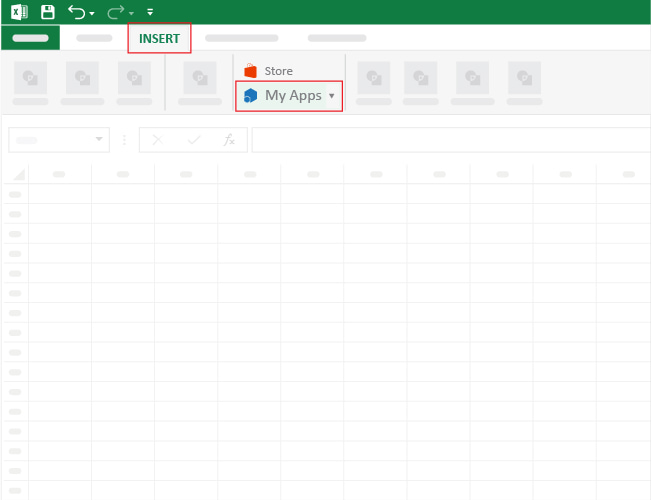
  • To get started with ChartExpo, install ChartExpo in Excel.
  • Now Click on My Apps from the INSERT menu.
insert chartexpo in excel
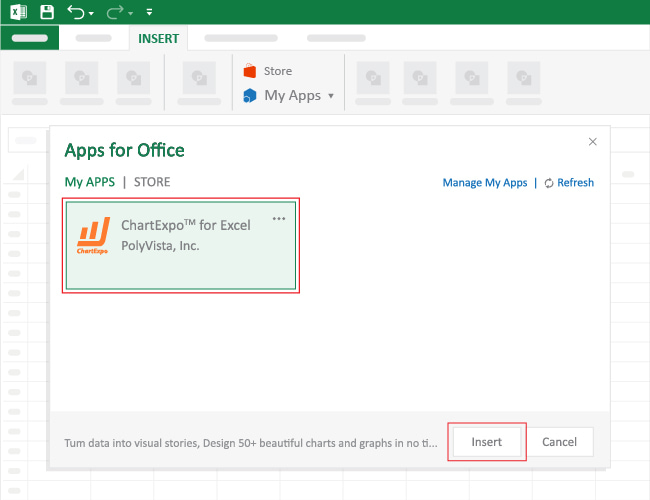
  • Choose ChartExpo from My Apps, then click Insert.
open chartexpo in excel
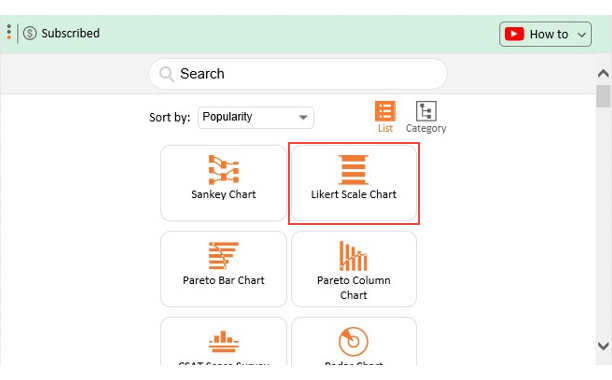
  • Once it loads, choose the “Likert Scale Chart” from the charts list.
search likert scale chart in excel
  • Click “Create Chart From Selection” button after selecting the data from the sheet, as shown.
create likert scale chart in excel
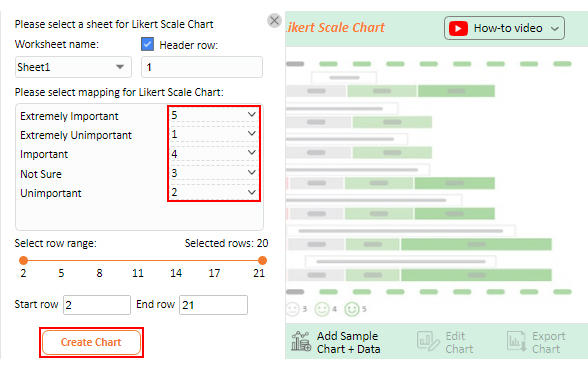
  • When you click the “Create Chart From Selection” button, you have to map responses with numbers manually. The Likert scale has this arrangement:
    • Strongly Disagree=1
    • Disagree=2
    • Neutral=3
    • Agree=4
    • Strongly Agree=5
  • Once all is set, click the “Create Chart” button.
make likert scale chart in excel
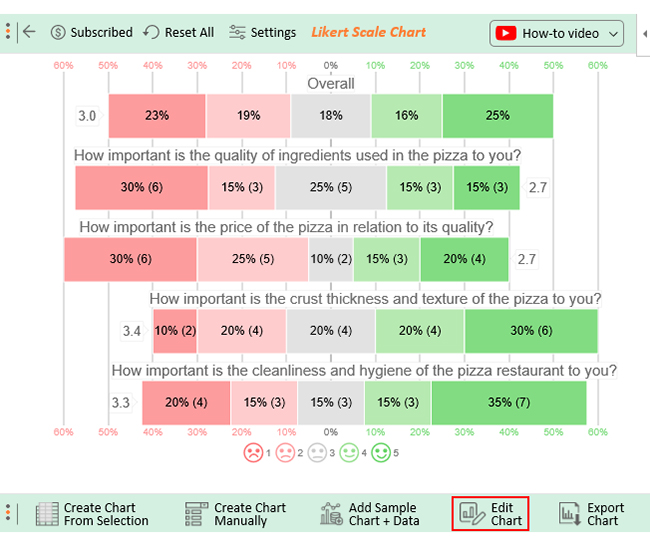
  • ChartExpo will generate the visualization below for you.
edit likert scale chart in excel
  • If you want to have the title of chart, click on Edit Chart, as shown in the above image.
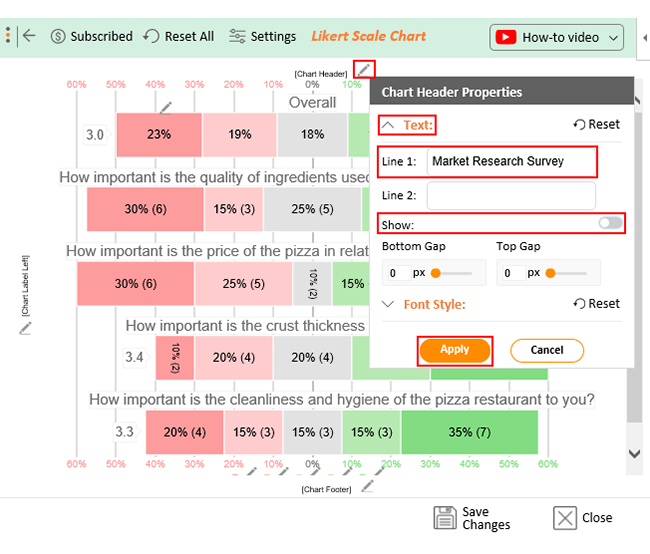
  • To change the title of the chart, click on the pencil icon that is available very next to Chart Header.
  • It will open the properties dialog. Under the Text section, you can add a heading in Line 1 and enable the Show option. Give the appropriate title of your chart and click on Apply button.
set likert scale chart in excel
  • Let’s say you want to add text responses instead of numbers against every emoji.
  • Click the pencil icon next to the respective emoji. Expand the “Label” properties and write the required text. Then click the “Apply All” button.
  • Click the “Save Changes” button to persist the changes.
save likert scale chart in excel
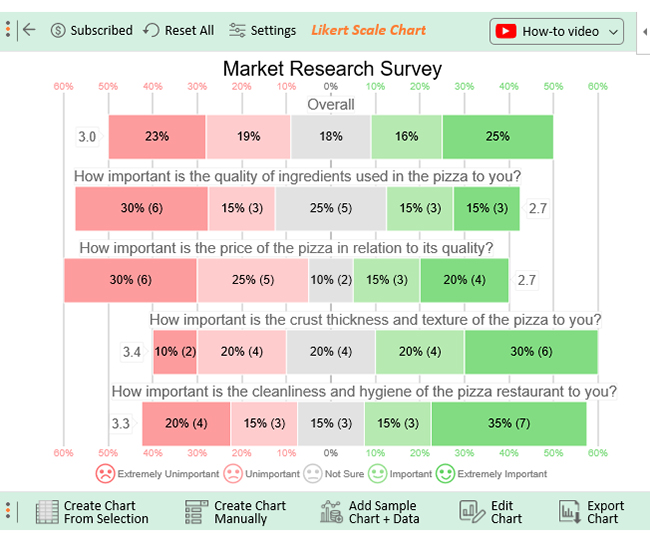
  • The final chart will look as below.
Microsoft forms survey in excel

Insights

  • 35% of customers agree with the food expectations, 35% do not, and 30% have no opinion.
  • Service of restaurant is prompt and attentive, 70% are satisfied, but 25% are not.
  • The price at restaurant are reasonable for the quality of the food, 50% agree that it is good. 40% do not agree, and 10% remain neutral.
  • Overall, 52% of customers gave a positive response. 34% provided negative responses, and 15% remained neutral.

FAQs

Can you create a survey using Microsoft Forms?

Yes, Microsoft Forms allows you to create surveys with ease. It offers customizable templates, multiple question types, logic branching, and more. Its seamless integration and collaboration features make creating surveys and collecting responses simple.

Can anyone access a Microsoft Forms survey?

Anyone with a shared link can access a Microsoft Forms survey. It does not matter whether they have a Microsoft account or not. On the other hand, you have the option to restrict access to specific individuals.

What are the limitations of Microsoft Forms for surveys?

While Microsoft Forms is a powerful survey tool, it does have some limitations. These include;

  • Limited customization options.
  • Limited question types compared to other survey tools.
  • Restrictions on the number of responses and storage capacity for free accounts.

Wrap Up

In conclusion, analyzing Microsoft Forms survey results can provide valuable insights that help you make informed decisions. Consequently, improve various aspects of your business or organization.

Microsoft Forms offers a user-friendly interface, customizable templates, and various question types to suit your survey requirements. Its real-time response tracking and automated reminders ensure timely data collection.

While Microsoft Forms has its advantages, it also has limitations. These include limited customization options and reporting capabilities compared to other survey tools.

To analyze your Microsoft Forms survey results effectively, use ChartExpo, a data visualization Excel add-in. ChartExpo allows you to create insightful charts and graphs that enhance your understanding of the survey responses.

ChartExpo has a user-friendly interface, diverse chart types, and customization options. These features facilitate data presentation in an insightful and visually appealing manner.

ChartExpo is the one-stop shop for all your data visualization needs. The only limit to your data analysis with ChartExpo is your imagination.

How much did you enjoy this article?

chartexpo ad

Get a reward

chartexpo ad
126702

Related articles

next previous
Microsoft Excel9 min read

Interpolate in Excel: A Complete Walkthrough

Imagine you have missing values in a dataset and must estimate them accurately. What do you do? I have a solution – interpolation in Excel. It helps fill the gaps between known data points, making calculations smoother.

Microsoft Excel9 min read

Dynamic Tables in Excel Visualizing Data with Ease

What are dynamic tables in Excel, and why do they matter? Excel remains a cornerstone for managing and analyzing information in today’s data-driven age. Dynamic tables are a powerful tool. They make it easier to organize, filter, and analyze data precisely.

Microsoft Excel8 min read

Action Plan Template for Excel: Steps for Better Insights

Too many plans stay in your head or get lost in long email threads. That’s a recipe for missed deadlines and crossed wires. An action plan template for Excel gives structure to your tasks so you can actually finish what you start.

Microsoft Excel26 min read

Net Promoter Score: Leverage Feedback for Your Success

Imagine a world where one simple question could unlock the secrets to your business’s success. That’s exactly what the Net Promoter Score (NPS) offers.

Microsoft Excel24 min read

Leading Questions: Are They Skewing Your Survey Results?

Have you ever answered a question and felt gently nudged toward a specific response? That’s the quiet power of leading questions.

ChartExpo logo

Turn Data into Visual
Stories

CHARTEXPO

  • Home
  • Gallery
  • Videos
  • Pricing
  • Contact us
  • FAQs
  • Privacy policy
  • Terms of Service
  • Sitemap

INSTALL

  • ChartExpo for Google Sheets
  • ChartExpo for Microsoft Excel
  • ChartExpo for Power BI

CATEGORIES

  • Bar Charts
  • Circle Graphs
  • Column Charts
  • Combo Charts
  • Comparison Charts
  • Line Graphs
  • PPC Charts
  • Sentiment Analysis Charts
  • Survey Charts

TOP CHARTS

  • Sankey Diagram
  • Likert Scale Chart
  • Comparison Bar Chart
  • Pareto Chart
  • Funnel Chart
  • Gauge Chart
  • Radar Chart
  • Radial Bar Chart
  • Sunburst Chart
  • see more
  • Scatter Plot Chart
  • CSAT Score Bar Chart
  • CSAT Score Survey Chart
  • Dot Plot Chart
  • Double Bar Graph
  • Matrix Chart
  • Multi Axis Line Chart
  • Overlapping Bar Chart
  • Control Chart
  • Slope Chart
  • Clustered Bar Chart
  • Clustered Column Chart
  • Box and Whisker Plot
  • Tornado Chart
  • Waterfall Chart
  • Word Cloud
  • see less

RESOURCES

  • Blog
  • YouTube
SIGN UP FOR UPDATES

We wouldn't dream of spamming you or selling your info.

© 2023 ChartExpo, all rights reserved.