• Home
  • Tools dropdown img
    • Spreadsheet Charts

      • ChartExpo for Google Sheets
      • ChartExpo for Microsoft Excel
    • Power BI Charts

      • Power BI Custom Visuals by ChartExpo
    • Word Cloud

  • Charts dropdown img
    • Chart Category

      • Bar Charts
      • Circle Graphs
      • Column Charts
      • Combo Charts
      • Comparison Charts
      • Line Graphs
      • PPC Charts
      • Sentiment Analysis Charts
      • Survey Charts
    • Chart Type

      • Box and Whisker Plot
      • Clustered Bar Chart
      • Clustered Column Chart
      • Comparison Bar Chart
      • Control Chart
      • CSAT Survey Bar Chart
      • CSAT Survey Chart
      • Dot Plot Chart
      • Double Bar Graph
      • Funnel Chart
      • Gauge Chart
      • Likert Scale Chart
      • Matrix Chart
      • Multi Axis Line Chart
      • Overlapping Bar Chart
      • Pareto Chart
      • Radar Chart
      • Radial Bar Chart
      • Sankey Diagram
      • Scatter Plot Chart
      • Slope Chart
      • Sunburst Chart
      • Tornado Chart
      • Waterfall Chart
      • Word Cloud
    • Google Sheets
      Microsoft Excel
  • Services
  • Pricing
  • Contact us
  • Blog
  • Support dropdown img
      • Gallery
      • Videos
      • Contact us
      • FAQs
      • Resources
    • Please feel free to contact us

      atsupport@chartexpo.com

Categories
All Data Visualizations Data Analytics Surveys
Add-ons/
  • Google Sheets
  • Microsoft Excel
  • Power BI
All Data Visualizations Data Analytics Surveys
Add-ons
  • Google Sheets
  • Microsoft Excel
  • Power BI

We use cookies

This website uses cookies to provide better user experience and user's session management.
By continuing visiting this website you consent the use of these cookies.

Ok

ChartExpo Survey


Home > Blog > Data Analytics

Issue Tracker Template for Smarter Issue Monitoring

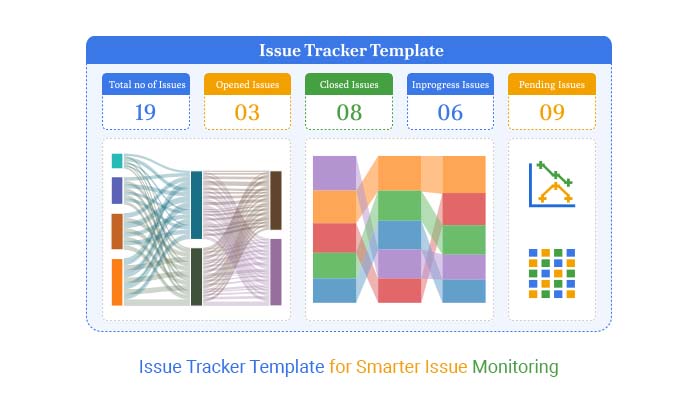
Issue tracker template—why does every project manager eventually search for one? Because even the best-run teams hit snags – a miscommunication, a missed deadline, or a bug in the final sprint. These issues can pile up. And without a clear system, they slip through the cracks.
Issue Tracker Template

This is where an issue tracker template comes into play.

A well-structured issue tracker template in Google Sheets turns chaos into clarity. You log each problem and assign ownership to track resolution. Consequently, every stakeholder stays on the same page—no more chasing updates through emails or Slack threads.

Teams working in agile, marketing, or software development rely on this kind of system. Not because it sounds good in theory but because it works. You can build one in minutes, scale it for big teams, and update it live.

But building the template is only half the job. The real power lies in the analysis. What types of issues come up most? Which team members resolve the fastest? How long does resolution usually take? That’s where data reporting turns your tracker from a list into a tool for intelligent decisions.

A good issue tracker template should evolve as your project grows. Add tags, filter by priority, group by category, and tie it into your broader reporting ecosystem. Then, combine it with your project status reports template.

I will walk you through it step by step. First, let’s understand the basics…

Table of Contents:

  1. What is a Bug Tracker Template in Google Sheets?
  2. Why Use a Bug Tracking Report Template in Google Sheets?
  3. How Does Google Sheets Issue Tracking Work?
  4. Examples of Project Bug Tracking in Google Sheets
  5. How to Create a Project Issue Tracker Template in Google Sheets?
  6. How to Analyze an Issue Tracker Template in Google Sheets?
  7. Benefits of Using the Google Sheets Issue Tracker Template
  8. FAQs
  9. Wrap Up

What is a Bug Tracker Template in Google Sheets?

Definition: A bug tracker template in Google Sheets enables teams to log and manage software bugs efficiently. It lists each bug’s status, priority, assignee, and resolution steps. You can filter issues by severity or track recurring problems to stay on top of them. This makes data reporting easier and more transparent.

Teams often use this template with inventory tracking in Google Sheets to identify technical issues related to product data. It’s simple to share, update, and use—ideal for agile teams needing fast bug visibility and resolution.

Why Use a Bug Tracking Report Template in Google Sheets?

Have you ever spotted a bug, logged it, and then watched it vanish into thin air? It happens more often than it should. That’s why using a bug-tracking report template in Google Sheets is a sensible approach. It’s not only smart—it’s practical, and here’s why:

  • Ease of access: You can open the bug tracking report template in Google Sheets from any device with internet access. Whether you’re using your laptop or mobile device, the latest bug updates are always available.
  • Cost-effective: Google Sheets is free for individuals and teams, which eliminates the need for costly software. You get a full-featured tracking system without affecting your project budget.
  • Real-time collaboration: Multiple team members can view and edit the sheet simultaneously. Every update is instant, reducing miscommunication and duplicate work.
  • Customizability: You can add columns, filters, and drop-downs to suit your team’s workflow. Then, integrate it with your Google Sheet to-do list template to ensure smooth transitions.

How Does Google Sheets Issue Tracking Work?

Are you tired of issues getting lost in your inbox or forgotten on sticky notes? Google Sheets can fix that. It’s more than a spreadsheet—it’s a live, shareable workspace. Using it for issue tracking is smarter than it sounds. Here’s how it works:

  • Structured columns: Every issue is logged in a specific column—status, priority, owner, due date, and more. This format keeps everything organized and makes scanning the sheet quick and easy.
  • Filtering & sorting: You can filter by status, priority, or team member to focus only on what you need. Sorting lets you arrange issues by urgency, due date, or even who’s responsible.
  • Real-time collaboration: Multiple team members can update the sheet simultaneously, with changes visible instantly. This keeps everyone aligned and eliminates version control problems.
  • Visual insights: Conditional formatting adds color to show priorities or overdue tasks at a glance. You can also create graphs or link data into an analytical report template for better decision-making.

Examples of Project Bug Tracking in Google Sheets

Not all bugs crawl through code. Some hide in overlooked pages, broken workflows, or misrouted tickets. A bug tracker template in Google Sheets can cover all of that—if you set it up correctly.

Here’s how different teams use it every day:

  • Software development: Developers use it to track bugs by feature, severity, and version. It keeps the whole team aligned across sprints and highlights blockers early.
  • Website testing: Testers log broken links, layout issues, and performance problems across devices. Each issue can be linked to screenshots or browser-specific notes for quick resolution.
  • Project management: Managers use it to track missed deadlines, unclear ownership, or communication hiccups. It helps prevent issues before they snowball.
  • Quality assurance (QA): QA teams document test failures, verification steps, and bug status updates in one sheet. Color-coded statuses help everyone understand progress at a glance.
  • Customer support: Support teams enter user-reported bugs, assign urgency levels, and schedule follow-ups. Patterns derived from this data can inform larger data reporting efforts, leading to more effective product fixes and improvements.

How to Create a Project Issue Tracker Template in Google Sheets?

Creating a project issue tracker template in Google Sheets isn’t just brilliant—it’s efficient. No waiting on IT, and no need to buy software. You build it yourself, fast. And once it’s live, your team stays focused and accountable.

Here’s how to create one that works for real projects, real deadlines, and real teams:

  • Set up the issue data table: Create a table with headers such as Issue ID, Project Name, Priority, Status, and Assigned To. Fill in real project issues to track what’s happening and keep everyone aligned.
Issue ID Project Name Issue Description Priority Location Status Assigned To Date Reported Date Resolved
1 Project X Delay in server response High Texas In Progress Jason Reed 3-Jan-2025
2 Project Y UI button misalignment Low Georgia Open Ava Coleman 5-Jan-2025
3 Project Z Error during form submission Medium Oregon Closed Daniel Harris 6-Jan-2025 2025-01-10
4 Project X Data sync issue on mobile Medium Michigan In Progress Kevin Patel 7-Jan-2025
5 Project Y Inconsistent drop-down values High Arizona Closed Kevin Patel 8-Jan-2025 2025-01-13
6 Project A Report export failure High Illinois In Progress Mia Robinson 9-Jan-2025
7 Project B Spelling mistake in email Low Ohio Closed Mia Robinson 10-Jan-2025 12-Jan-2025
8 Project Z Broken navigation links Medium Nevada In Progress Emily Nguyen 11-Jan-2025
9 Project X Missing validation message Low Utah Closed Jordan Lee 12-Jan-2025 14-Jan-2025
10 Project Y Login timeout too short High New York Escalated Olivia Martinez 13-Jan-2025
11 Project A PDF download not working Medium Missouri Closed Olivia Martinez 14-Jan-2025 17-Jan-2025
12 Project B Image not rendering Low Vermont In Progress Natalie Brooks 15-Jan-2025
13 Project Z Incorrect currency symbol High Wisconsin Open Olivia Martinez 16-Jan-2025
14 Project X Dashboard layout broken Medium South Dakota Closed Chloe Adams 17-Jan-2025 20-Jan-2025
15 Project Y API response slow Low Mississippi In Progress Abigail Evans 18-Jan-2025
16 Project A Form auto-submit issue High Nebraska Closed Abigail Evans 19-Jan-2025 22-Jan-2025
17 Project Z Mobile UI overlapping Low Colorado Open Abigail Evans 21-Jan-2025
18 Project X Session expiration is too quick Medium Tennessee Closed Abigail Evans 22-Jan-2025 25-Jan-2025
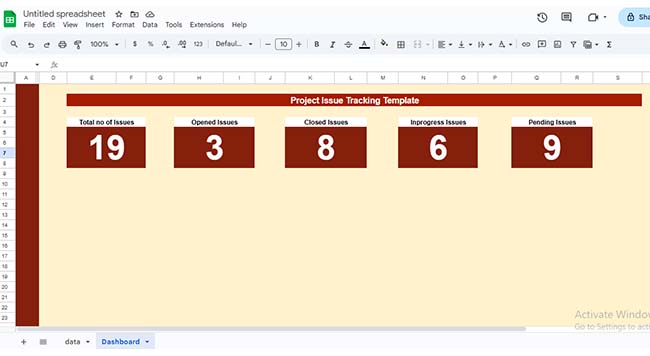
  • Create KPIs: Use simple formulas, such as =COUNTA and =COUNTIF, to display totals and status counts. This provides a quick overview of project health without requiring a full scan of the entire table.
Issue Tracker Template
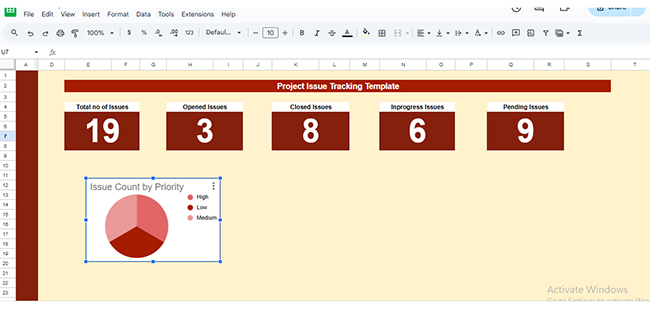
  • Insert charts: Select the Priority column and insert a Pie Chart to see issue distribution by priority. This helps you instantly see if most issues are High, Medium, or Low priority.
Issue Tracker Template
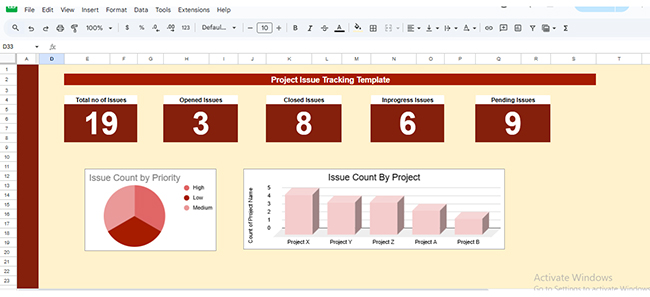
  • Project Bar Chart: Create a pivot table that summarizes the issue count by Project Name. Then, insert a Column Chart to visualize which projects have the most issues.
Issue Tracker Template
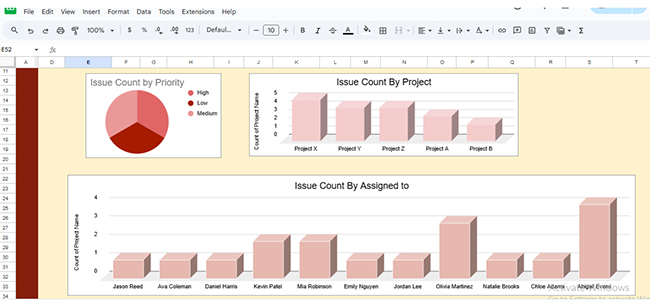
  • Chart of assignments: Build another pivot table to count the number of issues each person has. Add a chart to spot workload distribution across your team.
Issue Tracker Template

Top Charts for Issue Tracker Templates in Google Sheets:

Discover the power of visual tracking! Explore these top issue tracker charts in Google, created with ChartExpo to help you monitor and manage issues effortlessly.

Sankey Graph:

Sankey Graph visualizes the flow of issues between categories, such as status or department. It clearly shows where problems originate, how they progress, and where they ultimately end up, helping you identify bottlenecks.
Issue Tracker Template

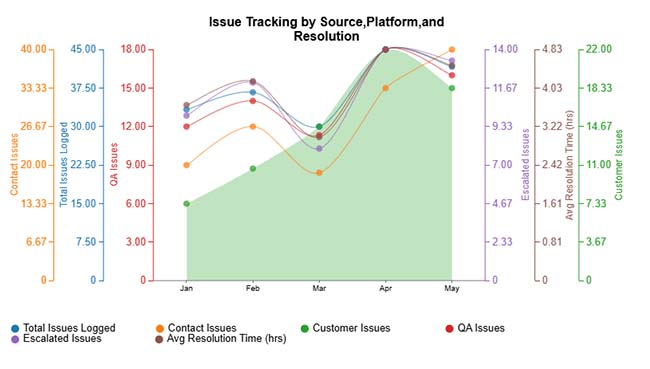
Multi-Axis Line Chart:

Tracks multiple trends over time, including the number of issues created, resolved, and still open. It’s ideal for spotting patterns in your backlog and measuring progress at a glance.
Issue Tracker Template

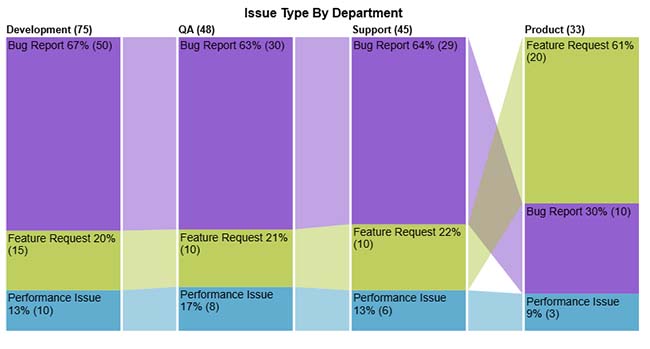
Comparison Bar Chart:

A Comparison Bar Chart uses bars to compare different categories side by side. Whether it’s issue types, priorities, or team performance, this chart makes comparisons fast and easy.
Issue Tracker Template

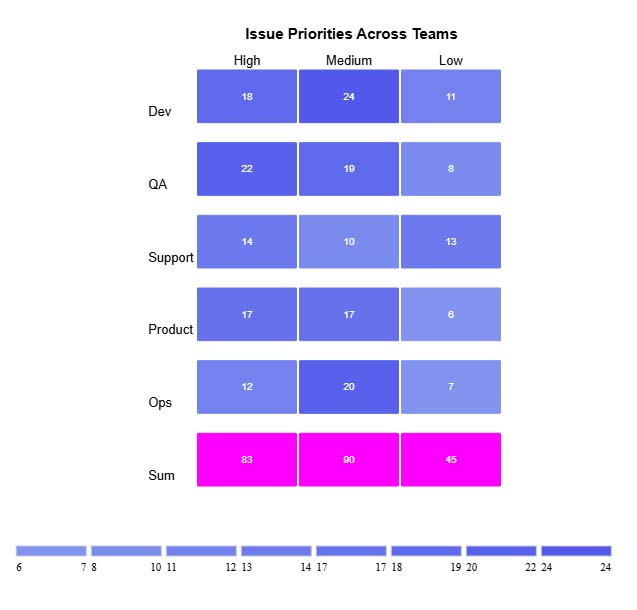
Heatmap:

This chart displays the relationship between two variables using color intensity. It highlights hotspots or trends, such as which project locations or issue types have the highest counts.
Issue Tracker Template

How to Analyze an Issue Tracker Template in Google Sheets?

Have you ever tried turning a messy issue list into a clear picture? That’s the challenge of data analysis. Google Sheets handles data effectively but struggles to create eye-catching, insightful visuals. It’s like having all the ingredients but no recipe for a great dish.

That’s where ChartExpo steps in. This data visualization tool spices up your project issue tracker template with powerful charts and easy-to-read visuals. Suddenly, data isn’t just numbers—it tells a story.

How to Install ChartExpo in Google Sheets?

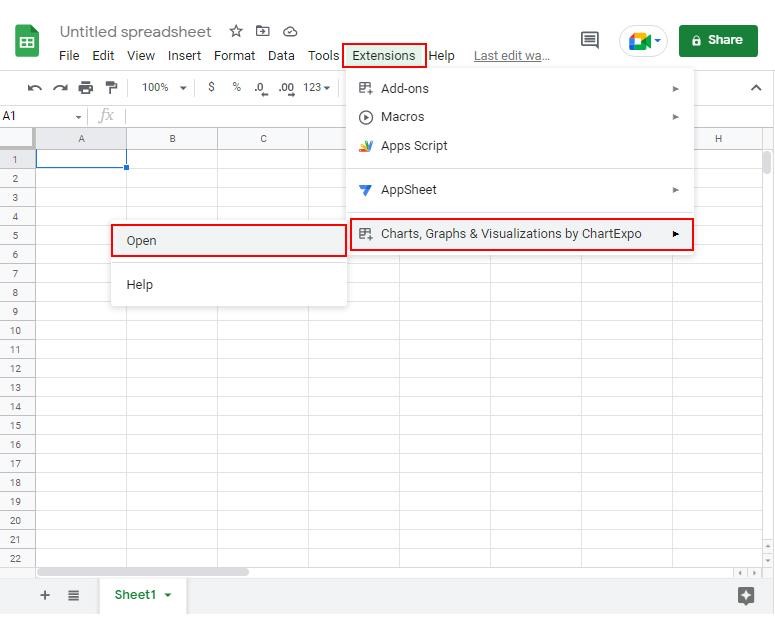
  1. To start using ChartExpo, download it directly from the Google Sheets program. To do this, select Extensions from the top toolbar.
  2. A menu will appear. Click the Get add-ons option.
  3. Search for ChartExpo, and click on Charts, Graphs & Visualizations by ChartExpo when it appears in the results.
  4. Click the Install button. You will have to confirm your Google account and accept some permissions.

ChartExpo charts are available both in Google Sheets and Microsoft Excel. Please use the following CTAs to install the tool of your choice and create beautiful visualizations in a few clicks in your favorite tool.

Example

Let’s visualize and analyze this sample data in Google Sheets using ChartExpo.

Issue Source Platform Priority Level Initial Status Resolution Stage Department Issue Count
QA Team Web High New In Progress Development 10
Customer Mobile Medium Open Escalated Support 7
Auto Monitor API High Acknowledged Closed QA 8
Developer Web Low New Closed QA 4
Customer Web Low Open Closed QA 5
  • To get started with ChartExpo, install ChartExpo in Google Sheets.
  • Go to Extensions > Charts, Graphs & Visualizations by ChartExpo > Open.
Issue Tracker Template
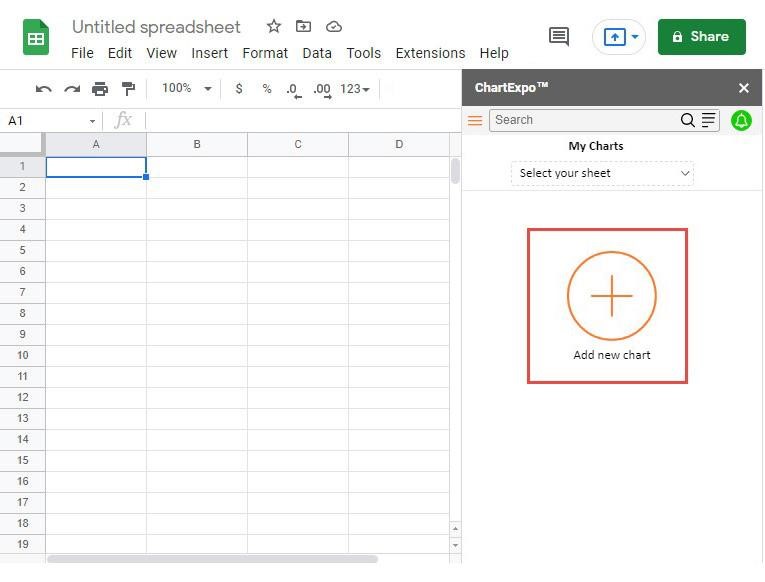
  • To access the charts library, click the Add new chart button.
Issue Tracker Template
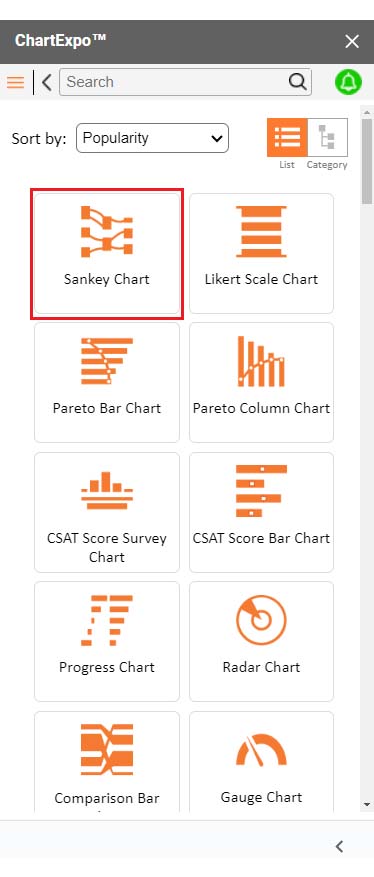
  • Once ChartExpo is loaded. Click on “Sankey Chart”.
Issue Tracker Template
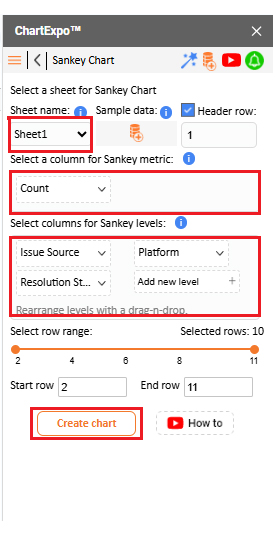
  • Put the data table in the sheet first. Then, choose the Sheet name from the drop-down in the ChartExpo section.
  • Select the metric column; metric is the numeric column in your data sheet.
  • Select the dimensions column; the dimension is the categorical column in your datasheet that contains text information.
  • Click the Create chart button to complete the process.
Issue Tracker Template
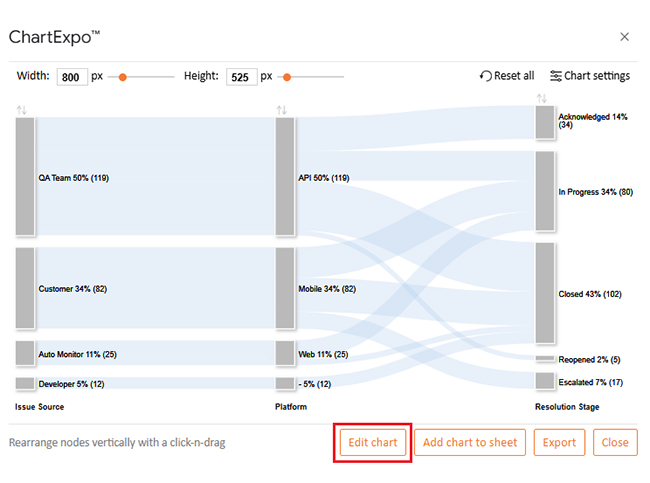
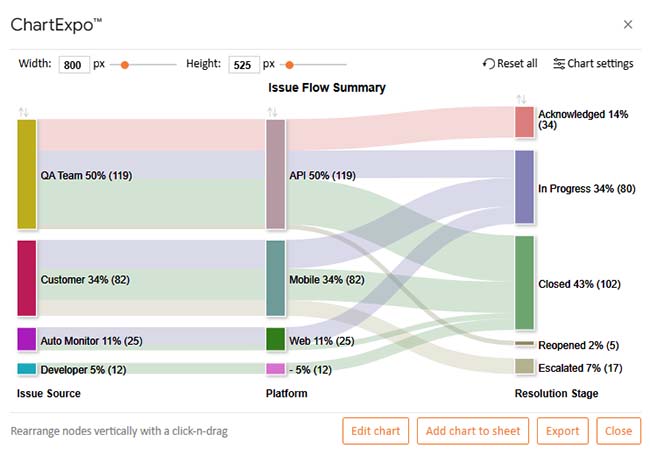
  • ChartExpo will generate the visualization below for you.
Issue Tracker Template
  • To display the chart’s title, click Edit Chart, as shown in the image above.
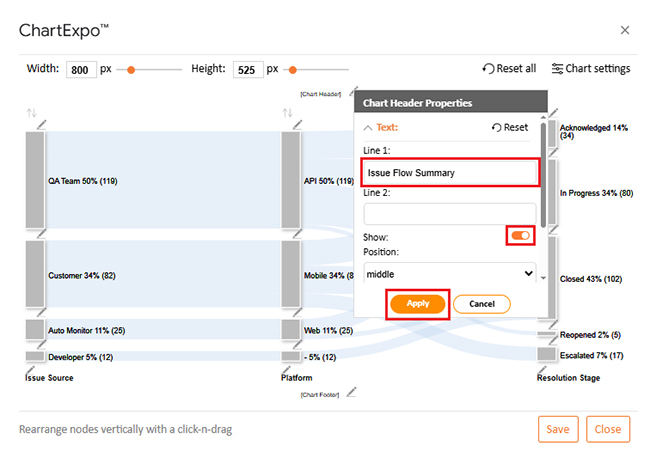
  • Click the pencil icon next to the Chart Header to change the title.
  • It will open the properties dialog. Under the Text section, you can add a heading in Line 1 and enable Show.
  • Give the appropriate title of your chart and click the Apply button.
Issue Tracker Template
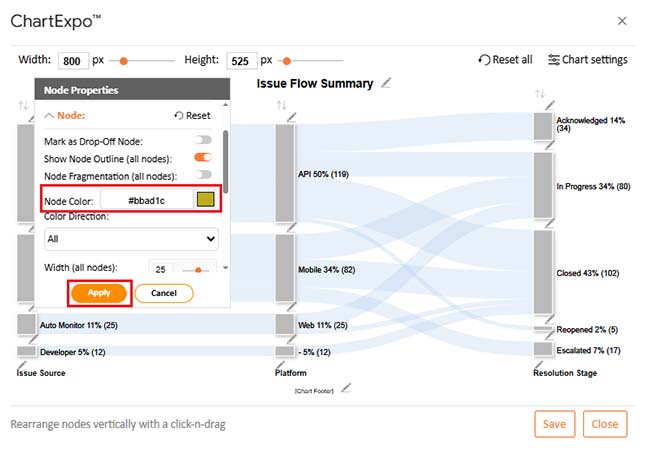
  • You can add color in Nodes and set the direction as follows:
Issue Tracker Template
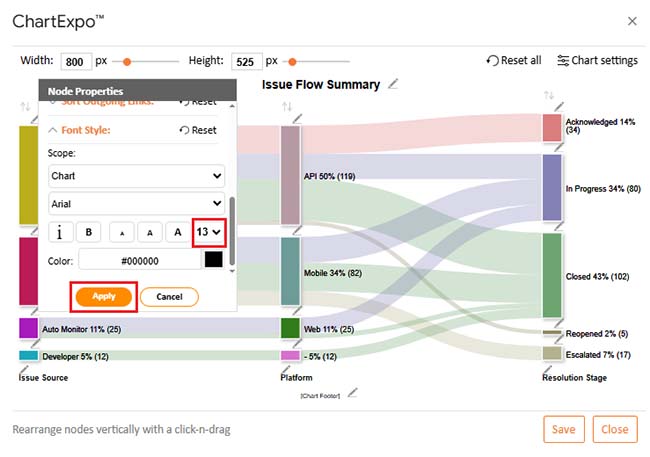
  • Increase font size for better readability from the “Node Properties” section.
Issue Tracker Template
  • Click the “Save Changes” button to persist the changes.
Issue Tracker Template
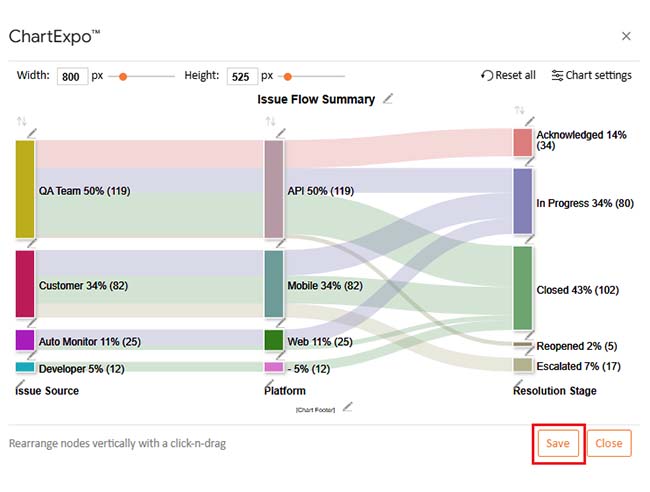
  • Your final chart will appear as follows.
Issue Tracker Template

Insights

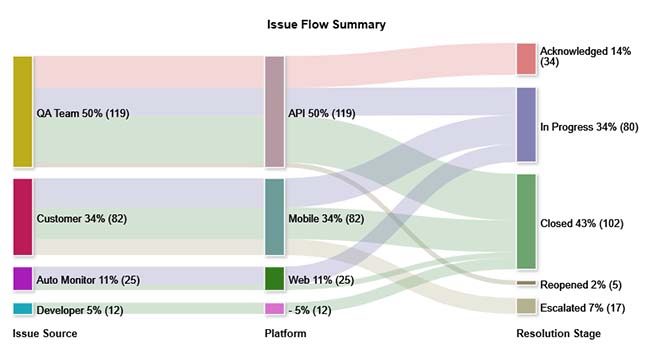
  • The chart visualizes how issues move from source to platform and the resolution stage.
  • QA Team (50%) and Customers (34%) are the top sources of reported issues.
  • Most issues occur on APIs and Mobile platforms.
  • 43% of issues are successfully closed, showing strong resolution performance.
  • 34% remain in progress, indicating active work underway.
  • Only 7% escalated, and 2% reopened. This shows minimal rework or delays.
  • The high closure rate suggests an efficient and responsive issue-handling process.

Benefits of Using the Google Sheets Issue Tracker Template

Have you ever felt overwhelmed by issue logs, email chains, and endless Slack messages? That’s where a Google Sheets issue tracker template earns its place. It’s quick to set up, simple to use, and scales with your team. You won’t need a fancy tool—just a clear system that works.

Here’s why it’s worth it:

  • Zero cost: Google Sheets is entirely free to use, which means no upfront or ongoing expenses. This makes it accessible for teams of all sizes without straining budgets.
  • Flawless coordination: Team members can update the issue tracker simultaneously, ensuring everyone works from the latest information. This eliminates confusion caused by outdated or multiple versions of a document.
  • Highly configurable: You can customize columns, statuses, and filters to fit your team’s unique workflow and priorities. Adding drop-down menus or color codes makes tracking faster and more intuitive.
  • Scalable solution: The template grows with your project, handling everything from a few issues to thousands without losing performance. You can add tabs or link sheets for managing multiple projects or teams.
  • Improved analytics: Built-in formulas and pivot tables help you analyze trends and track key performance indicators automatically. This turns raw data into actionable insights, aiding smarter project decisions.

FAQs

How to Track Project Issues?

  • Use a structured spreadsheet.
  • Include columns for status, priority, and owner.
  • Update issues regularly.
  • Apply filters for faster views.
  • Use charts for insights.
  • Track progress with KPIs.
  • Share with your team.

Are there free templates for issue tracking?

Yes, there are free templates for issue tracking. Google Sheets offers several options. You can find them online with a quick search. How? Look for templates with pre-set columns and formulas. They help teams stay organized without extra cost.

Wrap Up

A good project issue tracker template starts with a solid structure. Define clear columns and maintain consistent entries. This avoids confusion and makes reporting easier. Use formulas to track key metrics. This helps monitor open, closed, and in-progress issues. It’s simple but powerful for daily reviews.

Issue tracking is more than closing bugs. It’s about knowing what slows progress. Charts help you spot trends fast. This is where visuals matter, and Google Sheets has basic charts. For better clarity, use ChartExpo. It turns your data into easy insights.

You can link your tracker with inventory tracking in Google Sheets. This indicates whether missing items cause delays and brings your task and asset views together.

Finally, use insights for planning. Combine issue tracking with project status report templates. Or align results with Succession planning templates to reduce workflow risks. With the right template, your team won’t miss a beat.

How much did you enjoy this article?

GSAd1
Start Free Trial!
156267

Related articles

next previous
Data Analytics9 min read

Lead Generation KPIs: A Guide for Better Results

Lead generation KPIs measure how well you attract and convert leads. Click here to learn how to track, analyze, and improve these KPIs for better results.

Data Analytics9 min read

Sales Pipeline Template: Visualizing Sales Flow

Sales pipeline templates organize your sales process and boost deal tracking. Click here to learn how to build and improve them in Google Sheets.

Data Analytics8 min read

Accounts Dashboard: Insights Made Easy

Discover all there is to know about the account dashboard. This guide also shows you some accounting dashboard examples, and how to create one.

Data Analytics8 min read

Inventory Dashboard for Fast and Accurate Insights

This guide shows you what an inventory dashboard is, and how to build one in Power BI. You'll also discover the benefits of using an inventory dashboard.

Data Analytics9 min read

Website Performance Metrics: From Data to Smart Visual

Website performance metrics track speed, engagement, and user actions. Click to learn top metrics, tools, and tips to boost site performance and conversions.

ChartExpo logo

Turn Data into Visual
Stories

CHARTEXPO

  • Home
  • Gallery
  • Videos
  • Services
  • Pricing
  • Contact us
  • FAQs
  • Privacy policy
  • Terms of Service
  • Sitemap

TOOLS

  • ChartExpo for Google Sheets
  • ChartExpo for Microsoft Excel
  • Power BI Custom Visuals by ChartExpo
  • Word Cloud

CATEGORIES

  • Bar Charts
  • Circle Graphs
  • Column Charts
  • Combo Charts
  • Comparison Charts
  • Line Graphs
  • PPC Charts
  • Sentiment Analysis Charts
  • Survey Charts

TOP CHARTS

  • Sankey Diagram
  • Likert Scale Chart
  • Comparison Bar Chart
  • Pareto Chart
  • Funnel Chart
  • Gauge Chart
  • Radar Chart
  • Radial Bar Chart
  • Sunburst Chart
  • see more
  • Scatter Plot Chart
  • CSAT Survey Bar Chart
  • CSAT Survey Chart
  • Dot Plot Chart
  • Double Bar Graph
  • Matrix Chart
  • Multi Axis Line Chart
  • Overlapping Bar Chart
  • Control Chart
  • Slope Chart
  • Clustered Bar Chart
  • Clustered Column Chart
  • Box and Whisker Plot
  • Tornado Chart
  • Waterfall Chart
  • Word Cloud
  • see less

RESOURCES

  • Blog
  • Resources
  • YouTube
SIGN UP FOR UPDATES

We wouldn't dream of spamming you or selling your info.

© 2025 ChartExpo, all rights reserved.