• Home
  • Tools dropdown img
    • Spreadsheet Charts

      • ChartExpo for Google Sheets
      • ChartExpo for Microsoft Excel
    • Power BI Charts

      • Power BI Custom Visuals by ChartExpo
    • Word Cloud

  • Charts dropdown img
    • Chart Category

      • Bar Charts
      • Circle Graphs
      • Column Charts
      • Combo Charts
      • Comparison Charts
      • Line Graphs
      • PPC Charts
      • Sentiment Analysis Charts
      • Survey Charts
    • Chart Type

      • Box and Whisker Plot
      • Clustered Bar Chart
      • Clustered Column Chart
      • Comparison Bar Chart
      • Control Chart
      • CSAT Survey Bar Chart
      • CSAT Survey Chart
      • Dot Plot Chart
      • Double Bar Graph
      • Funnel Chart
      • Gauge Chart
      • Likert Scale Chart
      • Matrix Chart
      • Multi Axis Line Chart
      • Overlapping Bar Chart
      • Pareto Chart
      • Radar Chart
      • Radial Bar Chart
      • Sankey Diagram
      • Scatter Plot Chart
      • Slope Chart
      • Sunburst Chart
      • Tornado Chart
      • Waterfall Chart
      • Word Cloud
    • Google Sheets
      Microsoft Excel
  • Services
  • Pricing
  • Contact us
  • Blog
  • Support dropdown img
      • Gallery
      • Videos
      • Contact us
      • FAQs
      • Resources
    • Please feel free to contact us

      atsupport@chartexpo.com

Categories
All Data Visualizations Data Analytics Surveys
Add-ons/
  • Google Sheets
  • Microsoft Excel
  • Power BI
All Data Visualizations Data Analytics Surveys
Add-ons
  • Google Sheets
  • Microsoft Excel
  • Power BI

We use cookies

This website uses cookies to provide better user experience and user's session management.
By continuing visiting this website you consent the use of these cookies.

Ok

ChartExpo Survey


Home > Blog > Microsoft Excel

Control Chart in Excel: Step-by-Step Visual Guide

Ever seen a process drift for weeks, then blow up in one bad day? That’s the moment Control Charts in Excel were made for. Control Charts in Excel plot results in time order, park a mean line in the middle, and set UCL/LCL guardrails so noise doesn’t get mistaken for trouble.

Control Chart in Excel

When the dots start behaving oddly, the chart doesn’t stay quiet. The sections below cover what the chart is, why teams lean on it, how to build one in Excel, and where add-ins can save time.

Table of Contents:

  1. What is a Control Chart in Excel?
  2. Why Using Excel Control Charts is Essential?
  3. Examples of Control Charts in Excel
  4. Creating a Control Chart in Excel Step by Step
  5. How to Create Efficient Control Charts in Excel with ChartExpo?
  6. How to Read a Control Chart in Excel?
  7. Key Limitations of Creating Control Charts in Excel
  8. Excel Control Charts vs ChartExpo (Comparison)
  9. Why ChartExpo Is Better for Creating Control Charts in Excel?
  10. FAQs
  11. Wrap Up

What is a Control Chart in Excel?

Definition: A Control Chart is a straightforward SPC view of a process over time. In Control Charts in Excel, the data points run in sequence, the center line shows the average, and two limits—UCL and LCL—mark the expected spread of routine variation. It’s built to answer one question fast: is the process acting normally, or is something off?

Those limits sketch the band where common-cause variation usually lives. Points that break the band, or patterns that keep repeating, can signal special-cause issues like setup changes, equipment wear, or a bad handoff. Excel works well here because it’s already on most desktops, it’s flexible, and it’s easy to tweak the view as the process changes.

Why Using Excel Control Charts is Essential?

Stable processes don’t happen by luck. Control Charts in Excel make day-to-day stability visible, using the numbers that are already being collected. Excel Control Charts are especially handy when a team needs a quick signal before small drift turns into a real defect.

Control Charts in Excel tend to pay off for a few practical reasons:

  • Catch instability early, before a small wobble turns into scrap, rework, or a customer complaint.
  • Keep quality consistent across shifts, teams, and sites by using Control Charts in Excel as the same shared scoreboard.
  • Make decisions from evidence, not vibes, especially when the room is full of confident guesses.
  • Spot trends and step-changes quickly, instead of waiting for monthly reports to tell the story.
  • Share, review, and revise Control Charts in Excel without hunting for niche software or special licenses.
  • Adapt the layout to different scenarios by building advanced Excel charts that fit the process, not the other way around.

With clean data for Excel chart inputs, the picture turns from raw numbers into a readable signal. Control Charts in Excel help teams react faster, separate noise from real change, and keep improvement work pointed at the right problem.

Examples of Control Charts in Excel

Control Charts in Excel show up far beyond factory floors. Any workflow that produces repeatable measurements—time, volume, defects, delays—can be tracked the same way.

  • Manufacturing teams often track defects per shift with Control Charts in Excel. If points jump past the upper limit, it’s a strong hint that something changed—tooling, materials, calibration, or a rushed setup—and it’s time to investigate before the line keeps producing bad output.
  • Service teams use charts to watch response or cycle time. A steady climb can point to understaffing, a ticket-routing problem, or a system slowdown that nobody wants to admit is happening.
  • Sales and ops teams can track daily orders, call volume, or fulfillment time with Control Charts in Excel. The chart helps separate normal swings from a real shift, like a promo effect, a policy change, or a capacity ceiling being hit.

These examples all land on the same lesson: Control Charts in Excel don’t just plot history. They surface patterns that hit cost, throughput, and customer experience, so action can be taken while there’s still time.

Creating a Control Chart in Excel Step by Step

The manual build is simple, but it rewards consistency. Control Charts in Excel are most useful when the formulas, limits, and formatting are set up the same way each time. The steps below walk through creating a control chart in Excel with standard functions, so the result is statistically sound and easy to maintain.

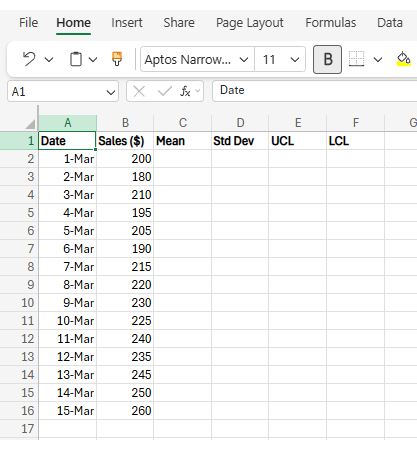
Step 1: Prepare the Data

Start by laying out the values in clear columns. Use a time marker (date, batch, sample number) and the measured results in the next column. Control Charts in Excel behave better when the series is clean—no mixed units, no blank rows hiding in the middle.

Control Chart in Excel

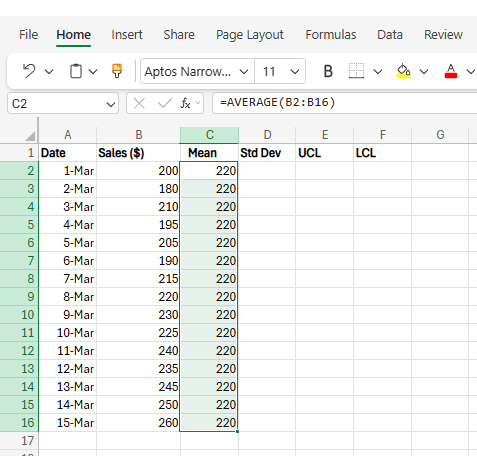
Step 2: Calculate the Center Line (Mean)

Compute the mean of the measured values to set the center line. That average becomes the baseline for the chart, so it needs to reflect the same stable period being monitored. Control Charts in Excel look convincing even with bad baselines, so double-check the range before moving on.

Formula used:
=AVERAGE(range)

Control Chart in Excel

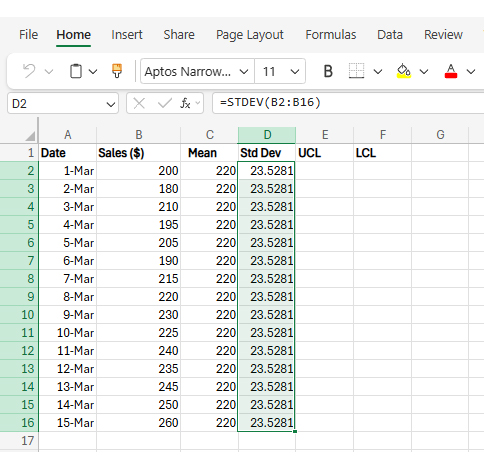
Step 3: Calculate the Standard Deviation

Next, calculate the standard deviation with =STDEV(range) (or =STDEV.S in newer Excel versions). That value describes how widely the points are spread around the mean, and it feeds the limit calculations. Without it, Control Charts in Excel can’t place limits that actually reflect the process.

Control Chart in Excel

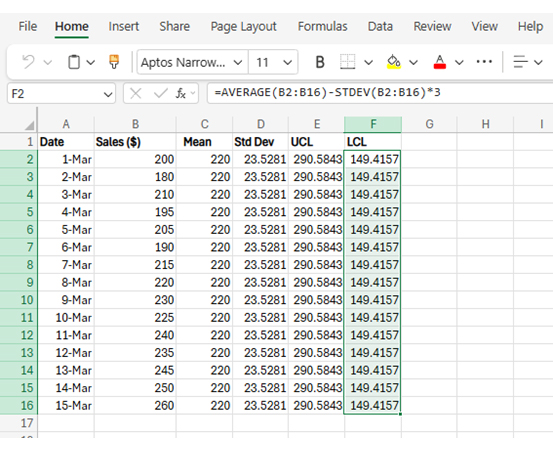
Step 4: Calculate the Control Limits (UCL & LCL)

Set the limits using the mean plus or minus three standard deviations. UCL: =AVERAGE(range) + (STDEV(range) * 3). LCL: =AVERAGE(range) − (STDEV(range) * 3). In Control Charts in Excel, these lines act as guardrails around the mean and help flag behavior that’s outside normal variation.

Control Chart in Excel

Step 5: Create the Chart

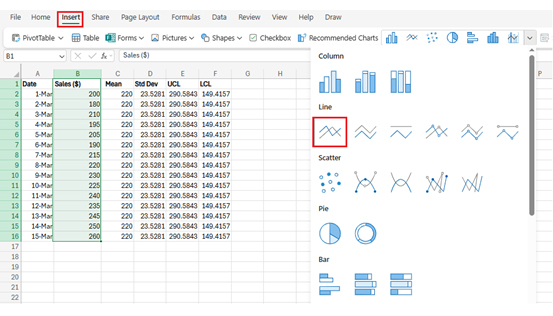
Build the baseline chart from the dataset (Insert → Chart → Line). For anyone searching for how to add a chart in Excel, that menu path is the usual starting point. In Control Charts in Excel, the mean and limit lines get layered on as separate series, not as hand-drawn shapes.

Control Chart in Excel

 Step 6: Add series for mean, UCL, and LCL

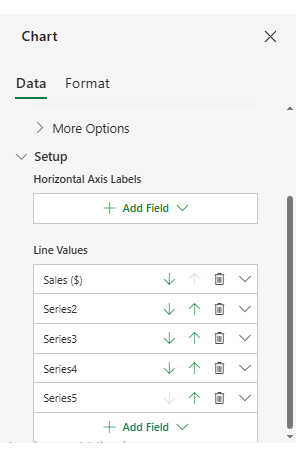
Right-click the chart and choose Select Data, then add series for the mean, UCL, and LCL. If the question is how to select data for a chart in Excel, the key is matching each series name to the correct value range. Keep the ranges aligned so every line spans the same time axis. That discipline is also how to update a chart in Excel later, without breaking the series when new rows get added.

Control Chart in Excel

 Step 7: Customize and Format the Chart

Clean up the presentation: tighten the title, label the axes, and place the legend where it doesn’t block the data. Use line styles that read well at a glance, such as dashed limit lines and a solid mean line. Convert the source range into an Excel Table so the chart refreshes when new data gets appended.

Control Chart in Excel

How to Create Efficient Control Charts in Excel with ChartExpo?

Excel can do the job by hand, but manual charts invite small mistakes: the wrong range, a copied formula, a limit line that stops early. Tools like ChartExpo cut that risk and speed up setup, especially when teams need advanced Excel charts without babysitting every detail. It’s a practical shortcut for building Control Charts in Excel when repetition and consistency matter.

ChartExpo’s upside usually comes down to a few simple wins:

  • It calculates the center line and limits automatically, so the math stays consistent.
  • It reduces formula copy-paste work and the formatting grind that nobody enjoys.
  • It produces cleaner visuals that are easier to read in a quick review meeting.
  • It refreshes smoothly as new rows arrive, which supports dynamic graphs in Excel without extra setup.
  • It makes interpretation easier for non-technical viewers who still need to act on the signal.
  • It keeps chart structure consistent across many processes, teams, and workbooks.

When the calculations and styling are handled for you, attention stays on the pattern, not the plumbing. That’s useful for creating a control chart in Excel at scale, where one small mistake can quietly ripple across dozens of sheets. Used well, ChartExpo keeps Control Charts in Excel fast to build and easier to trust.

 How to install ChartExpo in Excel?

  1. Open Microsoft Excel and start a new workbook so the add-in has a clean place to load.
  2. Create or open a worksheet, then go to the Insert tab on the ribbon.
  3. Select My Apps to open the Office Add-ins window in Excel.
  4. In the Store tab, search for ChartExpo directly in the add-ins catalog.
  5. Choose Add to install it, then let Excel finish the setup.

 ChartExpo works in both Microsoft Excel and Google Sheets, which helps when teams mix desktop files and shared spreadsheets. The point is speed: pick the chart, select the range, and get cool Excel charts and graphs without building every element from scratch.

Example

Use the sample dataset below to see what the chart looks like once everything is wired up.

Process Day

Processing Time

Day 1 195
Day 2 198
Day 3 202
Day 4 210
Day 5 205
Day 6 198
Day 7 190
Day 8 202
Day 9 208
Day 10 215
Day 11 225
Day 12 212
Day 13 205
Day 14 190
Day 15 208
Day 16 218
Day 17 212
Day 18 205
Day 19 185
Day 20 220
  • After installation, open the INSERT menu in Excel and choose My Apps to launch ChartExpo right away from the workbook.
Control Chart in Excel
  • The Apps for Office window will appear. Find ChartExpo in the list, then press Insert so it loads into the current workbook. It usually loads in seconds.
Control Chart in Excel
  • Once the add-in is loaded, search the chart list and choose “Control-Chart” as the chart type, then confirm the selection to continue.
Control Chart in Excel
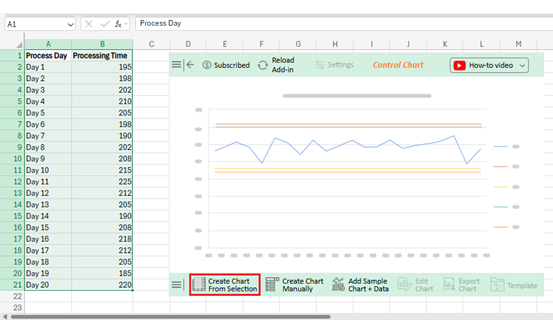
  • Select the dataset, then click Create Chart from Selection to generate the visualization.
  • The add-in will turn the selected range into a finished chart, including the key lines and labels.
Control Chart in Excel
  • Use Edit Chart to adjust settings without digging through a pile of manual formatting options.
Control Chart in Excel
  • To rename the chart, click the pencil icon in the header, type the new title, then hit Apply to lock it in for clarity. The change shows up immediately.
Control Chart in Excel
  • Enable the mean line under Chart Line Properties so the baseline stays visible during reviews.
Control Chart in Excel
  • Adjust legend color or shape in Legend Properties to keep the key readable and uncluttered.
Control Chart in Excel
  • Move label positions as needed so values don’t crash into lines or overlap each other.
Control Chart in Excel
  • Add footer text when context is needed, such as the source system or the sampling rule.
Control Chart in Excel
  • Add a postfix sign when units matter, like ms, %, or days, so the reader doesn’t guess.
Control Chart in Excel
  • After the changes look right, click Save to store the edits and keep the chart consistent.
Control Chart in Excel
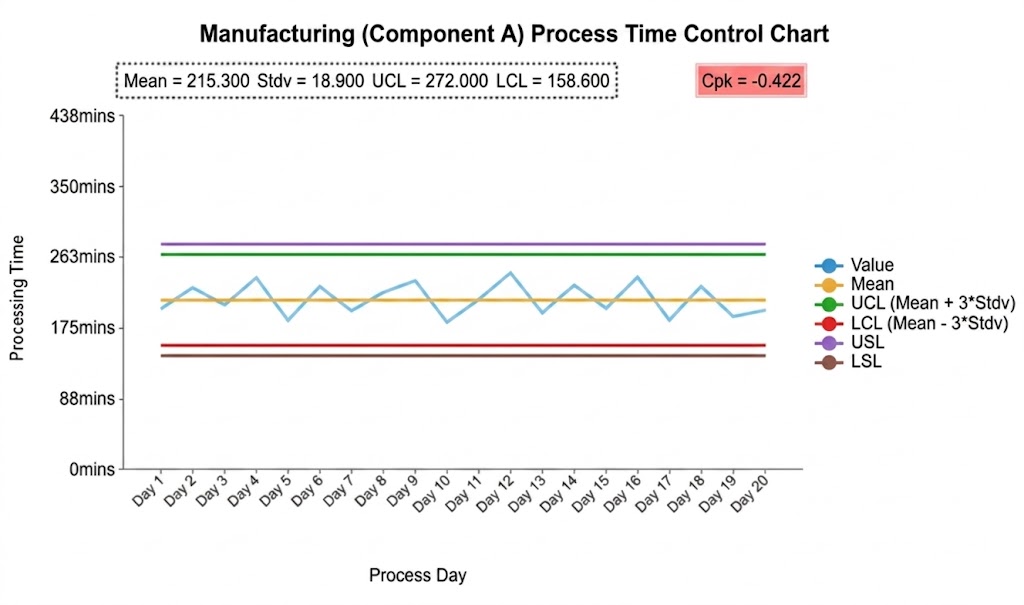
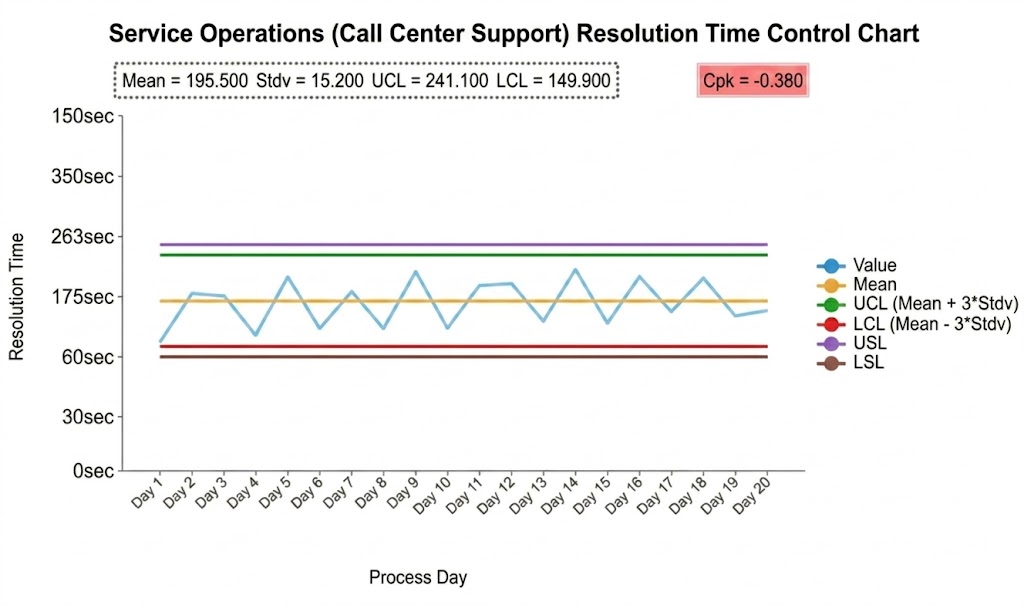
  • The finished chart should look like the final example shown below.
Control Chart in Excel

Key Insights

  • All points stay inside the limits, which suggests short-term stability with ordinary variation overall.
  • The mean line sits below the spec midpoint, so the process isn’t centered where it needs to be.
  • A negative Cpk usually means the process is off-center relative to the spec limits and needs adjustment to meet capability targets.

How to Read a Control Chart in Excel?

Building the chart is only half the work. Reading it well is where teams earn the benefit, because the goal is spotting real signals without chasing noise. Control Charts in Excel are meant to trigger questions at the right time, not create busywork.

Look for these signals when reviewing the plot:

  • Points outside the control limits: that’s special-cause variation, and it deserves a quick root-cause check.
  • Runs on one side of the center line: repeated points above or below the mean can indicate a step change.
  • Upward or downward trends: a steady climb or drop often signals gradual drift, not random scatter, over time.
  • Repeating or unusual patterns: cycles, clusters, or gaps can point to external forces or system behavior.

Once these patterns are understood, teams can choose when to intervene and when to let the process run. Overreacting is expensive. Ignoring real signals is worse.

Key Limitations of Creating Control Charts in Excel

Excel is flexible, but it isn’t a statistics platform. Excel Control Charts can work well, yet the manual approach starts to creak as the dataset grows and the audience widens.

  • Manual effort and frequent updates: formulas and formatting often get rebuilt every time the data range changes.
  • Basic statistical depth: Excel’s built-in tools stop short when deeper SPC rules or analysis are needed.
  • Data size drag: big datasets can slow workbooks down and make troubleshooting painful.
  • Formula risk: hand-built limits and copied ranges increase the odds of quiet, subtle errors.
  • Collaboration friction: sharing, version control, and approvals get messy when many people touch the same file.

None of that makes Excel unusable. It just means scale needs discipline, like locked ranges, reviews, or a control chart template in Excel that standardizes the setup. Without that, reliability drops as complexity rises.

Excel Control Charts vs ChartExpo (Comparison)

Excel can produce solid charts, but it often demands more manual work than teams expect. The comparison below highlights where a plain workbook differs from a ChartExpo-assisted approach.

Feature Control Charts in Excel Control Charts with ChartExpo
Setup effort Built by hand with formulas and repeated clicks Generated with the add-in in a few steps
Control limit calculation Limits computed manually Limits computed automatically
Risk of errors More room for typos and range mistakes Less manual entry, fewer slip-ups
Visualization quality Standard Excel look Cleaner, more presentation-ready visuals
Scalability It can get slow and fragile as rows grow Stays workable as data expands
Updates with new data Often needs range edits when new rows appear Refreshes when new rows are added
Ease of interpretation Takes more effort to interpret consistently Easier for most readers to interpret

Why ChartExpo Is Better for Creating Control Charts in Excel?

ChartExpo shifts the work from manual setup to repeatable automation. Instead of retyping formulas and tweaking lines, the chart is generated in a consistent format with a few clicks. That’s helpful when multiple processes need the same treatment.

ChartExpo for Excel reduces human error by limiting hand-entered formulas and one-off formatting. ChartExpo for Google Sheets offers a similar workflow for teams that live in shared, cloud-based files.

Less time building charts means more time acting on what the pattern shows. When the setup is repeatable, reviews move faster, and improvement work stays focused. Fewer reworks. Fewer debates.

FAQs

How many Control Charts are there?

Several types exist, including X-bar, R, S, Individuals (I-MR), p, np, c, and u charts. Each one fits a different data type, such as variable measurements or attribute counts. The right choice depends on the data and sampling plan.

What is the main purpose of a Control-Chart?

The goal is to monitor stability over time and separate routine variation from unusual change that needs action. It shows whether the process stays predictable and when the investigation should start.

Can Excel generate Control charts?

Yes. Excel can build them with formulas and line charts, and a Control Chart template in Excel can speed the setup. The tradeoff is that the workflow stays mostly manual unless an add-in is used.

Wrap Up

Control charts built in Excel are a practical way to monitor performance and spot variation before it becomes a real problem. With the mean, standard deviation, and control limits in place, it’s easier to tell ordinary fluctuation from a signal that needs attention. Excel’s flexibility also makes updates simple when new rows arrive. Just don’t skip data checks, or the picture lies. Lock key cells.

Add-ins like ChartExpo can make the charts cleaner and faster to produce, especially when many processes need the same view. Whether the metric is quality, sales, or cycle time, a well-built chart supports steadier operations, clearer decisions, and ongoing improvement. It also helps keep formatting consistent, so reviews don’t turn into debates.

How much did you enjoy this article?

ExcelAd2
Start Free Trial!
157858

Related articles

next previous
Microsoft Excel12 min read

Forecasting Using Excel: Visual Methods That Work

Forecasting using Excel helps businesses turn past data into clear predictions. It shows trends, highlights patterns, and guides decisions with accuracy.

Microsoft Excel11 min read

Sparkline in Excel: Visual Insights at a Glance

Sparkline in Excel helps visualize trends fast. Learn to create, customize, and analyze sparklines with ChartExpo for clearer, actionable insights.

Microsoft Excel13 min read

Financial Charts: Tips, Best Practices, and Examples

Explore financial charts and graphs to improve data analysis, reveal trends, and make smarter business decisions with clear visual insights.

Microsoft Excel12 min read

Excel Chart Templates for Insightful Presentations

Learn how chart templates save time and boost consistency in Excel. This guide covers benefits and top chart examples to improve your data visuals.

Microsoft Excel13 min read

Excel Automation: Turning Data into Insights Faster

Excel automations help you save time, reduce errors, and streamline your tasks. Learn simple methods to automate reports and work smarter in Excel.

ChartExpo logo

Turn Data into Visual
Stories

CHARTEXPO

  • Home
  • Gallery
  • Videos
  • Services
  • Pricing
  • Contact us
  • FAQs
  • Privacy policy
  • Terms of Service
  • Sitemap

TOOLS

  • ChartExpo for Google Sheets
  • ChartExpo for Microsoft Excel
  • Power BI Custom Visuals by ChartExpo
  • Word Cloud

CATEGORIES

  • Bar Charts
  • Circle Graphs
  • Column Charts
  • Combo Charts
  • Comparison Charts
  • Line Graphs
  • PPC Charts
  • Sentiment Analysis Charts
  • Survey Charts

TOP CHARTS

  • Sankey Diagram
  • Likert Scale Chart
  • Comparison Bar Chart
  • Pareto Chart
  • Funnel Chart
  • Gauge Chart
  • Radar Chart
  • Radial Bar Chart
  • Sunburst Chart
  • see more
  • Scatter Plot Chart
  • CSAT Survey Bar Chart
  • CSAT Survey Chart
  • Dot Plot Chart
  • Double Bar Graph
  • Matrix Chart
  • Multi Axis Line Chart
  • Overlapping Bar Chart
  • Control Chart
  • Slope Chart
  • Clustered Bar Chart
  • Clustered Column Chart
  • Box and Whisker Plot
  • Tornado Chart
  • Waterfall Chart
  • Word Cloud
  • see less

RESOURCES

  • Blog
  • Resources
  • YouTube
SIGN UP FOR UPDATES

We wouldn't dream of spamming you or selling your info.

© 2026 ChartExpo, all rights reserved.