Categories

What is an Excel template for job tracking doing on so many desktops around the world? Helping people stay sane.


How?
An Excel template for job tracking gives structure to chaos. It shows what’s due, what’s behind, and what’s next. Whether you’re managing a team or working solo, you need a clear view. No noise. No endless tabs. Simply open the file to view everything.
Do you also need to monitor staff hours? A time-tracking template for Excel can help. Instead of juggling apps, use a single spreadsheet that tracks both jobs and time. It’s fast, familiar, and efficient.
Many overlook the capabilities of Excel. With the right project tracker template in Excel, you can track deliverables and keep your workflow clean. It’s the kind of tool that quietly saves hours every week.
This guide shows you how to use an Excel template for job tracking effectively.
So, without further ado, let’s make job tracking clear and doable.
First…
Definition: A job tracking Excel template is a ready-made spreadsheet that helps you stay on top of tasks. It keeps work organized and easy to follow. You can list jobs, set deadlines, and track progress in one place.
Many people also use a task-tracking spreadsheet to manage their daily work. If you’re keeping up with team hours too, an attendance tracking in an Excel sheet fits right in. It’s a simple way to stay in control, without the tech headache.
Let’s be honest—most of us don’t have time to learn new tools every week. Life moves fast, and work moves faster. That’s why an Excel template for job tracking is such a lifesaver. It’s not flashy, nor trendy. But it works.
Here’s why people stick with it:
Your brain can only hold so much. Between emails, deadlines, and people asking, “Where’s that file?” it’s easy to lose track. That’s where Excel becomes a quiet lifesaver. Here are a few job tracking Excel templates that make your workflow more straightforward to manage:
Have you ever opened a spreadsheet and thought, “Where do I even start?” Don’t worry; making an Excel template for job tracking doesn’t need to be complicated. All you need is a simple setup and a few clever tweaks:
Let’s face it. Excel is excellent until it isn’t. It keeps your tasks in line, your projects on track, and your chaos somewhat managed. But when it’s time to turn that raw data into something visual? That’s where Excel throws up its hands. That’s why Excel templates for job tracking tools are only half the answer. The other half? Better visuals.
Enter ChartExpo. This add-in brings powerful, clean, and customizable charts right into Excel.
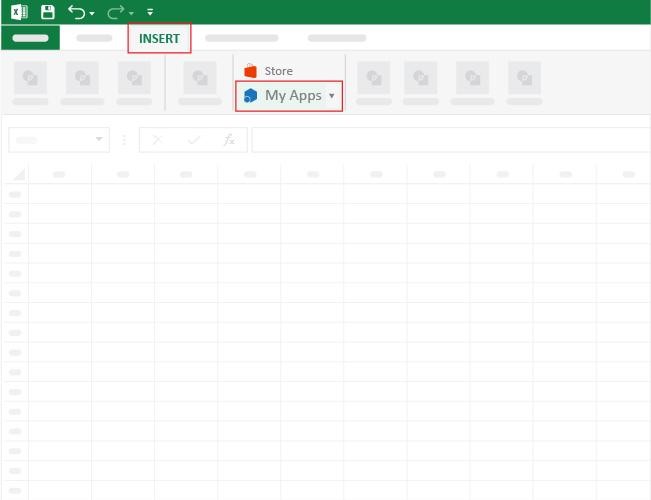
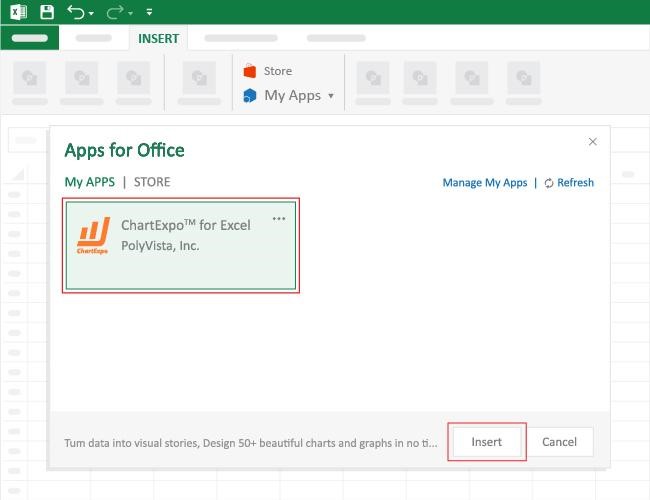
How to Install ChartExpo in Excel?
ChartExpo charts are available both in Google Sheets and Microsoft Excel. Please use the following CTAs to install the tool of your choice and create beautiful visualizations with a few clicks in your favorite tool.
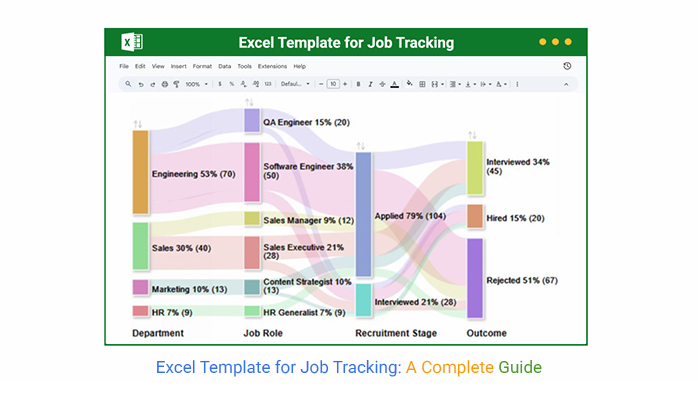
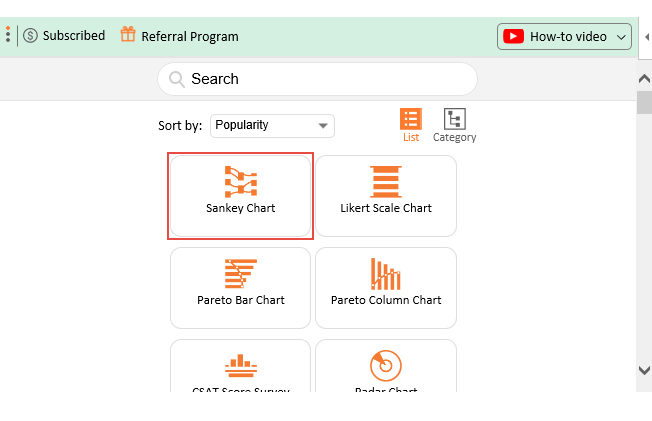
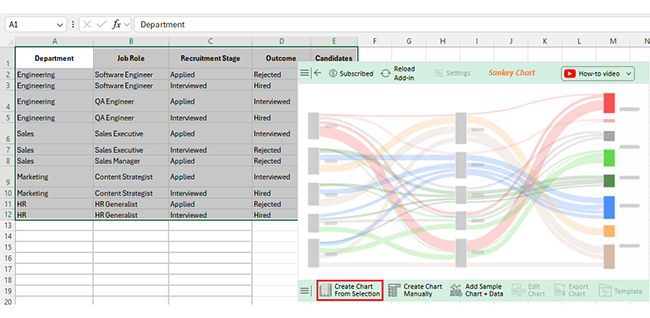
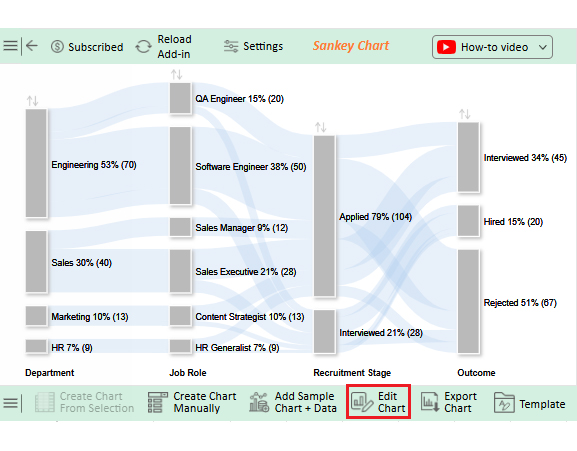
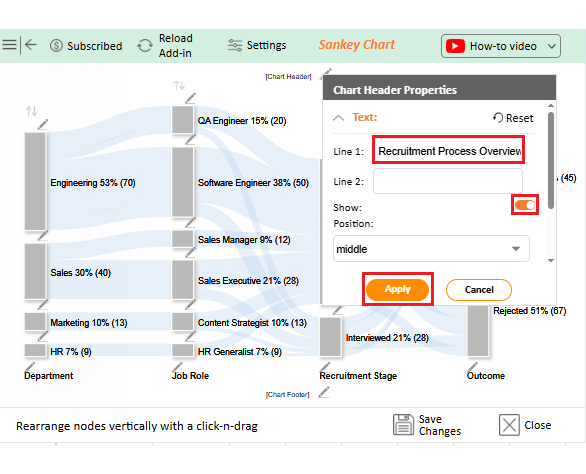
Let’s analyze this sample data in Excel using ChartExpo to create a clear and insightful Sankey chart.
| Department | Job Role | Recruitment Stage | Outcome | Candidates |
| Engineering | Software Engineer | Applied | Rejected | 40 |
| Engineering | Software Engineer | Interviewed | Hired | 10 |
| Engineering | QA Engineer | Applied | Interviewed | 15 |
| Engineering | QA Engineer | Interviewed | Hired | 5 |
| Sales | Sales Executive | Applied | Interviewed | 20 |
| Sales | Sales Executive | Interviewed | Rejected | 8 |
| Sales | Sales Manager | Applied | Rejected | 12 |
| Marketing | Content Strategist | Applied | Interviewed | 10 |
| Marketing | Content Strategist | Interviewed | Hired | 3 |
| HR | HR Generalist | Applied | Rejected | 7 |
| HR | HR Generalist | Interviewed | Hired | 2 |
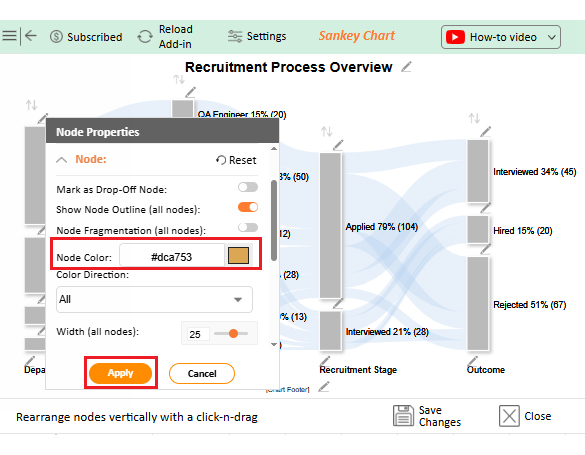
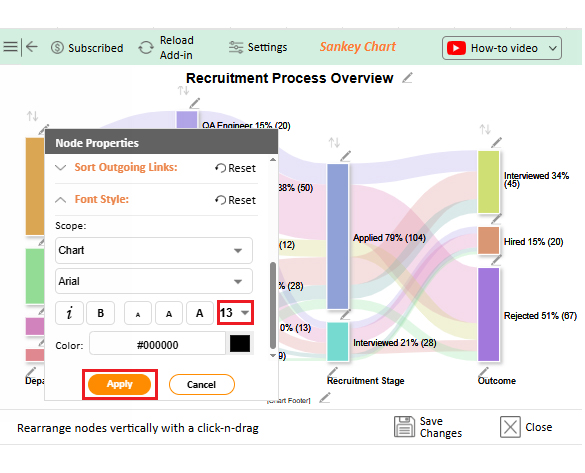
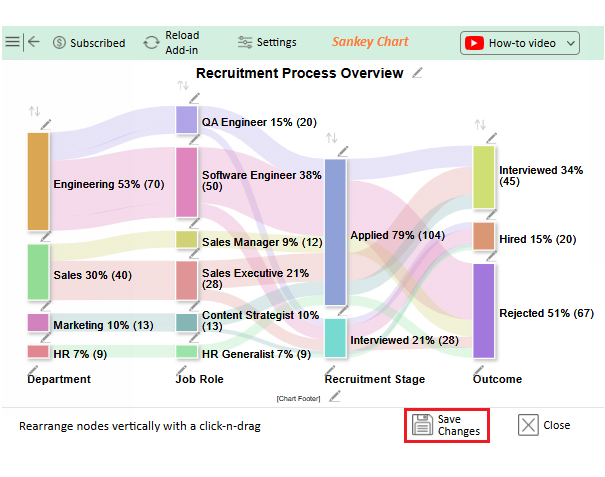
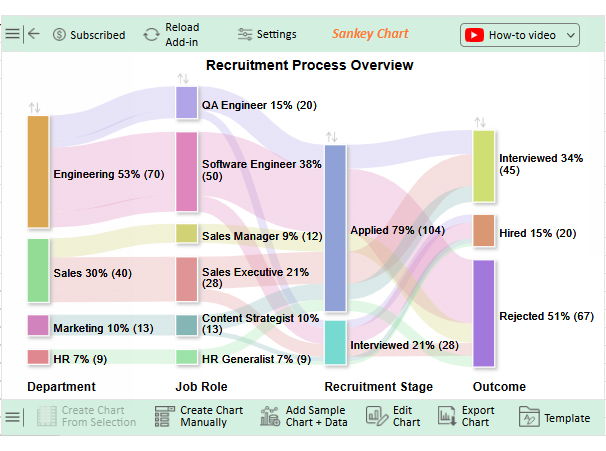
Have you ever wished you could skip the setup and get straight to work? Downloading a job tracking Excel template is one of the fastest ways to stay organized without starting from scratch. Here’s how to do it the smart way:
Spreadsheets don’t have to be boring. Your Excel spreadsheet for job tracking can become the command center of your workday, with the right approach. No need for fancy software or a project management degree. Follow these steps to make it work for you:
Excel is everyone’s go-to because it’s already sitting on your desktop. It’s quick, familiar, and does a decent job of organizing chaos.
But no tool is perfect. While a job tracking Excel template can be a game-changer, it’s not without its quirks. Let’s break down the pros and cons:
Spreadsheets are great—until they aren’t. That job tracker spreadsheet you started with so much hope can quickly turn into a mess if you’re not careful. Sure, Excel gets the job done for simple tracking. But as things grow, so do the headaches.
Here are a few common issues that sneak up on even the best planners:
Does your job tracking template in Excel feel more confusing than helpful? A few smart moves can turn that cluttered sheet into something that helps you breathe:
Excel can be more than rows and columns. With a proper setup, it becomes a reliable tracking tool. It works perfectly regardless of whether you’re managing tasks, people, or deadlines; it works.
A job tracking Excel template helps you stay on top of everything. It cuts down confusion, showing you what’s done and what’s next. Want to go further? Pair it with a time-tracking template for Excel. That way, you not only track the job but also the hours spent on it.
Need to handle people skills, too? Use skills matrix templates with your job tracker. They help you match the right person to the right job. With a glance, you can assign tasks based on expertise rather than guesswork. This ensures the right person is always working on the right job, leading to faster delivery and higher quality outcomes.
Working in non-profits or grants? Combine your tracker with a grant tracking spreadsheet. Non-profit organizations often juggle multiple funding sources, strict compliance requirements, and tight deadlines. A grant tracking template helps you organize funding details, reporting obligations, and milestone dates—all in one centralized place. This means you can easily see which grants are active, what reports are due, and how funds are allocated.
In conclusion, Excel does more than people think. It can be your manager—if you set it up right. Leverage templates and data visualizations with ChartExpo to turn Excel into a powerful productivity hub. The result? Your team will stay organized as your projects move forward.
How much did you enjoy this article?


Learn how to use sparklines in Excel to quickly visualize trends inside cells. Discover types, creation steps, customization, use cases, benefits, and best practices.

Learn what a confidence interval graph is, how to create it in Excel, and how to interpret results to make more reliable, data-driven decisions.

A correlation matrix in Excel helps identify relationships between variables. Learn how to create, read, and use it for effective data analysis.