Categories

Issue tracker template—why does every project manager eventually search for one? Because even the best-run teams hit snags – a miscommunication, a missed deadline, or a bug in the final sprint. These issues can pile up. And without a clear system, they slip through the cracks.
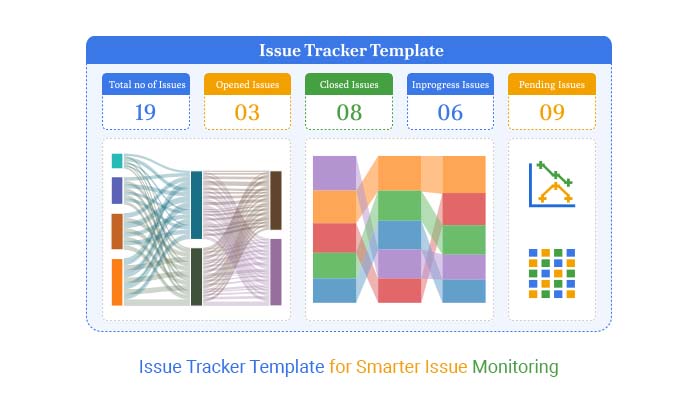


This is where an issue tracker template comes into play.
A well-structured issue tracker template in Google Sheets turns chaos into clarity. You log each problem and assign ownership to track resolution. Consequently, every stakeholder stays on the same page—no more chasing updates through emails or Slack threads.
Teams working in agile, marketing, or software development rely on this kind of system. Not because it sounds good in theory but because it works. You can build one in minutes, scale it for big teams, and update it live.
But building the template is only half the job. The real power lies in the analysis. What types of issues come up most? Which team members resolve the fastest? How long does resolution usually take? That’s where data reporting turns your tracker from a list into a tool for intelligent decisions.
A good issue tracker template should evolve as your project grows. Add tags, filter by priority, group by category, and tie it into your broader reporting ecosystem. Then, combine it with your project status reports template.
I will walk you through it step by step. First, let’s understand the basics…
Definition: A bug tracker template in Google Sheets enables teams to log and manage software bugs efficiently. It lists each bug’s status, priority, assignee, and resolution steps. You can filter issues by severity or track recurring problems to stay on top of them. This makes data reporting easier and more transparent.
Teams often use this template with inventory tracking in Google Sheets to identify technical issues related to product data. It’s simple to share, update, and use—ideal for agile teams needing fast bug visibility and resolution.
Have you ever spotted a bug, logged it, and then watched it vanish into thin air? It happens more often than it should. That’s why using a bug-tracking report template in Google Sheets is a sensible approach. It’s not only smart—it’s practical, and here’s why:
Are you tired of issues getting lost in your inbox or forgotten on sticky notes? Google Sheets can fix that. It’s more than a spreadsheet—it’s a live, shareable workspace. Using it for issue tracking is smarter than it sounds. Here’s how it works:
Not all bugs crawl through code. Some hide in overlooked pages, broken workflows, or misrouted tickets. A bug tracker template in Google Sheets can cover all of that—if you set it up correctly.
Here’s how different teams use it every day:
Creating a project issue tracker template in Google Sheets isn’t just brilliant—it’s efficient. No waiting on IT, and no need to buy software. You build it yourself, fast. And once it’s live, your team stays focused and accountable.
Here’s how to create one that works for real projects, real deadlines, and real teams:
| Issue ID | Project Name | Issue Description | Priority | Location | Status | Assigned To | Date Reported | Date Resolved |
| 1 | Project X | Delay in server response | High | Texas | In Progress | Jason Reed | 3-Jan-2025 | |
| 2 | Project Y | UI button misalignment | Low | Georgia | Open | Ava Coleman | 5-Jan-2025 | |
| 3 | Project Z | Error during form submission | Medium | Oregon | Closed | Daniel Harris | 6-Jan-2025 | 2025-01-10 |
| 4 | Project X | Data sync issue on mobile | Medium | Michigan | In Progress | Kevin Patel | 7-Jan-2025 | |
| 5 | Project Y | Inconsistent drop-down values | High | Arizona | Closed | Kevin Patel | 8-Jan-2025 | 2025-01-13 |
| 6 | Project A | Report export failure | High | Illinois | In Progress | Mia Robinson | 9-Jan-2025 | |
| 7 | Project B | Spelling mistake in email | Low | Ohio | Closed | Mia Robinson | 10-Jan-2025 | 12-Jan-2025 |
| 8 | Project Z | Broken navigation links | Medium | Nevada | In Progress | Emily Nguyen | 11-Jan-2025 | |
| 9 | Project X | Missing validation message | Low | Utah | Closed | Jordan Lee | 12-Jan-2025 | 14-Jan-2025 |
| 10 | Project Y | Login timeout too short | High | New York | Escalated | Olivia Martinez | 13-Jan-2025 | |
| 11 | Project A | PDF download not working | Medium | Missouri | Closed | Olivia Martinez | 14-Jan-2025 | 17-Jan-2025 |
| 12 | Project B | Image not rendering | Low | Vermont | In Progress | Natalie Brooks | 15-Jan-2025 | |
| 13 | Project Z | Incorrect currency symbol | High | Wisconsin | Open | Olivia Martinez | 16-Jan-2025 | |
| 14 | Project X | Dashboard layout broken | Medium | South Dakota | Closed | Chloe Adams | 17-Jan-2025 | 20-Jan-2025 |
| 15 | Project Y | API response slow | Low | Mississippi | In Progress | Abigail Evans | 18-Jan-2025 | |
| 16 | Project A | Form auto-submit issue | High | Nebraska | Closed | Abigail Evans | 19-Jan-2025 | 22-Jan-2025 |
| 17 | Project Z | Mobile UI overlapping | Low | Colorado | Open | Abigail Evans | 21-Jan-2025 | |
| 18 | Project X | Session expiration is too quick | Medium | Tennessee | Closed | Abigail Evans | 22-Jan-2025 | 25-Jan-2025 |
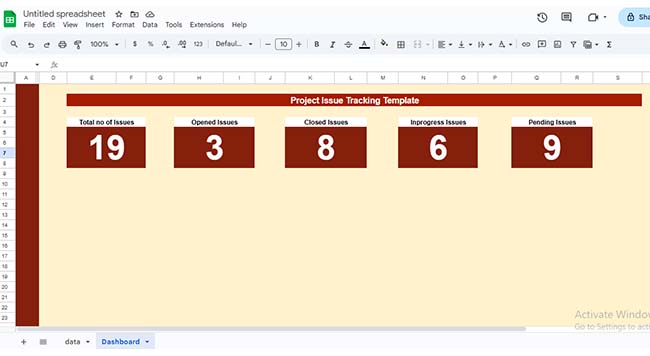
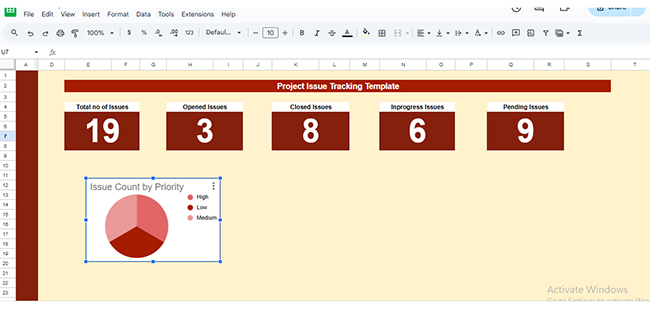
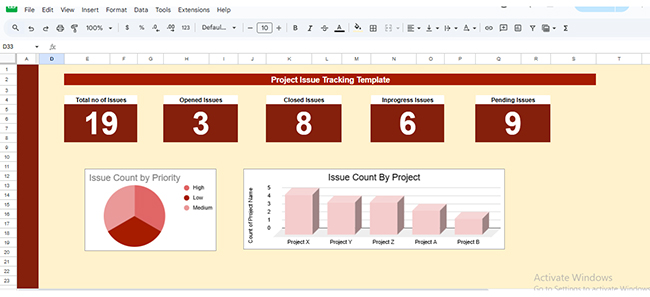
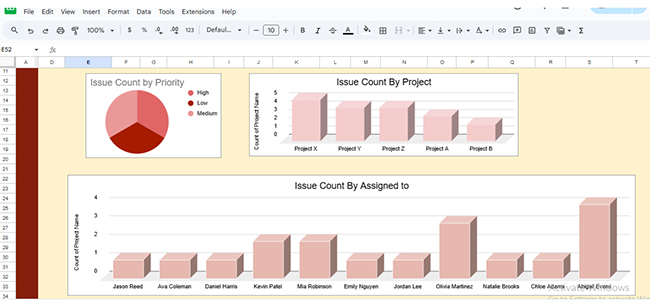
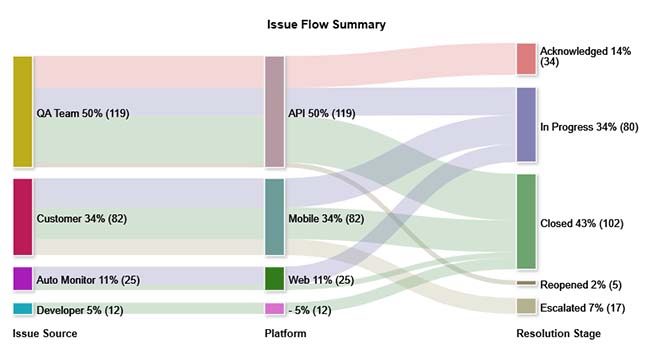
Discover the power of visual tracking! Explore these top issue tracker charts in Google, created with ChartExpo to help you monitor and manage issues effortlessly.
The Sankey Graph visualizes the flow of issues between categories, such as status or department. It clearly shows where problems originate, how they progress, and where they ultimately end up, helping you identify bottlenecks.
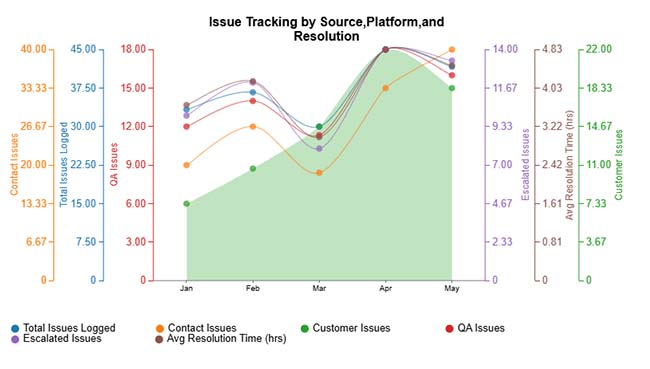
Tracks multiple trends over time, including the number of issues created, resolved, and still open. It’s ideal for spotting patterns in your backlog and measuring progress at a glance.
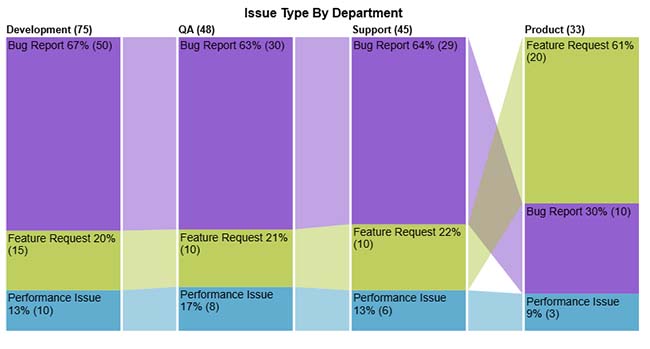
A Comparison Bar Chart uses bars to compare different categories side by side. Whether it’s issue types, priorities, or team performance, this chart makes comparisons fast and easy.
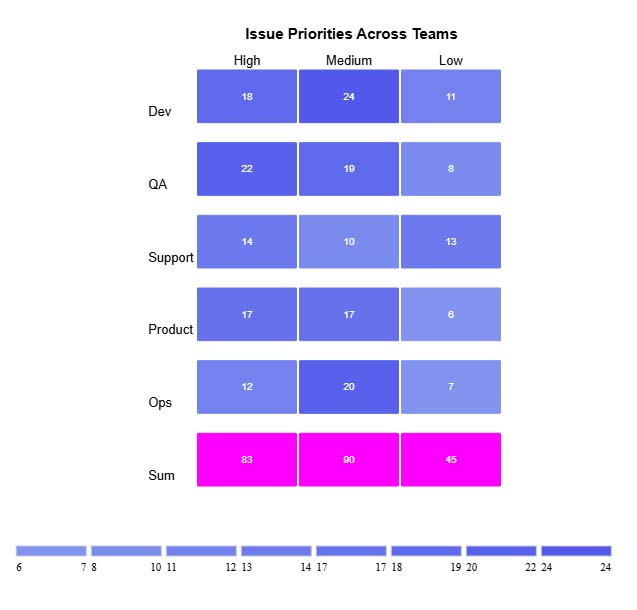
This chart displays the relationship between two variables using color intensity. It highlights hotspots or trends, such as which project locations or issue types have the highest counts.
Have you ever tried turning a messy issue list into a clear picture? That’s the challenge of data analysis. Google Sheets handles data effectively but struggles to create eye-catching, insightful visuals. It’s like having all the ingredients but no recipe for a great dish.
That’s where ChartExpo steps in. This data visualization tool spices up your project issue tracker template with powerful charts like the Waterfall chart and other easy-to-read visuals. Suddenly, data isn’t just numbers—it tells a story.
How to Install ChartExpo in Google Sheets?
ChartExpo charts are available in both Google Sheets and Microsoft Excel. Use the CTAs below to install the tool of your choice and create beautiful visualizations, including a Scatter plot chart, in just a few clicks in your favorite platform.
Let’s visualize and analyze this sample data in Google Sheets using ChartExpo.
| Issue Source | Platform | Priority Level | Initial Status | Resolution Stage | Department | Issue Count |
| QA Team | Web | High | New | In Progress | Development | 10 |
| Customer | Mobile | Medium | Open | Escalated | Support | 7 |
| Auto Monitor | API | High | Acknowledged | Closed | QA | 8 |
| Developer | Web | Low | New | Closed | QA | 4 |
| Customer | Web | Low | Open | Closed | QA | 5 |
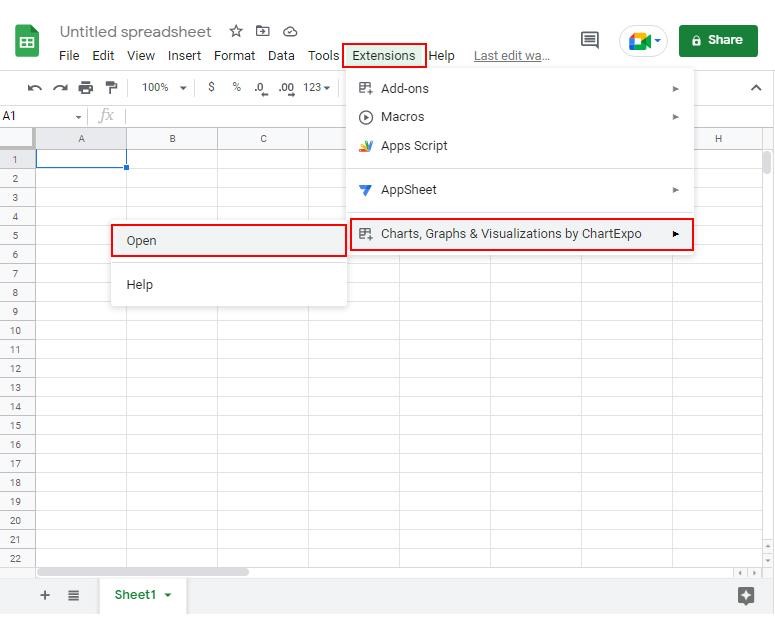
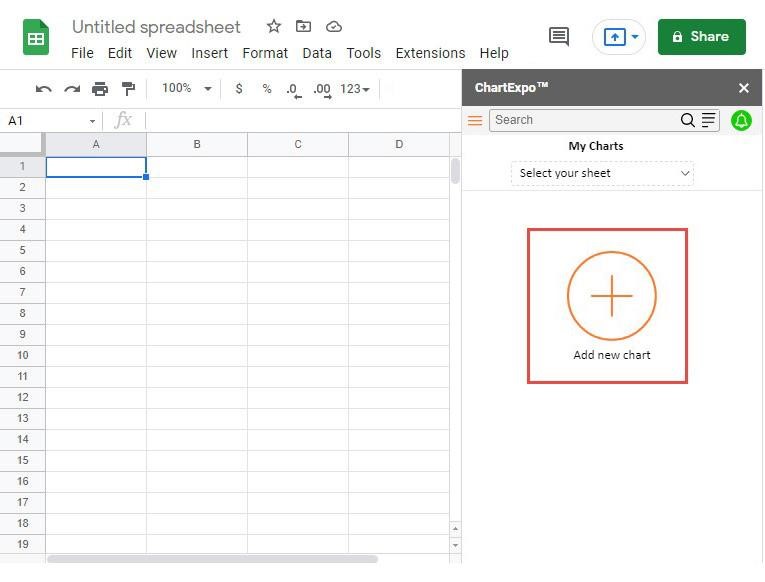
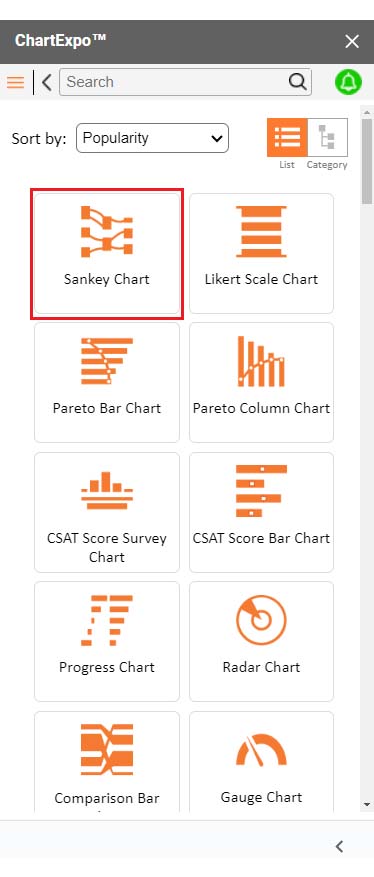
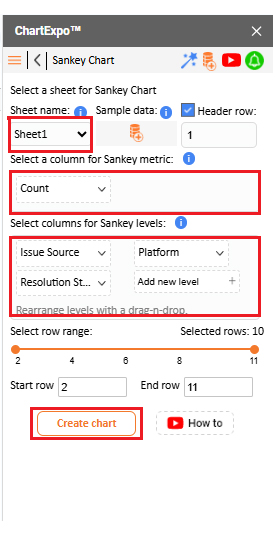
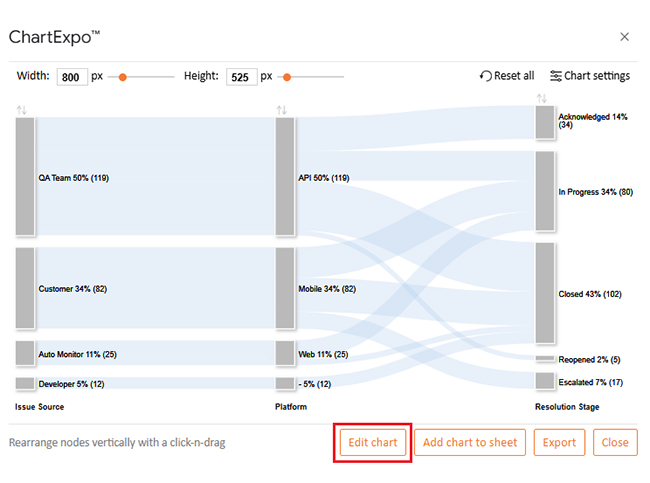
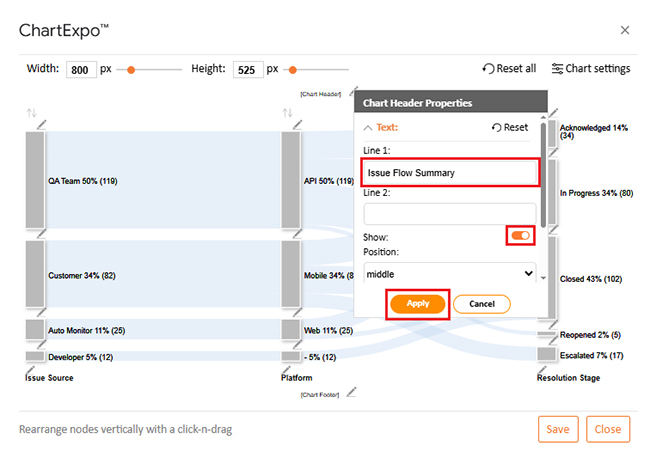
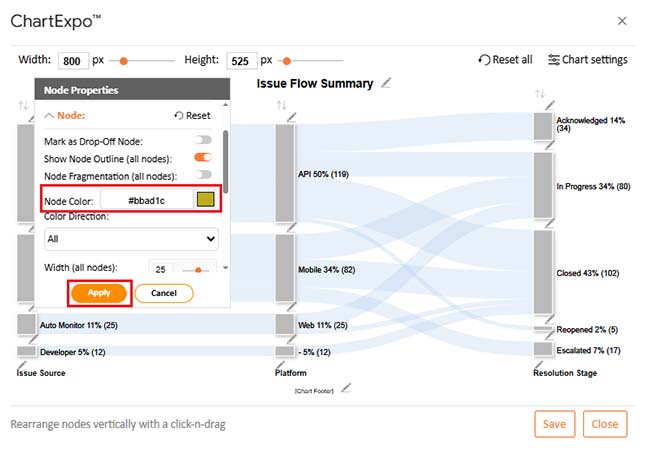
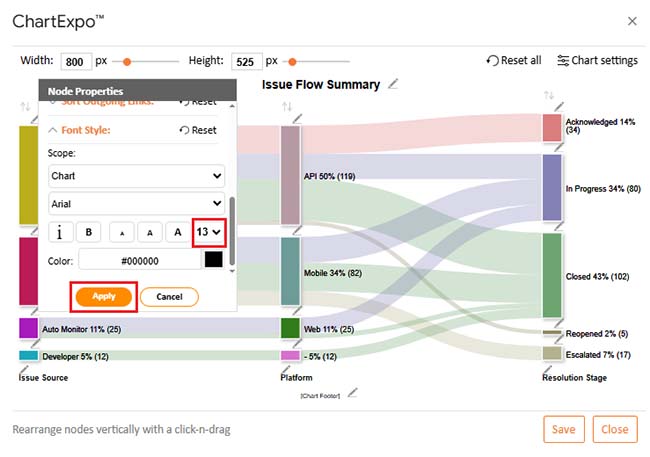
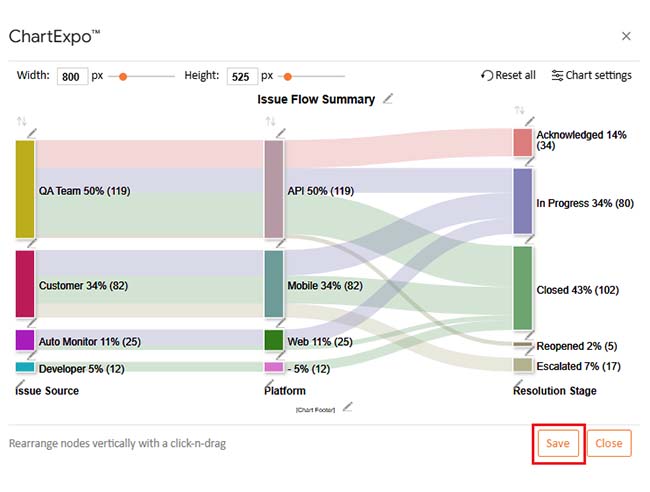
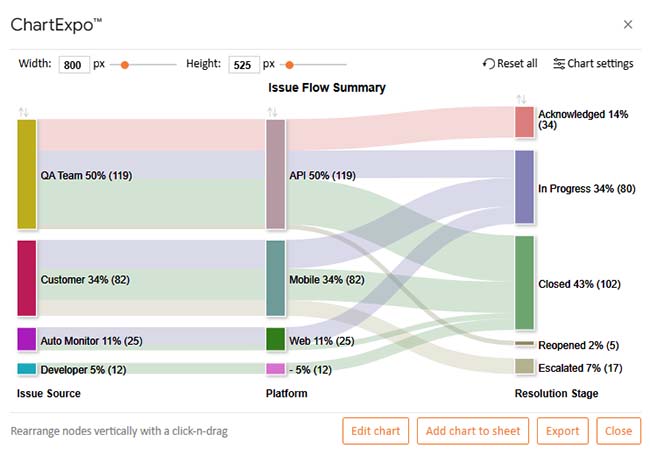
Have you ever felt overwhelmed by issue logs, email chains, and endless Slack messages? That’s where a Google Sheets issue tracker template earns its place. It’s quick to set up, simple to use, and scales with your team. You won’t need a fancy tool—just a clear system that works.
Here’s why it’s worth it:
Yes, there are free templates for issue tracking. Google Sheets offers several options. You can find them online with a quick search. How? Look for templates with pre-set columns and formulas. They help teams stay organized without extra cost.
A good project issue tracker template starts with a solid structure. Define clear columns and maintain consistent entries. This avoids confusion and makes reporting easier. Use formulas to track key metrics. This helps monitor open, closed, and in-progress issues. It’s simple but powerful for daily reviews.
Issue tracking is more than closing bugs. It’s about knowing what slows progress. Charts help you spot trends fast. This is where visuals matter, and Google Sheets has basic charts. For better clarity, use ChartExpo. It turns your data into easy insights.
You can link your tracker with inventory tracking in Google Sheets. This indicates whether missing items cause delays and brings your task and asset views together.
Finally, use insights for planning. Combine issue tracking with project status report templates. Or align results with Succession planning templates to reduce workflow risks. With the right template, your team won’t miss a beat.
How much did you enjoy this article?



Calculate accounts receivable turnover ratio to measure credit collection speed, improve cash flow, and strengthen your financial strategy. Read on!
Change Management KPIs are the key to tracking adoption, performance, and ROI during transitions. Find out which metrics matter. Read on!
Data collection methods and techniques determine the quality of every insight you act on. Explore key approaches for gathering reliable data. Read on!