Categories

What is Import XML to Google Sheets, and why does it matter to so many professionals today? Data drives decisions, and companies handle enormous amounts of it every second. With a simple function, you can pull structured data directly into your spreadsheets. No extra software. No complicated coding.


The IMPORTXML function turns a static spreadsheet into a dynamic data hub. Imagine getting live currency rates, news feeds, or product listings without manual updates. That’s the power of Import XML to Google Sheets.
Google Sheets ranks among the top choices for cloud-based collaboration. With this growing demand, you expect seamless integration with Google Spreadsheets for their daily operations. For this reason, integrating XML feeds is no longer a bonus — it’s a must. Data access should feel natural, not forced.
As teams expand across locations, sharing insights remains critical. Moreover, knowing how to share a Google Sheets without disrupting workflows matters. Teams can collaborate, comment, and edit together in real time. This smooth exchange saves hours and helps maintain data integrity.
Data is no longer a static resource. It flows, updates, and changes by the minute. With tools like Import XML to Google Sheets, your spreadsheet becomes more than a table. It’s an innovative solution for fast-paced business needs.
Let’s dive deeper…
Definition: Importing XML to Google Sheets lets you pull structured XML data directly into your spreadsheet using simple functions. It works using a simple formula inside Google Sheets. This enhances Google Sheets functionality by automating live data imports.
You can fetch information from websites, APIs, or online reports. This feature also enhances Google Sheets’ artificial intelligence capabilities by providing real-time data for analysis and insights. It saves time and removes the need for manual copying.
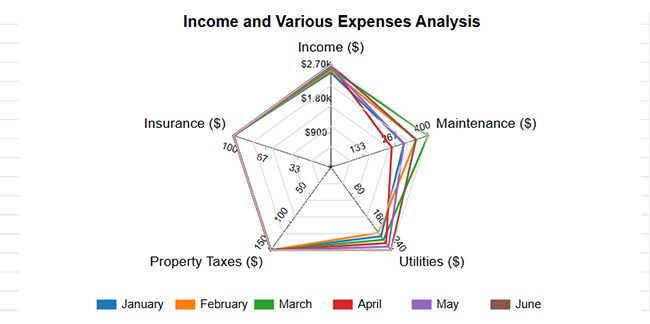
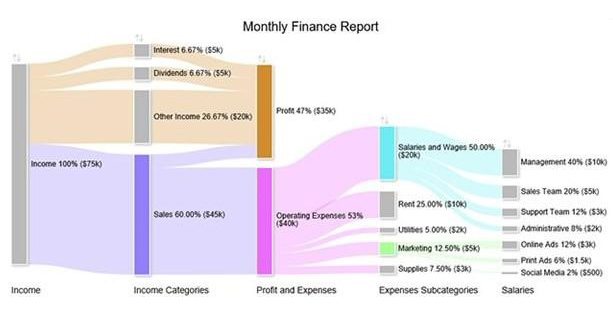
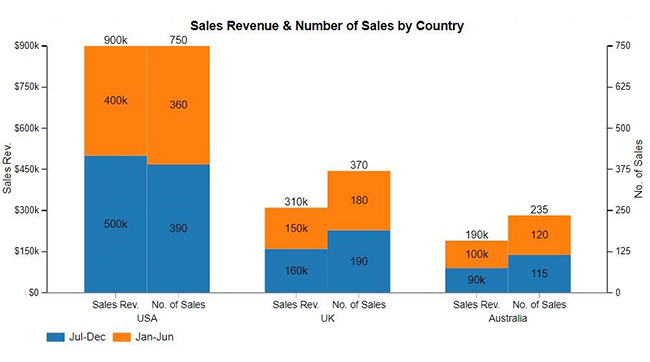
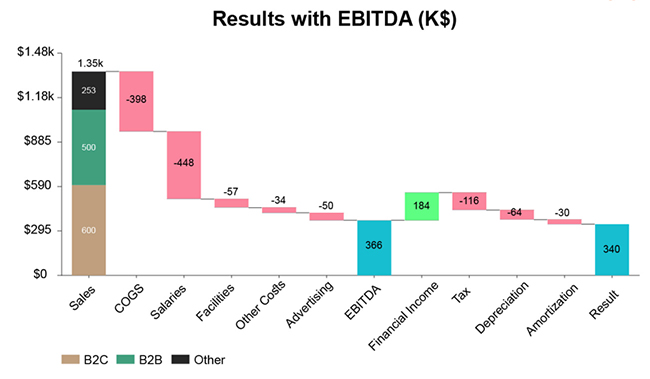
Explore the top five charts to analyze XML data imported to Google Sheets. These charts were created using ChartExpo for clear, powerful insights:
Copying and pasting data from websites into your spreadsheets is slow, tedious, and prone to mistakes. Now, imagine pulling live data straight into Google Sheets with just one formula. That’s what ImportXML does. It automates the hard work so you can focus on what matters—analyzing and acting on your data.
Here’s why using Google Sheets IMPORTXML can transform your workflow:
Have you ever wished your spreadsheet could act like a live dashboard? That’s precisely what happens when you bring Import XML to Google Sheets into your workflow. It turns a simple sheet into a live data powerhouse.
Here are real scenarios where Google Spreadsheet Integration makes a real impact:
Have you ever gotten tired of chasing down updates or copying data from endless websites? Importing XML to Google Sheets solves that. It fetches live information straight into your sheet — fast, automatic, and precise. Here’s how the IMPORTXML function in Google Sheets helps in a real situation:
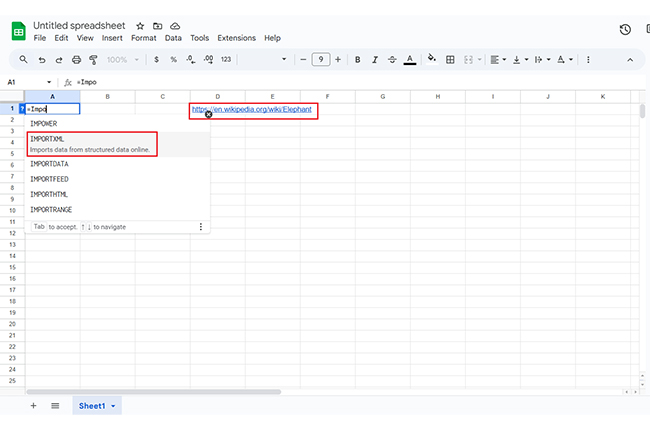
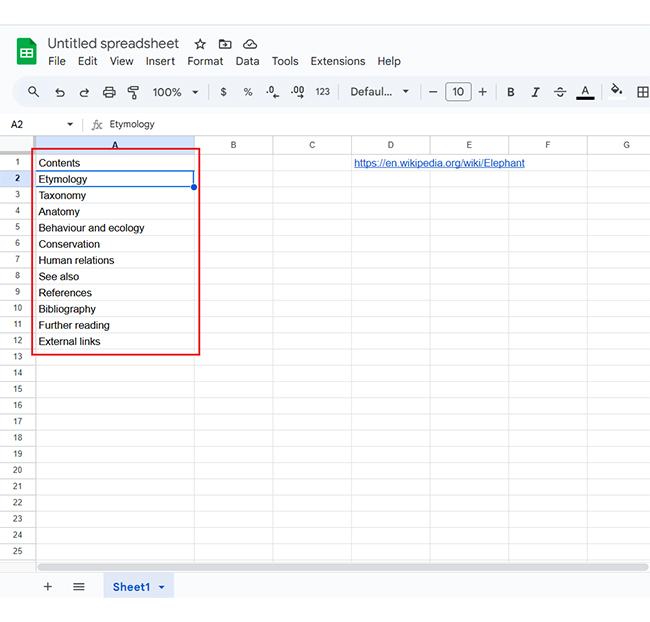
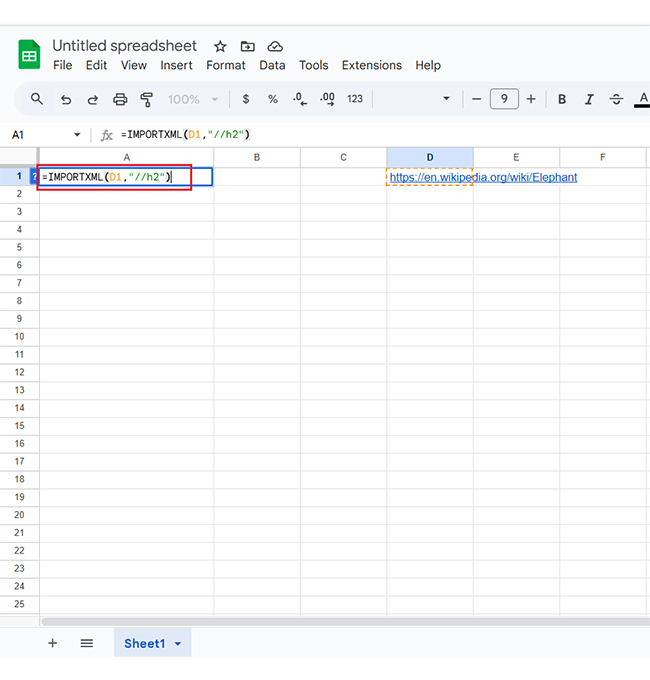
The URL is the webpage or feed from which you want to retrieve data. The XPath query instructs Google Sheets on which part of the data to retrieve.
Have you ever wished you could grab data from a website without lifting a finger? With Import XML to Google Sheets, you can. And the best part? It’s easier than you think — no special skills required. Your spreadsheet does the fetching for you.
How?
Have you ever tried turning a pile of numbers into a story? Importing XML to Google Sheets alone won’t win you that clarity.
That’s where data visualization comes in. It makes raw data clear, sharp, and meaningful. However, despite Google Sheets’ ability to handle data well, its charts often fall short. Basic graphs, clunky visuals, and limited options leave your insights buried.
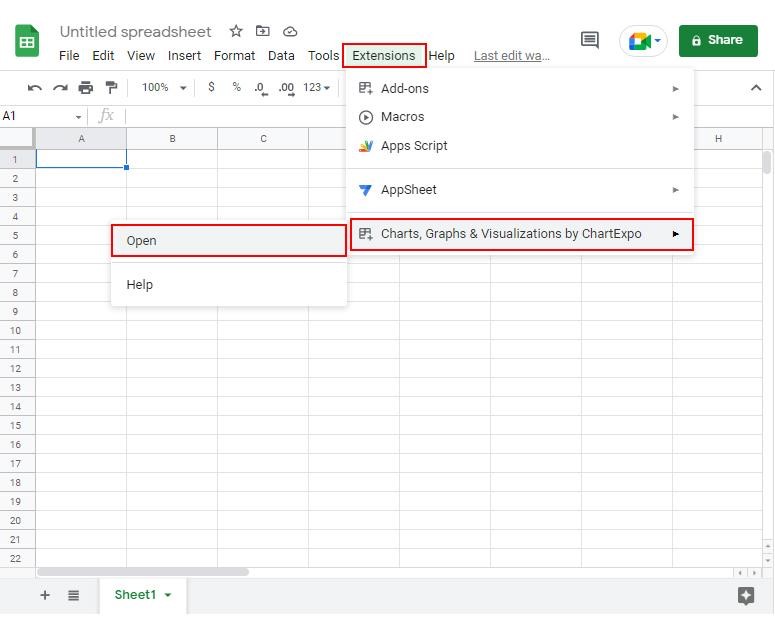
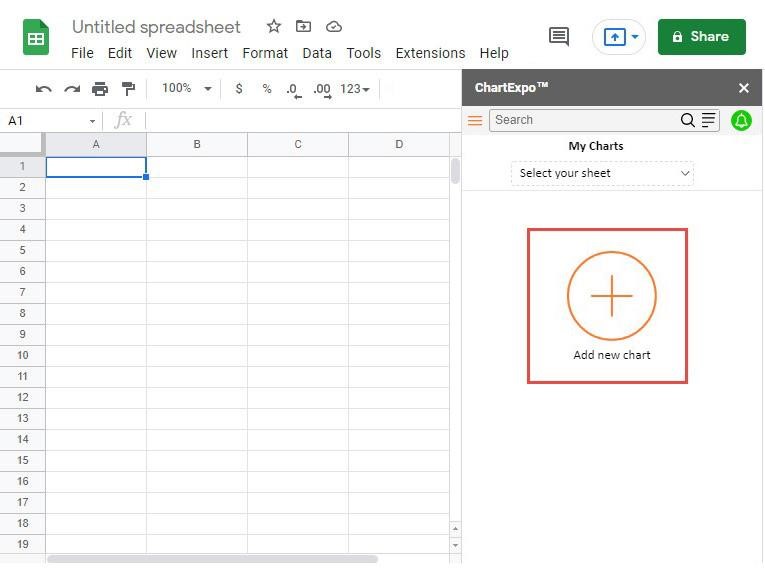
This is where ChartExpo steps in. It plugs right into Google Sheets and powers up your charts. With ChartExpo, your data speaks louder, clearer, and brighter, and you can even create a Scatter plot chart to visualize relationships between variables.
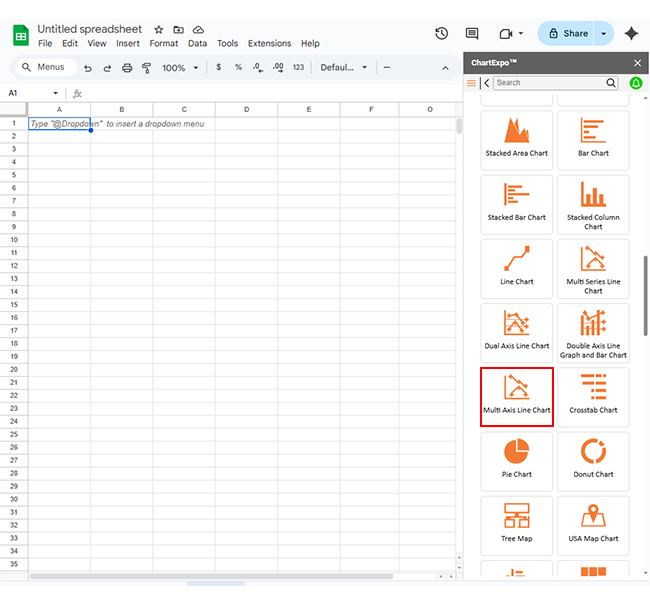
How to Install ChartExpo in Google Sheets?
ChartExpo charts are available both in Google Sheets and Microsoft Excel. Please use the following CTAs to install the tool of your choice and create beautiful visualizations in a few clicks in your favorite tool.
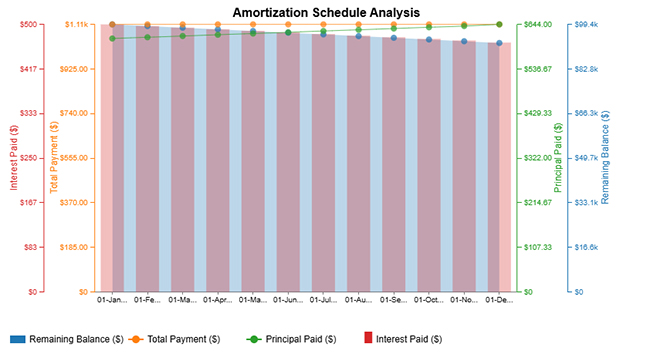
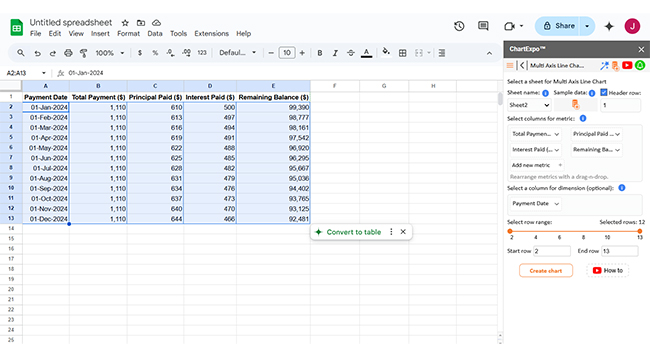
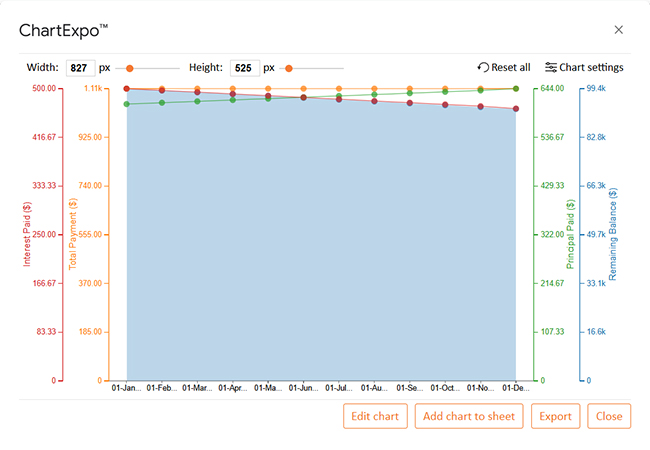
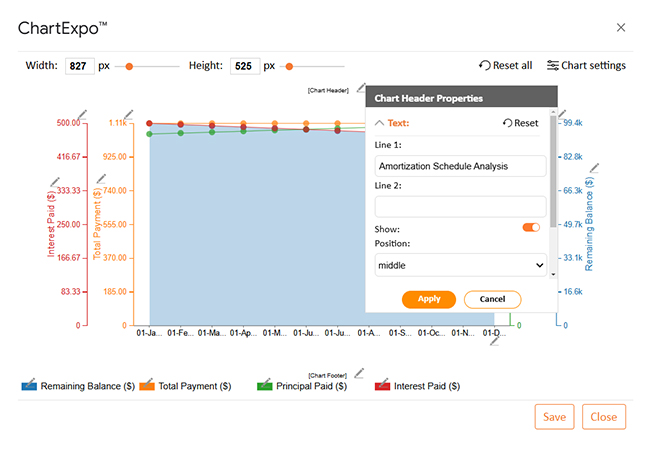
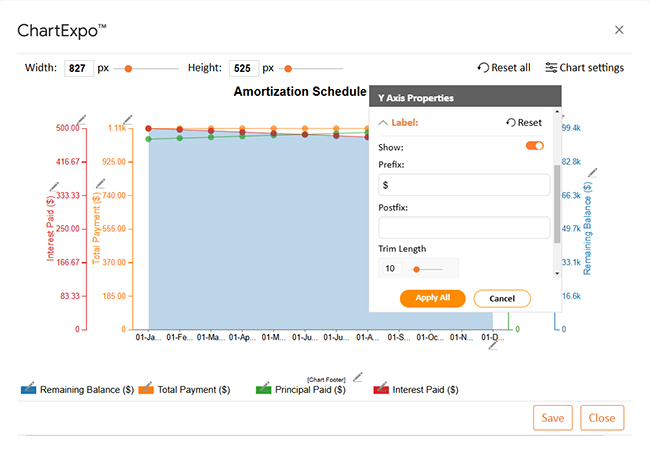
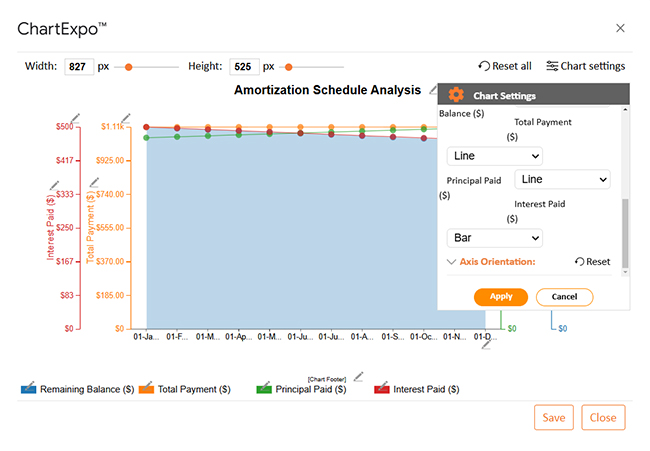
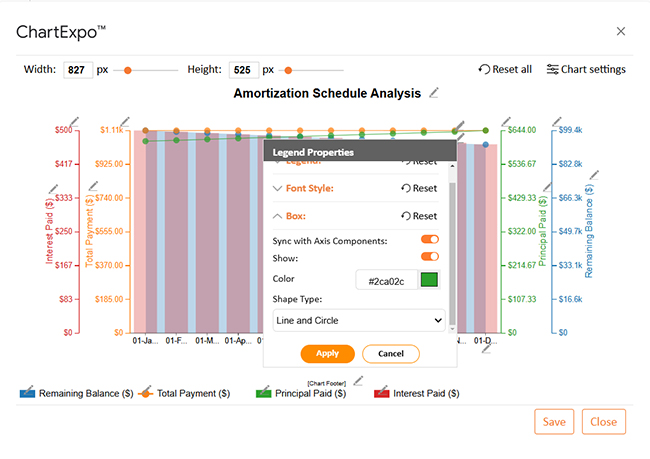
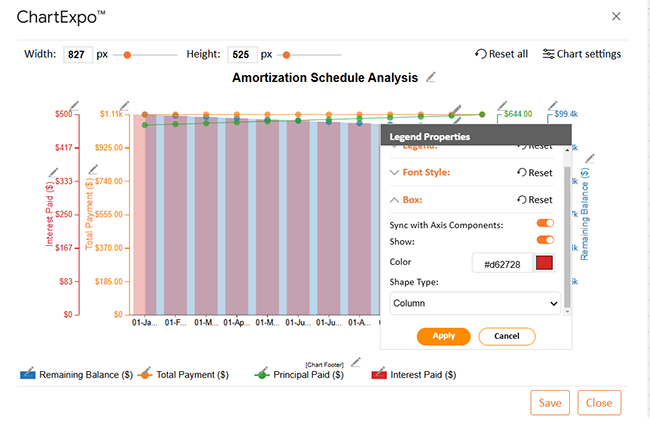
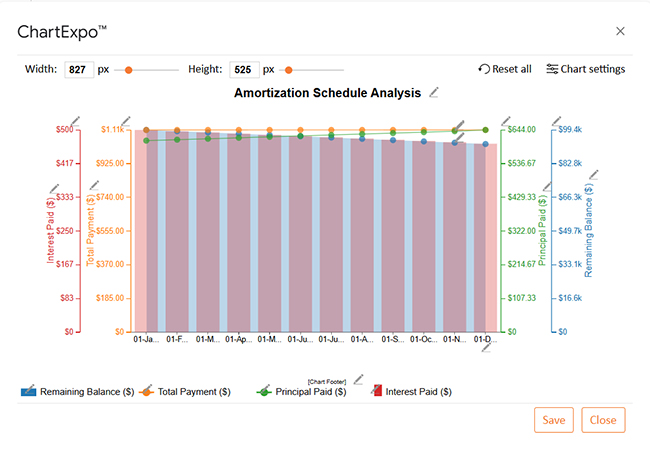
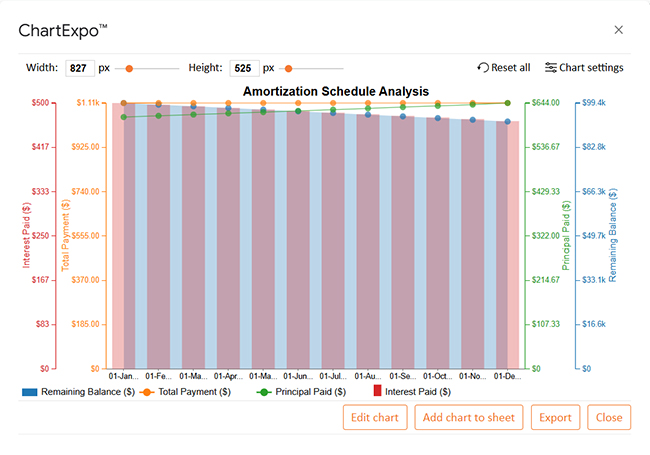
Let’s visualize and analyze this sample data in Google Sheets using ChartExpo.
| Payment Date | Total Payment ($) | Principal Paid ($) | Interest Paid ($) | Remaining Balance ($) |
| 01-Jan-2024 | 1,110 | 610 | 500 | 99,390 |
| 01-Feb-2024 | 1,110 | 613 | 497 | 98,777 |
| 01-Mar-2024 | 1,110 | 616 | 494 | 98,161 |
| 01-Apr-2024 | 1,110 | 619 | 491 | 97,542 |
| 01-May-2024 | 1,110 | 622 | 488 | 96,920 |
| 01-Jun-2024 | 1,110 | 625 | 485 | 96,295 |
| 01-Jul-2024 | 1,110 | 628 | 482 | 95,667 |
| 01-Aug-2024 | 1,110 | 631 | 479 | 95,036 |
| 01-Sep-2024 | 1,110 | 634 | 476 | 94,402 |
| 01-Oct-2024 | 1,110 | 637 | 473 | 93,765 |
| 01-Nov-2024 | 1,110 | 640 | 470 | 93,125 |
| 01-Dec-2024 | 1,110 | 644 | 466 | 92,481 |
Will importing XML into Google Sheets always work? Not quite. While it’s powerful, this tool comes with its quirks. Sometimes, it surprises you — and not always in a good way. Here’s what you need to watch out for before making it part of your daily Google Spreadsheet integration:
Yes, you can import XML into Google Sheets. Use the IMPORTXML function. It pulls data from a URL. Google Sheets doesn’t support direct XML file uploads. So, convert XML to CSV if needed.
IMPORTXML in Google Sheets is a powerful tool. It allows you to extract data from structured web pages. This includes data from XML, HTML, and RSS feeds. You need a proper URL and XPath query. It’s simple but effective.
This function saves time. Instead of copying data manually, it updates automatically. It helps you stay current – Perfect for price tracking, SEO, or news. You can use this function with IMPORTRANGE in Google Sheets. This allows you to combine data from other spreadsheets. Use both to build dynamic dashboards.
When switching platforms, it’s important to learn how to convert an Excel file to a Google Sheets file well. Don’t worry; I have simplified it for you. Just upload your Excel file to Google Drive. Then open it with Google Sheets. Now you can use all the functions, such as IMPORTXML.
Want to rearrange your data after import? Use Google Sheets transpose. It switches rows into columns. Or columns into rows. This helps when organizing large data sets.
Google Sheets is powerful. With IMPORTXML, TRANSPOSE, and IMPORTRANGE, you gain flexibility. To enhance your visuals, install ChartExpo. ChartExpo will provide you with eye-catching, insightful data visualizations for easy and impactful data analysis.
How much did you enjoy this article?



SUMPRODUCT in Google Sheets handles multi-condition calculations without extra columns. Master its syntax, uses, and errors. Read on!
An annual budget template in Google Sheets organizes your yearly finances, tracks every dollar, and reveals spending patterns. Read on!

Learn the best graph to show profit and loss with practical examples and use cases. Discover how to visualize your business data, track trends, and make smarter financial decisions.