• Home
  • Tools dropdown img
    • Spreadsheet Charts

      • ChartExpo for Google Sheets
      • ChartExpo for Microsoft Excel
    • Power BI Charts

      • Power BI Custom Visuals by ChartExpo
    • Word Cloud

  • Charts dropdown img
    • Chart Category

      • Bar Charts
      • Circle Graphs
      • Column Charts
      • Combo Charts
      • Comparison Charts
      • Line Graphs
      • PPC Charts
      • Sentiment Analysis Charts
      • Survey Charts
    • Chart Type

      • Box and Whisker Plot
      • Clustered Bar Chart
      • Clustered Column Chart
      • Comparison Bar Chart
      • Control Chart
      • CSAT Survey Bar Chart
      • CSAT Survey Chart
      • Dot Plot Chart
      • Double Bar Graph
      • Funnel Chart
      • Gauge Chart
      • Likert Scale Chart
      • Matrix Chart
      • Multi Axis Line Chart
      • Overlapping Bar Chart
      • Pareto Chart
      • Radar Chart
      • Radial Bar Chart
      • Sankey Diagram
      • Scatter Plot Chart
      • Slope Chart
      • Sunburst Chart
      • Tornado Chart
      • Waterfall Chart
      • Word Cloud
    • Google Sheets
      Microsoft Excel
  • Services
  • Pricing
  • Contact us
  • Blog
  • Support dropdown img
      • Gallery
      • Videos
      • Contact us
      • FAQs
      • Resources
    • Please feel free to contact us

      atsupport@chartexpo.com

Categories
All Data Visualizations Data Analytics Surveys
Add-ons/
  • Google Sheets
  • Microsoft Excel
  • Power BI
All Data Visualizations Data Analytics Surveys
Add-ons
  • Google Sheets
  • Microsoft Excel
  • Power BI

We use cookies

This website uses cookies to provide better user experience and user's session management.
By continuing visiting this website you consent the use of these cookies.

Ok

ChartExpo Survey


Home > Blog > Microsoft Excel

How to Create a Clustered Column Chart in Excel?

Comparing multiple data points across categories can quickly become confusing when the data grows.

A Clustered Column chart in Excel solves this by organizing related values into grouped vertical columns, making side-by-side comparisons clear and easy to interpret.
how to create a clustered column chart in excel

Each category is displayed along a shared axis, while multiple metrics are presented as separate columns within the same group.

This structure helps you quickly identify differences, patterns, and performance gaps without scanning raw data.

While Excel supports basic column charts, creating a well-structured Excel Clustered Column chart that clearly highlights insights often requires careful setup and formatting.

In many cases, users rely on additional tools to improve clarity and build more advanced, comparison-focused visuals.

In this guide, you’ll learn when to use this chart, how to create it correctly, and how to turn it into a clear decision-making tool rather than just a visual.

What is a Clustered Column Chart in Excel?

Definition: A Clustered Column chart in Excel is a visual used to compare multiple data series across categories by displaying vertical bars grouped side by side.

Each cluster represents a category (such as time periods, products, or regions), while each column within the cluster represents a different data series.

This structure makes it easy to compare values across multiple variables within the same category.

For example, if you want to compare product sales across different quarters, each quarter appears as a cluster, and each column within that cluster represents a product’s performance.

The vertical (Y) axis shows the value scale, while the horizontal (X) axis displays categories. Since all series share the same axis, comparisons are clear and consistent.

Key Features of a Clustered Column Chart in Excel

1. Grouped Columns for Each Category

Each category is represented as a cluster of vertical bars placed next to each other.

  • Every bar within the cluster represents a different data series
  • All bars share the same baseline, making comparisons straightforward

This grouping allows you to quickly compare multiple values within a single category.

2. Shared Category Axis (X-Axis)

All clusters are aligned along a common horizontal axis.

  • Categories such as months, products, or regions appear on the X-axis
  • Each cluster corresponds to one category

This ensures consistency and makes it easy to scan across categories without confusion.

3. Common Value Axis (Y-Axis)

All data series use the same vertical axis for values.

  • The Y-axis represents numerical values (e.g., sales, revenue, units)
  • Since all columns share the same scale, comparisons remain accurate

This feature prevents misinterpretation that can occur with multiple axes.

4. Multiple Data Series in One Chart

A Clustered Column chart supports multiple data series within the same visualization.

  • Each series is represented by a different color
  • Allows comparison of multiple metrics at once

This makes it useful for analyzing relationships between variables without switching charts.

5. Clear Visual Separation Between Series

Each data series is visually separated using spacing and color.

  • Bars are placed side by side, not stacked
  • This keeps individual values distinct and easy to compare

It helps users focus on differences rather than totals.

Practical Use Cases of a Clustered Column Chart in Excel

1. Sales Performance Comparison by Product and Month

A Clustered Column chart in Excel is ideal when you need to compare how multiple products perform across the same time periods.

Real-life use case:

A retail business tracks monthly sales for Product A, Product B, and Product C. Each month appears as a cluster, and each product is shown as a separate column within that cluster.

What your image should show:

Months on the X-axis and grouped columns for each product within every month.

Key Insight:

You can instantly identify which product is consistently leading, which one is declining, and where performance gaps exist without reviewing detailed reports.

2. Regional Revenue Comparison Across Quarters

This chart is highly effective for comparing performance across regions within the same timeframe.

Real-life use case:

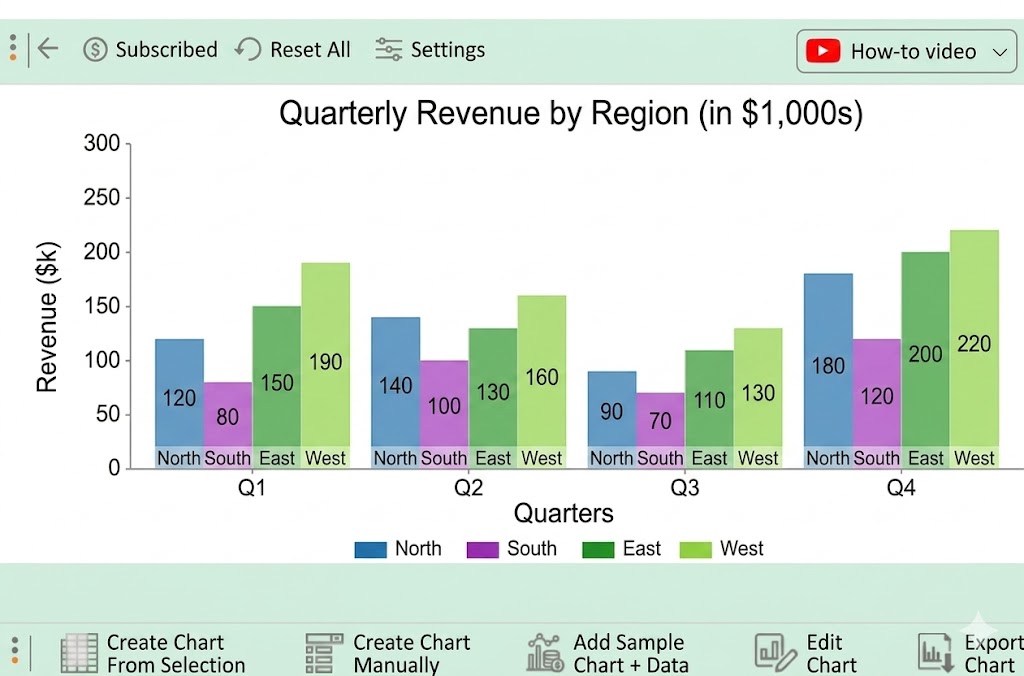
A company analyzes quarterly revenue from North, South, East, and West regions to evaluate which region contributes the most in each quarter.

What your image should show:

Quarters are clusters and regions as grouped columns within each quarter.

Key Insight:

It helps decision-makers quickly spot strong and weak regions, making it easier to adjust sales strategies or reallocate budgets.
Regional Revenue Comparison

3. Product Orders Analysis Across Quarters

An Excel Clustered Column chart is highly effective for comparing product performance across multiple time periods, especially when multiple categories are involved.

Real-life use case:

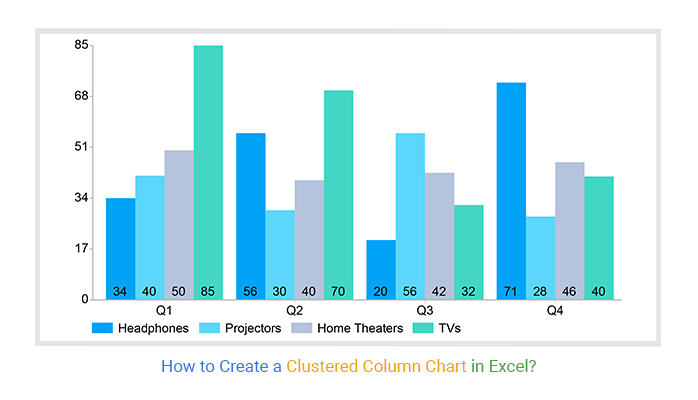
A business tracks quarterly orders for different product categories such as Headphones, Projectors, Home Theaters, and TVs.

Each quarter (Q1–Q4) forms a cluster, and each product category is represented as a separate column within that cluster.

Key Insight:

This type of chart makes it easy to compare product demand across quarters and quickly identify:

  • Top-performing products
  • Seasonal trends
  • Underperforming categories

It helps businesses make decisions like inventory planning, marketing focus, and product prioritization without analyzing raw tables.

how to make a clustered column chart in excel

How to Make a Clustered Column Chart in Excel?

Step 1: Prepare Your Data Properly

Organize your dataset in a tabular format:

  • First column → Categories (e.g., Months, Quarters, Regions)
  • Next columns → Data series (e.g., Products, Channels, Metrics)

Make sure:

  • No empty rows or columns
  • Headers are clear and descriptive
  • Values are consistent (numbers, not text)

Step 2: Select the Data Range

  • Highlight the entire dataset, including headers.

This ensures Excel correctly identifies:

  • Categories (X-axis)
  • Data series (grouped columns)
create Grouped Column Chart in excel

Step 3: Insert the Clustered Column Chart in Excel

Go to:

  • Insert → Column or Bar Chart → Clustered Column
  • Excel will automatically generate a chart with grouped vertical columns.

Step 4: Verify Chart Structure (Important Step)

Check if the chart is correctly plotted:

  • X-axis → Categories (e.g., Q1, Q2, Q3)
  • Columns → Different data series
  • Legend → Represents each series clearly

If needed, use “Switch Row/Column” to fix orientation.

Step 5: Add Chart Elements for Clarity

Enhance readability by adding:

  • Chart Title (clear and specific)
  • Axis Titles (with units if needed)
  • Data Labels (for key values)

This makes the chart easier to understand without extra explanation.

Step 6: Format for Better Comparison

Improve visual clarity:

  • Use consistent colors for each series
  • Avoid too many colors
  • Adjust gap width for better spacing
  • Sort the data if the comparison is unclear

Step 7: Enhance Insights with Advanced Visualization

For more complex comparisons or large datasets, you can use tools like ChartExpo to create a more structured and visually refined Excel Clustered Column chart.

Step 8: Validate and Finalize

Before using the chart:

  • Double-check data accuracy
  • Ensure the chart answers a clear question
  • Confirm it highlights comparison (not just display)
how to design a clustered column chart in excel

Video Tutorial: How to Create a Clustered Column Chart in Excel?

When Should You Create an Excel Clustered Column Chart

Use an Excel Clustered Column chart when your goal is to compare multiple data series across the same categories in a clear and structured way.

1. When comparing multiple metrics within the same category

Use it when each category contains more than one variable that needs side-by-side comparison.

Example: Sales of multiple products across the same months.

2. When differences between values need to be clearly visible

Clustered columns make it easy to spot which value is higher or lower within each group.

3. When categories share equal importance

These Excel charts work best when all categories are compared equally rather than combined into a total.

4. When presenting data to decision-makers

It provides a quick visual comparison without requiring deep analysis, making it ideal for reports and dashboards.

When NOT to Use an Excel Clustered Column Chart in Excel

Avoid using an Excel Clustered Column chart when the data requires a different type of interpretation.

1. When showing part-to-whole relationships

If your goal is to show how values contribute to a total, use a stacked chart instead.

2. When dealing with too many categories

Too many clusters make the chart crowded and difficult to read.

3. When analyzing trends over time

Line charts are better for showing continuous trends and patterns.

4. When comparing complex relationships

If you need to analyze correlations or interactions between variables, use Scatter plots or other analytical visuals.

Pros and Cons of Clustered Column Chart in Excel

Pros

1. Clear Side-by-Side Comparison

  • Displays multiple data series next to each other within the same category
  • Makes it easy to identify which value is higher or lower

Useful when comparing products, regions, or time periods.

2. Easy to Understand

  • Simple vertical bar layout
  • No technical interpretation required

Works well for reports shared with non-technical stakeholders.

3. Accurate Comparison Using a Single Scale

  • All columns share the same Y-axis
  • Prevents distortion caused by multiple scales

Ensures fair and consistent comparison across all values.

4. Works Well in Excel Dashboards

  • Compatible with pivot tables, slicers, and filters
  • Updates dynamically with changing data

Commonly used in sales, marketing, and performance dashboards.

5. Flexible for Multiple Data Series

  • Allows comparison of more than one metric in a single chart
  • Each series is clearly separated using colors

Helps reduce the need for multiple charts.

Cons

1. Becomes Cluttered with Large Data

  • Too many categories or series make the chart hard to read
  • Bars become crowded and difficult to compare

Best suited for small to medium datasets.

2. Not Suitable for Trend Analysis

  • Does not clearly show progression over time
  • Trends are harder to follow compared to line charts

Better alternatives exist for time-based analysis.

3. Limited for Part-to-Whole Analysis

  • Does not show how values contribute to a total
  • Cannot represent proportions effectively

Stacked charts are more suitable for this purpose.

4. Requires Careful Formatting

  • Poor color choices or spacing can reduce clarity
  • Default Excel formatting may not highlight insights well

Needs manual adjustments for better readability.

5. Can Overwhelm in Dense Dashboards

  • Multiple clustered charts can increase visual load
  • Reduces focus on key insights

Should be used selectively in dashboard design in Excel.

Tips for Creating a Clustered Column Chart in Excel

1. Keep the Number of Categories Limited

Avoid overcrowding your chart with too many series or groups. When you add too many categories, the visual comparison becomes harder instead of easier.

A good rule is to stick to 3–5 data series per chart. This keeps bars readable and ensures users can quickly compare values without visual fatigue.

2. Structure Your Data Before Creating the Chart

A clean data structure is often overlooked but makes a big difference in chart quality. Arrange your data in a clear table format with:

  • Categories in one column
  • Series headers in the first row
  • Consistent value formatting

Well-structured data ensures Excel automatically generates a clean clustered layout without manual fixes later.

3. Use Consistent and Meaningful Colors

Avoid random or overly bright color choices. Assign consistent colors to each data series so users can easily recognize patterns across the chart.

For example:

  • Sales = Blue
  • Profit = Green
  • Cost = Red

Consistency across reports also improves dashboard readability and reduces cognitive load for users.

4. Sort Data for Better Visual Flow

The order of categories affects how quickly users understand the chart. Instead of leaving data unsorted, arrange it in a meaningful way, such as:

  • Highest to lowest values
  • Chronological order for time-based data
  • Logical business sequence (e.g., product lifecycle)

This small step often improves clarity more than any formatting change.

5. Avoid Overusing Gridlines and Chart Clutter

Too many visual elements can distract from the actual comparison. Keep the chart clean by:

  • Reducing unnecessary gridlines
  • Removing heavy borders
  • Avoiding unnecessary data labels unless needed

A cleaner chart helps users focus on comparisons instead of design noise.

FAQs

How to Cluster Data in Excel Graph?

  • Arrange data in a table with categories in the first column and series in the top row
  • Select the full dataset, including headers
  • Go to Insert → Clustered Column Chart
  • Excel will automatically group values into clusters
  • Use Switch Row/Column if the grouping looks incorrect

How to Create a Clustered Column Chart in Excel with Non-Adjacent Ranges?

  • Hold Ctrl and select each separate data range
  • Go to Insert → Clustered Column Chart
  • Or create a helper table by combining the ranges into one structured dataset (best method)
  • Then insert the chart normally for clean results

Wrap Up

A Clustered Column chart in Excel is a simple and effective way to compare multiple data points within a limited space.

It lets you display more than one metric side by side using vertical bars, where each group shares the same category axis.

This structure makes comparisons between values quick and easy to understand.

The chart is especially useful when you want to compare performance across categories, such as sales, regions, or products.

Its straightforward layout makes it easy for users to interpret without requiring advanced analytical skills.

How much did you enjoy this article?

ExcelAd1
Start Free Trial!
121997

Related articles

next previous
Microsoft Excel10 min read

Confidence Interval Graph and How to Interpret It?

Learn what a confidence interval graph is, how to create it in Excel, and how to interpret results to make more reliable, data-driven decisions.

Microsoft Excel9 min read

Correlation Matrix in Excel for Meaningful Insights

A correlation matrix in Excel helps identify relationships between variables. Learn how to create, read, and use it for effective data analysis.


Microsoft Excel11 min read

How to Make Cool Excel Charts & Graphs?

Discover 11 cool Excel charts and graphs and learn how to turn raw data into clear insights for better analysis, reporting, and decisions.

Microsoft Excel11 min read

How to Create Control Chart in Excel?

Learn how to create a Control chart in Excel to track process stability, detect unusual variation early, and improve data-driven decision-making.

Microsoft Excel8 min read

Frequency Chart in Excel: Easy Methods Explained

Learn how to create and use frequency charts in Excel to simplify data analysis, visualize distributions, and make better business decisions with clear insights.

ChartExpo logo

Turn Data into Visual
Stories

CHARTEXPO

  • Home
  • Gallery
  • Videos
  • Services
  • Pricing
  • Contact us
  • FAQs
  • Privacy policy
  • Terms of Service
  • Sitemap

TOOLS

  • ChartExpo for Google Sheets
  • ChartExpo for Microsoft Excel
  • Power BI Custom Visuals by ChartExpo
  • Word Cloud

CATEGORIES

  • Bar Charts
  • Circle Graphs
  • Column Charts
  • Combo Charts
  • Comparison Charts
  • Line Graphs
  • PPC Charts
  • Sentiment Analysis Charts
  • Survey Charts

TOP CHARTS

  • Sankey Diagram
  • Likert Scale Chart
  • Comparison Bar Chart
  • Pareto Chart
  • Funnel Chart
  • Gauge Chart
  • Radar Chart
  • Radial Bar Chart
  • Sunburst Chart
  • see more
  • Scatter Plot Chart
  • CSAT Survey Bar Chart
  • CSAT Survey Chart
  • Dot Plot Chart
  • Double Bar Graph
  • Matrix Chart
  • Multi Axis Line Chart
  • Overlapping Bar Chart
  • Control Chart
  • Slope Chart
  • Clustered Bar Chart
  • Clustered Column Chart
  • Box and Whisker Plot
  • Tornado Chart
  • Waterfall Chart
  • Word Cloud
  • see less

RESOURCES

  • Blog
  • Resources
  • YouTube
SIGN UP FOR UPDATES

We wouldn't dream of spamming you or selling your info.

© 2026 ChartExpo, all rights reserved.