Categories

Why use Google Sheets HLOOKUP? Have you ever spent hours scrolling through rows of data? Then you know how frustrating it can be to find the right piece of information. Google Sheets HLOOKUP makes that faster—no more endless searching or wasted time.
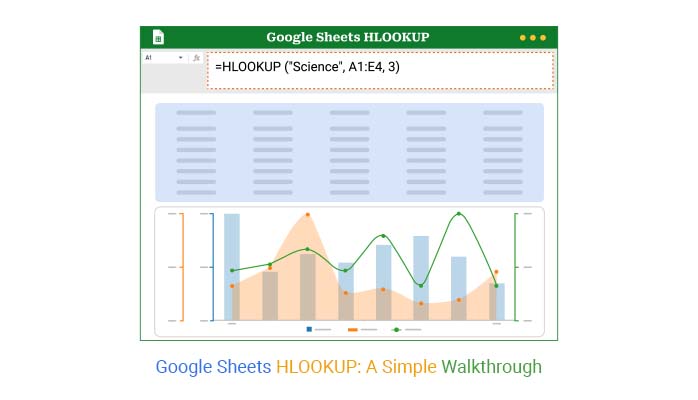


Many rely on Google Sheets to manage projects, budgets, and reports. However, raw data is meaningless if you can’t analyze it quickly. That’s where Google Sheets HLOOKUP comes in. It scans rows, finds matches, and gives you results in seconds.
With Google Sheets functionality, you don’t need to be a data scientist. You need innovative tools, and functions like HLOOKUP do the heavy lifting. They keep your data clean and easy to use.
Think about what else you can do. You can remove duplicates in Google Sheets to tidy up messy sheets. Also, you can connect data from different files with IMPORTRANGE. These features save time and prevent errors.
Data should work for you. Not the other way around. So, don’t just scroll and guess. With a simple formula, you can bring clarity to chaos. Minor tweaks lead to bigger insights.
That’s the power of innovative formulas. Let’s see what HLOOKUP can do for you.
First…
Definition: HLOOKUP in Google Sheets is a horizontal lookup function. It searches for a value in the top row of a table. Then it returns a value from a specified row below. It’s useful when your data is arranged in rows.
Unlike VLOOKUP for Google Sheets, which works vertically, HLOOKUP scans across columns. If your data is in a vertical format, use Google Sheets’ TRANSPOSE function first. This helps convert rows into columns.
HLOOKUP is great for simple row-based searches. Use it when the header row holds your lookup values. It’s a quick way to pull data from horizontal lists.
Have you ever stared at a spreadsheet so big it makes your head spin? Google Sheets HLOOKUP can fix that. It’s a small formula with significant results. Combine it with IMPORTRANGE in Google Sheets and a Scatter plot to visualize your scattered files working together.
Here’s why you need HLOOKUP.
Definition: The HLOOKUP formula in Google Sheets searches for a value in the top row of a table. Then, returns data from a specified row in the same column. To use this formula, type:
=HLOOKUP(search_key, range, row_index, [is_sorted])
Use TRUE for an approximate match or FALSE for exact. Combine it with what-if analysis in Google Sheets to test potential outcomes.
Think HLOOKUP is only for data geeks? Think again. Google Sheets HLOOKUP helps everyone, from teachers to sales managers. It’s a quick fix for messy data and wasted hours. Here’s where it shines:
Want to stop digging through rows of endless data? Google Sheets HLOOKUP makes it easy to find precisely what you need in seconds. Here’s how to start:
Data without visuals is like pizza without cheese—bland and forgettable. In data analysis, charts turn numbers into insights, and visuals like a Waterfall chart help those insights stand out. But here’s the catch: while Google Sheets gets the job done, it can feel clunky and limited when you’re aiming for truly polished, eye-catching visuals.
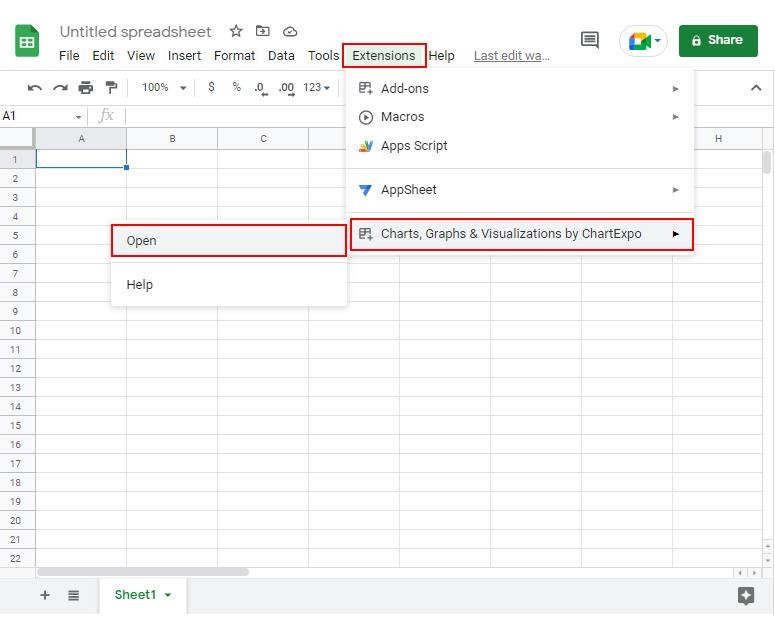
Even the smartest Google Sheets functionality, “HLOOKUP,” needs a boost sometimes, and that’s where ChartExpo steps in. ChartExpo turns dull tables into bright, clear visuals. Using ChartExpo with innovative formulas, such as HLOOKUP, makes your data do more than just sit there — it tells a story.
How to Install ChartExpo in Google Sheets?
ChartExpo charts are available both in Google Sheets and Microsoft Excel. Please use the following CTAs to install the tool of your choice and create a beautiful visualization in a few clicks in your favorite tool.
Let’s visualize and analyze this sample data in Google Sheets using ChartExpo to create clear, insightful Google Sheets charts.
| Department | Salary ($) | Bonus (%) | Overtime (hrs) |
| Management | 120000 | 7 | 100 |
| Account | 55000 | 8 | 150 |
| Production | 75000 | 10 | 300 |
| HR | 65000 | 7 | 80 |
| IT | 85000 | 12 | 90 |
| Finance | 95000 | 5 | 50 |
| Sales | 72000 | 15 | 60 |
| Operations | 42000 | 5 | 140 |
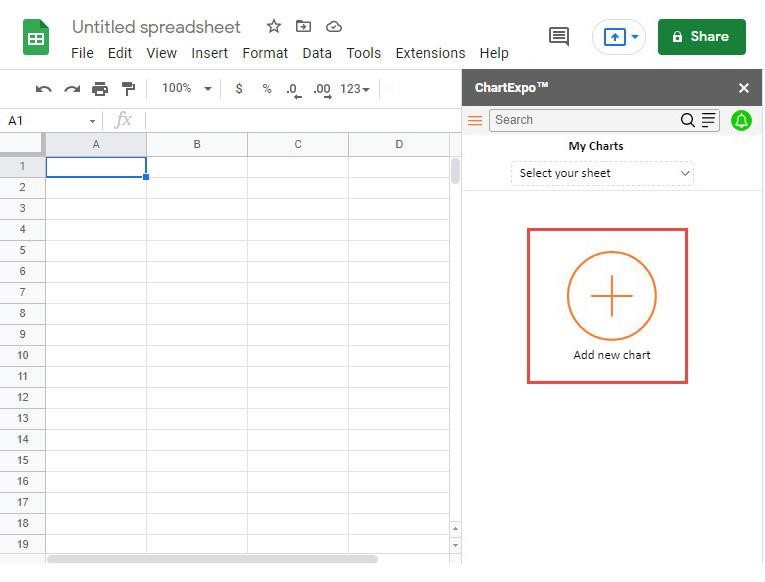
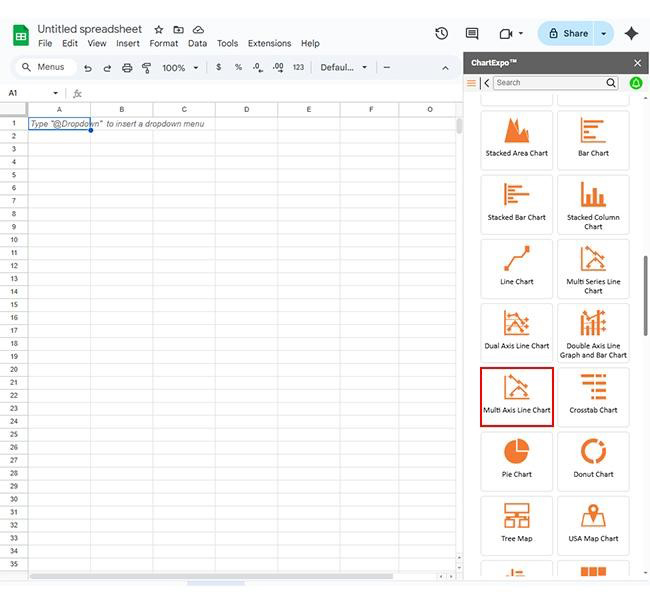
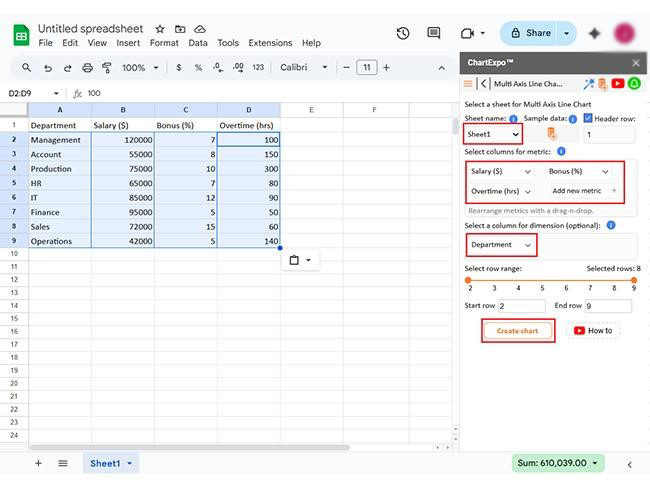
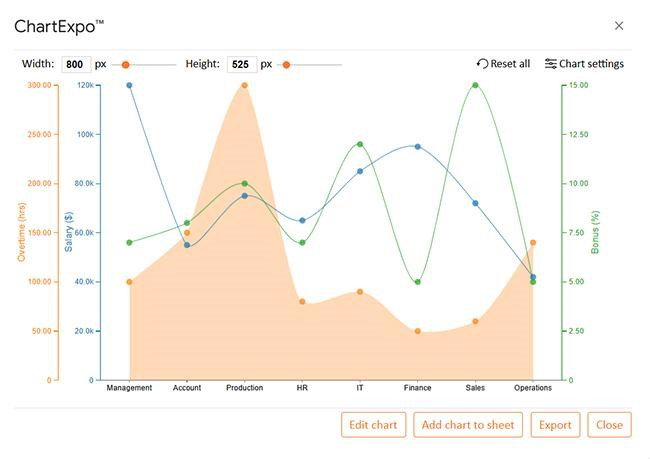
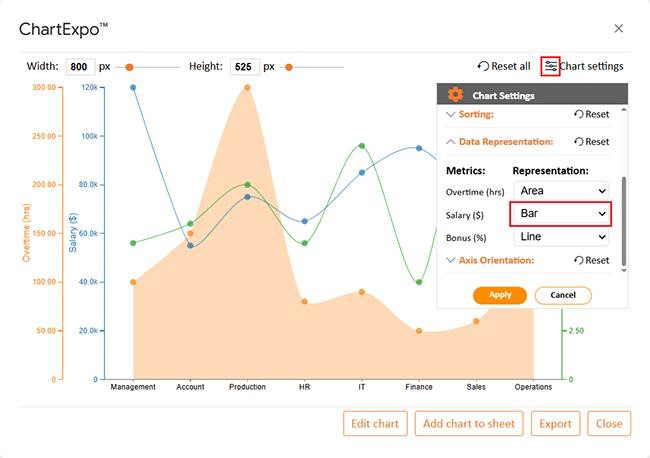
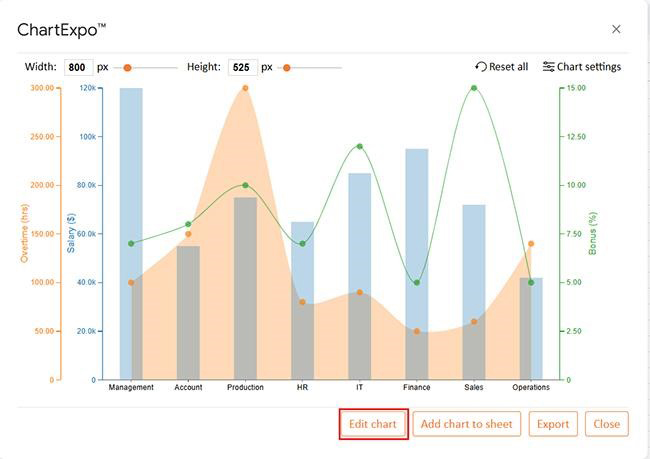
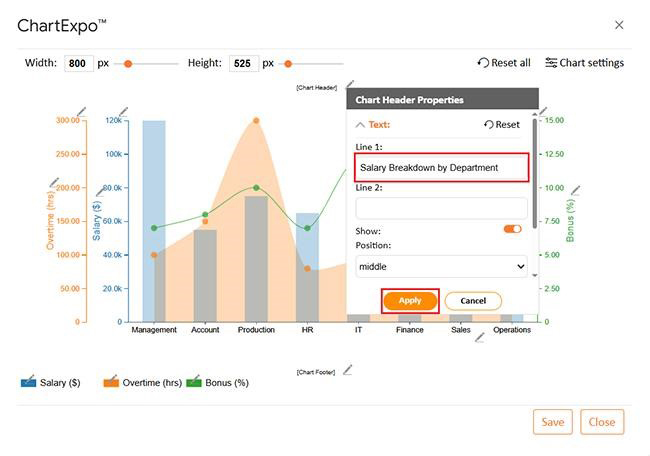
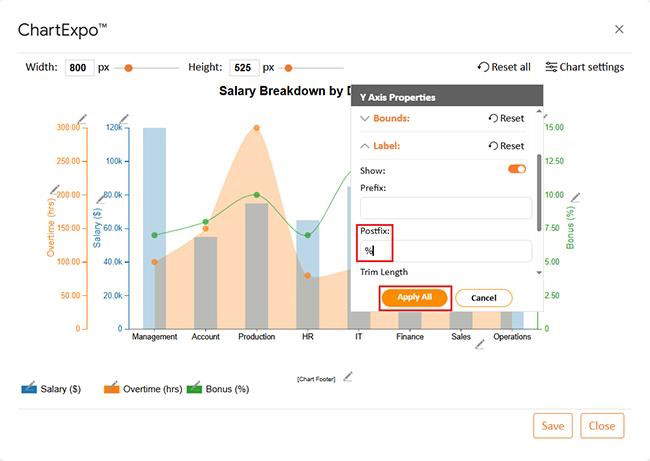
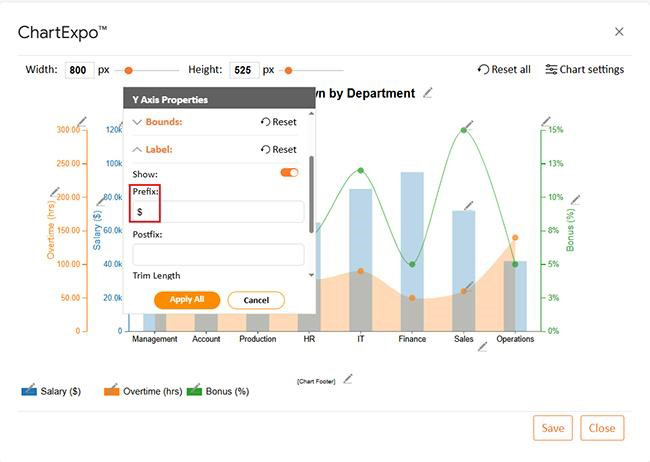
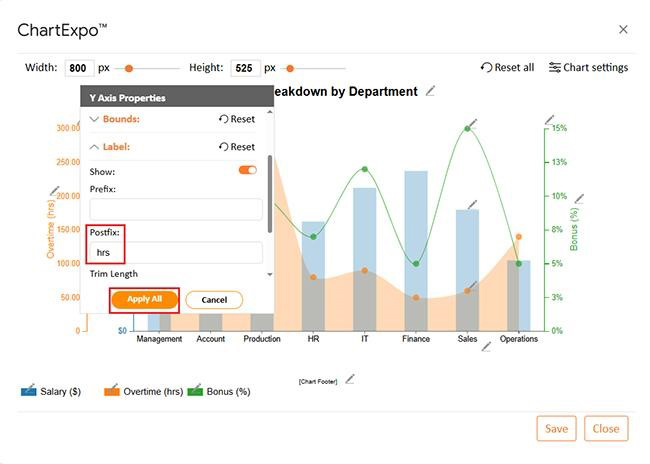
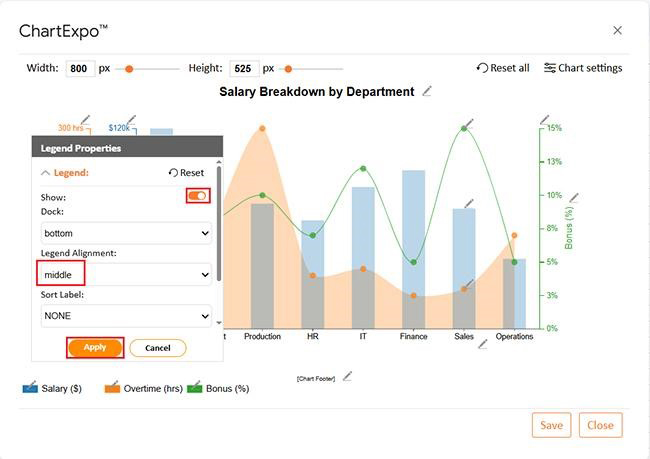
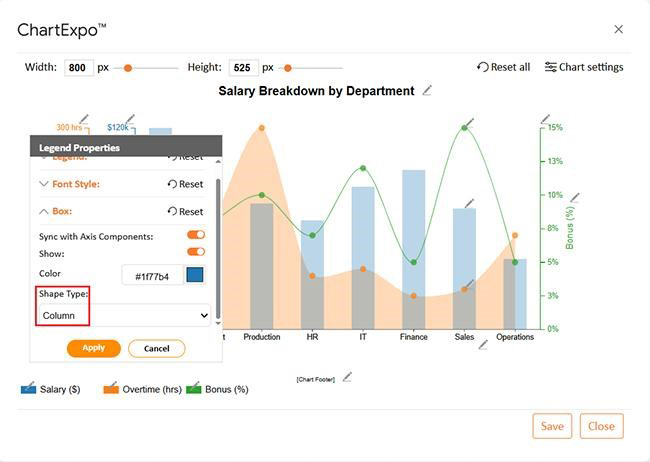
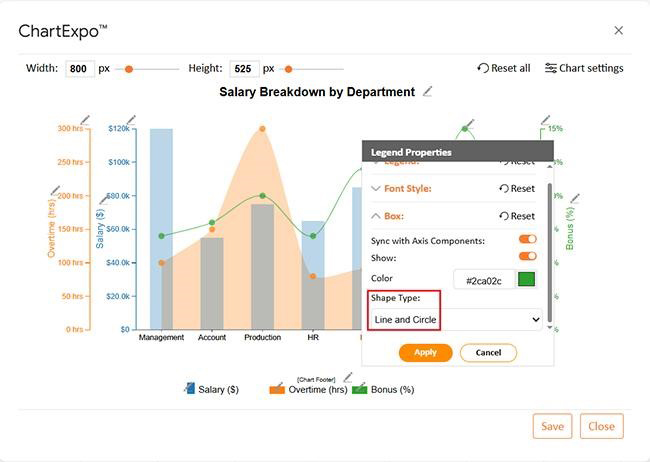
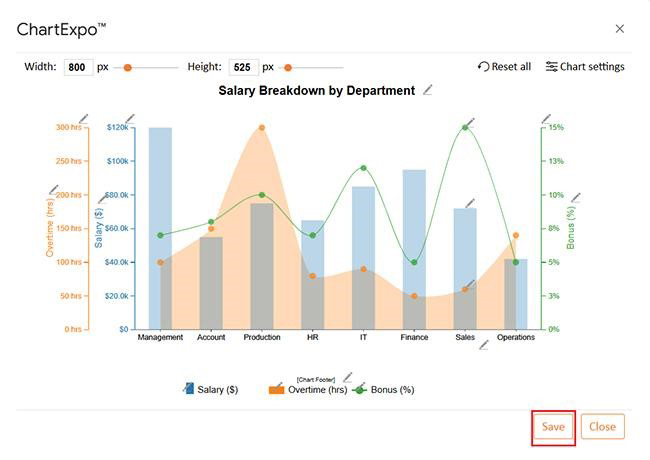
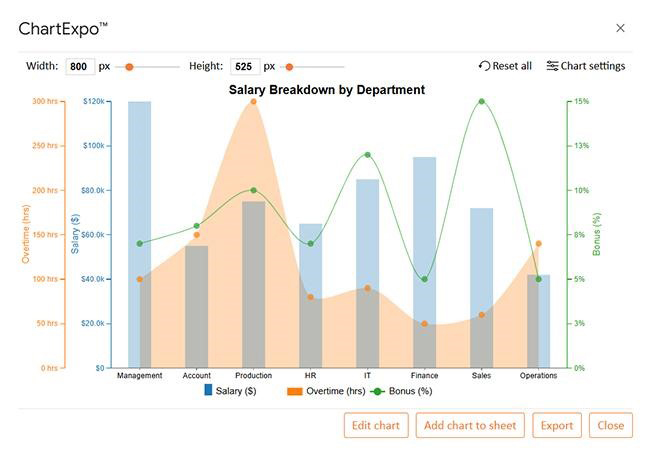
Ready to make Google Sheets HLOOKUP your secret weapon for more thoughtful analysis? Stop scrolling through endless rows and let your sheet do the heavy lifting. When you combine HLOOKUP with Google Sheets functionality, you get answers quickly and accurately. Here’s how to put it to work:
Want to make Google Sheets HLOOKUP work like a charm every time? A few smart habits can save you hours of headaches. Here’s how to get it right:
Google Sheets HLOOKUP is a handy tool, but it’s not magic. Knowing its limits saves you frustration in the long run. Pair it with VLOOKUP for Google Sheets or Google Sheets Artificial Intelligence to work around some of these gaps. Here’s what to watch out for:
VLOOKUP for Google Sheets searches columns vertically. Google Sheets HLOOKUP scans rows horizontally. Use VLOOKUP for long lists, and HLOOKUP for wide tables. Both boost Google Sheets Functionality and save time.
So, why use Google Sheets HLOOKUP? It saves time. It finds what you need fast. No more endless scrolling through rows. HLOOKUP is simple but powerful. It works best with neat, wide data. Combine it with Google Sheets transpose if your rows and columns need to be flipped.
Want to pull data from other files? Use IMPORTRANGE in Google Sheets with HLOOKUP. This dynamic combo lets you connect multiple spreadsheets and retrieve exactly what you need—no copy-paste required. This setup saves time and boosts accuracy.
Are you working with a team? Learn how to share a Google Sheet to keep everyone on the same page. Real-time access means team members can collaborate without overlap. It also reduces version confusion and helps spot errors early.
Smart sheets make smart decisions possible. HLOOKUP turns raw, scattered data into clear, actionable answers. It’s a simple function, but it can uncover patterns and trends that drive results. With the right tools, even basic spreadsheets can power serious insights.
Don’t settle for messy, slow work. Try HLOOKUP today and pair it with other innovative tools like ChartExpo. Then sit back, relax, and watch your data work for you.
How much did you enjoy this article?


SUMPRODUCT in Google Sheets handles multi-condition calculations without extra columns. Master its syntax, uses, and errors. Read on!
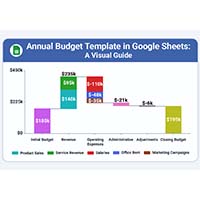
An annual budget template in Google Sheets organizes your yearly finances, tracks every dollar, and reveals spending patterns. Read on!

Learn the best graph to show profit and loss with practical examples and use cases. Discover how to visualize your business data, track trends, and make smarter financial decisions.